SSO / SAML Setup
Last updated: April 10, 2026
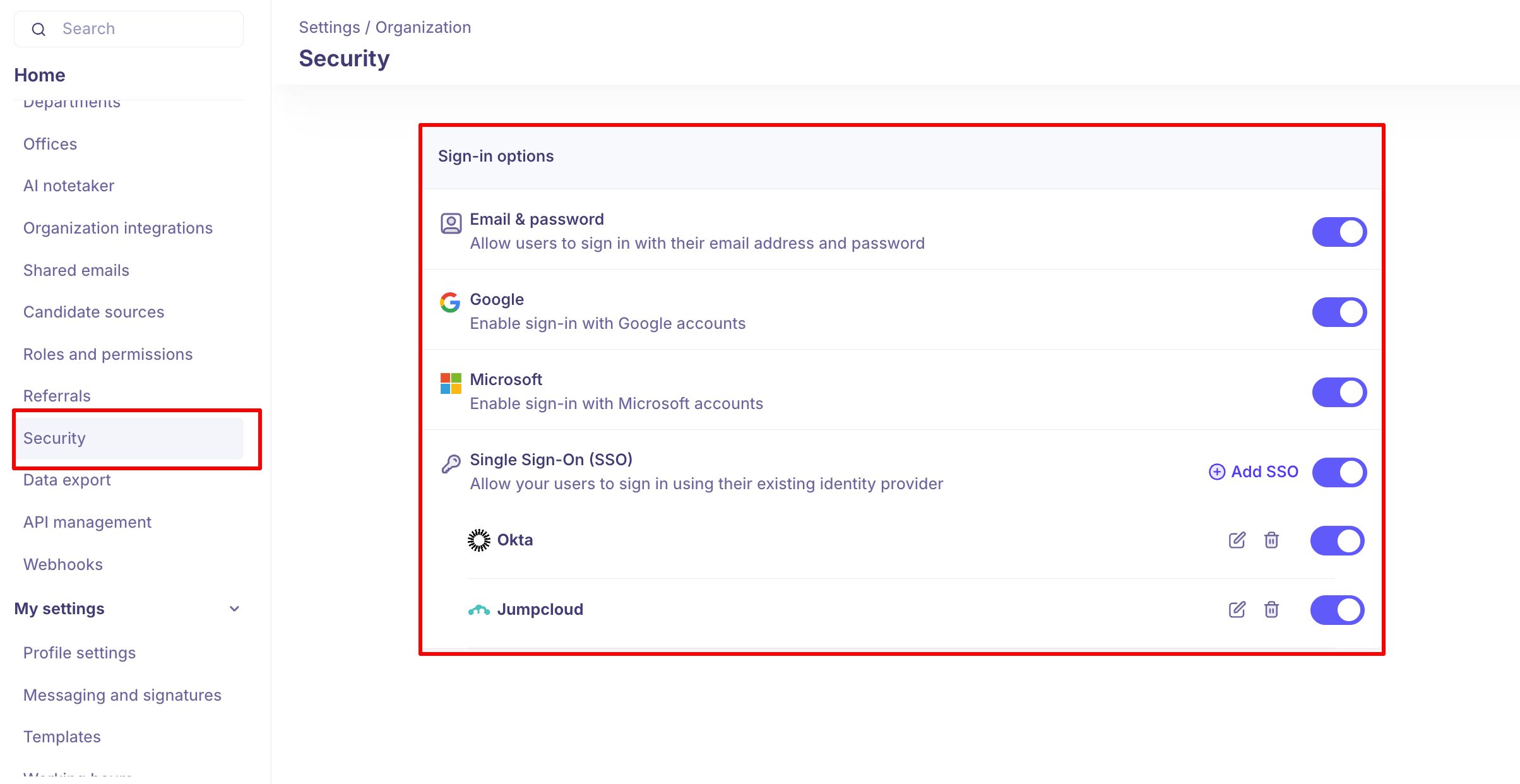
Kula supports multiple sign-in options that admins can enable or disable for their organization. This article covers how to configure each option from Settings → Organization → Security.
Sign-in Options Overview
Sign-in Method | Description |
Email & password | Users sign in with their Kula email and password |
Users sign in with their Google account | |
Microsoft | Users sign in with their Microsoft account |
Single Sign-On (SSO) | Users sign in via your organization's identity provider (e.g., Okta, JumpCloud) |
Admins can toggle each option on or off. You can enable multiple methods simultaneously.
Enabling Google or Microsoft Sign-in
Go to Settings → Organization → Security
Under Sign-in options, toggle Google or Microsoft on
Users can immediately sign in using their Google or Microsoft account
Setting Up Single Sign-On (SSO)
SSO lets your team log in using your organization's identity provider (IdP) via SAML 2.0. Kula supports Okta, JumpCloud, and any other SAML 2.0-compliant IdP.
Step 1: Add an SSO Provider
Go to Settings → Organization → Security
Under Single Sign-On (SSO), click + Add SSO
Select your provider or choose Custom SAML
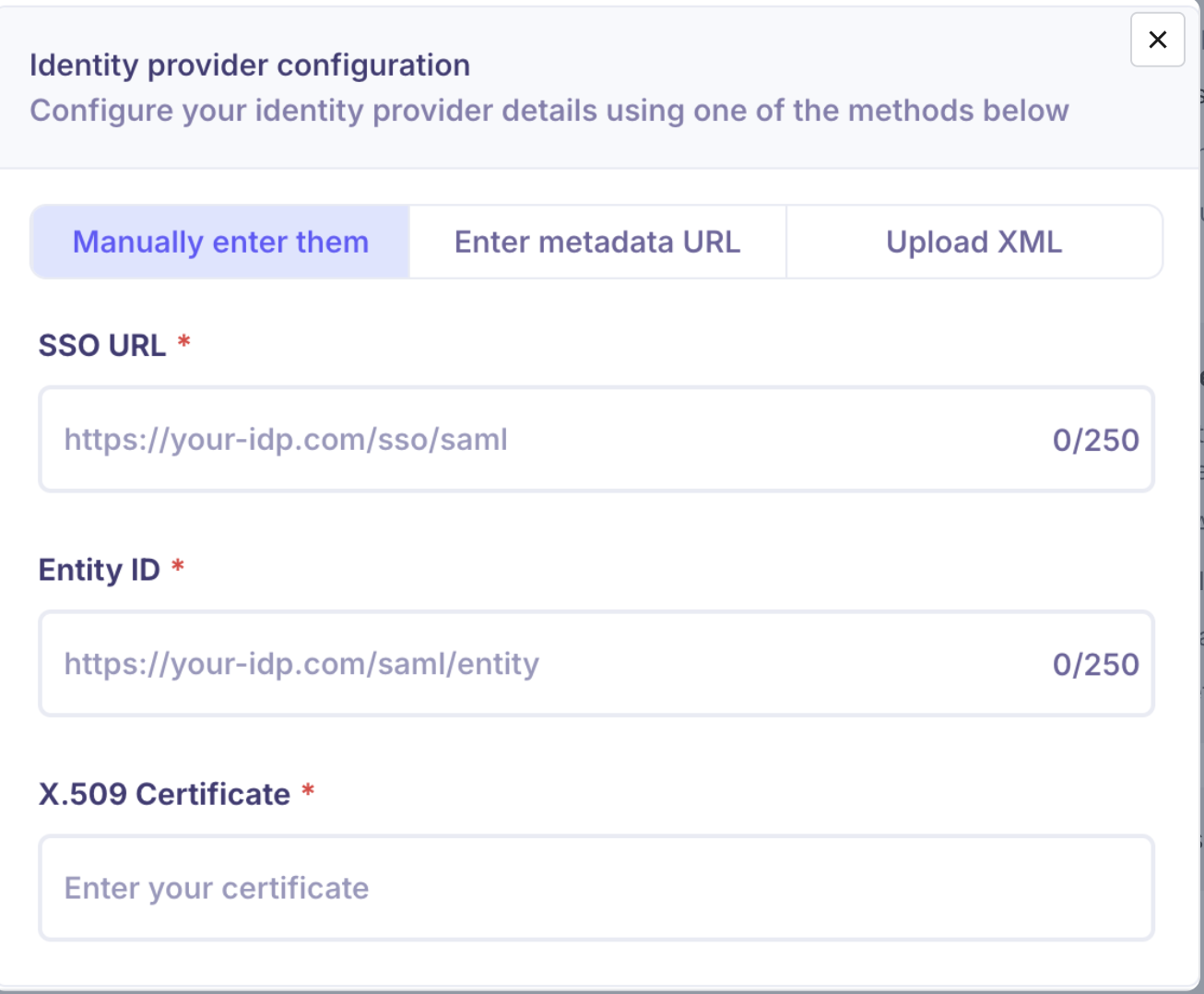
Step 2: Enter Your IdP Details
Fill in the following using values from your IdP admin console:
Field | Where to find it |
Identity Provider SSO URL | Your IdP's login/redirect URL |
Entity ID / Issuer | Unique identifier from your IdP |
X.509 Certificate | PEM certificate — must include |
Step 3: Save and Activate
Click Save
Click Test Connection to verify the setup
Toggle the SSO provider on once the test passes
Provider-Specific Setup
Okta
SSO Setup
In Okta Admin Console: Applications → Create App Integration → SAML 2.0
Set the ACS URL and Audience URI (Entity ID) to the values Kula provides
Set Name ID format to
EmailAddress, Application username toEmailDownload the metadata XML from Okta
In Kula, paste or upload the metadata under + Add SSO → Okta
SCIM Provisioning (optional)
Automatically add and remove users in Kula when they're added or removed in Okta.
In Kula, go to Settings → SCIM → generate a SCIM Token
In your Okta SAML app, open Provisioning → Enable API Integration
Enter:
SCIM Base URL:
https://api.kula.ai/api/saml/scimBearer Token: the token from Kula
Enable Create, Update, and Deactivate user operations
JumpCloud
SSO Setup
In JumpCloud Admin Portal: SSO → Add New Application → Custom SAML App
Set the SP Entity ID and ACS URL to the values Kula provides
Set SAML Subject to email address
Download the metadata XML from JumpCloud
In Kula, upload or paste the metadata under + Add SSO → JumpCloud
Assign users to the SAML app inside JumpCloud
SCIM Provisioning (optional)
SCIM availability depends on your JumpCloud plan.
In Kula, go to Settings → SCIM → generate a SCIM Bearer Token
In JumpCloud, enter:
SCIM Base URL:
https://api.kula.ai/api/saml/scimBearer Token: the token from Kula
Contact JumpCloud support if SCIM is not available on your current plan.
Managing SSO Providers
From Settings → Organization → Security, you can:
Edit a provider — click the pencil icon next to the provider name
Delete a provider — click the trash icon
Enable / Disable a provider — use the toggle without deleting the configuration
Troubleshooting
Problem | Resolution |
SSO login fails | Verify ACS URL and Entity ID match exactly between Kula and your IdP |
Certificate error | Ensure the certificate is PEM format with proper |
Users not redirected correctly | Check that the correct SSO provider is toggled on in Kula |
SCIM not syncing | Confirm the Bearer Token is correct and test the connection in your IdP |
JumpCloud "Login Failed" | Check that the certificate hasn't expired and the user is assigned to the app |
FAQs
Q: Can I enable multiple SSO providers at the same time?
Yes. You can add and enable Okta and JumpCloud simultaneously.
Q: Can I keep email/password login enabled alongside SSO?
Yes, but this is not recommended for production. For maximum security, disable email/password login once SSO is configured.
Q: Do I need to verify my domain to set up SSO?
No. Kula uses manual metadata configuration, so domain verification is not required.
Q: Who can configure SSO?
Only Org Admins can add, edit, or remove SSO providers.
Q: What happens if I delete an SSO provider?
Users who rely on that provider will lose SSO access. Ensure an alternative sign-in method is available before deleting.
Need help?
Contact Kula Support via in-app chat or email support@kula.ai.