Add and Manage Offer fields
Last updated: March 2, 2026
The Offer Fields page allows you to fully configure how offer forms behave — including approvals, visibility, defaults, and layout.
Navigate to Settings → Custom Fields → Offer Fields
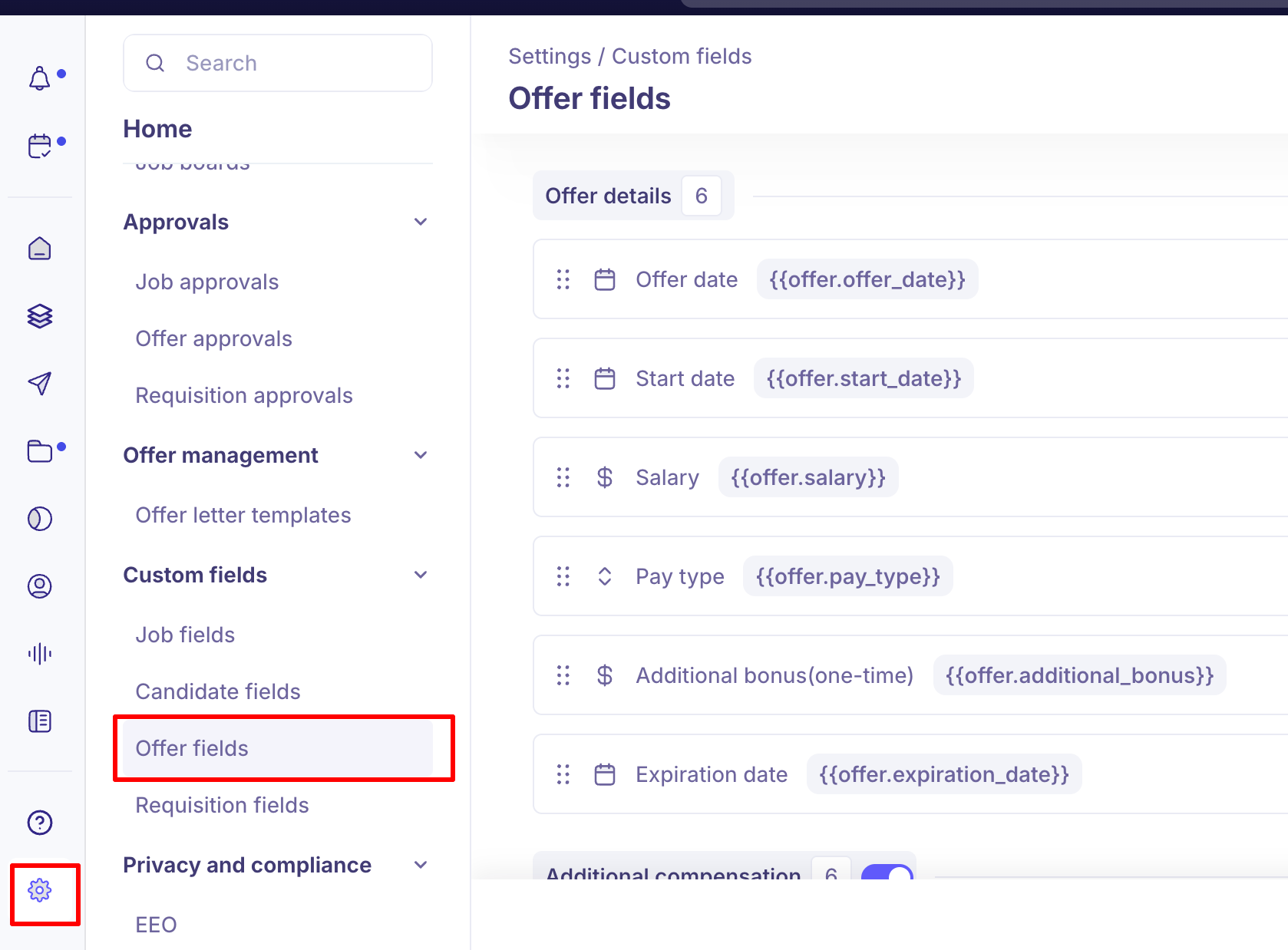
The Offer Fields page contains both default fields and custom fields that determine how your offer form is structured.
Default fields
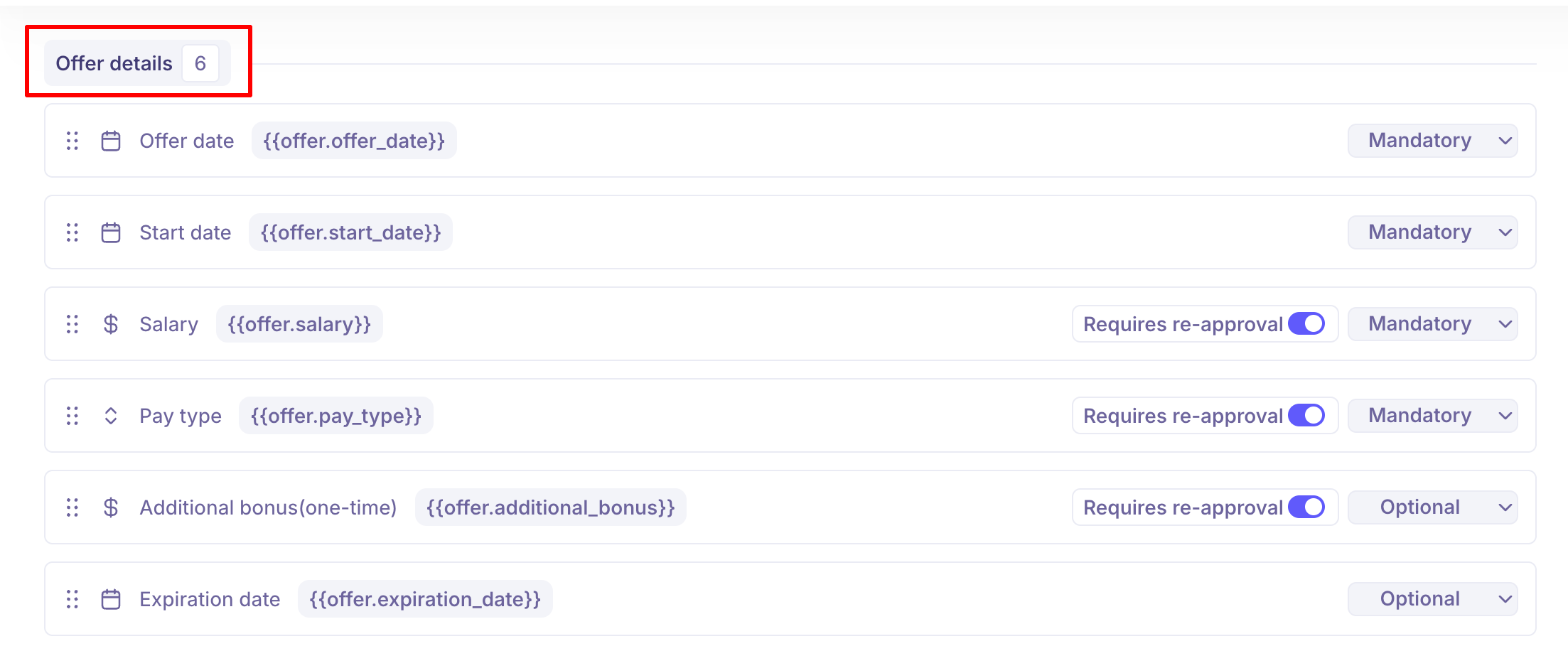
The system comes with predefined default fields grouped into four sections. These fields cannot be deleted but can be configured.
Offer Details: This section captures core offer information - Offer Date, Start Date, Salary, Pay Type, Additional bonus (one-time), Expiration date.
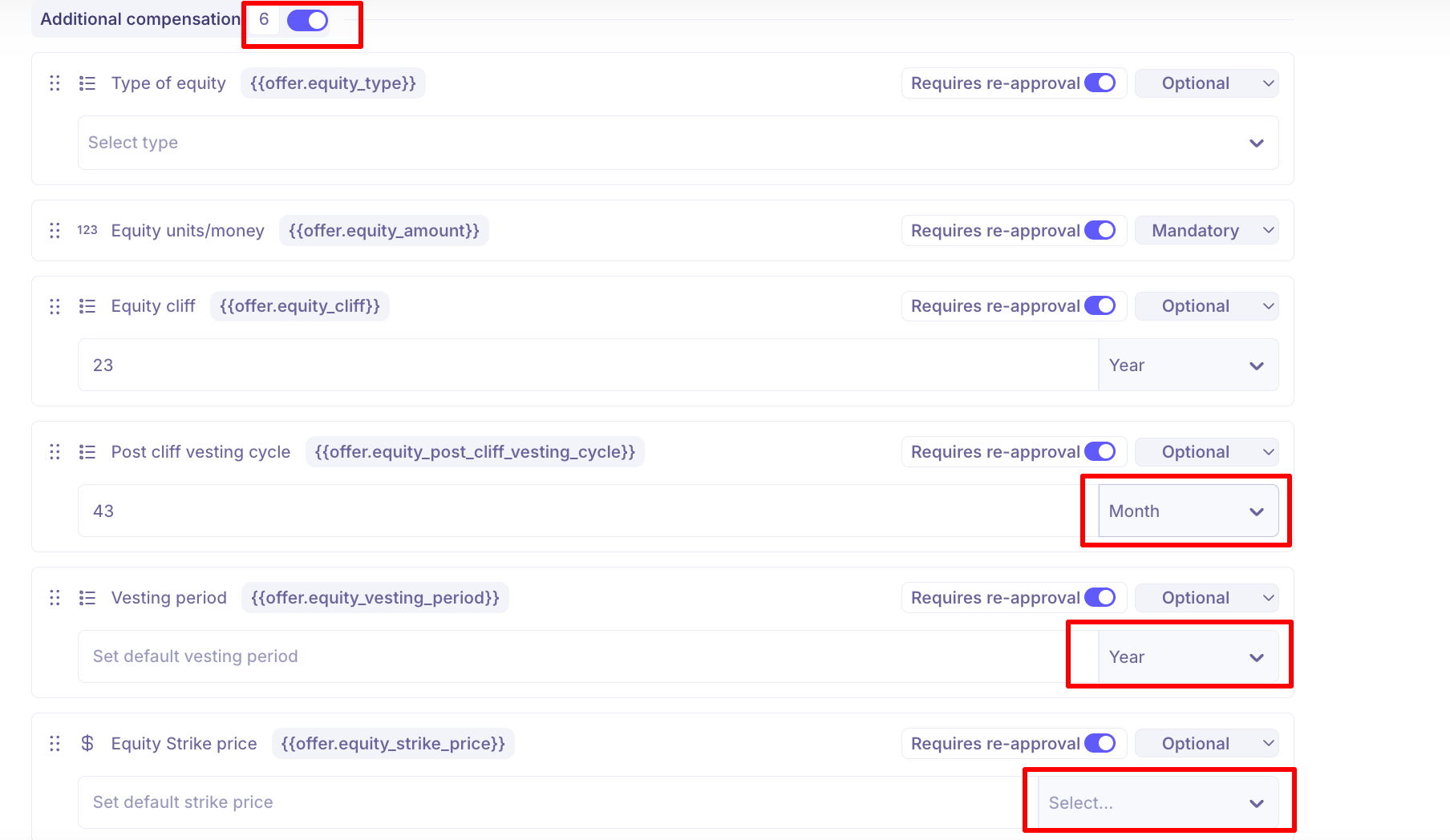
Additional Compensation: You can enable or disable this entire section using the toggle. This section manages equity-related compensation
Type of equity - Common Stock, Preferred Stock, Restricted Stock, Stock Option.
Equity units/money.
Equity cliff - You can enter the value and configure it for Month, Quarter or Year.
Post cliff vesting cycle - Set Default vesting cycle and configure it for Month, Quarter or Year.
Post cliff vesting cycle - Set default Post cliff vesting cycle and configure it for Month, Quarter or Year.
Vesting period - Set default vesting Period and configure it for Month, Quarter or Year.
Equity strike price - Set the default strike price and select the currency.
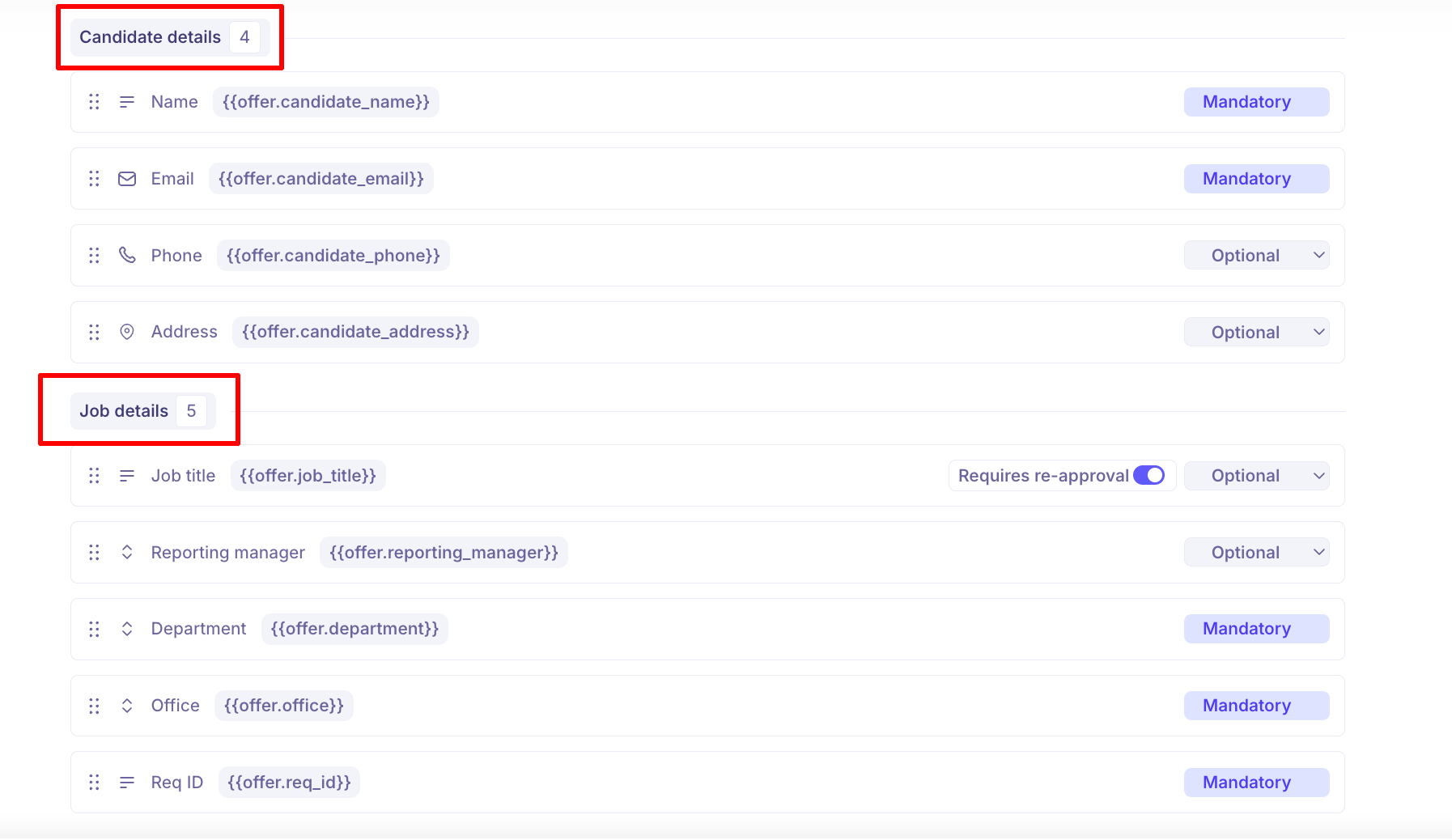
Candidate Details - This includes candidate details such as Name, Email, Phone, Address.
Job Details - This include Job related details such as job title, Reporting manager, Department, Office, Req ID
Custom fields
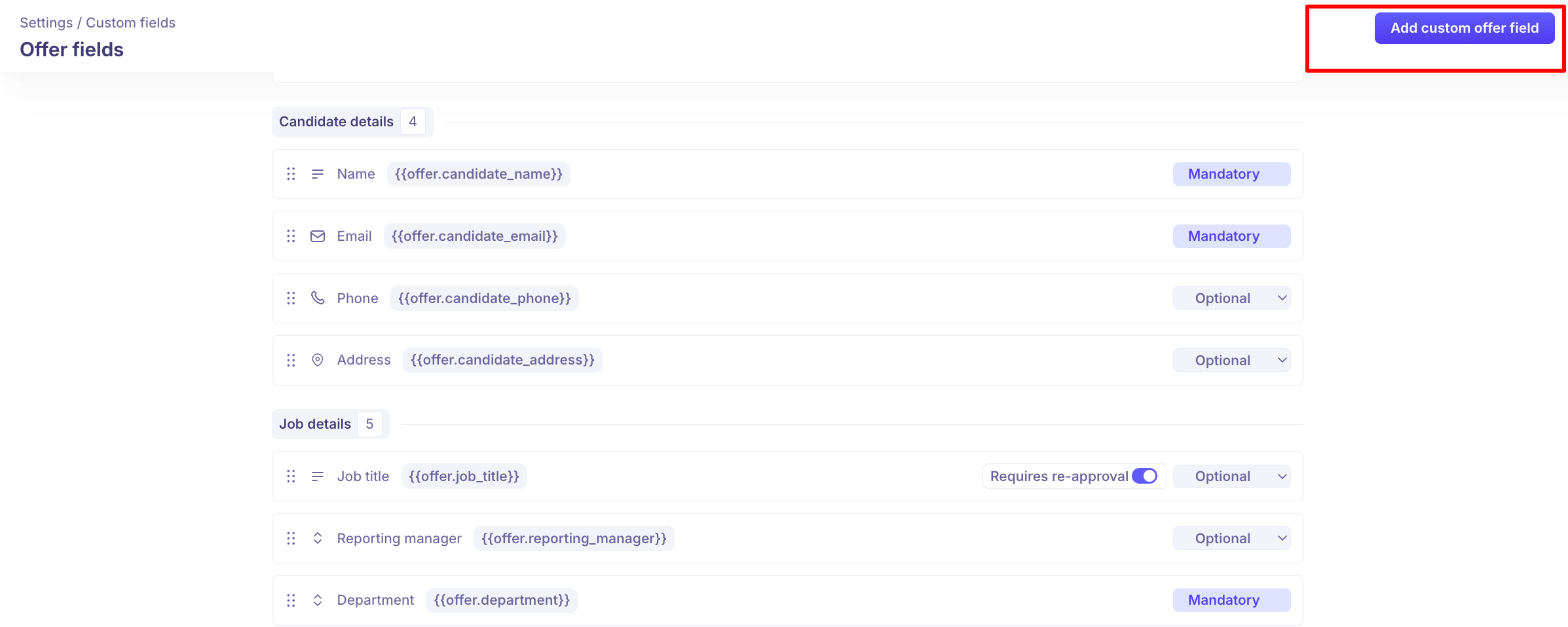
Below default fields, you can create additional fields using Add custom offer field. Click on the Add Custom Offer Field button located at the top right corner of the screen.
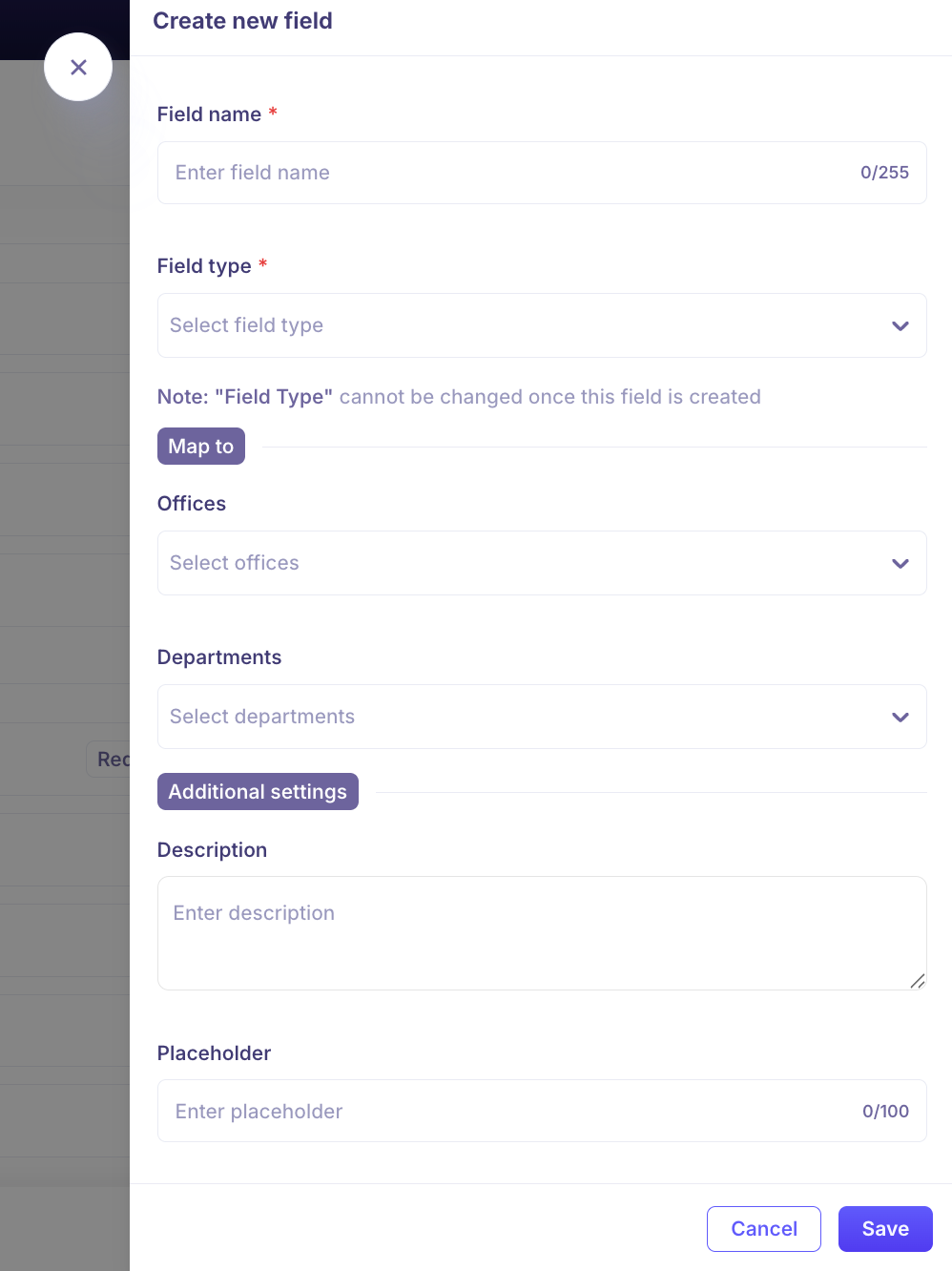
In the Field Name field, enter the name of your custom offer field. This is a Mandatory field.
In the Field Type dropdown, choose one of the following: Short Text, Long Text, Single Select, Multi-Select, Date, Number, URL, Yes/No, File, Rich Text.
Note: Once selected, the field type cannot be changed.
Update the Description field to clarify the purpose of the field. The Token field will be auto-populated.
Choose the office location(s) and department(s) where the custom field will appear.
Enter the value you want to see in the "Token" field. Please avoid using periods "." or brackets "{", "}".
Enter the value in Placeholder - Default hint text shown in the input box prior to user input.
If you want the field to be mandatory during job creation, check the "Required Field" box.
Finally, click on the "Save" button to complete the creation of the custom field.
Offer Fields Configuration
The Offer Fields section gives you granular control over how offer details are structured and reviewed.
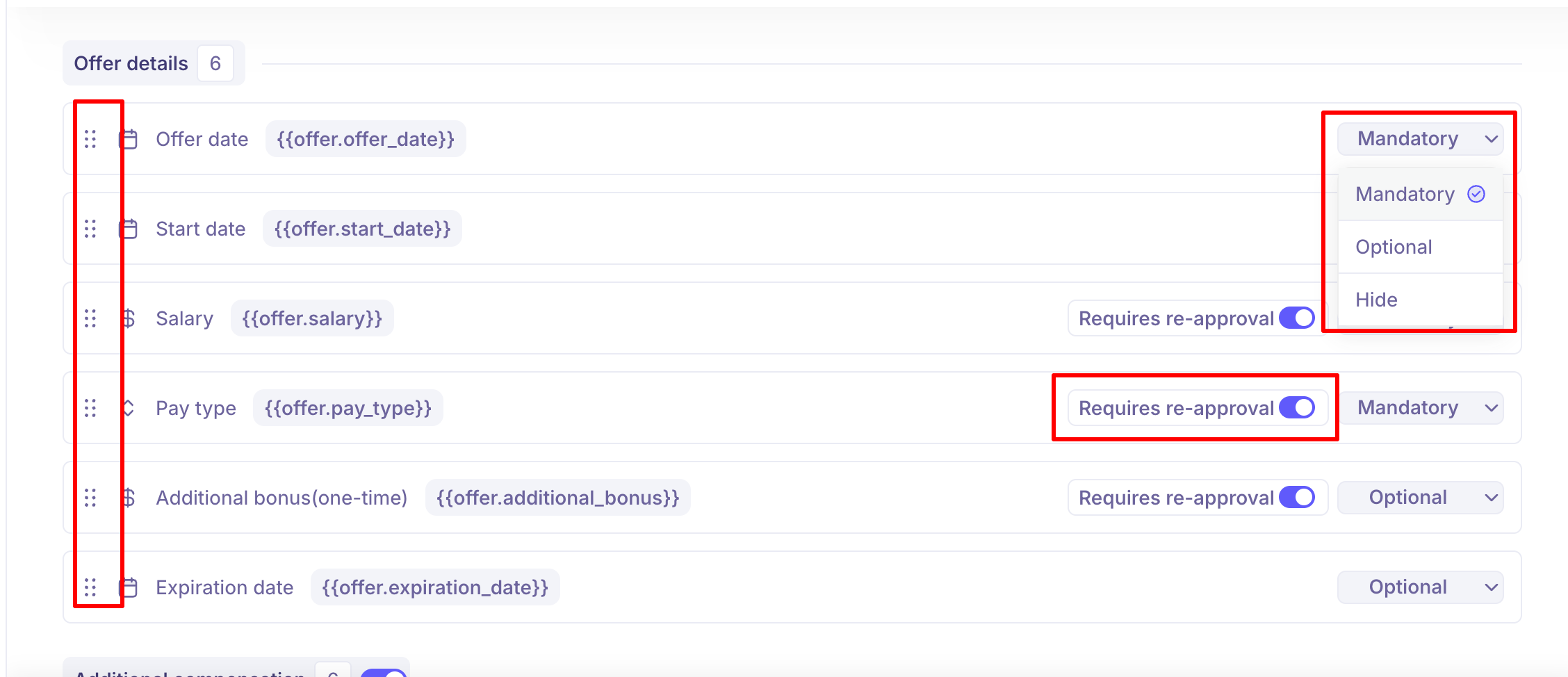
Field Reordering: You can reorder fields using drag-and-drop.
This allows you to:
Customize the form layout for different hiring workflows
Prioritize important compensation or equity fields
Align the form structure based on region or role type
Reordering ensures recruiters and hiring managers see fields in a logical sequence during offer creation.
Visibility Controls (Mandatory / Optional / Hide)
Each field includes a visibility dropdown with three options:
Mandatory – Field must be filled before proceeding
Optional – Field can be left blank
Hide – Field will not appear in the offer form
This helps:
Standardize critical information (e.g., Salary, Department)
Keep region-specific fields hidden where not relevant
Reduce clutter in the offer creation experience
Requires Re-approval
You will see a “Requires re-approval” toggle next to applicable fields.
When enabled:
Any change made to that field after initial approval will trigger the offer approval workflow again.
This ensures compensation or equity changes are always reviewed before finalization.
This provides:
Governance over sensitive fields like Salary, Equity, Bonus
Clear visibility into what actions trigger additional approvals
Reduced risk of unauthorized compensation changes
If disabled:
Edits to that field will not re-trigger approval.
Editing a Custom Offer Field
On the Offer Fields homepage, click on the field name you want to edit.
Update the necessary information.
Click the Save button to apply your changes.
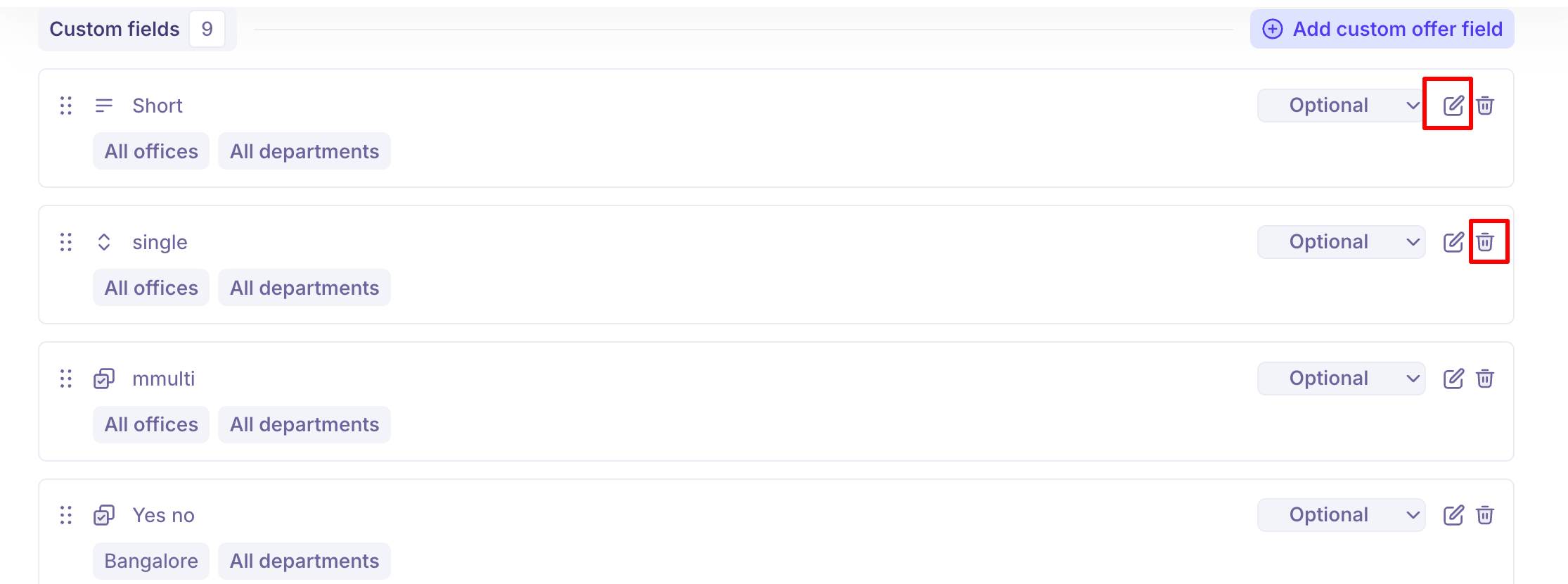
Deleting a Custom Offer Field
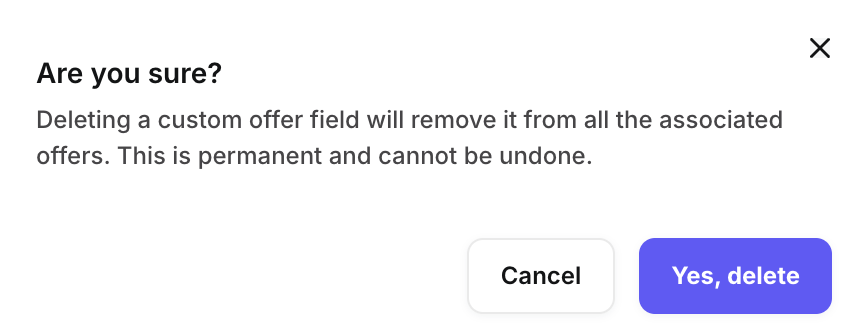
On the Offer Fields homepage, locate the field you want to delete and click the Delete icon.
A confirmation modal will appear.
Click Yes, delete to confirm and finalize the deletion of the field.