How to Integrate CodeInterview Assessment with Kula
Last updated: June 8, 2026
Kula integrates with CodeInterview to streamline your technical interview and coding assessment workflows. With this integration, you can send live coding interviews and technical assessments to candidates, view their performance and feedback, and manage the entire hiring workflow — all from within Kula.
Note: You must be a Kula Admin and have an active CodeInterview account.
Step 1: Connecting CodeInterview
Requirements: You must be a Kula Admin and have an active CodeInterview account.
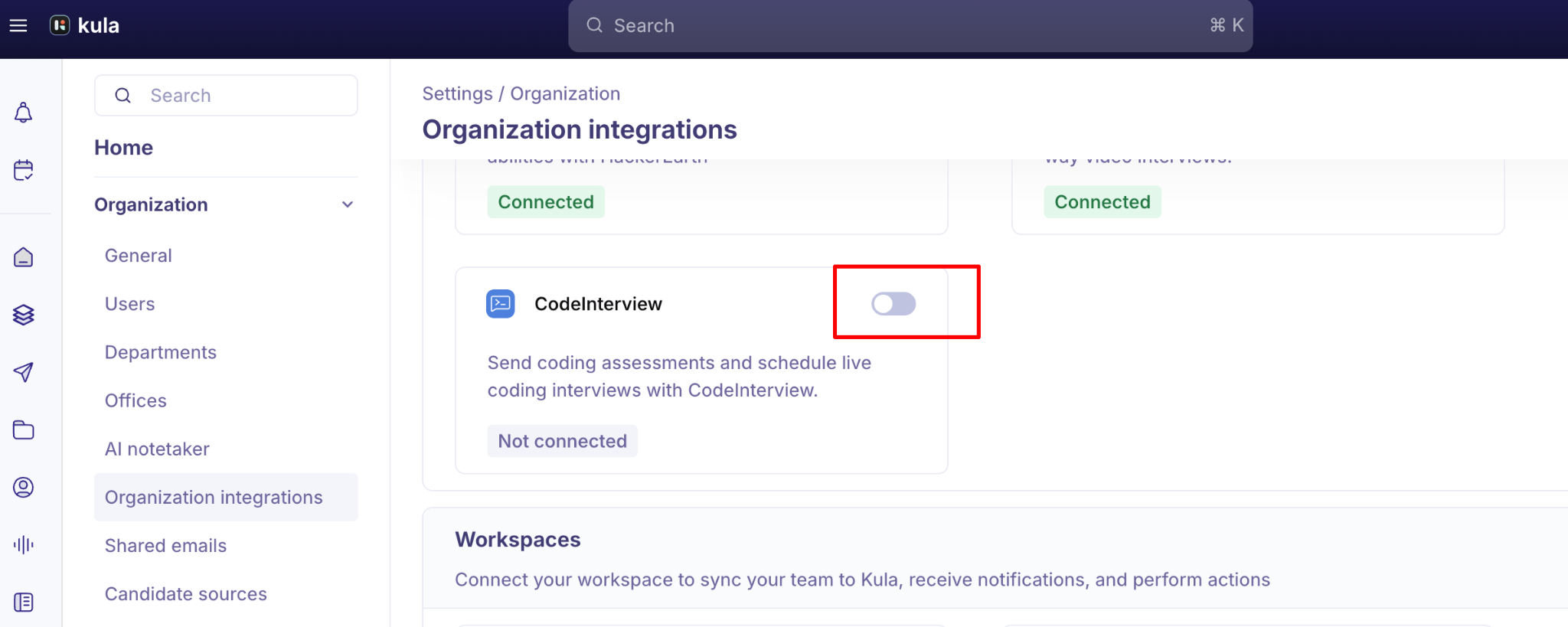
Navigate to Settings > Organization Integrations > Assessments.
Locate CodeInterview and click Enable Integration.
In the pop-up window, enter your CodeInterview API Key and click Connect CodeInterview.
(CodeInterview API key can be found in Codeinterview under the profile icon > Integrations)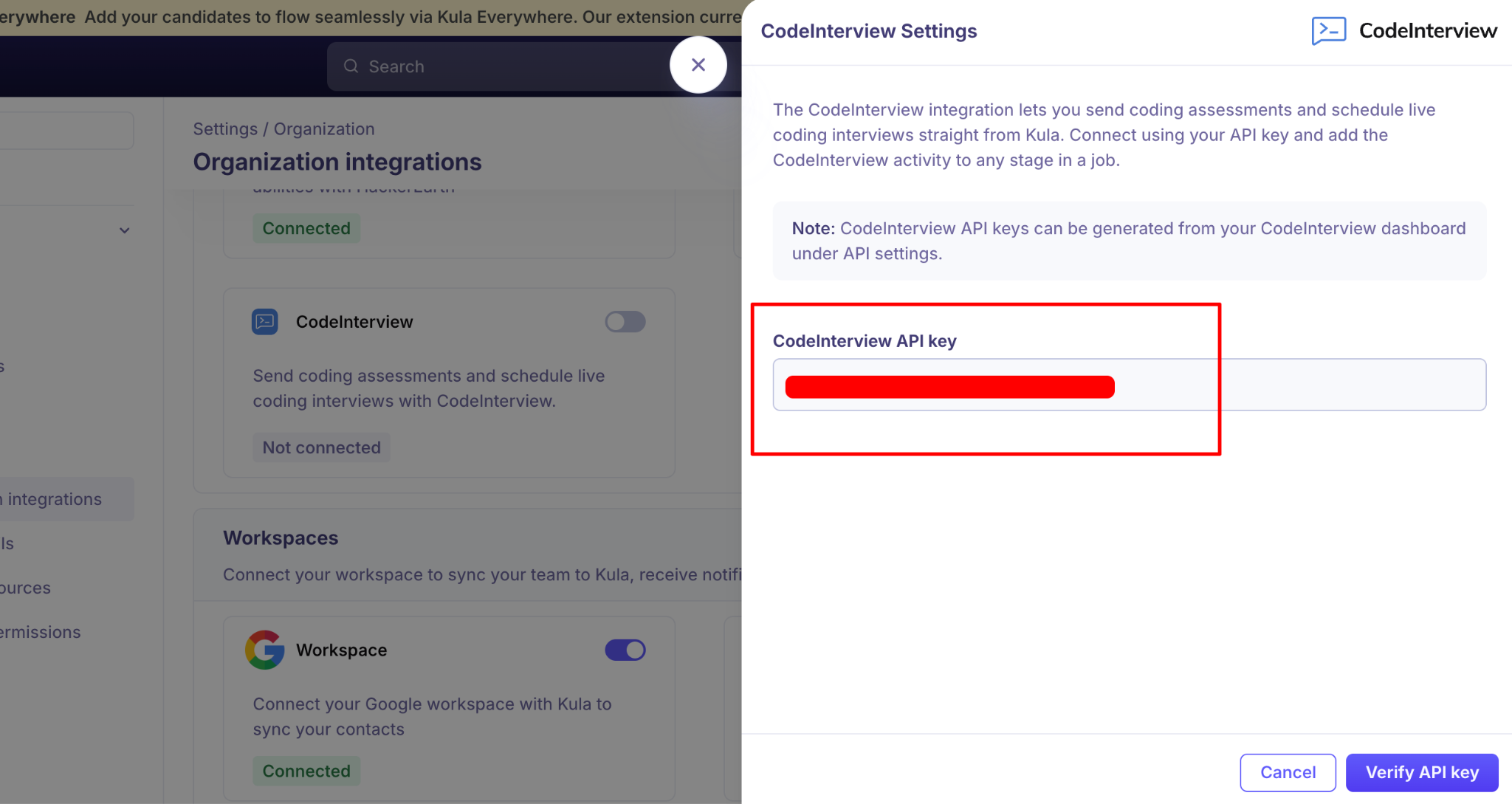
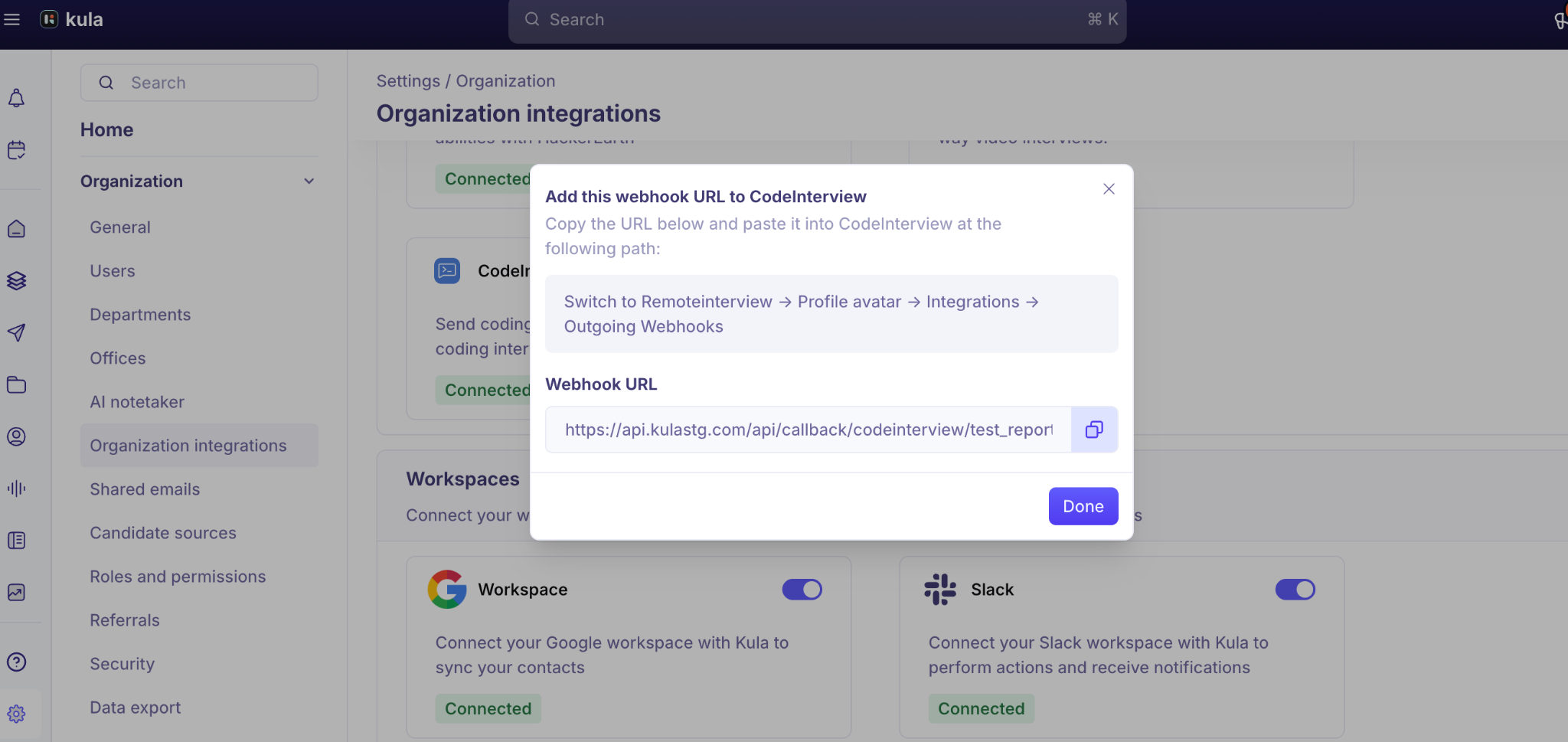
Once the API key is verified, a webhook gets generated.
This webhook should be added in the Remoteview of CodeInterview.
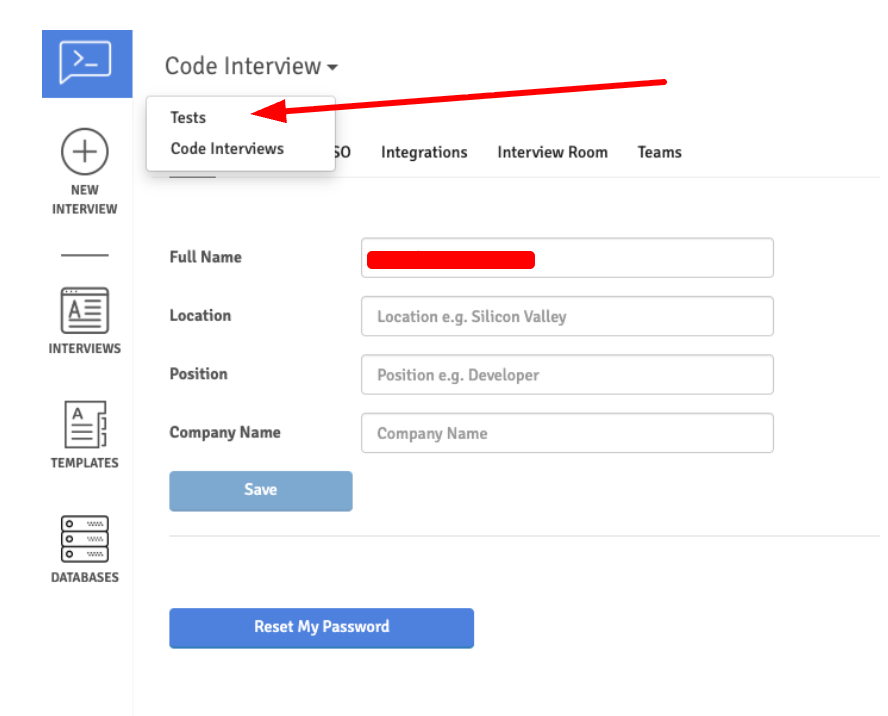
--To navigate to Remoteview of CodeInterview, click on Tests:
-- Then click on the profile name icon > Integrations:
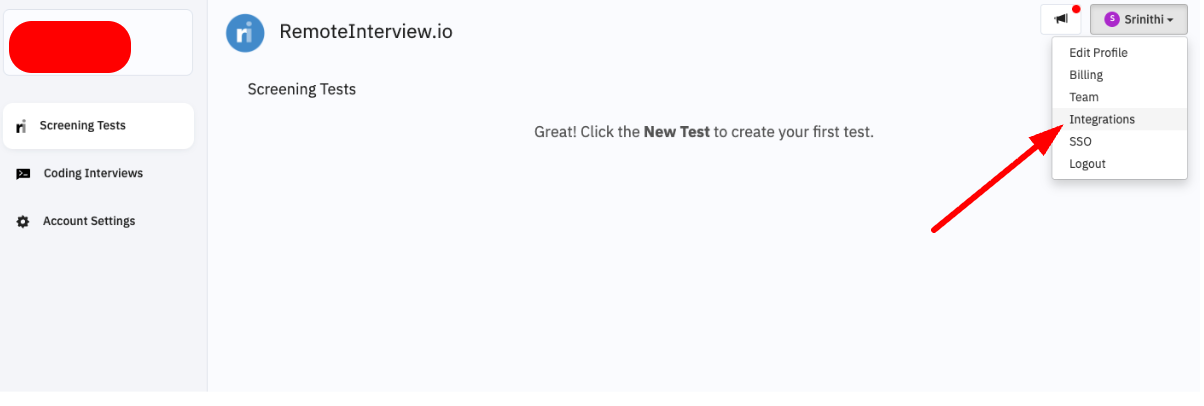
-- Paste the webhook in the Outgoing Webhooks section:
Step 2: Using CodeInterview in Kula:
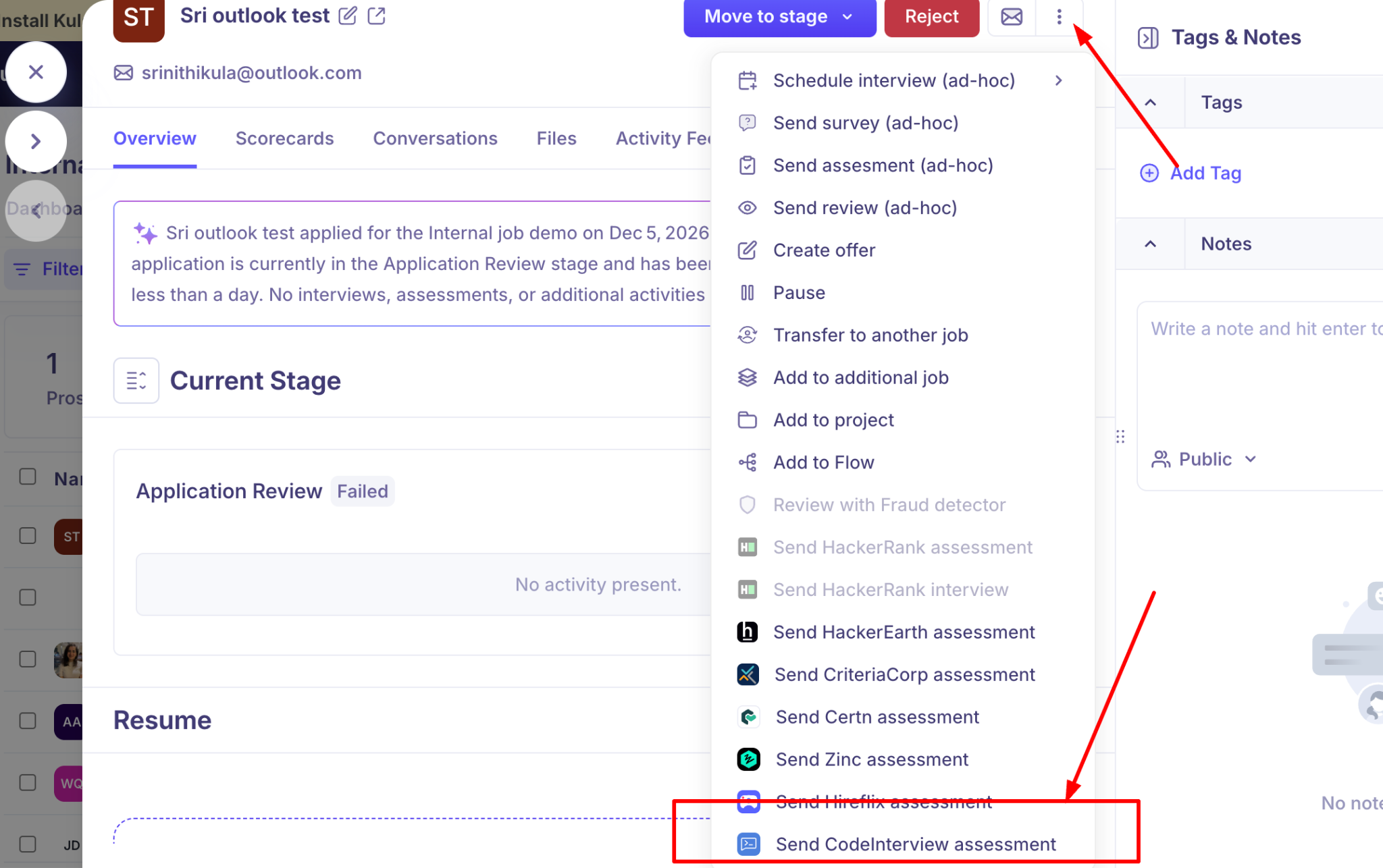
Ad-hoc (from Candidate Profile):
i) Navigate to Jobs > Candidates > Assessments.
ii) Click Send Assessment and choose CodeInterview.
iii) Select a pre-configured CodeInterview test and send it to the candidate.
Sending Assessments Via Interview Plan: Best for high-volume roles where every candidate must clear the same technical bar.
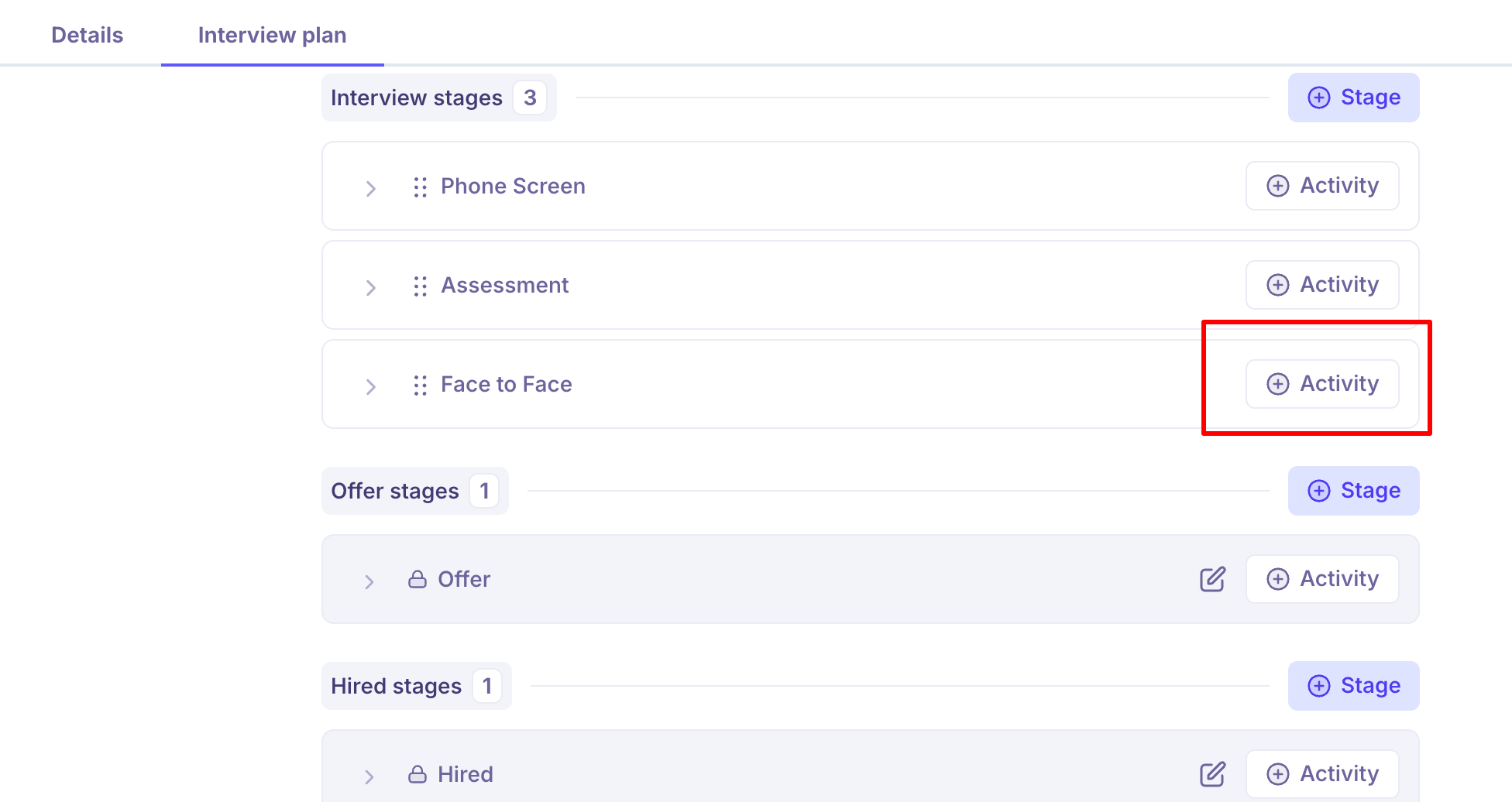
i) Navigate to Settings > Interview Plan and select the plan you want to update.
ii) Under your desired hiring stage, click Add Activity > Add “Send CodeInterview Assessment”
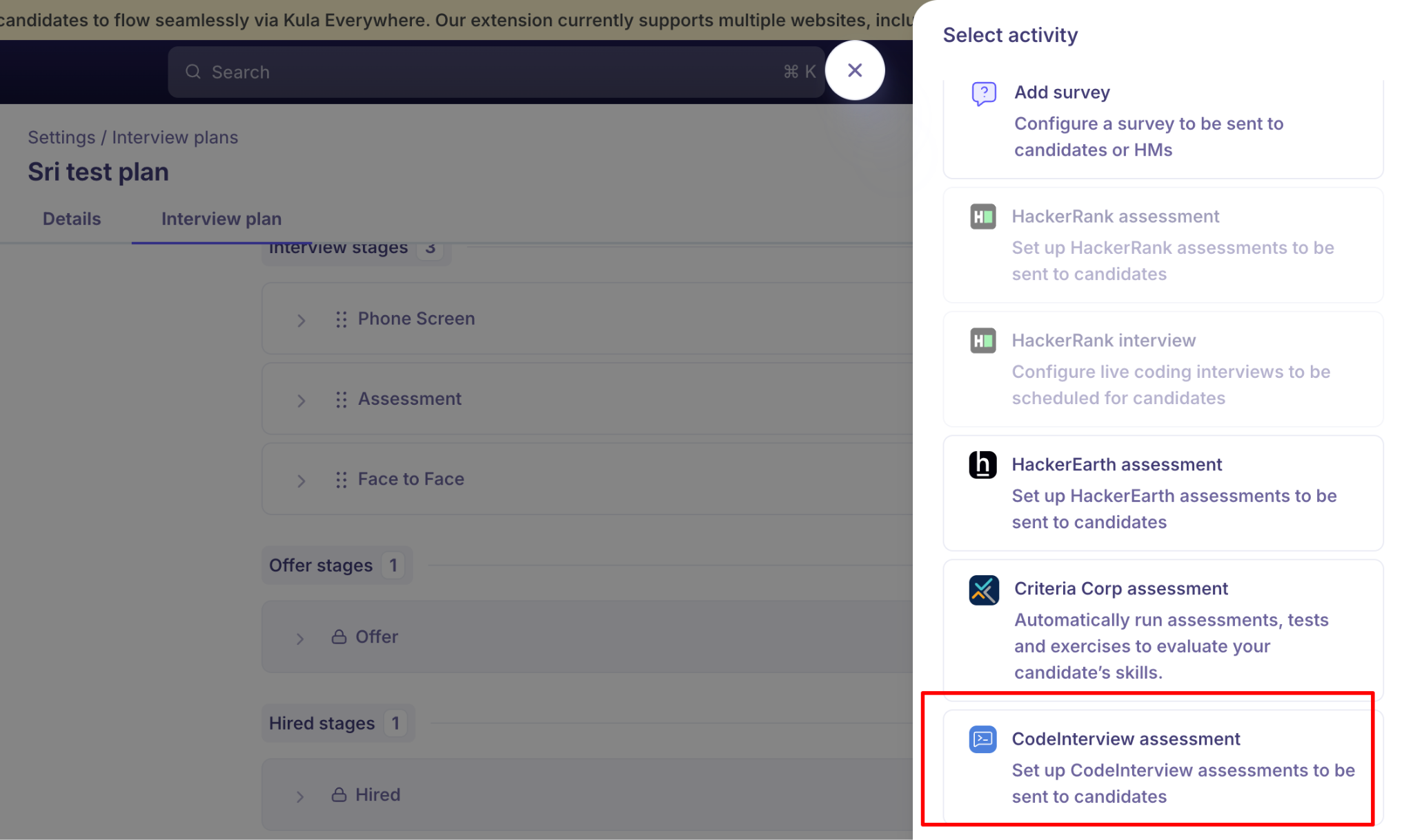
iii) Select CodeInterview Assessment > choose a test that was already created in the RemoteInterview section of CodeInterview > Select the Reviewers > Select scorecard template/questions for the interviewers to fill the feedback → Click “Add Assessment”
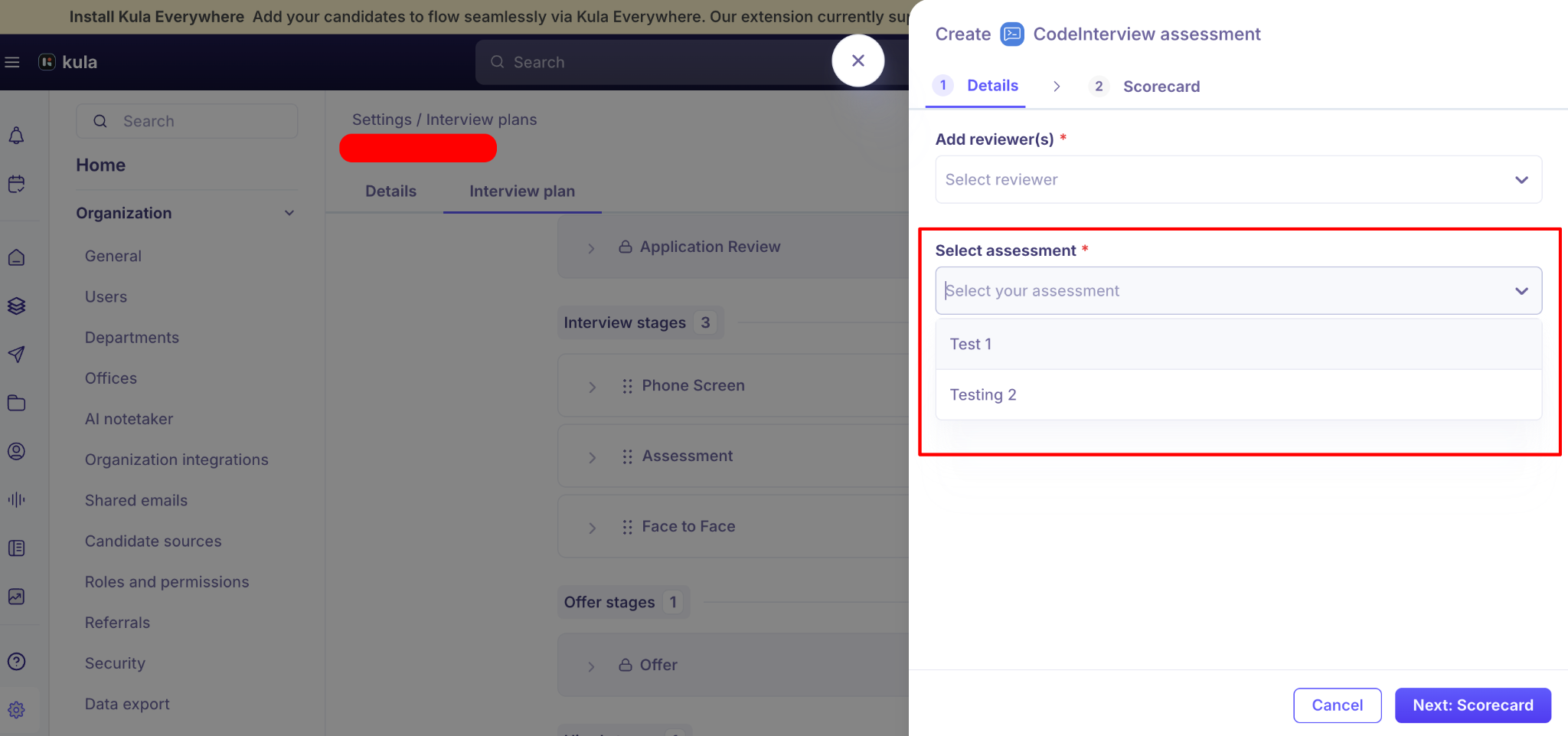
iv) Send Assessment: When a candidate is moved to this stage, the CodeInterview activity is automatically created. Recruiters can click Send Assessment to proceed. Before sending, they can review and update the reviewers, assessment, and scorecard if needed, and then send the assessment.
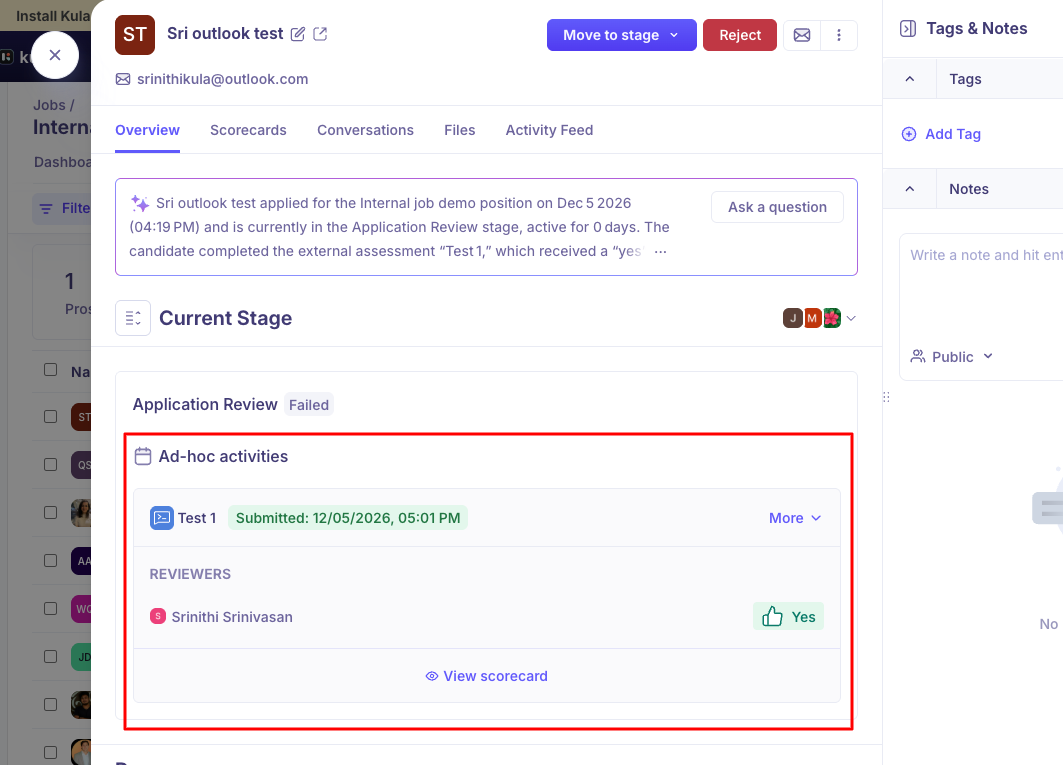
The following statuses will be shown in the candidate’s profile:
Sent – Assessment or interview link sent but not yet started.
Completed – Interview or assessment completed; feedback and results available.
Expired – Interview or assessment link expired without completion.
📎 Need Help?
If you encounter any issues while connecting CodeInterview or sending assessments, feel free to reach out to us at support@kula.ai or use the in-app chat for assistance.