Required vs. optional fields
Last updated: August 18, 2026
Every field on a Kula application form — built-in or custom — can be set to Mandatory, Optional, or Hidden. Getting this right matters: too many required fields discourages candidates from finishing an application, too few leaves you without what you need to evaluate them.
Who can do this: Editing field settings on a form template requires Super Admin or Admin permissions. Adjusting a field's setting on a specific job is available to recruiters and hiring team members with access to that job, and to anyone with the Manage all jobs permission.
Where to find it: In a template: Settings → Jobs & Applications → Application Forms → open the form → Form section → the Mandatory / Optional / Hidden toggle next to each field. On a specific job: Job → Settings → Job Post → edit the assigned application form.
The three field states
State | Candidate sees it? | Submission blocked if empty? |
Mandatory (Required) | Yes | Yes |
Optional | Yes | No |
Hidden | No | No |
Setting a field as required or optional
In a template: Settings → Jobs & Applications → Application Forms → open the form → click the Form section → for each field, choose Mandatory, Optional, or Hidden → Update Form to save.
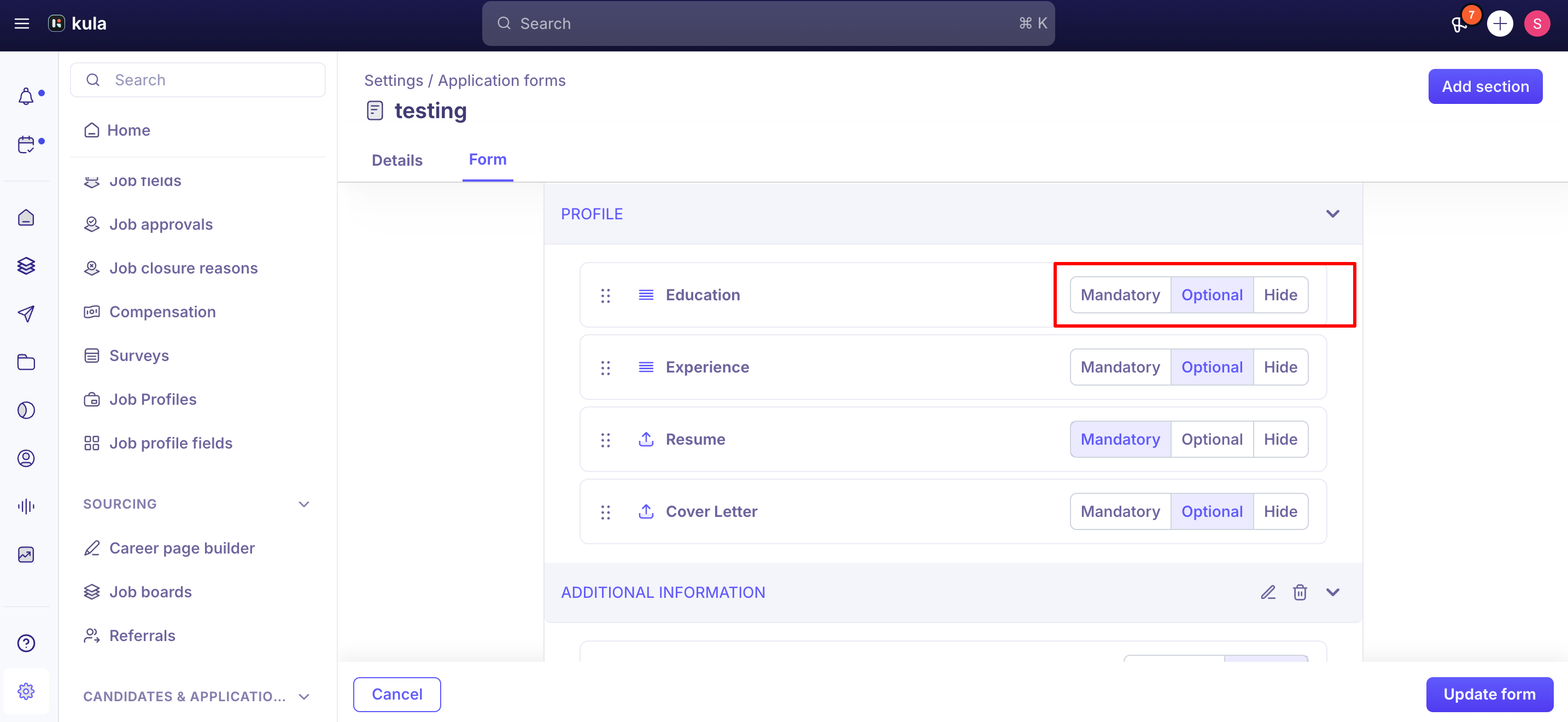
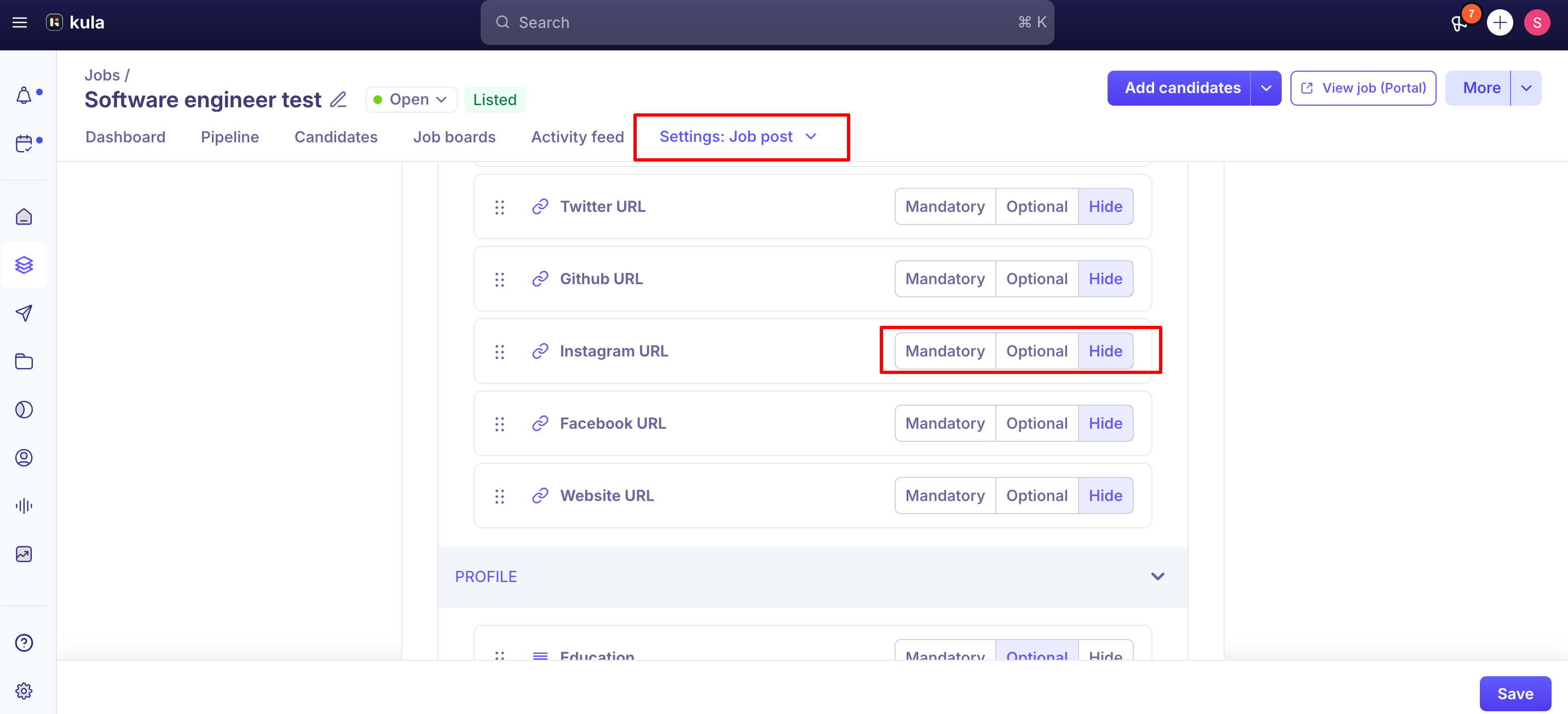
On a specific job: open the job → Job Post Settings → edit the assigned application form → adjust the setting for individual fields → save. Changes made at the job level apply only to that job and don't affect the template or other jobs using it.
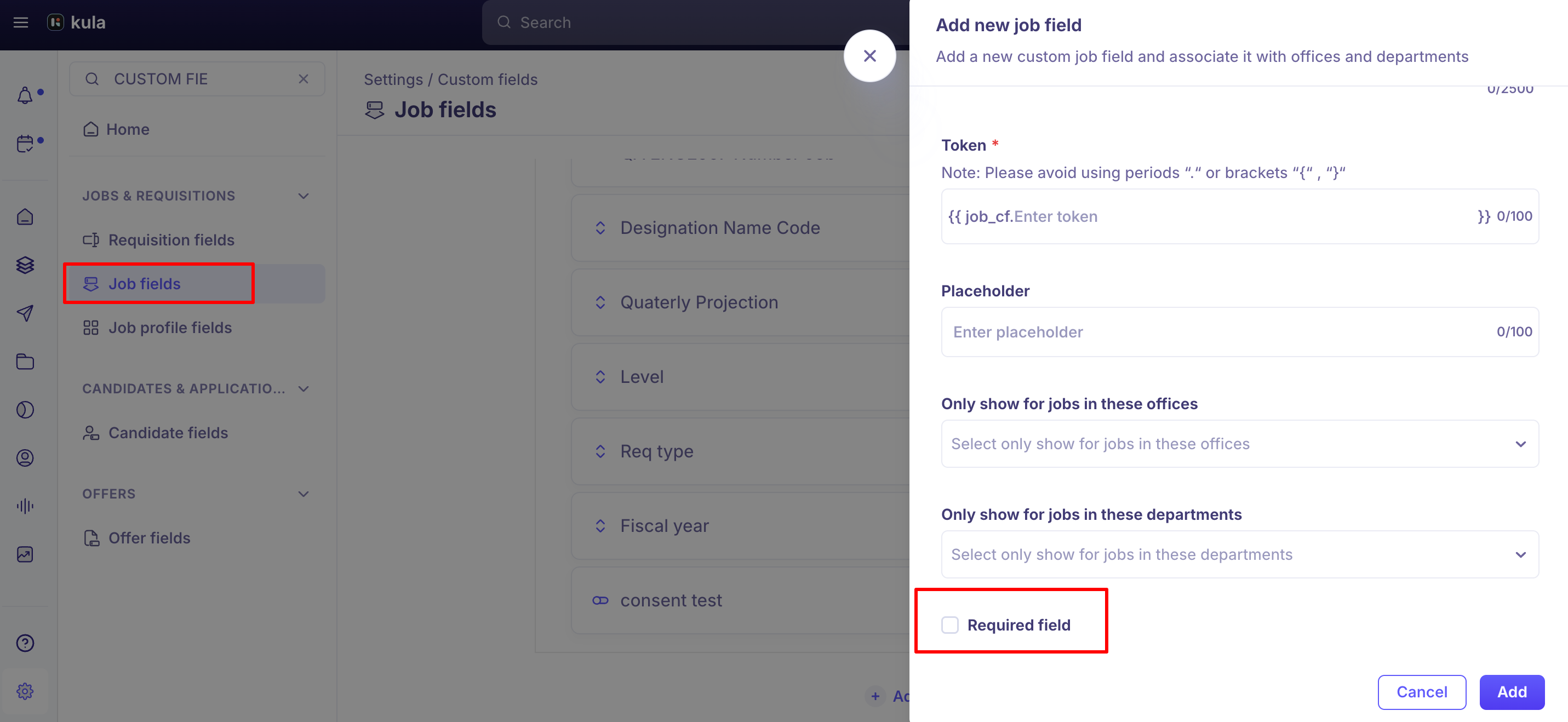
When creating a new custom field: fill in the field name and type, check Required Field to make it mandatory (leave unchecked for optional), then Add. Unlike a field's type, which is locked once created, the Required setting can be turned on or off at any time.
When to use required fields
Use Required when the information is essential to assess eligibility (work authorization), needed to move a candidate forward without follow-up (current location for an on-site role), legally required, or used as a shortlisting filter (years of experience, expected salary range).
Commonly required fields: name and email, work authorization, earliest start date for urgent roles, location preference for multi-city roles, years of relevant experience.
When to use optional fields
Use Optional when the information is useful but not a dealbreaker, only relevant to some candidates (a GitHub link for a design role), or you want supplementary context without gating the application.
Commonly optional fields: portfolio/personal website, LinkedIn profile, current employer, referral source, cover letter or additional notes.
When to use hidden fields
Use Hidden when a field exists in the base template but isn't relevant to this specific job, or you're temporarily removing a field from candidate view without deleting it.
Hiding is preferable to deleting when you might re-enable a field later, since deleting removes it from the form structure entirely.
Built-in fields vs. custom fields
Kula's default form includes built-in fields in the Personal Info and Profile sections. These can be set to Mandatory, Optional, or Hidden and reordered within their section, but can't be deleted. Custom fields you add in your own sections can be freely edited or deleted.
Good to know
A dropdown option that's later deleted can leave a stale, invalid selection behind on already-open forms — this previously caused a real, confirmed case where a required "preferred office" field falsely showed an "office is required" error even though a value appeared selected, because the office option itself had been deleted. If a required dropdown starts throwing errors it shouldn't, check whether one of its options was recently removed.
Required URL fields are validated for a correctly-formatted URL — this wasn't always the case; a fix shipped in 2024 after career-portal URL fields were accepting anything.
A required Short Text field caps candidate answers at 255 characters — a real, recent case involved a customer's own custom-built careers page (via the Job Boards API) rejecting applications where a candidate's answer to an open-ended question exceeded that limit, with only a generic error rather than a clear validation message. If a required question expects a longer, open-ended answer, use a Long Text field instead. Note that a field's type can't be changed after it's created and published — you'll need to create a new field with the right type and replace the old one, then republish the job.
A required Attachment field, like a resume upload, only accepts PDF, DOCX, JPG, and PNG. A candidate trying to upload another format (like .doc or .pages) will be blocked from submitting, sometimes without an obviously clear error — this has been a real, recurring source of "candidate can't submit" reports.
If you make a field mandatory while a candidate already has the application page open in their browser, their already-loaded copy of the form may not pick up the change. This was a confirmed, now-fixed bug where such candidates could submit without the newly-required field. If you're editing required fields on a job that's actively receiving applications, it's worth being aware this class of issue has occurred before.
FAQ
What happens if a candidate tries to submit without filling in a required field? Kula blocks the submission and highlights the empty required fields, prompting the candidate to complete them before proceeding.
Can I change a field from required to optional after the job is published? Yes, at any time via Job Post Settings. Changes apply to new applicants going forward; applications already submitted aren't affected.
Is "required" the same as being visible to my hiring team? No — they're independent settings. Required controls what the candidate must answer to submit. Visibility, set separately per role, controls who on your team can see that answer afterward.
Can I require a long, open-ended answer, like a short-essay question? Use a Long Text field. Short Text fields have a 255-character limit, and a required Short Text field with a long expected answer can cause submission to fail.
A candidate says a required field showed an error even though they filled it in — what's going on? If the field is a dropdown, check whether one of its options was recently deleted — a stale, no-longer-valid selection can trigger a false required-field error even when something appears selected.
What file types can I require for a resume or attachment question? PDF, DOCX, JPG, and PNG. Other formats will block submission.
Need help?
If you have questions or run into an issue with required or optional fields, reach out to us at support@kula.ai or use the in-app chat.