Access Your Kula Instance
Last updated: March 19, 2026
Your Kula instance is your organisation’s recruiting workspace. Use it to post jobs, review candidates, and manage your hiring process.
You can access your instance at [companyname].kula.ai.
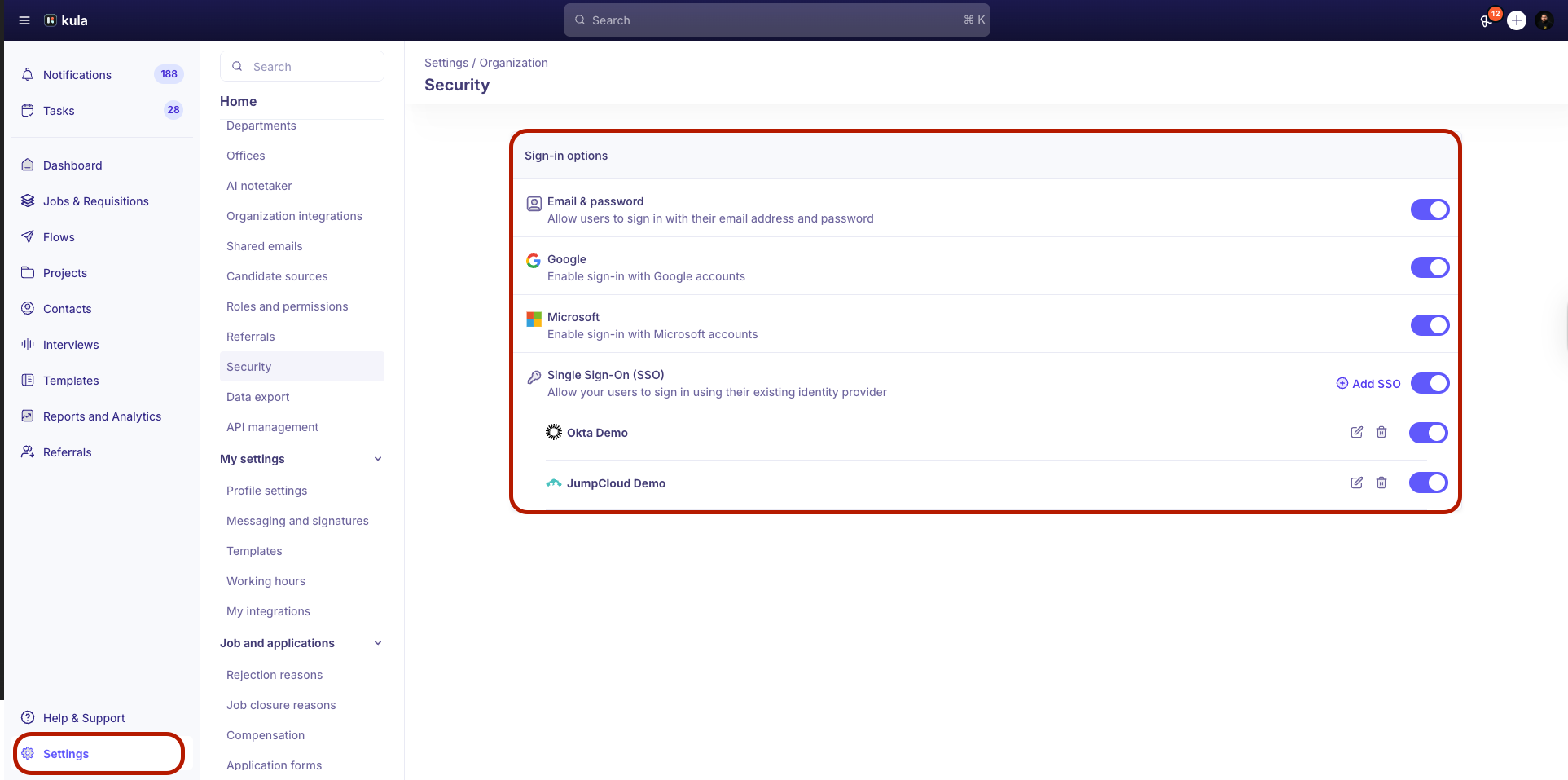
Kula supports four sign-in methods: Google, Microsoft, SSO, and email with a password. Your admin controls which methods are available for your organisation.
Kula is available to all users in your organisation, including recruiters, hiring managers, admins, super admins, and organisation members.
Prerequisites
You have access to your company’s Kula instance URL
Your admin has added you to Kula (via invite or SCIM)
First-Time Access
How you first access Kula depends on how your admin added you.
Invited through Kula
If your admin invited you from Kula:
Check your email inbox for the invite.
Click the Join link in the email.
Follow the prompts to set up your account.
Provisioned through SCIM (automatic account creation)
If your organisation uses SCIM provisioning:
Your account is created automatically.
You will not receive an invite email.
To access your account:
Go to
[companyname].kula.ai.Click Sign in with SSO.
Complete the sign-in flow using your company’s identity provider.
Sign In to Your Kula Instance
Follow these steps to sign in:
Go to
[companyname].kula.aiin your browser.Select your sign-in method:
Sign in with Google: Use your Google account.
Sign in with Microsoft: Use your Microsoft account.
Sign in with SSO: Use your company’s identity provider. If your account was provisioned through SCIM, use this option.
Email and password: Enter your email address and password.
Follow the prompts to complete sign-in (for example, select your account or enter your credentials).
Note: Contact your admin if you are unsure which sign-in method to use or do not have access.