Zoom Integration
Last updated: June 12, 2026
Connect Kula with your Zoom account to automatically record and transcribe interviews, sync meeting details with candidate profiles, and streamline your video interviewing workflow. Once integrated, you can schedule Zoom meetings directly from Kula, track interview activity, and maintain a complete audit trail of candidate interactions.
To access your integrations, go to Settings > Organization Integrations.
This article covers:
Setting up the Zoom integration
Scheduling a Zoom interview from Kula
Recording and transcribing interviews
Disconnecting from Zoom
Setting Up the Zoom Integration
Go to Settings > Organization Integrations
Find Zoom and click Connect.
You will be redirected to Zoom to authorize Kula. Log in with your Zoom account if prompted.
Review the requested permissions and click Authorize.
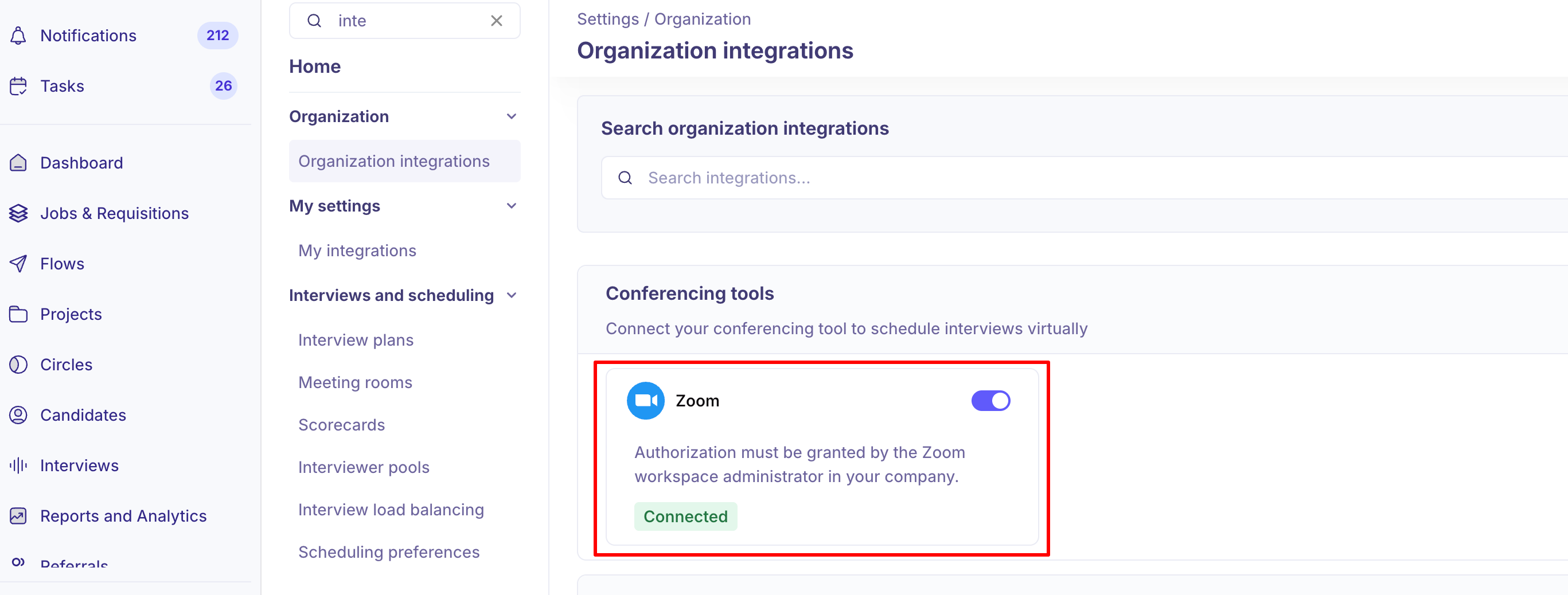
Tip: You must be a Zoom account owner or admin to authorize the integration. If you don't have these permissions, ask your Zoom administrator to complete this setup.
Scheduling a Zoom Interview from Kula
Open a candidate's profile
Click Schedule Interview or the 3 dots to schedule an ad-hoc interview
Select Zoom as the interview type.
Set the date, time, and interview title.
Add the interviewer(s) and any team members who should attend.
Click Send Invite. A Zoom link is generated and sent to all participants via email.
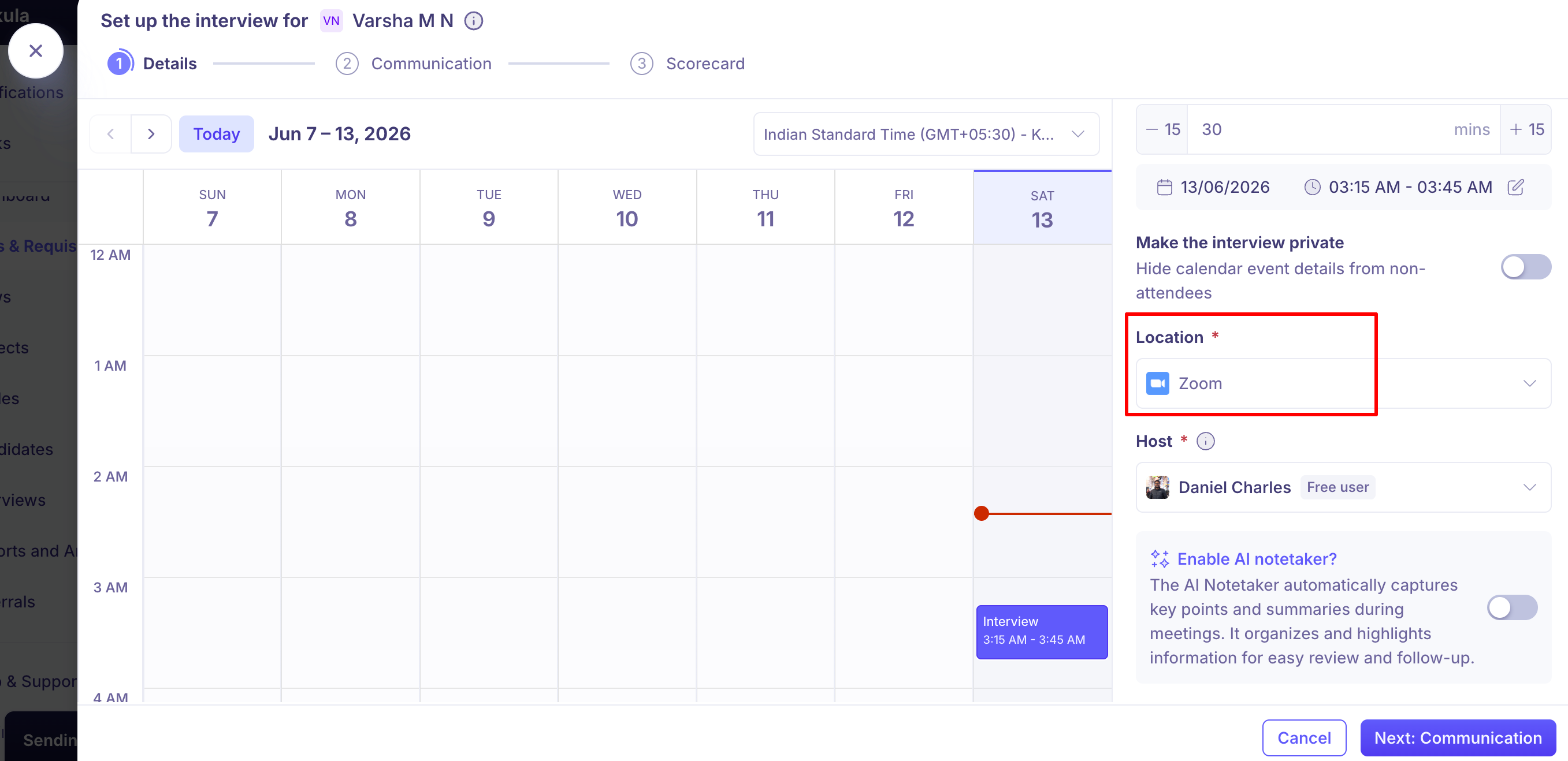
Tip: The candidate will receive the Zoom link in their invite. They don't need a Zoom account to join—they can attend as a guest.
Recording and Transcribing Interviews
Before the interview starts, ensure recording is enabled in your Zoom account settings (this is a Zoom setting, not Kula).
During the interview, click Record in the Zoom meeting controls.
After the interview ends, Zoom will process the recording. It may take several minutes to be available.
Once the recording is ready, Kula will display it in the candidate's profile under the Interview section.
Click Request Transcript to generate an automatic transcript of the recording (if available in your Zoom plan).
Note: Recording and transcription features depend on your Zoom subscription level. Contact Zoom support if you're unsure on what's included in your plan.
Disconnecting from Zoom
Go to Settings > Integrations.
Find Zoom in the integrations list.
Disable the toggle to disconnect.
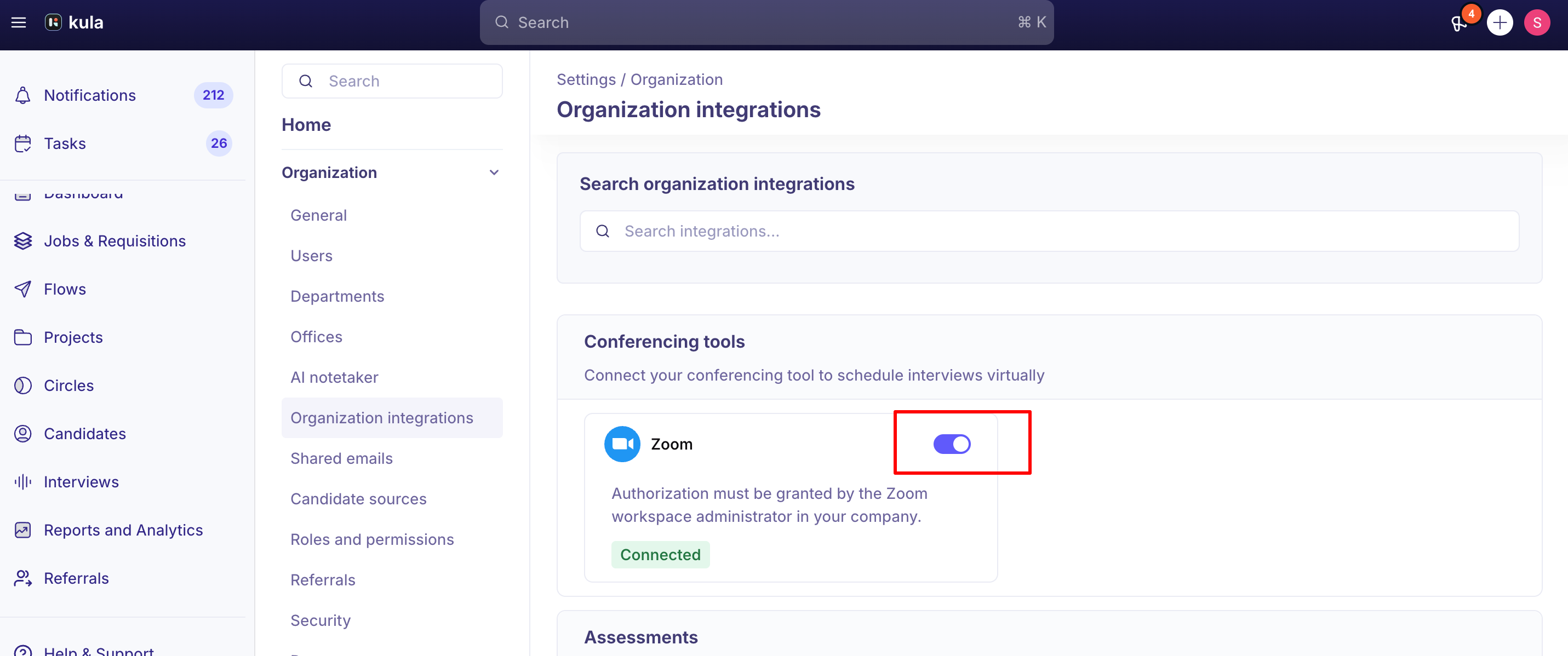
Note: Disconnecting removes Kula's access to your Zoom account but does not delete any recordings or transcripts already saved in Kula or Zoom.
Frequently Asked Questions
Can I schedule Zoom interviews without the integration?
No. The Zoom integration allows you to schedule and track Zoom meetings directly from Kula. Without it, you can still use Zoom independently, but you won't have meeting links or recordings integrated into candidate profiles.
Who can access interview recordings?
Anyone with access to the candidate's profile can view the recording. Permissions follow the same access rules as candidate profiles in your workspace.
What if a candidate doesn't show up for the interview?
No recording will be created if the meeting doesn't occur. You can reschedule from the candidate's profile or manually change the interview status in Kula.
Can I record interviews without the candidate knowing?
No. Zoom requires that all participants are notified before recording begins. Kula follows this requirement to ensure legal and ethical compliance.
What happens if I disconnect the Zoom integration?
Existing recordings and transcripts remain in Kula and Zoom. You won't be able to schedule new Zoom interviews from Kula until you reconnect. To reconnect, follow the setup steps above.
Is there a limit to the number of interviews I can record?
Recording limits depend on your Zoom subscription. Standard plans include limited storage, while premium plans offer more. Check your Zoom account settings for current storage usage.
Need Help?
If you have questions or need assistance, feel free to reach out at support@kula.ai or use the in-app chat for help.