Using Meeting Rooms for Interviews in Kula
Last updated: June 18, 2025
Kula makes it easy to reserve meeting rooms when scheduling interviews. Follow the steps below to enable and use meeting rooms for interviews.
Set Up Meeting Rooms in Kula
Navigate to Settings > Interviews and scheduling > Meeting rooms
Click Connect Google Workspace to sync your organization's meeting room availability. Important notes to know:
Customers without Google Workspace enabled
If you haven’t already connected your Google Workspace, you’ll be prompted to do so when enabling meeting rooms.Customers with Google Workspace already enabled
You may need to re-authenticate your Google Workspace to fetch the latest meeting room information.
Both of these steps will appear automatically on the Meeting rooms settings page, so you can complete them as needed.
Toggle Enable meeting rooms for interviews to ON

Once enabled, Kula will automatically fetch available meeting rooms from your connected Google Workspace account. These rooms will be visible when scheduling interviews.
Scheduling an Interview with a Meeting Room
Go to the relevant Job
Open the candidate profile
Click Schedule interview
Choose either Manual or Self-schedule
Check the Book a meeting room box
Select a room from the dropdown list
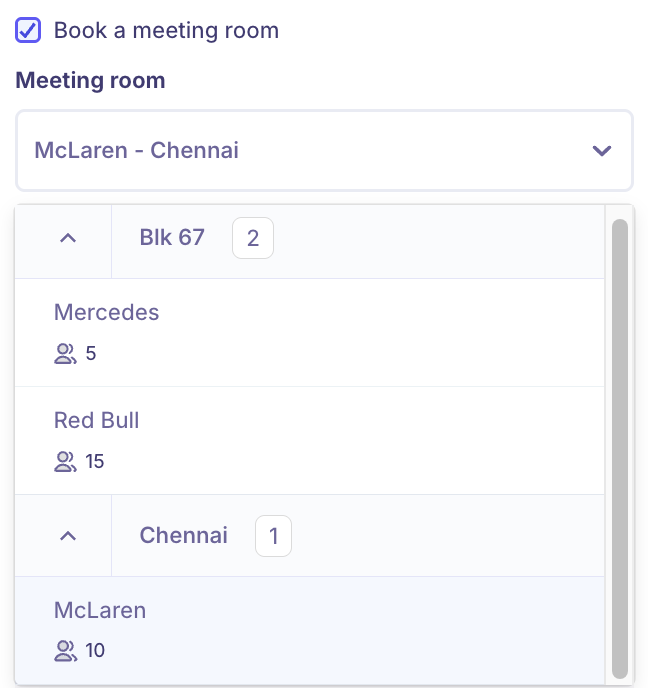
Once you select a meeting room from the dropdown, Kula will display the availability of that room by checking your connected Google Workspace calendar. This ensures you can pick a time that’s free for both the interviewer and the meeting room, avoiding double bookings or conflicts.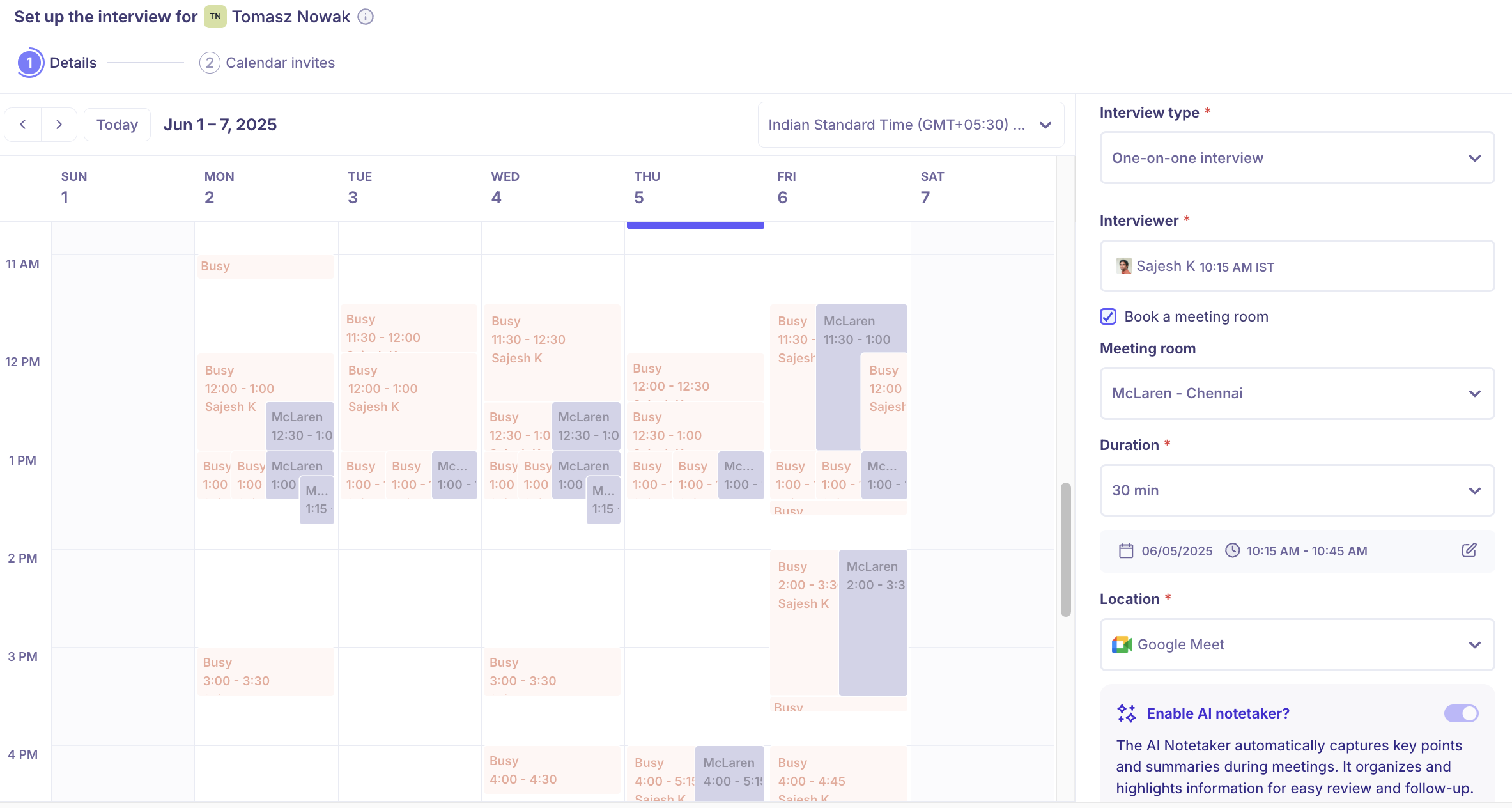
Once scheduled, the selected meeting room will appear as the location in the interview calendar invite.
Prefer to watch instead? Please check out the video below: