Job Description Templates
Last updated: June 3, 2026
Job description templates are reusable job descriptions that admins create for recruiters to reuse. A template provides an editable starting point when a recruiter creates a job, helping ensure that company messaging, benefits, culture information, and standard sections remain consistent across job postings.
Templates are scoped by department, office, and work type. When a recruiter creates a job, Kula automatically selects the best-matching template based on the job's attributes. Recruiters can edit the template content, switch to a different template, or add role-specific details as needed.
Before you begin
You must be an Admin or Super Admin to create, edit, clone, or archive job description templates.
Set up a template
Navigate to Settings > Jobs and candidates > Job description templates.
The templates list displays:
Name
Departments
Offices
Worktypes
From this page, you can:
Create a new template
Search templates
Filter templates
Sort templates
Edit existing templates
Clone templates
Archive templates
Create a template
To create a template:
Go to Settings > Jobs and candidates > Job description templates.
Click Create template.
On the Details tab, enter a template name.
Select one or more Departments, Offices, and Worktypes to define the template scope.
Open the Job description tab.
Enter the template content using the rich-text editor.
Click Save template.
Use the template content for information that should appear consistently across job postings, such as:
Company overview
Culture and values
Benefits and perks
Standard job description structure
Common headings and sections
The content you add becomes the starting point for job descriptions that use the template. Recruiters can edit any part of the content when creating a job.
Clone a template
Cloning creates a new template using an existing template as the starting point.
Use cloning when you need a similar template with only minor changes.
To clone a template:
Locate the template in the list.
Click Clone.
Enter a name for the new template.
Update the Details tab as needed.
Update the Job description content as needed.
Click Save template.
Edit a template
To modify an existing template:
Locate the template in the list.
Click Edit.
Update the template details or job description content.
Click Save template.
Changes apply to future jobs that use the template. Existing jobs are not updated automatically.
Archive a template
Archiving removes a template from active use while preserving its configuration.
To archive a template:
Locate the template in the list.
Click Archive.
Archived templates are no longer available for recruiters to select when creating jobs.
Apply a template to a job
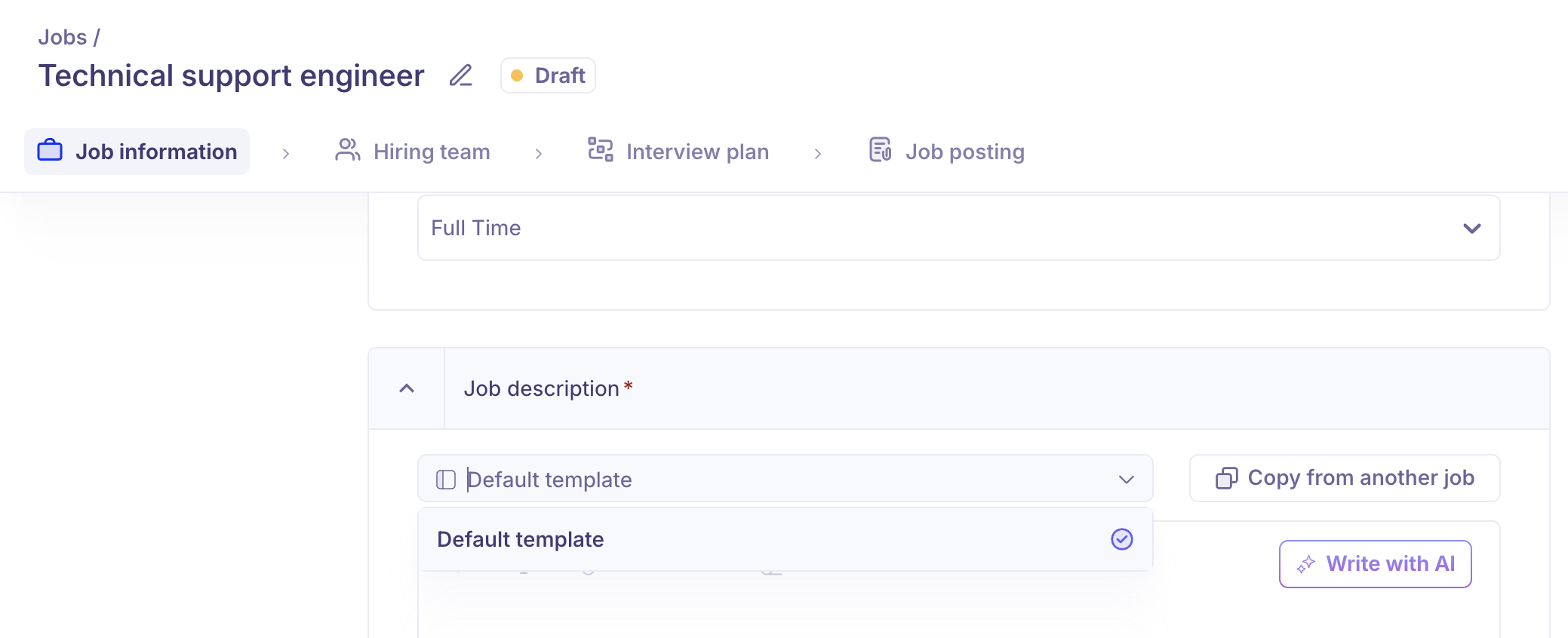
When a recruiter creates a job, Kula automatically selects the best-matching template during the Job Information step.
How template selection works:
Kula evaluates the job's department, office, and work type.
The best-matching template is selected automatically.
The template content pre-fills the Job description field.
Recruiters can edit the content and add role-specific details.
To select a different template:
In the Job Information step, locate the Job description section.
Open the Select template dropdown next to Copy from another job.
Choose a different template from the available options.
Update the content as needed.
Only templates that match the job's department, office, and work type are available for selection.
The job description remains fully editable after a template is applied. You can also use Write with AI or Ask AI to refine and update the content.