How to Create an Application Form
Last updated: February 26, 2026
Creating an application form helps you collect the right candidate information for each role. You can build reusable form templates and assign them to jobs.
How to Create an Application Form Template

Step 1: Navigate to Application Forms
Click Settings.
Click Jobs & Applications.
Click Application Forms.
Click Add application form.
Step 2: Add Form Details
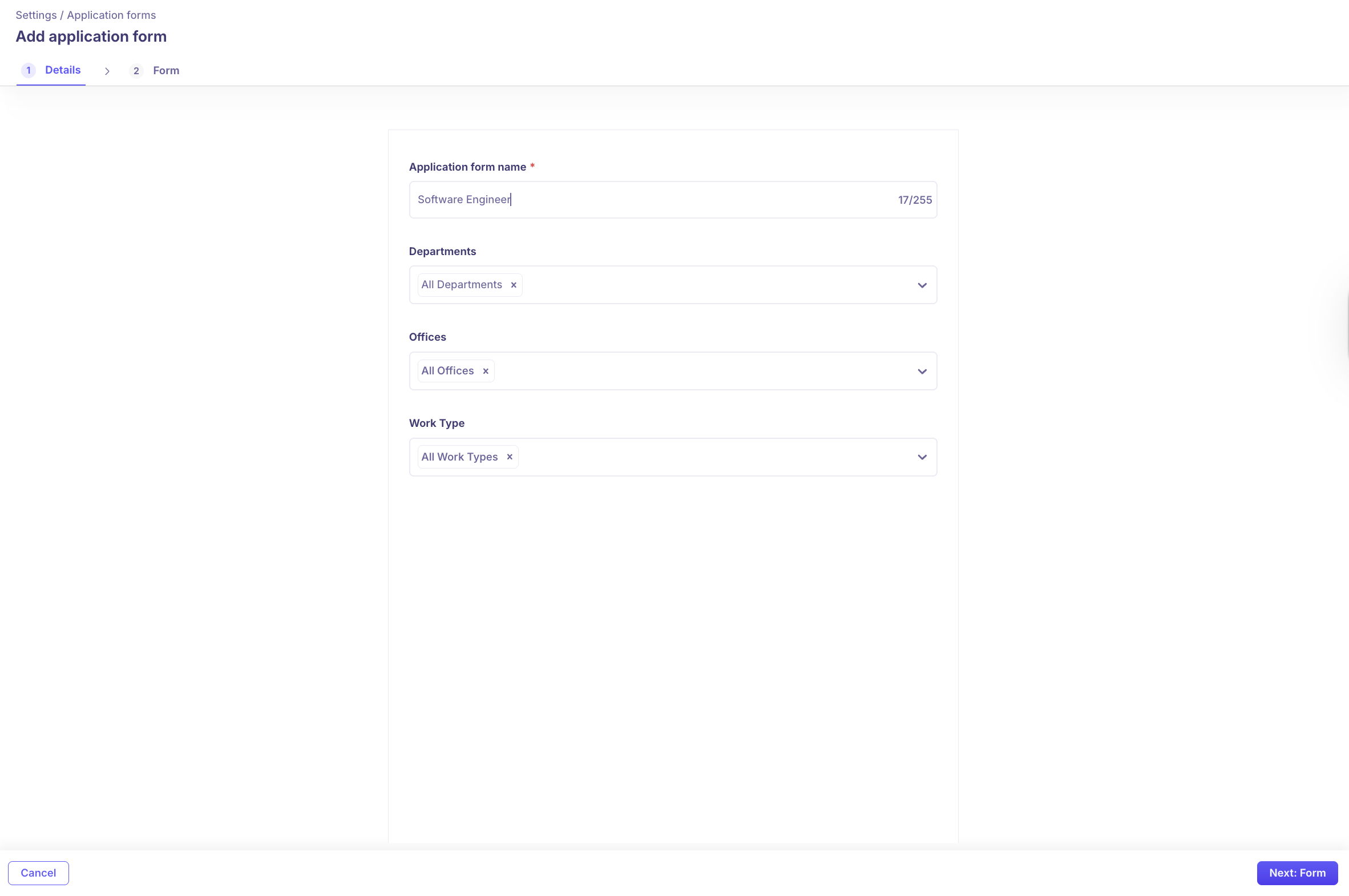
In the first section, enter the basic details:
Name: Enter a clear name for the application form.
Departments: Select the departments that will use this form.
Offices: Choose the relevant office locations.
Work Type: Select the work type (for example, Full-time, Part-time, or Remote).
After you enter all details, click Next to open the form builder.
Step 3: Customize the Form
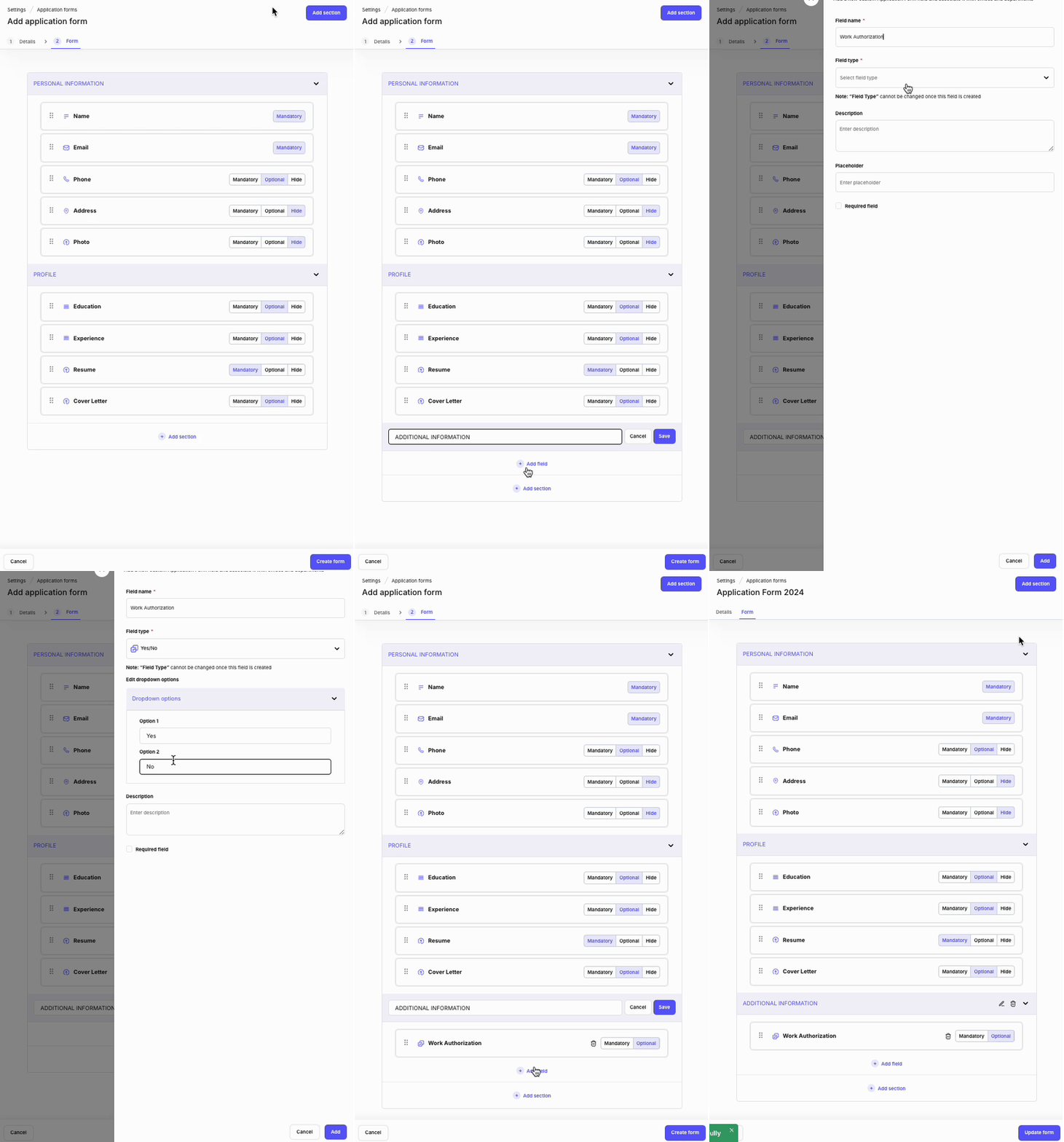
On the form builder page, you will see two default sections:
Personal Info
Profile
You can edit these sections or add new ones.
Add a New Section
Click Add Section.
Enter a section name.
Add fields to collect information.
Add Fields
Choose from the following field types:
Short Text
Long Text
Yes/No
Single Select
Multi Select
Number
Date
URL
You can add multiple fields to each section.
Mark Fields as Required
Select the Required checkbox to make a field mandatory.
After you finish building the form, click Create form.
Use the Application Form in a Job
After you create the form, assign it to a job while creating the Job.
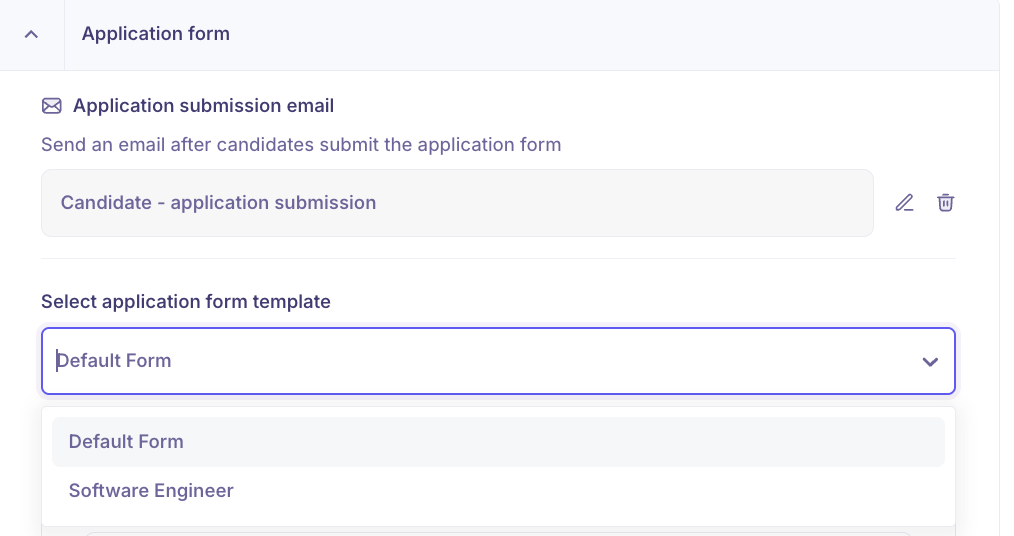
Assign a Form While Creating a Job
Create or edit a job.
Go to Job Post Settings.
Click the Select Application Form template dropdown.
Choose the form you created.
Save the job.
For detailed steps on creating a job, see How to Create a Job.
Update the Form from the Job Page
You can customize the form directly within a job.
Open the job.
Go to Job Post Settings.
Edit the assigned application form.
Mark fields as required or optional.
Hide fields if needed.
Save your changes.
Changes made at the job level apply only to that job.
Use Cases
You may need different application forms in the following scenarios:
Multiple Locations: Collect location-specific information, such as office preference or compliance details.
Different Role Types: Gather technical details for engineering roles and portfolio links for marketing roles.
Department-Specific Hiring: Align questions with each department’s requirements.
FAQs
Q: Can I edit the form after assigning it to a job?
Yes. You can update the form even after assigning it to a job within the Job.
Q: Will changes to the template affect all jobs using the form?
No, The Changes will reflect only in the new jobs that are using this template.
Q: Can I customise the form for a specific job only?
Yes. You can modify required fields or hide fields directly from Job Post Settings. These changes apply only to that job.
Q: Can I delete an application form template?
Yes. You can delete a template from Settings > Jobs & Applications > Application Forms. You cannot delete a form that is currently assigned to an active job.
Q: Can I reorder sections and fields?
Yes. You can drag and drop fields within a section and not between sections.
Q: Can I make certain fields optional?
Yes. Clear the Required checkbox to make a field optional Or if the field is created you deselect Mandatory option.
Q: Can I preview the application form before publishing a job?
Yes. Use the preview option in the job post to review how the form appears to candidates before publishing.
Q: Can I create different forms for different departments?
Yes. You can associate application forms with specific departments when creating the template.
Q: What happens to candidate data if I update the form?
Updates to the form do not remove existing candidate responses. New fields apply only to future applicants.
Q: Can I duplicate an existing application form?
Yes. Open the form template and use the Clone option to create a copy. This helps you reuse a structure with minor changes.