Add and Manage Candidate Fields
Last updated: February 27, 2026
Custom candidate fields in Kula help capture specific details about individual candidates, allowing you to tailor the information stored in their profiles.
Adding a Custom Candidate Field
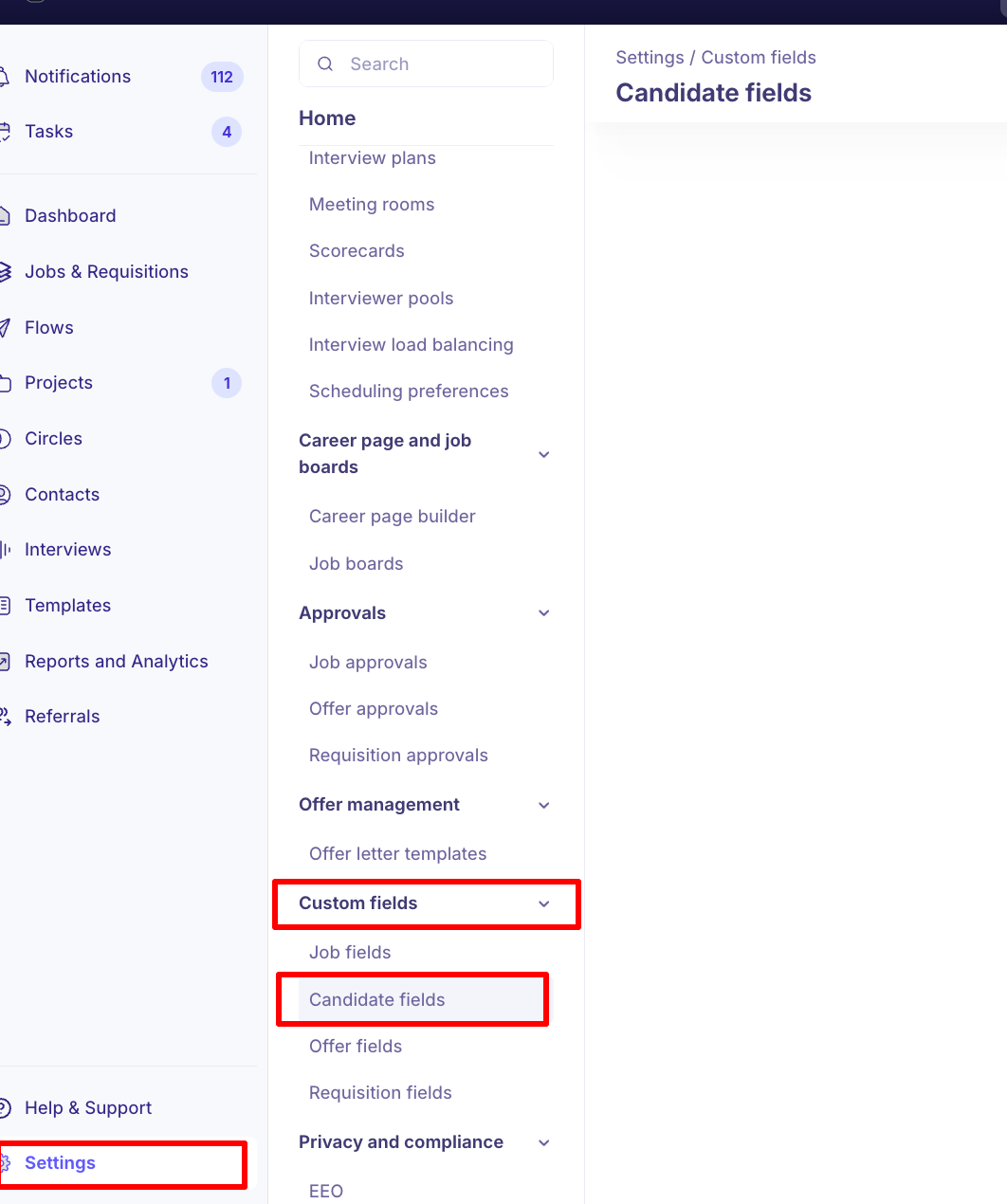
Click on the "Settings" icon located at the bottom of the left-side menu.
Under the "Custom Fields" section, click on "Candidate Fields."
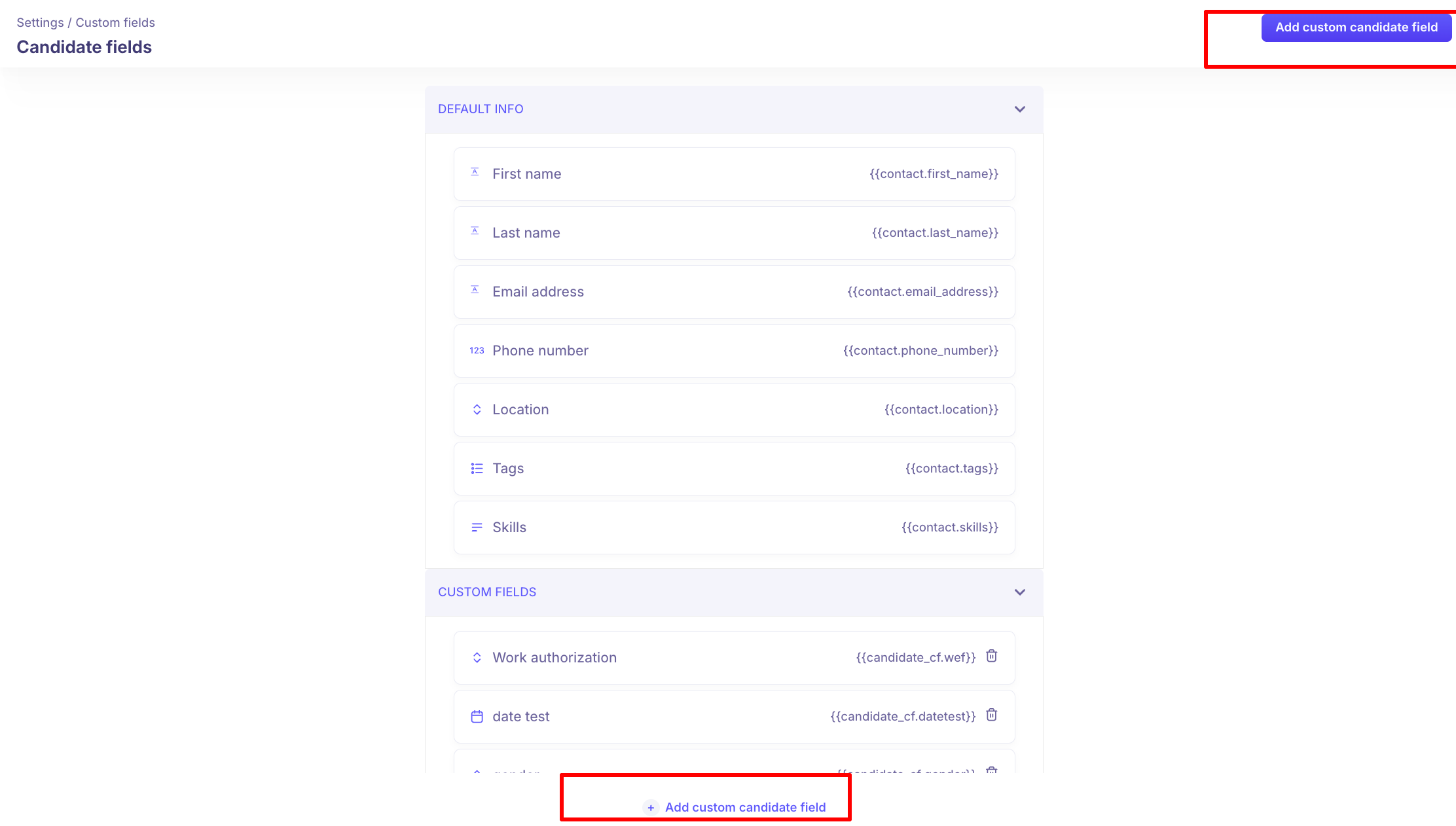
You will see two sections
Default Info: Includes fields such as First Name, Last name, Email Address, Phone number, Location, Tags, Skills. These fields cannot be edited.
Custom fields: You can create custom fields for your use case.
To create a new custom candidate field, click on the "Add Custom Candidate Field" button at the top right corner and Bottom.
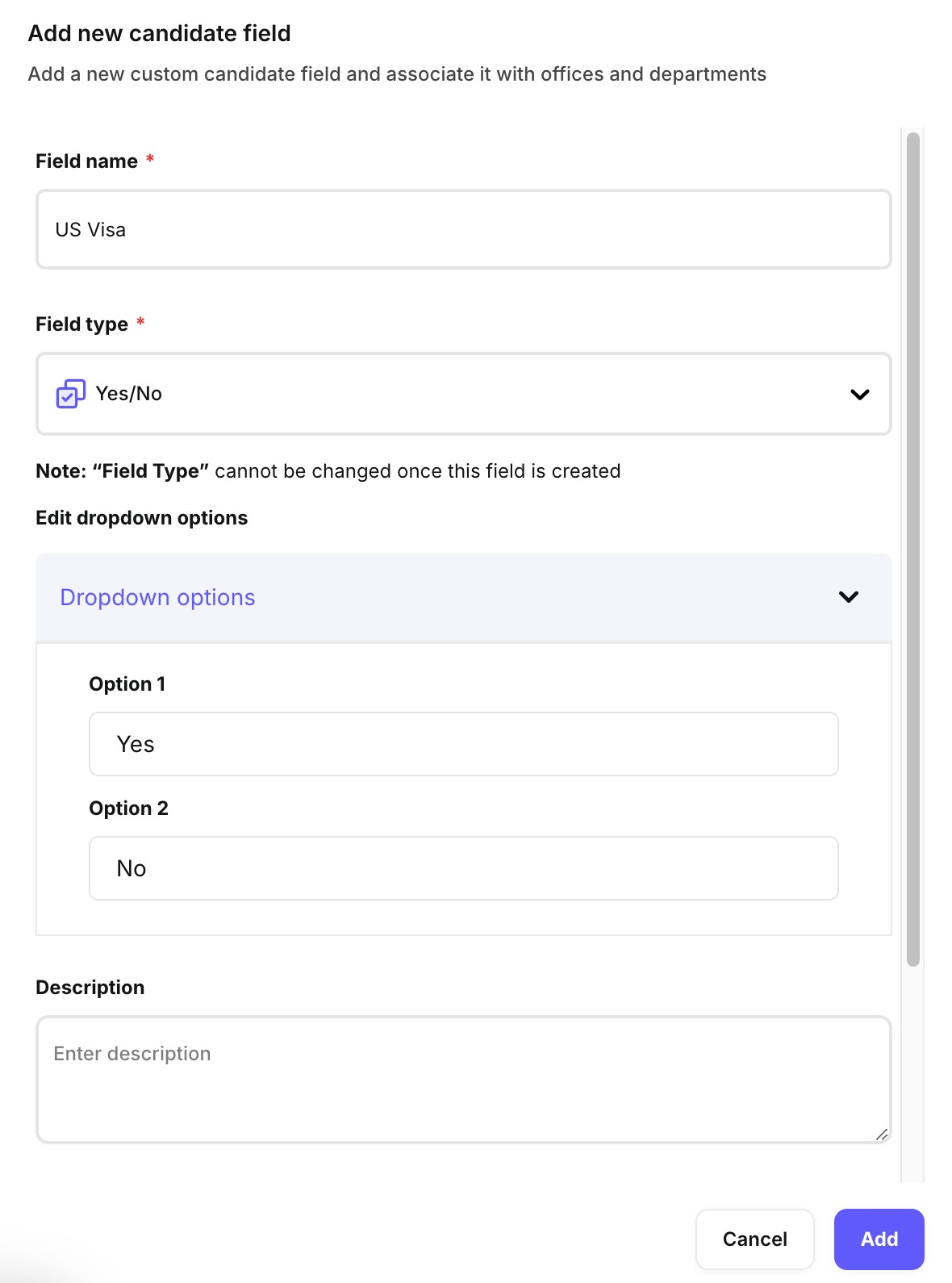
In the "Field Name" field, enter the name of the custom candidate field.
In the "Field Type" section, select one of the following options:
Short Text: Allows a single line of unformatted text.
Long Text: Allows multiple lines of unformatted text.
Single Select: Allows one answer to be selected.
Multi-Select: Allows multiple answers to be selected.
Date: Allows selection of a date from a picker.
Number: Allows numerical input.
URL: Allows entry of a URL.
Yes/No: Allows a yes or no choice.
Rich Text: Allows a Table format
Note: “Field Type” cannot be changed once this field is created
Enter the necessary information in the "Description" field.
Enter the value you want to see in the "Token" field. Please avoid using periods "." or brackets "{", "}".
Enter Placeholder - Default hint text shown in the input box prior to user input
If the field is mandatory, check the "Required Field" box.
Finally, click on the "Add" button to complete the creation of the custom candidate field.
Editing a Custom Candidate Field
On the "Candidate Fields" homepage under the "Custom Fields" section, click on the name of the custom candidate field you want to edit.
Update the necessary fields as needed.
Click on the "Save" button to finalize the update.
Deleting a Custom Candidate Field
On the "Candidate Fields" homepage under the "Custom Fields" section, click on the "Delete" icon next to the custom candidate field you want to remove.
A confirmation modal will appear. Click on the "Yes, Delete" button to confirm and delete the field.