Use the Kula Everywhere Browser Extension
Last updated: July 3, 2026
The Kula Everywhere Chrome Extension brings your recruiting workflow directly to LinkedIn. Engage potential candidates with personalized AI-generated messages without leaving LinkedIn, streamlining your outreach process and saving time.
This article covers:
Installing the Chrome extension
Engaging candidates from LinkedIn
Reviewing AI-generated messages
Editing and sending messages
Tracking conversations
Frequently asked questions
Installing the Chrome Extension
Before you can use the Kula Everywhere extension, you need to install it on your Chrome browser and set up your Flows. You can install the extension from either the Chrome Web Store or directly from your Kula account settings.
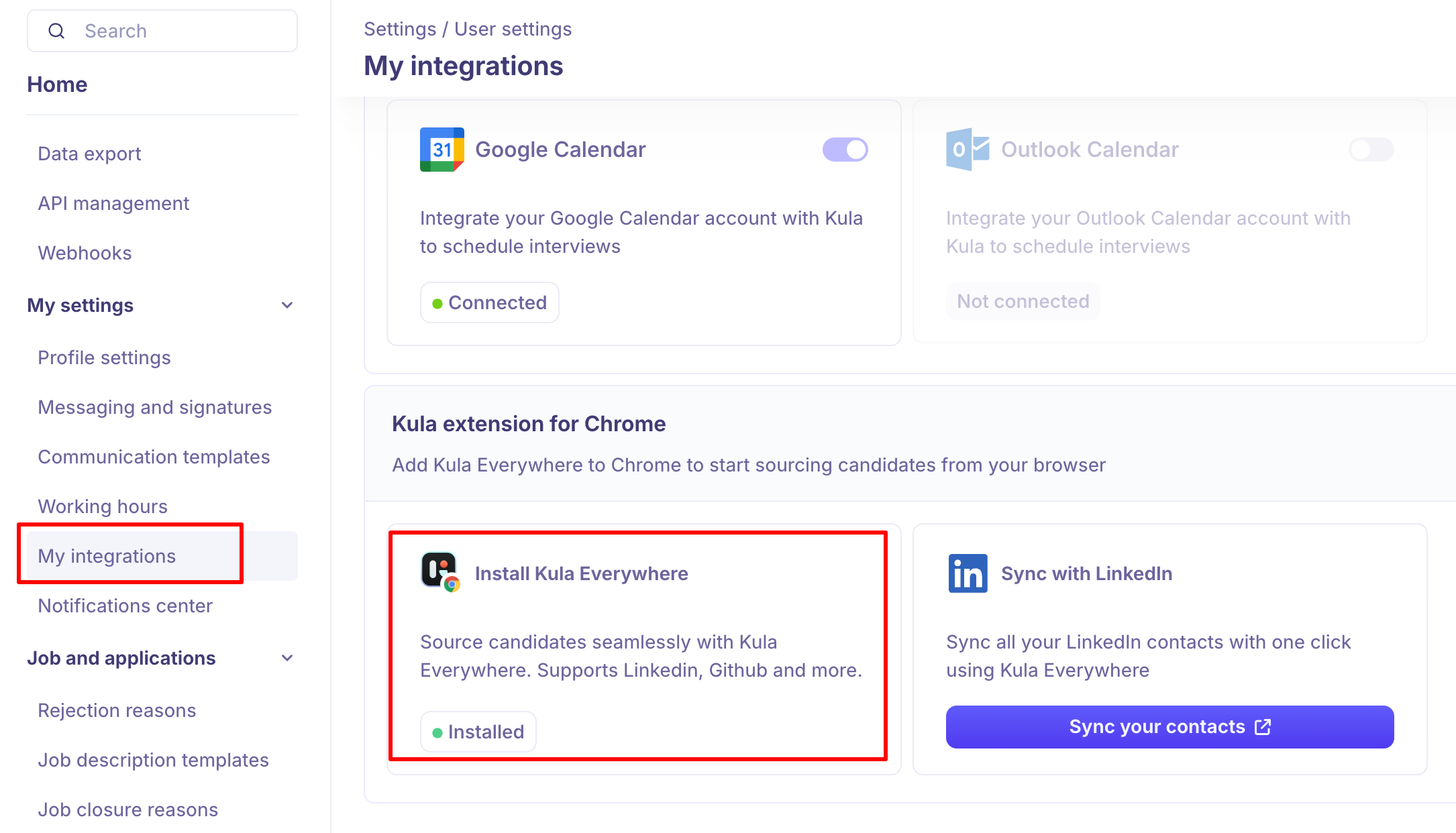
Option 1: Install from Kula Settings
Log in to your Kula account.
Go to Settings > My integrations.
Find the "Kula extension for Chrome" card.
Click Install Kula Everywhere.
Authorize the extension to access your Kula account when Chrome prompts you.
Option 2: Install from Chrome Web Store
Go to the Chrome Web Store and search for "Kula Everywhere."
Click Add to Chrome to install the extension.
Authorize the extension to access your Kula account when prompted.
Log in with your Kula credentials to connect the extension to your account.
Once installed, the Kula icon will appear in your Chrome toolbar and the status will show as "Installed" in your integrations page.
Tip: Before using the extension, create at least one Kula Flow with AI-generated messages. The extension needs these Flows to engage candidates.
Viewing Candidate Information
When you visit a candidate's profile on LinkedIn or other platforms, click the Kula Everywhere icon to view their information in Kula.
Navigate to a candidate's profile on LinkedIn or a recruiting platform.
Click the Kula Everywhere icon in your Chrome toolbar.
A side panel will open on the right side displaying the candidate's Kula profile information.
You'll see the candidate's name, title, and buttons to add them to a Project or Job.
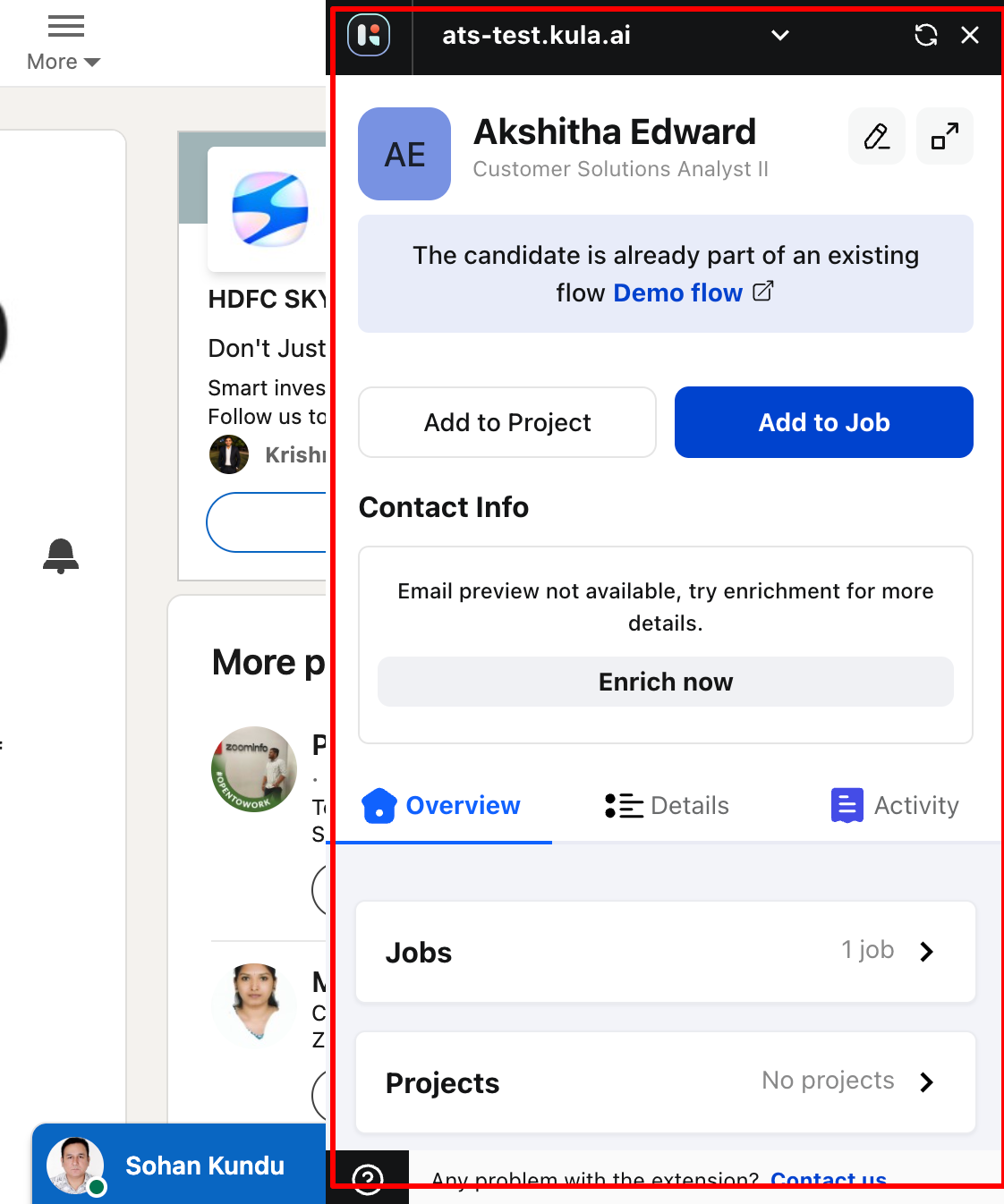
Tip: If the candidate is new to Kula, click "Enrich now" to pull additional information from LinkedIn.
Adding Candidates to a Flow
Use the extension to quickly add candidates to Flows, which will automatically send them personalized messaging sequences.
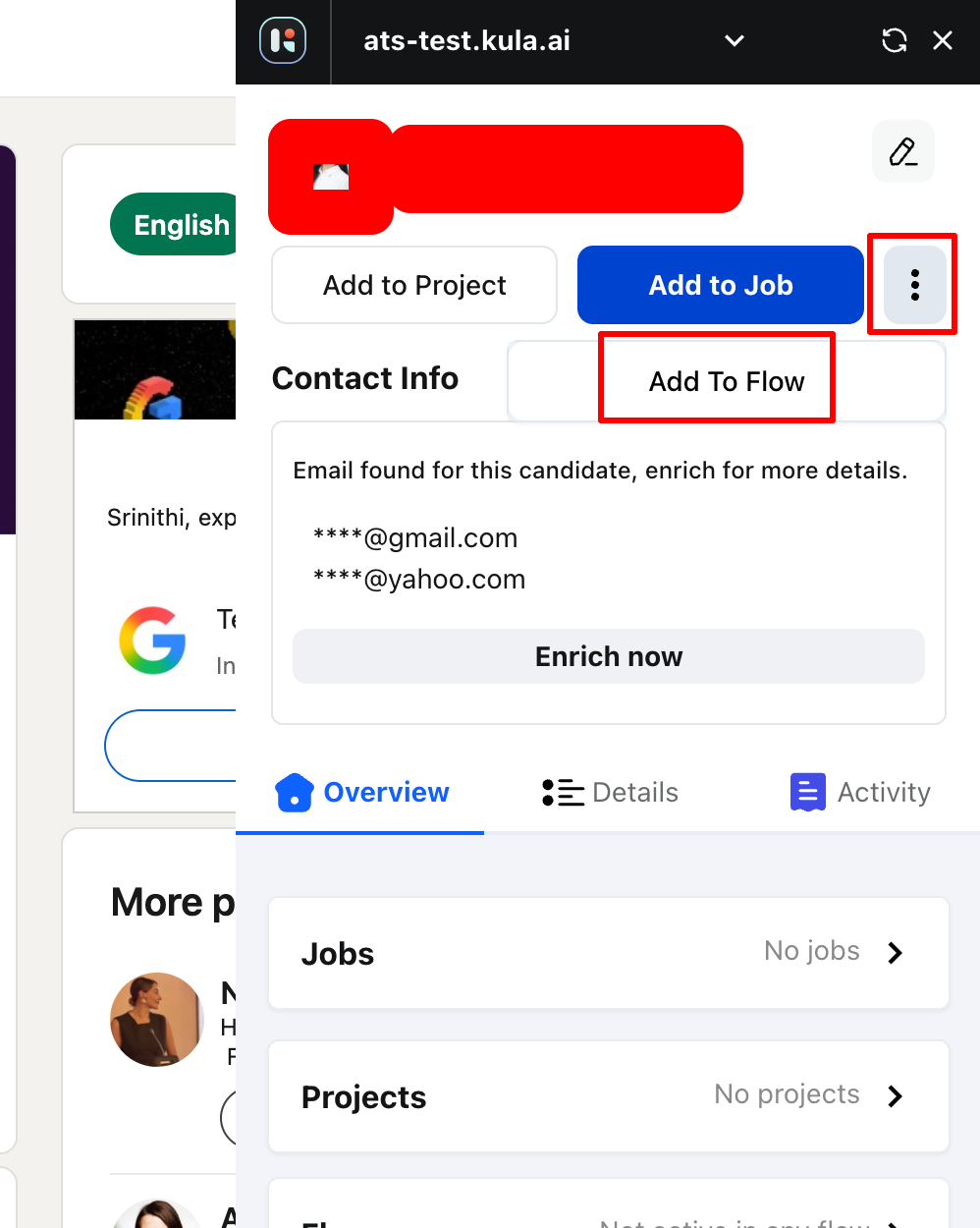
With the candidate's profile panel open, click the Add To Flow button.
Select the Flow you want to add this candidate to from the dropdown menu.
The candidate will now be active in that Flow.
Check the Flows section to see the status and confirm the candidate was added successfully.
Once added to a Flow, the candidate will receive the messaging sequence defined in that Flow on the schedule you've set up.
Tip: You can add the same candidate to multiple Flows if you want them to receive different messaging sequences.
Managing Candidate Assignments
Keep track of which candidates are in which Flows and make changes as needed.
In the candidate's profile panel, scroll to the Flows section.
You'll see which Flow(s) the candidate is currently active in.
To add another Flow, click Add To Flow again.
To remove a candidate from a Flow, click the dropdown arrow next to the Flows section and select the option to remove.
You can also add the candidate to a Project or Job using the respective buttons at the top of the panel.
Frequently Asked Questions
1. Does the extension work on all websites?
The extension works best on LinkedIn, but also functions on other recruiting platforms and company websites. You can click the Kula icon anywhere to see if a candidate profile is available.
2. What if a candidate isn't in Kula yet?
The extension will show the candidate's basic information. Click "Enrich now" to pull more details from LinkedIn, or click "Add to Job" to create a full profile in Kula.
3. Can I add a candidate to multiple Flows?
Yes. You can add the same candidate to different Flows if you want them to receive multiple messaging sequences.
4. Can I remove a candidate from a Flow using the extension?
Yes. Click the dropdown arrow next to the Flows section in the candidate panel to manage Flow assignments.
5. Do I need to create Flows before using the extension?
Yes. You should create Flows in Kula before using the extension to add candidates to them. Flows contain the messaging sequences that will be sent to candidates.
6. Can multiple team members use the extension?
Yes. Each team member can install the extension on their own Chrome browser and log in with their Kula credentials.
Need Help?
If you have questions about using the Kula Everywhere Chrome Extension, reach out to support@kula.ai or use the in-app chat for help.