Sending surveys to candidates and hiring managers
Last updated: December 18, 2025
Surveys help you measure satisfaction with your hiring process and identify areas for improvement. Send Candidate Surveys to applicants and Hiring Manager Surveys to hiring managers—both include a Net Promoter Score (NPS) question to gauge overall satisfaction.
There are two types of surveys in Kula
Candidate survey: Candidate surveys are sent to candidates often at the end of their hiring process, either during rejection or after they are hired. These surveys include an NPS question to gauge the candidate’s overall satisfaction with the hiring process.
HM survey: HM surveys are sent to hiring managers or internal employees, often when a candidate is hired. These surveys include an NPS question to gauge the HM’s overall satisfaction with the hiring process.
Learn about analyzing survey data
Adding survey to the interview plan
Pre-requisites: Create a survey in Admin configuration > Jobs & applications > Surveys. Learn more here.
As part of setting up your interview plan, you can add surveys to job stages as activities. We recommend adding two surveys to the Hired stage. One for the candidate and another for the hiring manager.
Additionally, you will also be able to send surveys to rejected candidates. Learn more here.
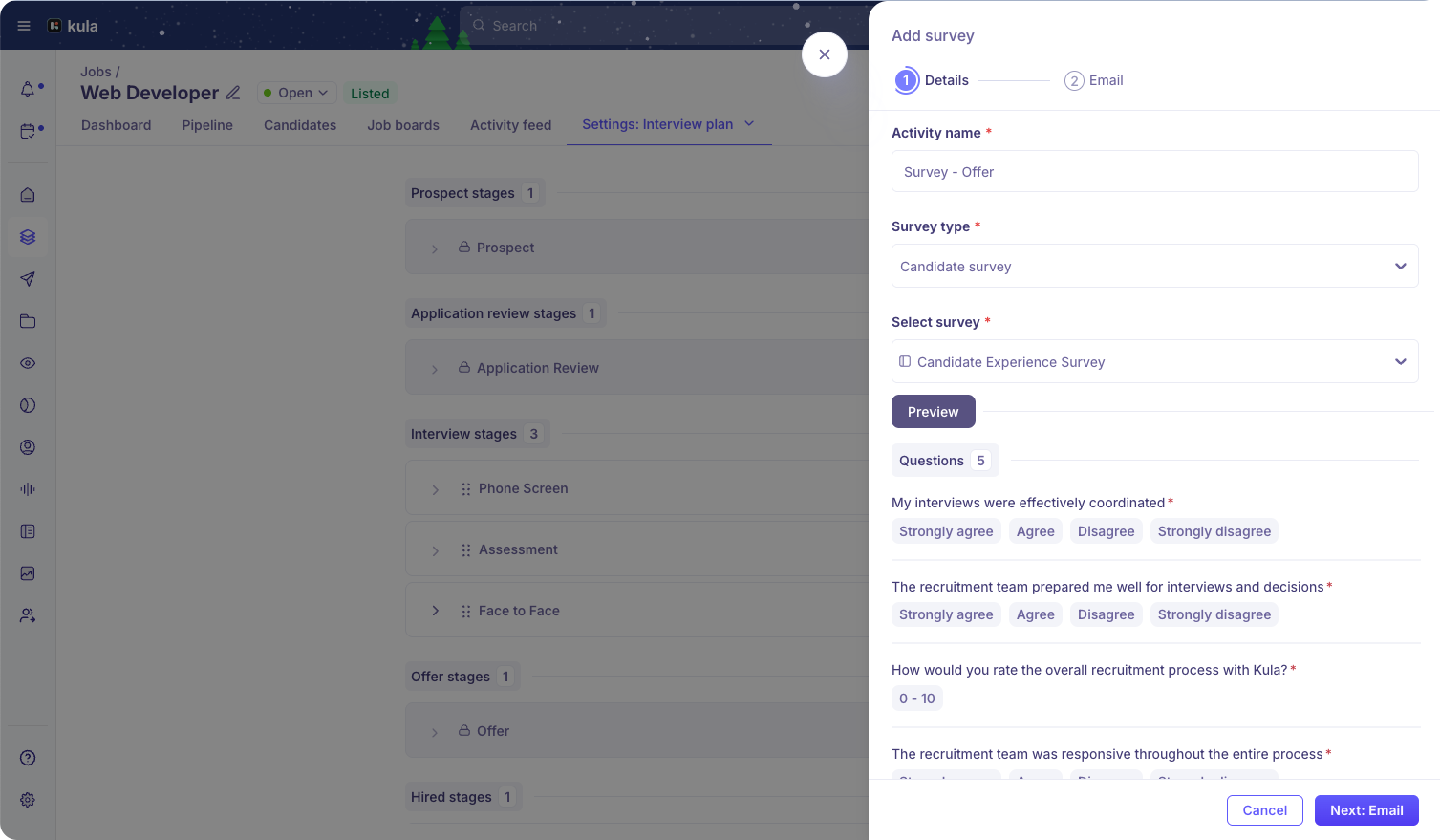
To add a survey to the interview plan,
Go to the Interview plan page in Jobs (or in Settings) and click Add activity in the preferred stage
Select Add survey to create a new survey activity.
Add the Activity name.
Select the Survey type. You can choose between candidate and HM surveys
Search for and select the desired survey already created in the Surveys page in Settings. You can only add the surveys matching the department, office and work type of the job/interview plan.
Click Next:Email to configure the email message that will be delivered to candidates/HMs
For candidate surveys, you can select the From and for HM surveys, you can select the From, and To. Both emails require the survey link to be added to them. This can be added from the Variables {} menu in the email editor.
Click Add survey.
This adds the survey activity to the desired stage and when candidates arrive in this stage, the survey can be sent.
Sending surveys to candidates and HMs
The next step is to ensure candidates and HMs receive their surveys so they can fill them out. You can do this by following the steps below
If the survey activity is added to the interview plan, you can click Send survey in the candidate profile page in the job. If not, you can send an ad-hoc survey to the candidate or HM by going to Three dot menu > Send survey (ad-hoc) on the top-right of the candidate profile page in the job.
You will have to add the Activity name, Survey type and select the appropriate survey. (All of this is pre-filled if added to the interview plan)
Click Next:Email to configure the email message that will be delivered to candidates/HMs
For candidate surveys, you can select the From and for HM surveys, you can select the From, and To. Both email require the survey link to be added to them. This can be added from the Variables {} menu in the email editor.
Click Send survey to send the survey out immediately or Schedule later to schedule the delivery of the survey email.
Sending surveys during rejections
While rejecting a candidate, it will be possible to add a survey link to the rejection email template. Once added, search and select the desired candidate survey and reject the candidate. This will send out the rejection email that contains the survey that the candidate can fill.
Filling out surveys
Candidates receive surveys in their email inbox with the survey link and the customized email that you have set up. They will see a survey filling experience with your brand colors and your brand logo as set up in the Career page builder in Settings.
Hiring managers receive their surveys via email, Slack and a Kula in-app notification. They can use the email to land within Kula to fill their survey or simply fill it out in Slack powered by Kula’s Slack integration. Additionally, they can also fill it from their Dashboard in Kula under Tasks.