Adding tags to candidates
Last updated: August 3, 2026
Tags let you label candidates with whatever categories matter to your team — skills, source, priority, or anything else worth tracking at a glance. This article covers how to add and remove tags on a candidate, who can do it, and where tag management currently has gaps. For how to use tags to filter and segment your candidate list, see "Tagging and segmenting your CRM."
Who can do this: Any user with edit access to a candidate can add or remove tags — this includes Recruiters, Hiring Managers, Admins, and Super Admins, as well as External Collaborators granted Editor-level access.
Where to find it: A candidate's own profile page, or the Tags column on the Contacts page and a job's Candidates tab.
Adding a tag
On the candidate's own profile page — add a tag directly from there.
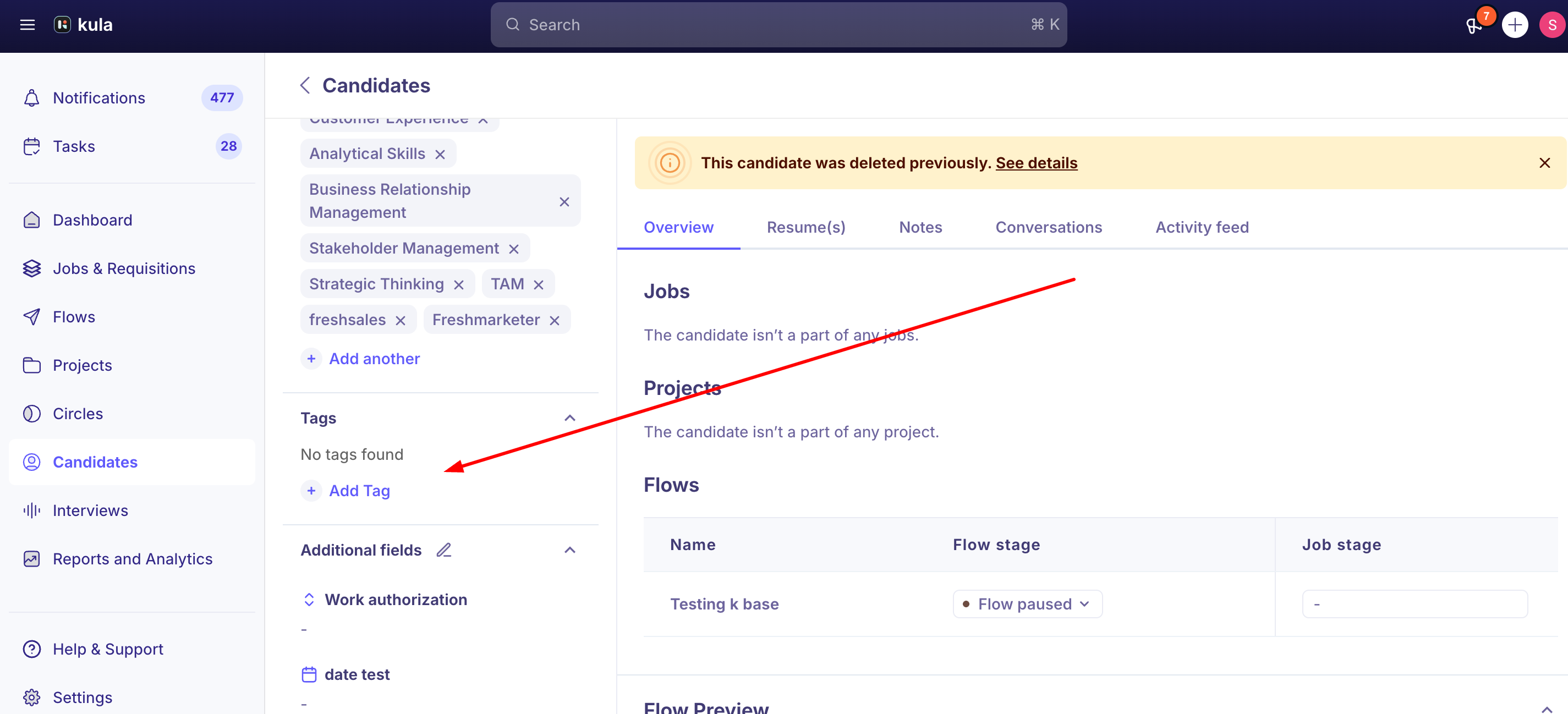
From the Contacts page, or a job's Candidates tab — use the Tags column to apply an existing tag, or create a new one on the spot.
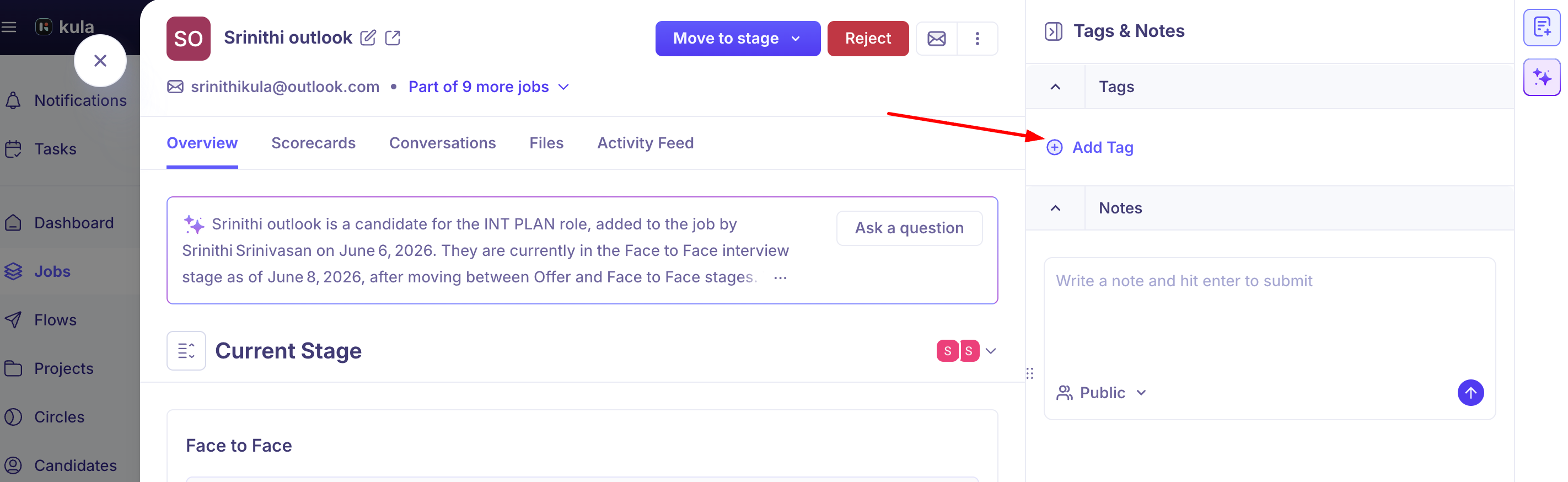
Any tag you create is saved and available to reuse on other candidates afterward — you're not starting from scratch each time you tag someone new.
Removing a tag
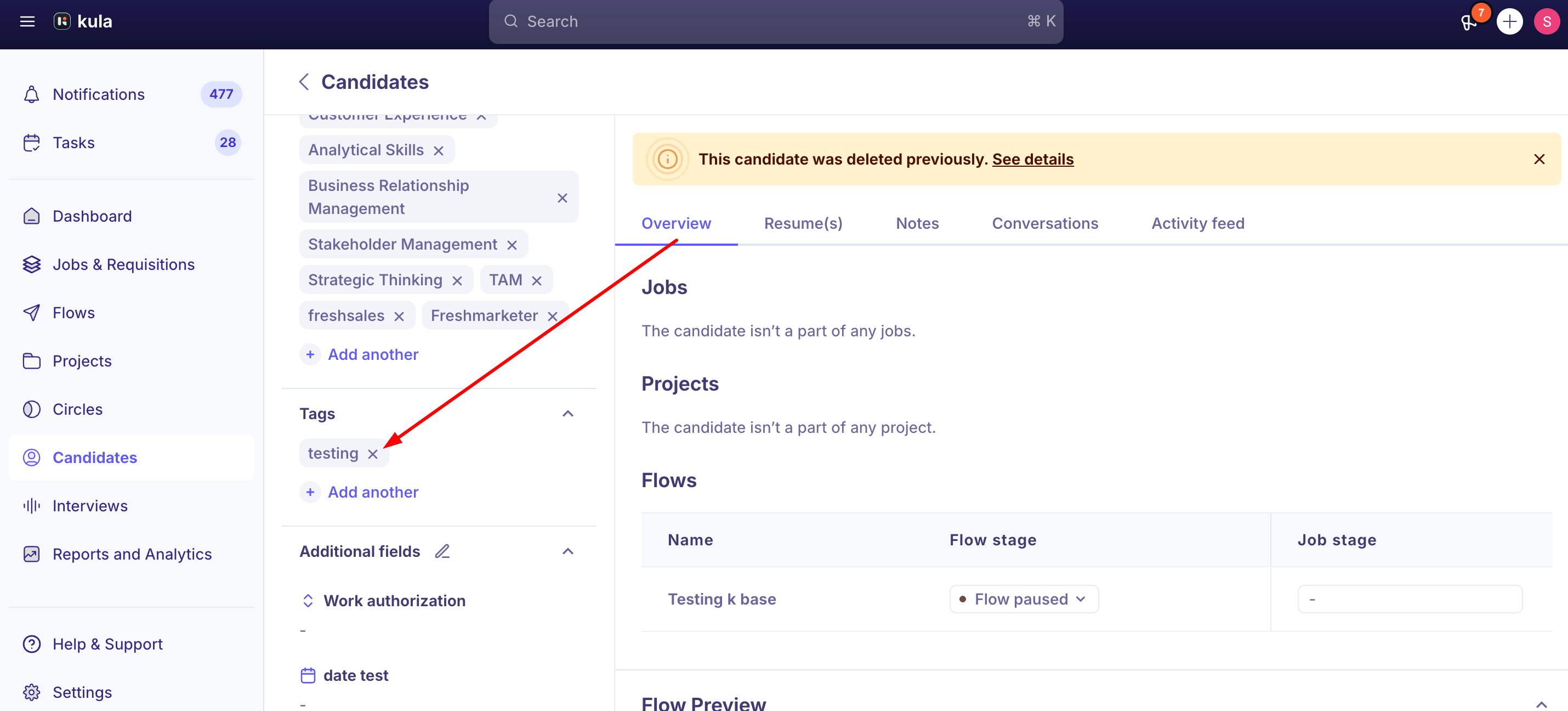
You can remove a tag from a candidate the same way you added it, as long as you have edit access to that candidate.
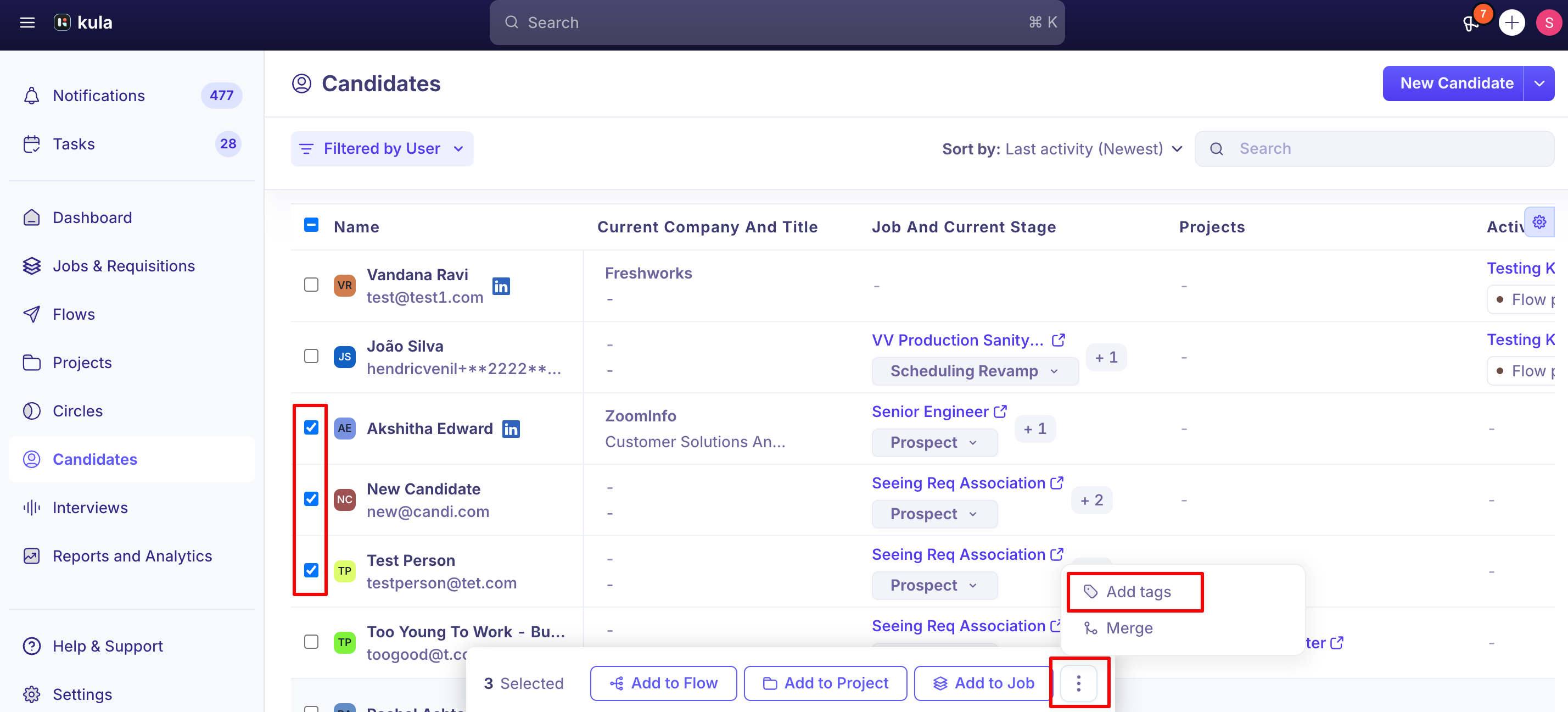
Tagging multiple candidates at once
You don't have to tag candidates one at a time — from the Contacts page, you can select multiple candidates and apply a tag to all of them in a single bulk action. See "Bulk actions on candidates" for more on bulk actions generally.
Good to know
Tags are visible to anyone with access to the candidate — they're not private to the person who added them. If you tag a candidate, your whole team (with access) sees it too.
The Tags column isn't always visible by default. If you don't see it on your Contacts page, check your table's column settings — it may need to be turned on.
Tags mainly apply at the candidate level today, not per application. If a candidate has multiple active applications, a tag you add can show up across all of them, not just the one you were looking at.
FAQ
How do I add a tag to a candidate? From the candidate's own profile page, or from the Tags column on the Contacts page or a job's Candidates tab — apply an existing tag or create a new one.
Can I remove a tag once I've added it? Yes, as long as you have edit access to the candidate. If you have edit access but can't remove a tag, report it — that shouldn't happen.
Can I tag multiple candidates at once instead of one by one? Yes — select multiple candidates from the Contacts page and apply a tag to all of them in one bulk action.
Can I clean up or rename tags across my whole account in one place? Not yet, self-serve — there's no centralized tag management page today. Reach out to support if you need existing tags cleaned up or consolidated.
If I tag a candidate, will my teammates see it too? Yes — tags are visible to anyone with access to that candidate, not just the person who added the tag.
Need help?
If you have questions or need assistance, reach out to us at support@kula.ai or use the in-app chat.