Creating candidate custom fields
Last updated: September 26, 2026
Kula's default candidate fields won't always cover everything your team needs to track — things like a certification, a source-specific ID, or an internal classification. Custom fields let you add your own structured data points to every candidate record. This article covers how to create a candidate custom field, what field types are available, and what to watch for.
Who can do this: Users with permission to manage candidate fields — typically Admins and Super Admins.
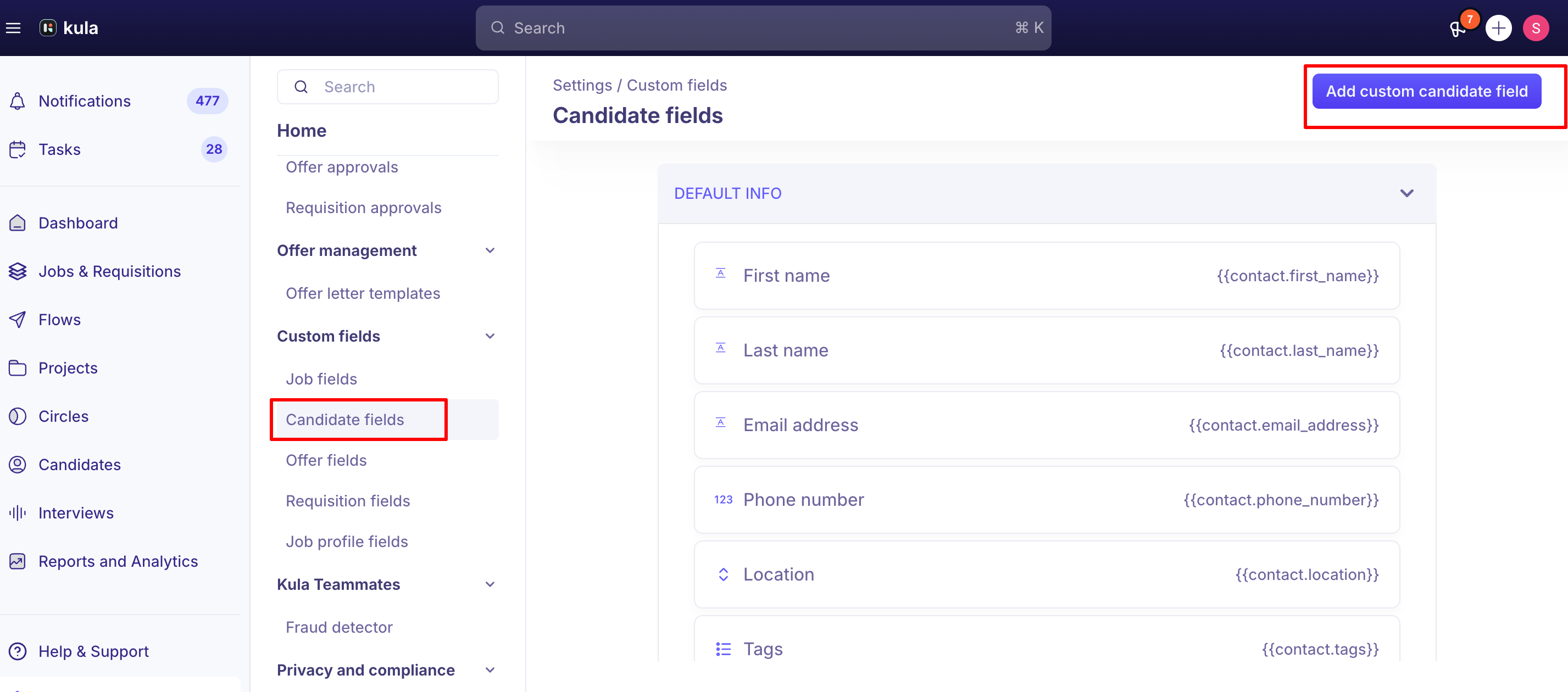
Settings → Candidates & Applications → Candidate fields
Creating a candidate custom field
Go to Settings → Candidates & Applications → Candidate fields.
Under Custom fields, click Add field
Select a field type (see below), then give the field a name.
Save. The field now appears wherever candidate details are captured — the manual "New Candidate" form, the candidate profile, and CSV import mapping.
Field types available
Field type | Description |
|---|---|
Short text | A single line of free text, up to 255 characters, such as a referral name. |
Long text | Longer free text, such as notes. |
Single select | One selection from a list of options you define. |
Multi select | One or more selections from a list of options you define. |
Yes/No | A fixed Yes or No answer. |
Date | A calendar date, such as availability or notice end date. |
Number | Numeric values only, such as years of experience. |
URL | A web address, such as a portfolio link. |
A field's type can't be changed after it's created. If you need a different type, create a new field and delete the old one.
Where custom fields show up
Once created, a candidate custom field appears on the manual candidate-creation form, the candidate's profile (editable inline), and as a mappable column during CSV import — you don't need to configure it separately in each place.
Make a field mandatory, optional or hidden
On the same page, set a field to Mandatory, Optional or Hide. Mandatory fields must be filled in before a candidate can be saved; hidden fields don't appear on the form. For Source and Credited to, you can also tick Make Mandatory everywhere candidates are added, so they're required when a candidate is added to a job, transferred or added from the extension.
Good to know
No file fields. To keep documents with a candidate, use Files. See Attaching files and notes.
Yes/No labels are fixed. For your own wording, use Single select.
Numbers are kept exactly as typed, including commas.
The order of candidate fields is fixed.
Job and offer fields are separate, on their own settings pages.
FAQ
Who can create a candidate custom field? Anyone with the Manage fields permission, which is typically limited to Admins and Super Admins.
Where do I go to create one? Settings → Candidates & Applications → Candidate fields. Job fields and Offer fields are separate pages with their own custom fields.
Can I create a custom field to store a document or file? Not currently — file-type custom fields can't be created from the UI today. Use the existing resume/file attachment option on the candidate profile instead.
I created a Yes/No field and both options show as "No" — is that a bug? No — Yes/No fields intentionally have fixed, non-renameable options. If you need custom option labels (for example, capturing consent language), create a Single choice field instead and write your own option text.
Can I make a candidate custom field required? Yes. On Settings → Candidates & Applications → Candidate fields, set the field's status to Mandatory. For Source and Credited to, you can also tick Make Mandatory everywhere candidates are added so the field is required when a candidate is added to a job, transferred to another job, or added from the browser extension.
Is there a character limit on custom field descriptions? Very long text may not save. If it won't save, shorten it or contact support. If you're writing longer description text (like consent language) and it won't save, length is worth checking first.
Need help?
If you have questions or need assistance, reach out to us at support@kula.ai or use the in-app chat.