Moving Candidates Between Stages
Last updated: April 22, 2026
Moving a candidate to the next stage is one of the most common actions in Kula. You can advance or move candidates from within the Pipeline board, the Candidates list, or from inside a candidate's profile. Each method updates the candidate's stage instantly and can trigger any automations associated with that stage.
To move a candidate, open their job's Pipeline or Candidates view and use any of the methods described below.
Moving a Candidate from the Pipeline Board (Drag and Drop)
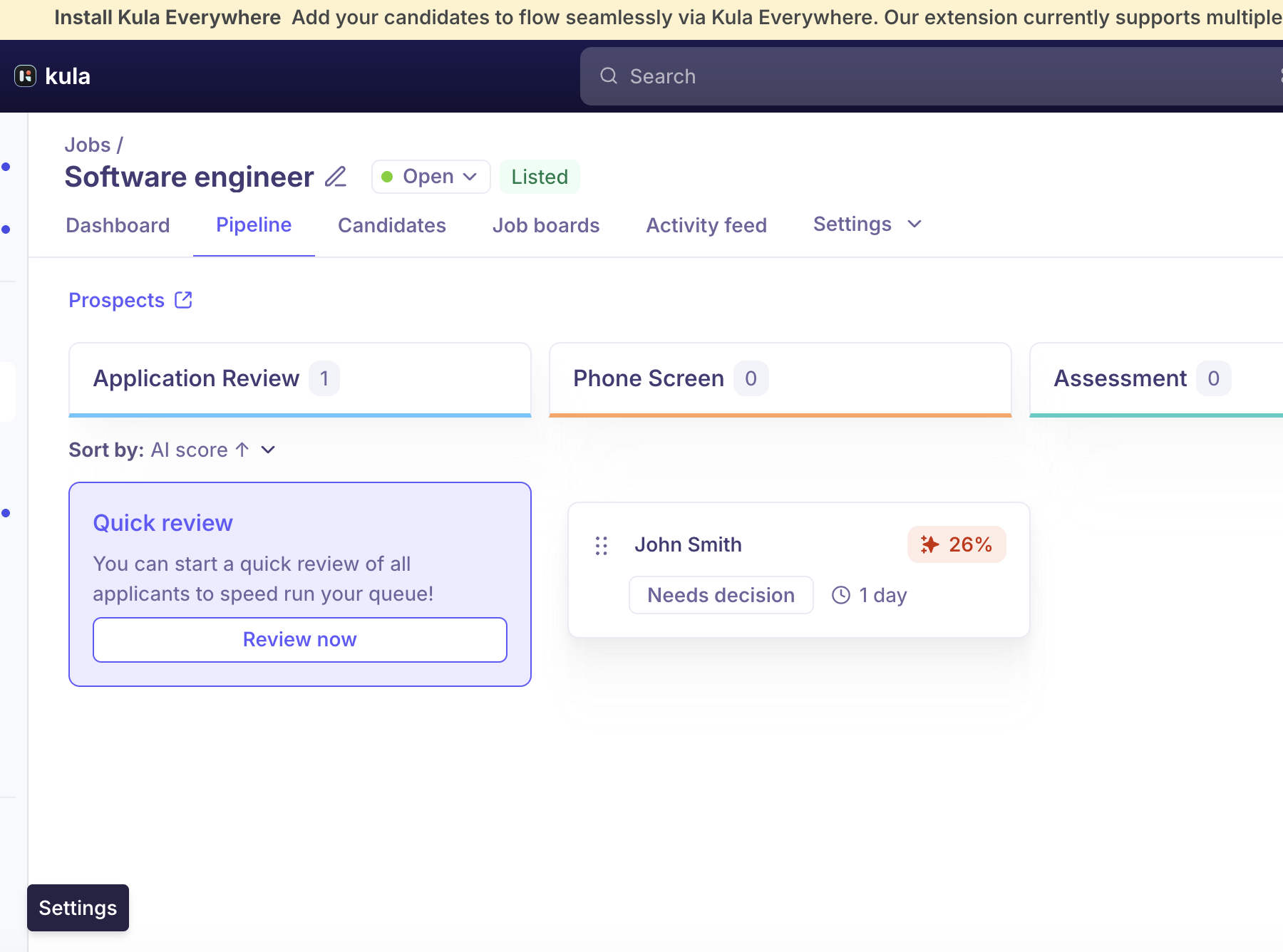
The Pipeline board supports drag-and-drop to move candidates between stage columns.
Steps:
Go to the job and click Pipeline in the top navigation.
Locate the candidate card in their current stage column.
Hover over the card — a drag handle (six-dot grid icon) appears on the left side.
Click and hold the drag handle, then drag the card to the target stage column.
Release to drop the candidate into that stage.
The card moves immediately and the stage column counts update to reflect the change.
Moving a Candidate from the Candidate Profile
You can move a candidate directly from their profile using the Move to stage button.
Steps:
Open the candidate's profile by clicking their name in the Pipeline or Candidates list.
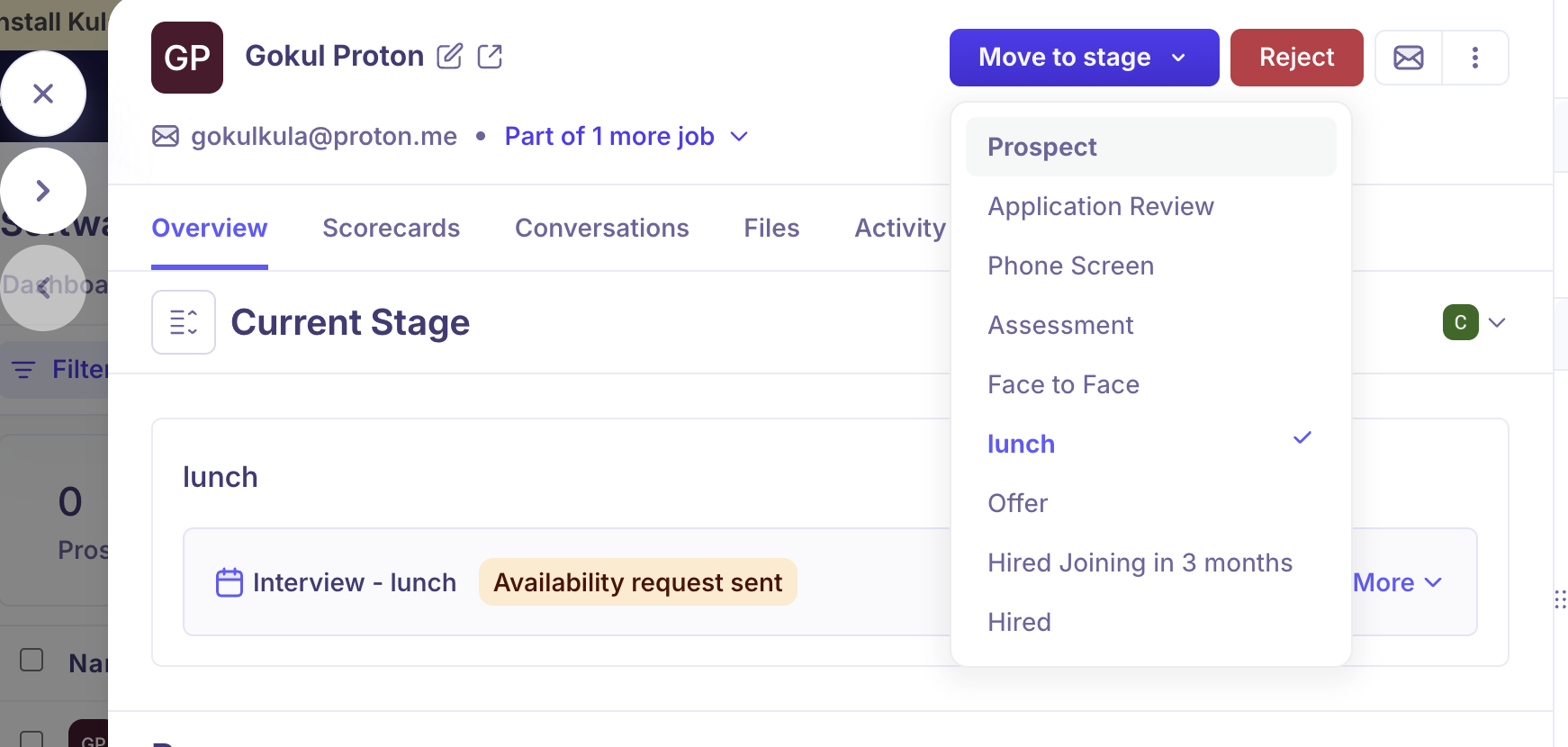
Click the Move to stage button in the top-right area of the profile.
A dropdown appears showing all available stages in the hiring workflow:
Prospect
Application Review
Phone Screen
Assessment
Face to face
Offer
Hired
The candidate's current stage is highlighted with a checkmark.
Click the stage you want to move the candidate to.
The stage updates immediately and the profile reloads to show the new stage's activities and requirements.
Moving a Candidate from the Candidates List
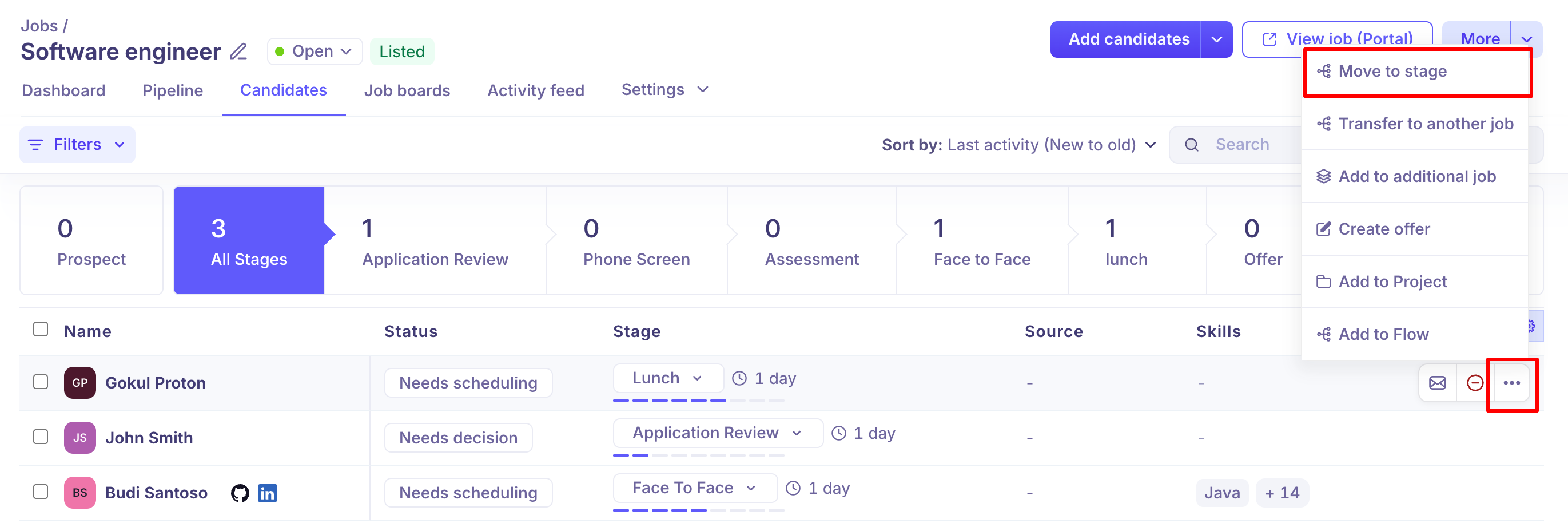
The Candidates tab provides a flat list view where you can change a candidate's stage using the inline stage dropdown.
Steps:
Go to the job and click Candidates in the top navigation.
Find the candidate in the list.
Click the stage pill (e.g. Application Review, Assessment) in the Stage column next to their name.
A dropdown appears — select the target stage.
The stage updates immediately in the list.
Moving to a Previous Stage
You can move a candidate backwards to an earlier stage if needed — for example, if they need to redo an assessment or if they were advanced in error.
Use the Move to stage dropdown in the candidate profile and select the earlier stage. There is no restriction on moving backwards through the pipeline.
Moving a candidate to a previous stage does not automatically undo completed interviews or assessments from the earlier stage.
Permissions
Super Admins can move candidates between stages across all jobs.
Recruiters can move candidates for jobs they are assigned to.
Interviewers cannot move candidates between stages.
If you do not see the Move to stage option, contact your Super Admin to check your role permissions.
Frequently Asked Questions
1. Can I move a candidate to Hired directly from any stage?
Yes. The Move to stage dropdown always lists all stages including Hired. You can jump directly to Hired from any current stage.
2. Will the candidate receive an email when I move them?
Only if an automated email is configured for the target stage in your job's workflow settings. If no automation is set up, no email is sent automatically — but you can send a manual email from the candidate profile.
3. Can I undo a stage move?
There is no undo button, but you can move the candidate back to the previous stage manually using the Move to stage dropdown.
4. What happens to the candidate's scheduled interviews if I move them to a different stage?
Existing scheduled interviews are not cancelled automatically. You may need to manually cancel or reschedule interviews that are no longer relevant after the stage change.
5. Can I move multiple candidates at once?
Yes. Go to the Candidates tab, select multiple candidates using the checkboxes, and click Move to another stage in the bulk actions bar at the bottom of the screen.
Need Help?
If you have questions or need assistance, feel free to reach out at support@kula.ai or use the in-app chat for help.