Scheduling your first interview
Last updated: April 7, 2026
Interview scheduling in Kula happens directly from the candidate's pipeline card. You have three options: schedule a time yourself, send the candidate a link to pick from available slots, or ask the candidate to share their availability first so you can book from there.
All three options are available from the Schedule interview dropdown on the interview stage card. The right option depends on how much you already know about the candidate's availability and how much flexibility you want to give them.
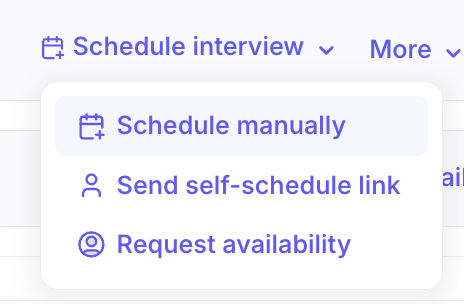
Schedule manually
Use this option when you already know a time that works and want to book it directly.
To schedule manually:
When a candidate reaches an interview stage, click Needs Scheduling on their pipeline card.
Click Schedule interview, then select Schedule manually from the dropdown.
In the Interview name field, confirm or update the interview name. It pre-fills from the Interview Plan.
In the Interview type field, confirm or change the format. It defaults to One-on-one interview based on the Interview Plan.
In the Interviewer field, confirm or change the interviewer. Kula pre-fills this based on the Interview Plan. You can select a different person from the dropdown.
In the Duration field, confirm or adjust the interview length. It pre-fills from the Interview Plan.
In the Location field, confirm or change where the interview takes place. It pre-fills from the Interview Plan.
If you want calendar event details hidden from non-attendees, check Make the interview private.
Toggle Enable AI notetaker on if you want Kula to automatically capture notes and a summary during the meeting.
Toggle Allow interviewers to complete scorecards with AI on if you want AI to help draft scorecards after the interview.
Click Next: Email.
Review the email templates for the candidate and interviewer. Kula pre-loads templates, but you can select a different saved template or edit the content directly.
Click Schedule to confirm.
Note: All fields pre-fill from the Interview Plan. If your plan is configured correctly, you typically only need to confirm the interviewer and date before moving to the email step.
Send self-schedule link
Use this option when you want the candidate to choose a time from a set of available slots. You select the slots; the candidate picks one.
To send a self-schedule link:
Click Needs Scheduling on the candidate's pipeline card.
Click Schedule interview, then select Send self-schedule link from the dropdown.
In the calendar view, select the time slots you want to offer. You can select multiple slots across different days.
In the Range of days field, choose how you want to define the available window. The following options are available:
Custom — select specific slots manually from the calendar (selected by default)
Kula-suggested slots — let Kula generate slots based on interviewer availability
Click Next: Email.
Review the email templates for the candidate and interviewer, then click Schedule to send the self-scheduling link to the candidate.
Request availability
Use this option when you don't yet know the candidate's availability and want to collect it before booking. The candidate shares their free times, and you book directly from what they provide — without leaving Kula.
To request availability:
Click Needs Scheduling on the candidate's pipeline card.
Click Schedule interview, then select Request availability from the dropdown.
In the Scheduling window section, set the Duration for the interview and select the date range within which the candidate can share their availability. The date range defaults to the next two weeks, excluding weekends.
Review the availability request email.
Click Send to deliver the availability request to the candidate.
The candidate receives a branded page where they can share their free times. They can enter availability in natural language — for example, "I'm free after 5 PM on weekdays" — and Kula parses it automatically.
Once the candidate responds, their availability appears on the interview card. From there, you can overlay the interviewer's calendar and book in one click.
Note: Request availability currently works for individual interviews. Support for multi-interview stages is coming soon.