Sending outreach from Kula
Last updated: April 8, 2026
Kula Flows lets you build automated, multi-step outreach sequences for recruiting. Each flow sends messages across one or more channels, timed and personalized to match your sourcing strategy.
Starting from scratch gives you full control over every step. You define the channels, timing, sender, and message content for each touchpoint. This is useful when you're building a flow for a specific role, team, or audience that doesn't fit an existing template.
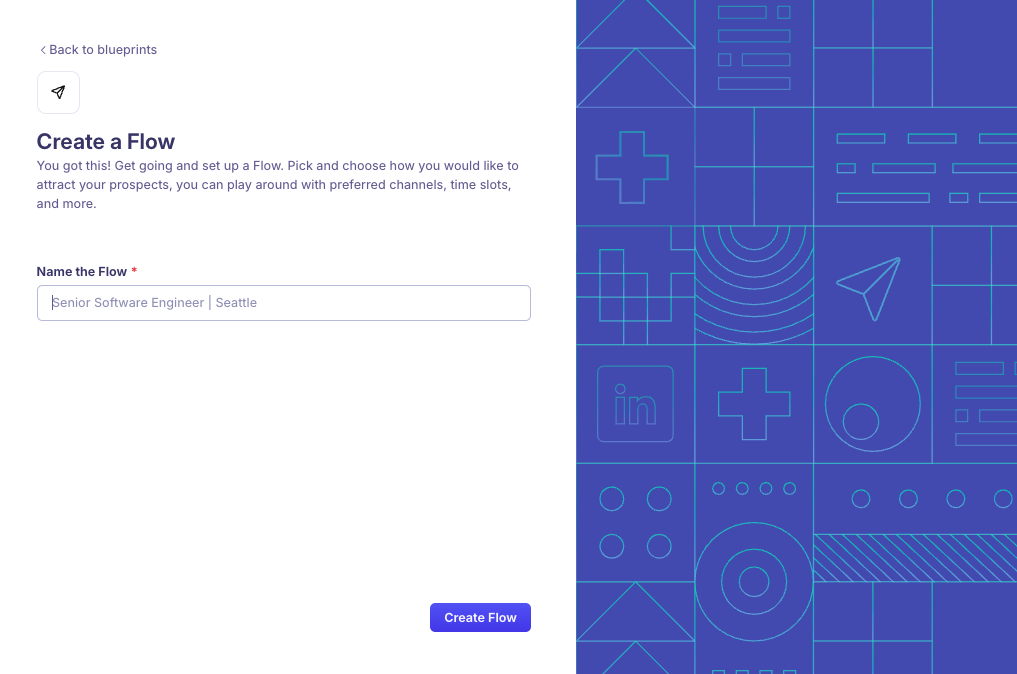
Step 1: Name your flow and choose a first step
To start building a flow:
Go to Flows in the left navigation bar.
Click New Flow in the top-right corner.
Enter a name in the Name the Flow field.
Select a channel for your first step:
Mail — unlimited steps
InMail — up to 2 per flow
Connection Request — up to 1 per flow
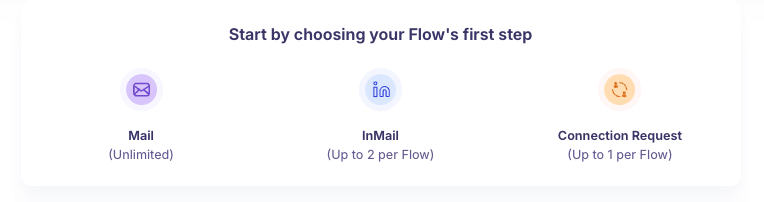
Step 2: Configure each step
For each step in the flow:
Set the Schedule in timing to control how long after the previous step this message is sent.
Select a sender from the From dropdown.
Choose how to write the message:
AI-assisted — Kula's AI generates a personalized message based on inputs you provide.
Manual — write the message yourself.
Writing with AI
If you select AI-assisted, complete the following fields:
Select what you want the AI to do — for example, Write a first message to the candidate.
Enter the role you're hiring for so the AI can tailor the message to that specialty.
Choose what to highlight in the message:
The candidate
Their experience
Their skills
Let our AI decide
Enter your LinkedIn profile URL so the AI can personalize the message based on your profile (to use as an example).
Select a tone of voice: Professional, Casual, Enthusiastic, or Persuasive.
Note: Professional tone is recommended for C-suite and engineering roles.
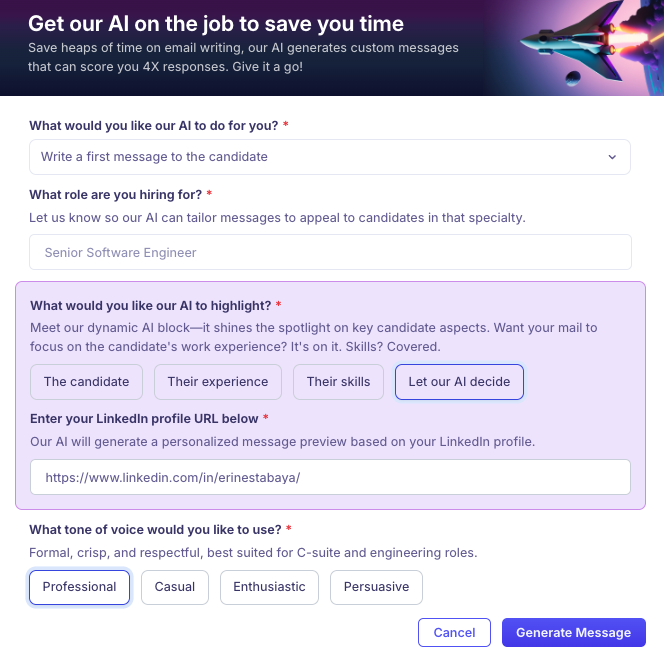
Repeat these steps for each step you add to the flow.
Step 3: Configure settings
In the Settings tab, configure the following:
Enter the Flow name and optionally add a recruiter, sourcer, or hiring manager.
Link a job using the Job dropdown. Once a job is linked, you can set a stage for candidates who respond as interested. Candidates marked as not interested are automatically rejected, and you can select a rejection reason.
Set your Schedule, including timezone and active hours (for example, 9:00 AM to 6:00 PM). LinkedIn tasks only run within the scheduled window unless they fall overdue.
Enable Tracking to monitor candidate reach-out performance.
Configure Error handling:
For other errors: Decide for yourself (recommended)
For email errors: Pause and allow me to enter the email (recommended)
Note: Every candidate added to the flow is placed in the Prospect stage of the linked job when the flow launches.
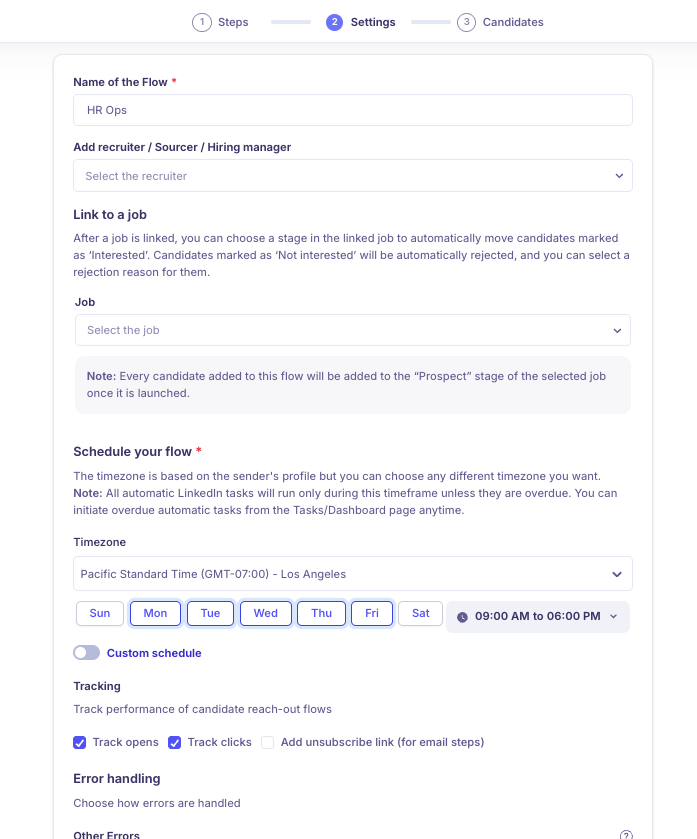
Step 4: Add candidates
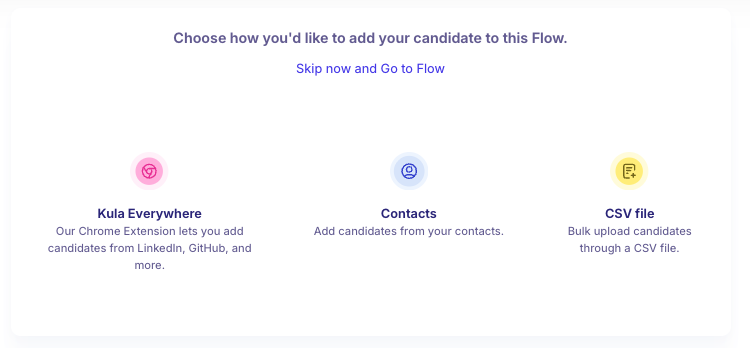
Choose how to add candidates to the flow:
Kula Everywhere — add candidates directly from LinkedIn, GitHub, and other sites using the Chrome extension.
Contacts — add candidates from your existing contacts in Kula.
CSV file — bulk upload candidates using a CSV file.
Select an option, or click Skip now and Go to Flow to add candidates later.
Step 5: Launch your flow
Once all steps, settings, and candidates are configured, click Launch to activate the flow.