Adding Tags to Candidates
Last updated: June 12, 2026
Tags are labels you can add to candidate profiles to categorize, organize, and quickly filter your pipeline. Use them to mark candidates by skill set, sourcing channel, priority level, or any custom criteria your team needs.
To access candidate profiles, go to a job and click Candidates in the top navigation, or search for a candidate directly from the global search bar.
This article covers:
Adding a tag to a single candidate
Adding tags to multiple candidates at once
Creating a new tag
Removing a tag from a candidate
Filtering candidates by tag
Adding a Tag to a Single Candidate
1. Open the candidate’s profile.
2. In the profile header, click the Tags field (or the + Add tag button if no tags have been added yet).
3. Type to search existing tags, or enter a new tag name.
4. Select the tag from the dropdown. It is saved automatically.
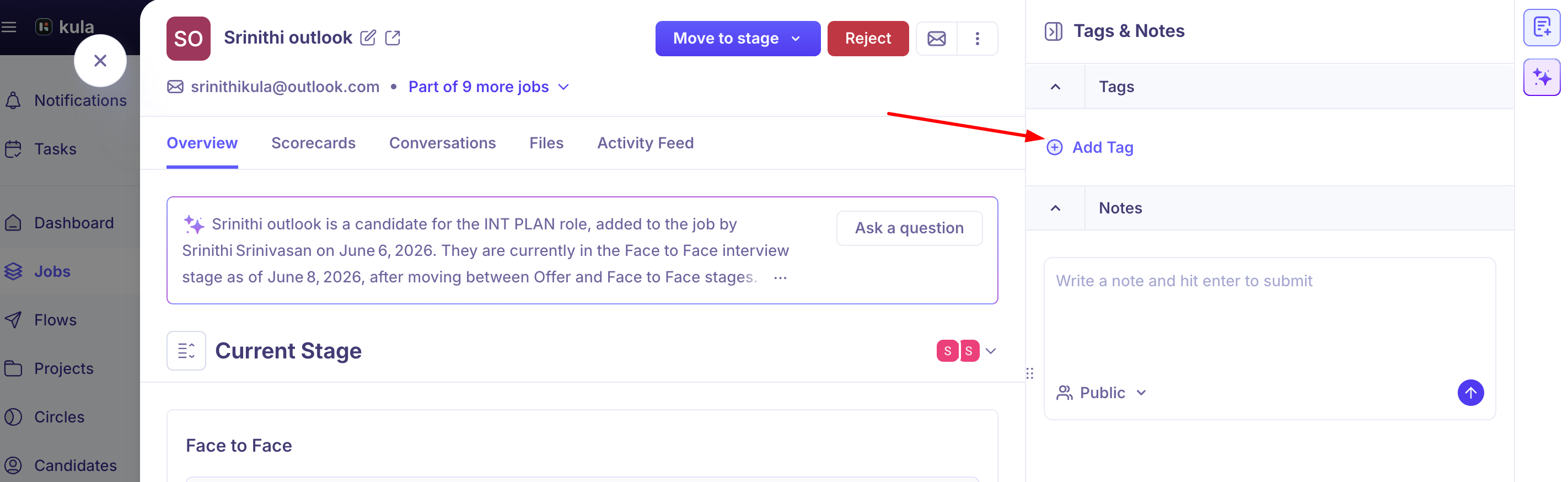
Tip: You can add multiple tags to a single candidate. Repeat the steps above for each tag.
Adding Tags to Multiple Candidates at Once
Use bulk tagging to apply a tag to several candidates simultaneously from the pipeline view.
1. Go to the Candidates view for a job.
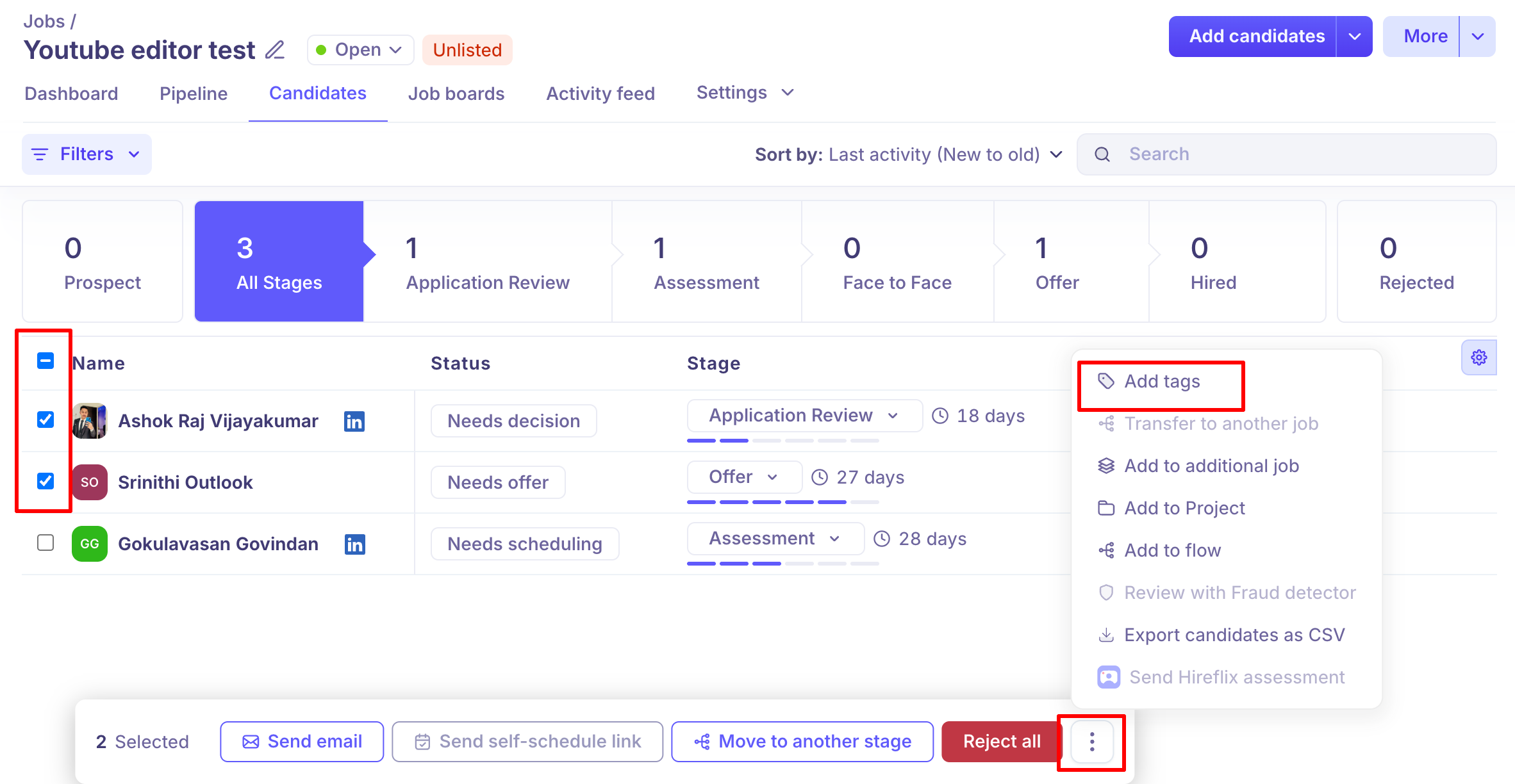
2. Select the checkboxes next to each candidate you want to tag.
3. In the bulk action bar that appears at the bottom of the screen, click the 3 dots > Add Tag.
4. Search for or select the tag you want to apply.
5. Click Apply. The tag is added to all selected candidates.
Creating a New Tag
You can create tags on the fly from any tag input field.
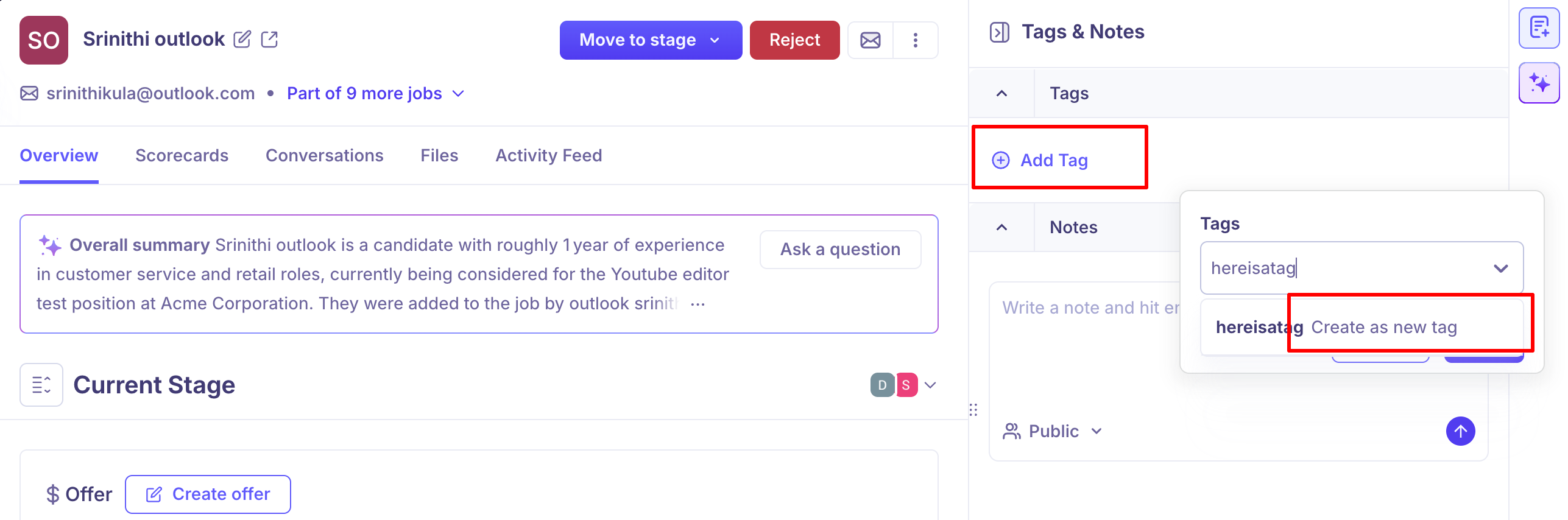
1. Click the Tags field on a candidate profile or in the bulk tag dialog.
2. Type the name of the new tag.
3. Select Create “[tag name]” from the dropdown.
The new tag is saved to your workspace and available for all future candidates.
Removing a Tag from a Candidate
1. Open the candidate’s profile.
2. Click the tag you want to remove.
3. Click the × icon next to the tag name. The tag is removed immediately.
Note: Removing a tag from a candidate does not delete the tag from your workspace. It remains available for other candidates.
Filtering Candidates by Tag
Use tags to quickly narrow down your candidate list.
1. Go to the Candidates view for a job.
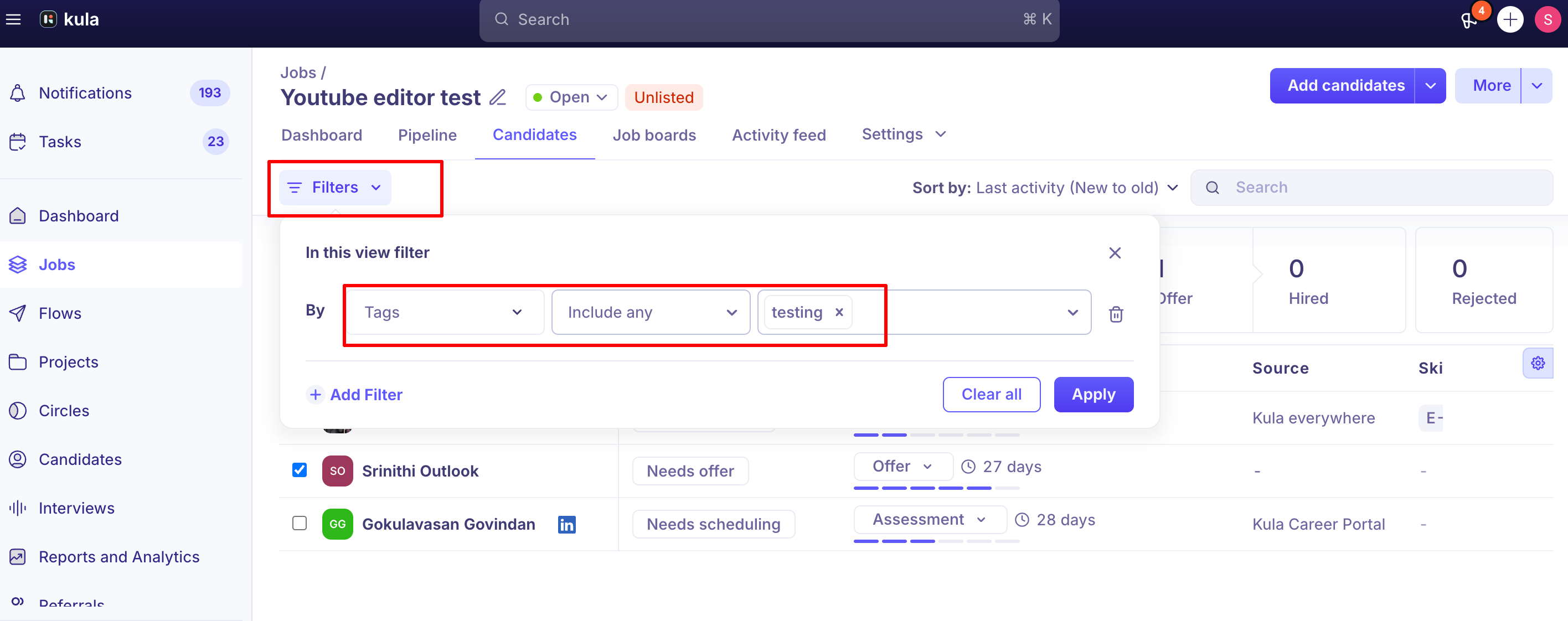
2. Click the Filters button at the top of the list.
3. Select Tags from the filter options.
4. Choose one or more tags to filter by. The list updates instantly to show only matching candidates.
You can combine tag filters with other filters (such as stage or assignee) to further refine your results.
Frequently Asked Questions
Can I rename or delete a tag?
Tag management (renaming and deleting tags globally) is available from Settings > Tags. Deleting a tag removes it from all candidates it was applied to.
Are tags shared across all jobs?
Yes. Tags are workspace-level, so a tag created for one job is available for all jobs and candidates in your workspace.
Who can add or remove tags?
Any team member with edit access to the candidate profile can add or remove tags.
Is there a limit to how many tags I can add?
There is no limit to the number of tags you can create or apply to a candidate.
Need Help?
If you have questions or need assistance, feel free to reach out at support@kula.ai or use the in-app chat for help.