Adding a candidate to Kula from LinkedIn
Last updated: September 26, 2026
Once Kula Everywhere is installed, you can add a candidate to Kula directly from their LinkedIn profile — no manual data entry required. This article covers how to add a candidate to a job or Flow from LinkedIn, and what to do if the extension doesn't capture their details cleanly.
Who can do this: anyone who sources candidates, usually Recruiters, Hiring Managers, Admins and Super Admins
Where to find it: a LinkedIn profile, with Kula Everywhere installed. See Installing the Kula Everywhere Chrome extension
Add a candidate from a LinkedIn profile
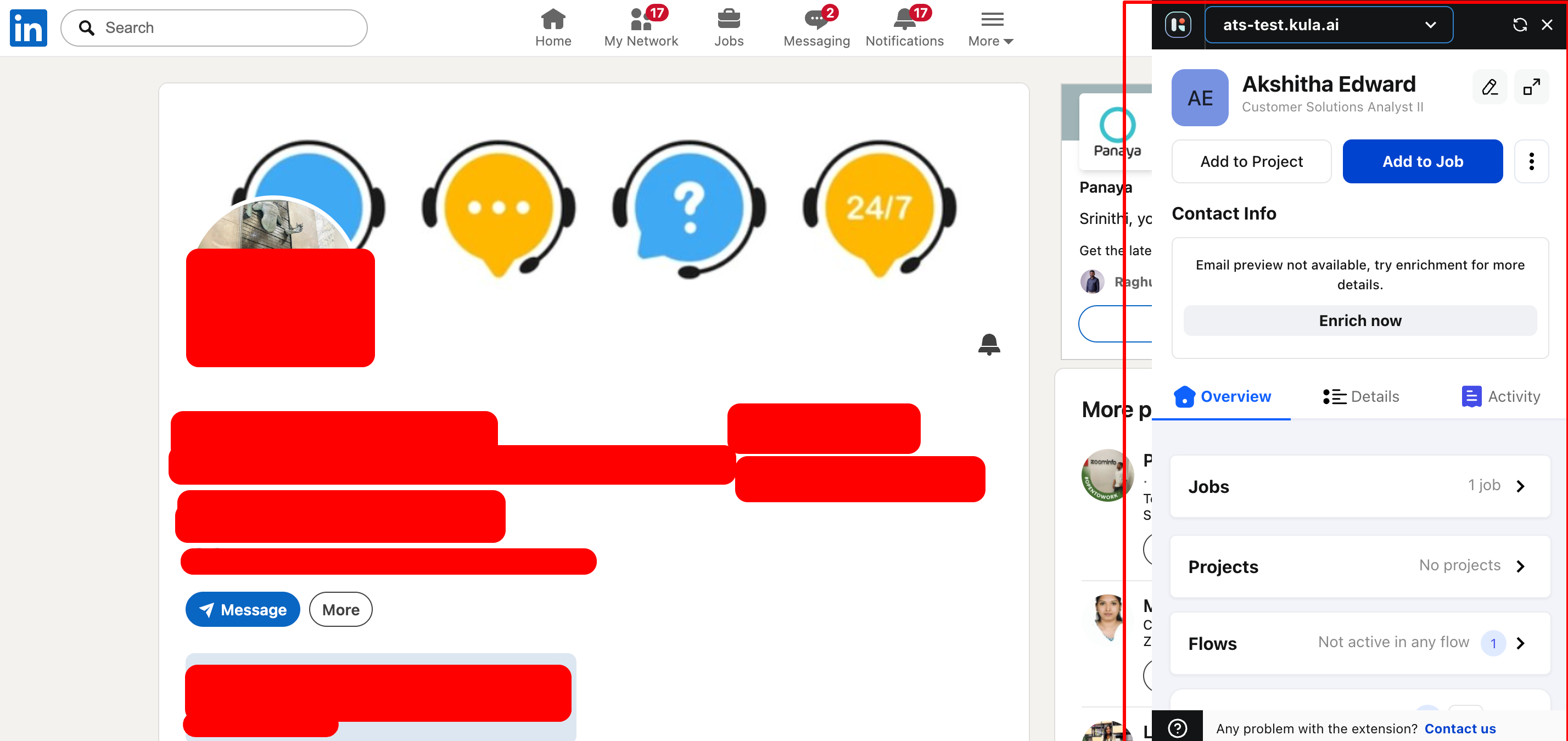
Open the candidate's LinkedIn profile. Kula Everywhere opens automatically as a side panel.
Kula parses the profile automatically — name, headline, experience, and other visible details populate into the panel.
If you need the candidate's email or other contact details, use the enrichment option in the panel.
Click Add to Job and search for the job you want to add them to, or Add to Flow to start an outreach sequence.
Set Source and Credited To directly in the panel if you want to override the default.
Confirm — the candidate is added to Kula and linked to the job or Flow you selected.
Where they land
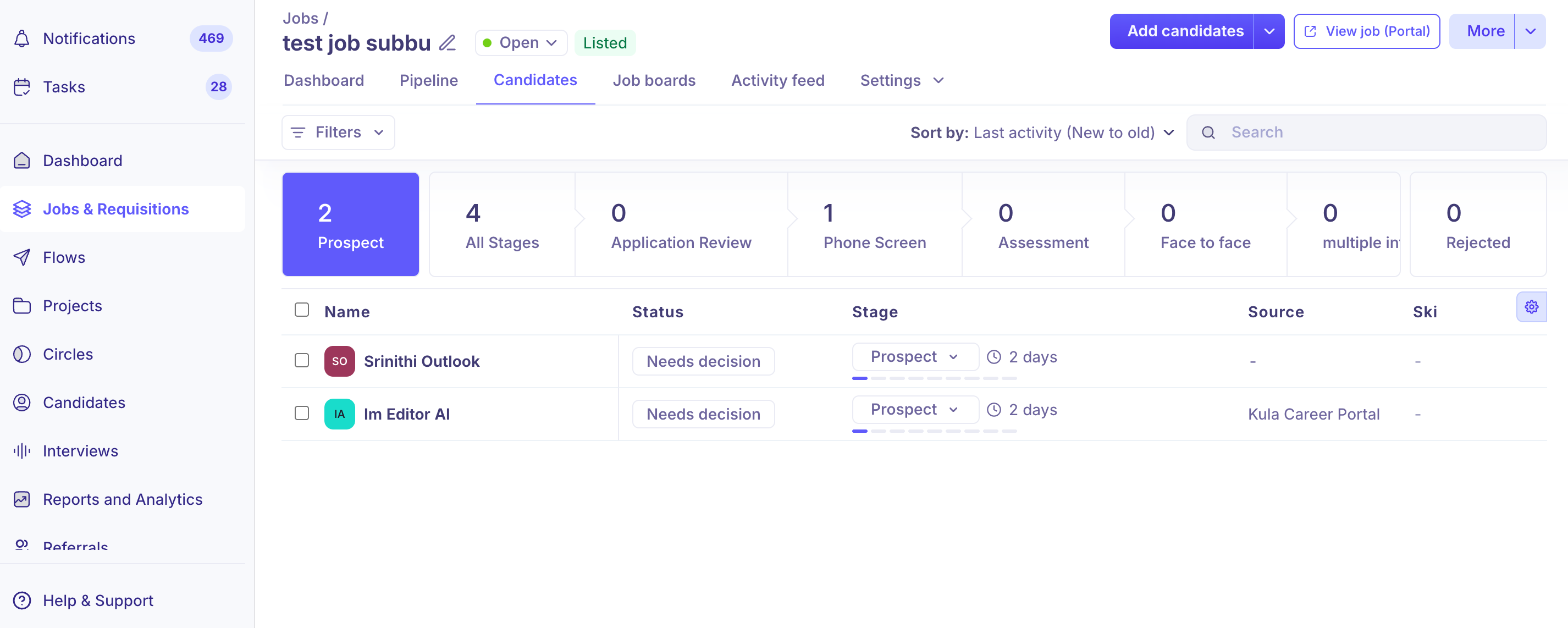
Candidates added to a job start in its Prospect stage, the stage for sourced candidates who haven't been screened yet. If you don't set a source, it's Kula Everywhere. You can change it later on the candidate's profile.
If the details don't come through
Kula reads the profile page automatically.
If that fails, usually because LinkedIn changed its page, Kula downloads the profile as a PDF and reads that instead.
If both fail, download the profile as a PDF yourself and drag it into the panel.
The automatic PDF fallback can run up to 100 times per account per month. After that, only steps 1 and 3 work until the next month.
A short video on how to add candidates into the job:
Good to know
You can only add one LinkedIn profile at a time.
If the extension shows the wrong candidate for the profile you're on, refresh the LinkedIn page or reopen the panel. This is a known, intermittent mismatch issue — it isn't something wrong with your account.
Candidates you mark "Applied" inside LinkedIn Recruiter don't automatically sync to Kula. LinkedIn Recruiter's own application status is separate from Kula — you still need to add the candidate through the extension yourself.
Once you dismiss an enriched email without saving it, re-triggering enrichment for that same candidate isn't always straightforward. If you think you've lost contact info you enriched earlier, check the candidate's profile in Kula directly before re-enriching from LinkedIn.
FAQ
How do I add a candidate to a job straight from their LinkedIn profile? Open their LinkedIn profile with Kula Everywhere installed, let it parse their details, then click Add to Job and pick the job. For more, see Installing the Kula Chrome Extension
Can I add multiple LinkedIn profiles to Kula at once? Not yet — profiles are added one at a time.
The extension didn't pull the candidate's email — how do I get it? Use the enrichment option in the panel. If you dismissed an enriched email earlier and it's not coming back, check the candidate's profile in Kula directly rather than re-enriching repeatedly.
What stage does a candidate land in when I add them from LinkedIn? The Prospect stage — Kula's default holding stage for sourced candidates before they're formally screened.
I marked someone "Applied" in LinkedIn Recruiter — why aren't they showing up in Kula? LinkedIn Recruiter's application status doesn't sync to Kula automatically. You'll need to add that candidate through the extension yourself.
Need help?
If you have questions or need assistance, reach out to us at support@kula.ai or use the in-app chat.