Installing the Kula Chrome Extension
Last updated: September 24, 2026
Kula Everywhere is Kula's Chrome extension for sourcing. It lets you see and add candidates to Kula straight from LinkedIn, GitHub and Gmail.
Who can do this: anyone who sources candidates, usually Recruiters, Hiring Managers, Admins and Super Admins
Where to find it: Flows → Install Extension in Kula, or the Chrome Web Store
Before you install
You need Google Chrome, version 114 or newer. Kula Everywhere doesn't support older Chrome versions.
You need to be logged into Kula in the same browser you're installing the extension in.
Install the extension
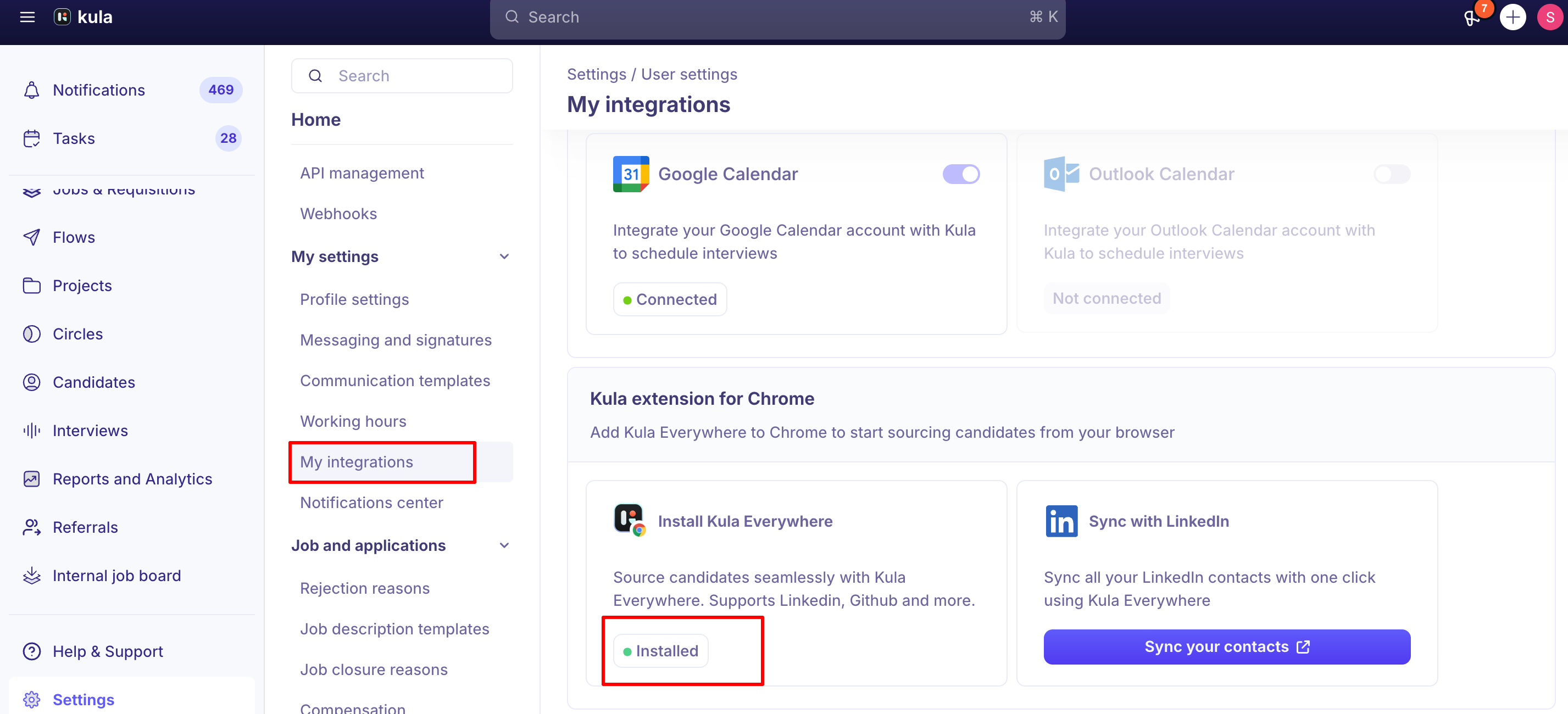
Log into Kula, then go to the Flows page.
Click Install Extension.
Follow Chrome's prompts to add Kula Everywhere to your browser.
Once installed, pin it to your toolbar so it's easy to find (click the puzzle-piece icon in Chrome's toolbar, then the pin next to Kula Everywhere).
Confirm it's working
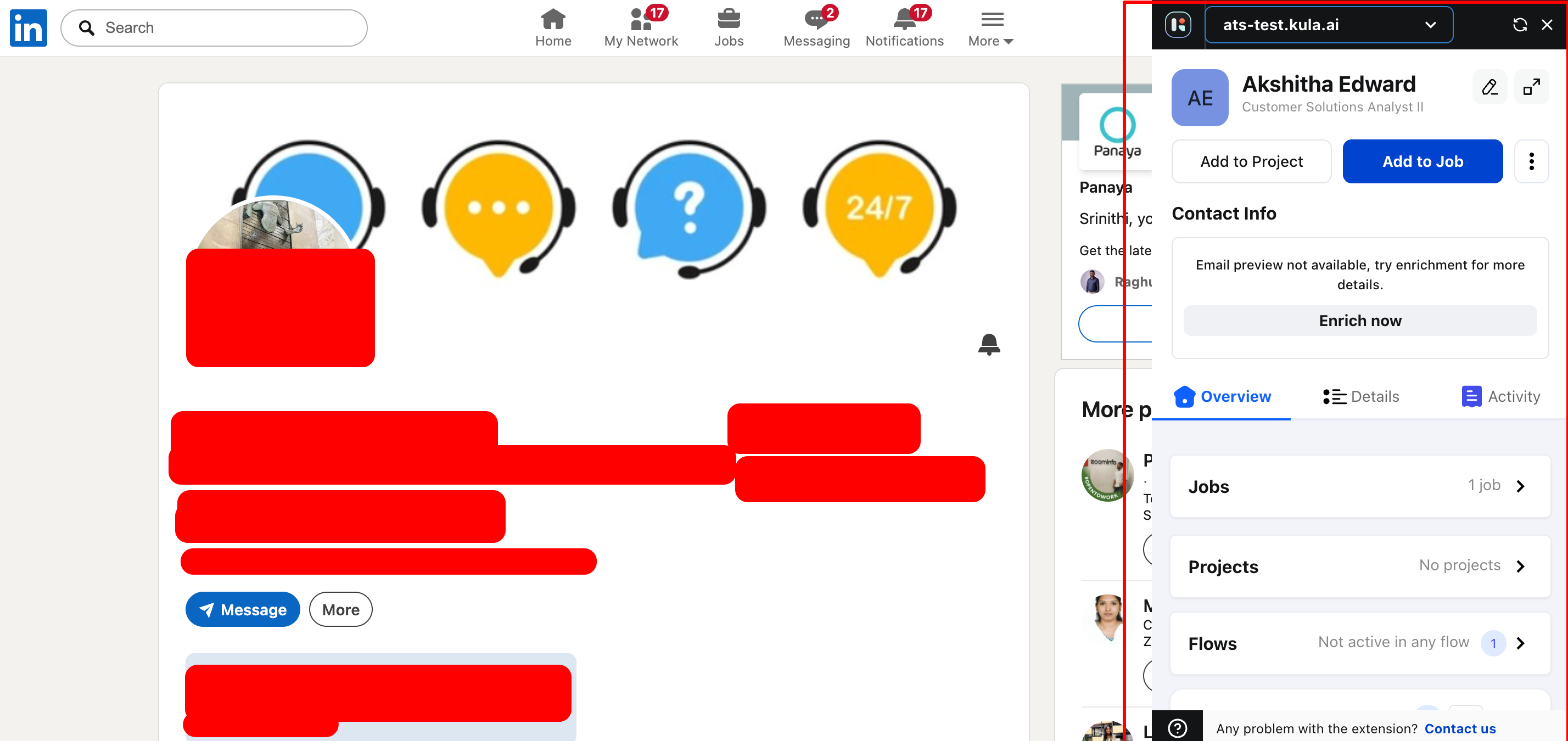
Visit a profile on LinkedIn, GitHub, or Gmail.
Kula Everywhere should appear automatically as a docked panel on the right side of your browser.
If it doesn't appear, click the Kula Everywhere icon in your Chrome toolbar to open it manually.
Kula Everywhere only shows up on LinkedIn, GitHub, and Gmail — it stays hidden everywhere else on purpose, so it doesn't clutter your browsing on other sites.
What it can access
Only certain sites. It works on LinkedIn, GitHub, Gmail and Kula, and stays closed everywhere else. On those sites it reads profile details to add and enrich candidates, and sends them to Kula.
Not your downloaded files. No browser extension can read or upload files you've downloaded without you picking the file yourself. That's why you sometimes need to drag in a downloaded PDF by hand.
Your usual Kula access. There's no separate extension permission. What you can do in it, such as which jobs and flows you can add people to, follows your Kula role.
You can review or remove the extension's Chrome permissions at any time at chrome://extensions/.
If it isn't working
Problem | Try this |
|---|---|
Won't load or connect | Remove it at |
Flows or extension actions stopped | Sign out of Kula and back in |
"No ATS Found" | The extension can't tell which Kula account you're connected to. Reinstalling won't fix it, so contact support |
Doesn't appear on a site | It only works on LinkedIn, GitHub and Gmail. Other sites, such as Naukri, aren't supported |
Good to know
It's a side panel, not a pop-up. It docks on the right of the browser window.
Keep one pinned tab for flows. LinkedIn steps in flows run through the extension. See Creating a flow.
FAQ
Where do I install the Kula Chrome Extension? From the Flows page in Kula — click Install Extension and follow Chrome's prompts. You can also install it directly from the Chrome Web Store.
What are the requirements to use it? Google Chrome version 114 or newer, and an active login to your Kula account in the same browser.
Why does the extension only show up on some websites? By design — Kula Everywhere is currently scoped to LinkedIn, GitHub, and Gmail, and stays hidden on every other site to avoid clutter.
I installed the extension but it's not loading or won't connect — what do I do? Remove it from chrome://extensions/, then reinstall it from the Flows page in Kula. This resolves most loading and connection issues. If it still doesn't work, contact support.
The extension says "No ATS Found" — what does that mean? It means the extension couldn't connect to your Kula account. Reinstalling won't fix this on its own — reach out to support so they can check your account connection.
Need help?
If you have questions or need assistance, reach out to us at support@kula.ai or use the in-app chat.