Schedule Interviews
Last updated: July 7, 2026
Interviews are a critical part of your hiring process. Kula makes it easy to schedule interviews with candidates and interviewers, track them, and manage the logistics. You can choose between manual scheduling (where you select dates and times) or self-scheduling (where candidates pick their own slots). This article explains how to set up, schedule, and manage interviews efficiently.
This article covers:
Understanding interview scheduling options
Scheduling interviews manually
Using self-scheduling for candidate flexibility
Rescheduling and canceling interviews
Frequently asked questions about interview scheduling
Understanding Interview Scheduling Options
Kula offers two primary ways to schedule interviews: manual scheduling and self-scheduling. Each approach has benefits depending on your hiring workflow and candidate needs.
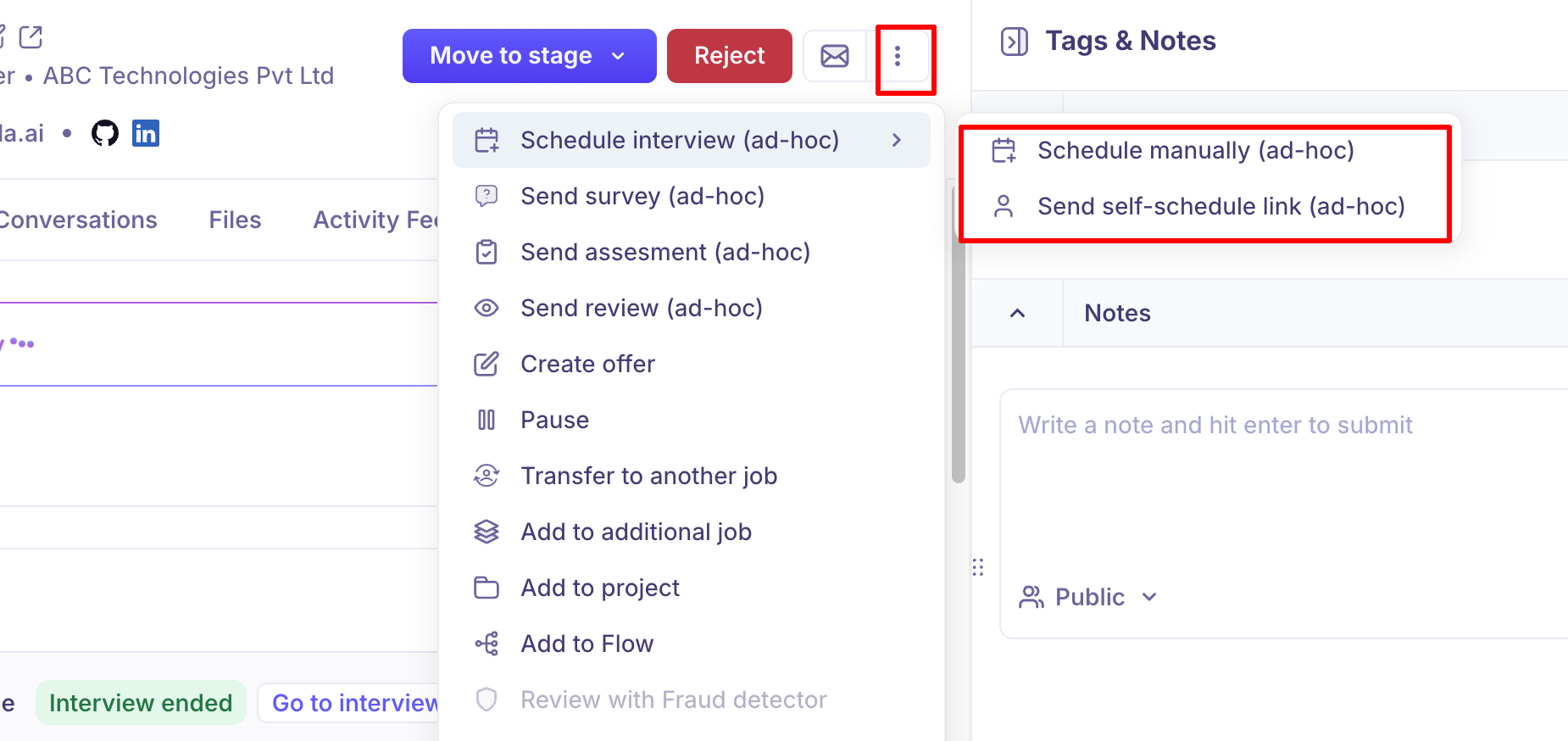
Manual Scheduling: You, the recruiter, select the date, time, interviewer, and candidate availability. Calendar invites are automatically sent to both the candidate and the interviewer. This approach works best when you need to ensure specific interviewers are involved or when coordinating across multiple parties.
Self-Scheduling: You send the candidate a booking link where they select their own time slot from available interviewer calendars. This reduces back-and-forth emails and lets candidates choose times that work for them. Candidates can access the link on their own time within the availability window you set.
Tip: Use self-scheduling to speed up the hiring process and reduce scheduling friction. Use manual scheduling when you need tighter control or when interviewing executives or high-priority candidates.
Scheduling Interviews Manually
Manual scheduling gives you complete control over interview timing. You'll select the interviewer, candidate availability, and confirm calendar details before sending invites.
Open the candidate's profile by clicking their name from the pipeline or search results.
Look for the "Schedule Interview" button or section in their profile.
Click "Manual Schedule" (or similar option for recruiter-scheduled interviews).
Fill in the interview details:
Interviewer(s): Select one or more team members who will conduct the interview.
Date & Time: Pick a specific date and time in the calendar for the interview.
Duration: Set how long the interview should last (typically 30-60 minutes).
Email Template (Optional): Select a pre-configured email template to send to the candidate with interview details.
Review the interview details and candidate/interviewer email addresses.
Click "Schedule" or "Send Invites". Calendar invites are sent immediately to the candidate and interviewer(s).
Using Self-Scheduling for Candidate Flexibility
Self-scheduling allows candidates to book their own interview times from available slots. This reduces scheduling delays and gives candidates control over their interview experience.
Open the candidate's profile.
Click "Schedule Interview" and select "Self-Schedule"
Fill in the self-scheduling details:
Interviewer(s): Select who will be available for this interview.
Availability Window: Set the date range when the candidate can book (e.g., next 2 weeks). This determines how far into the future slots are available. Choose the slots that can be available for the candidates from the calendar.
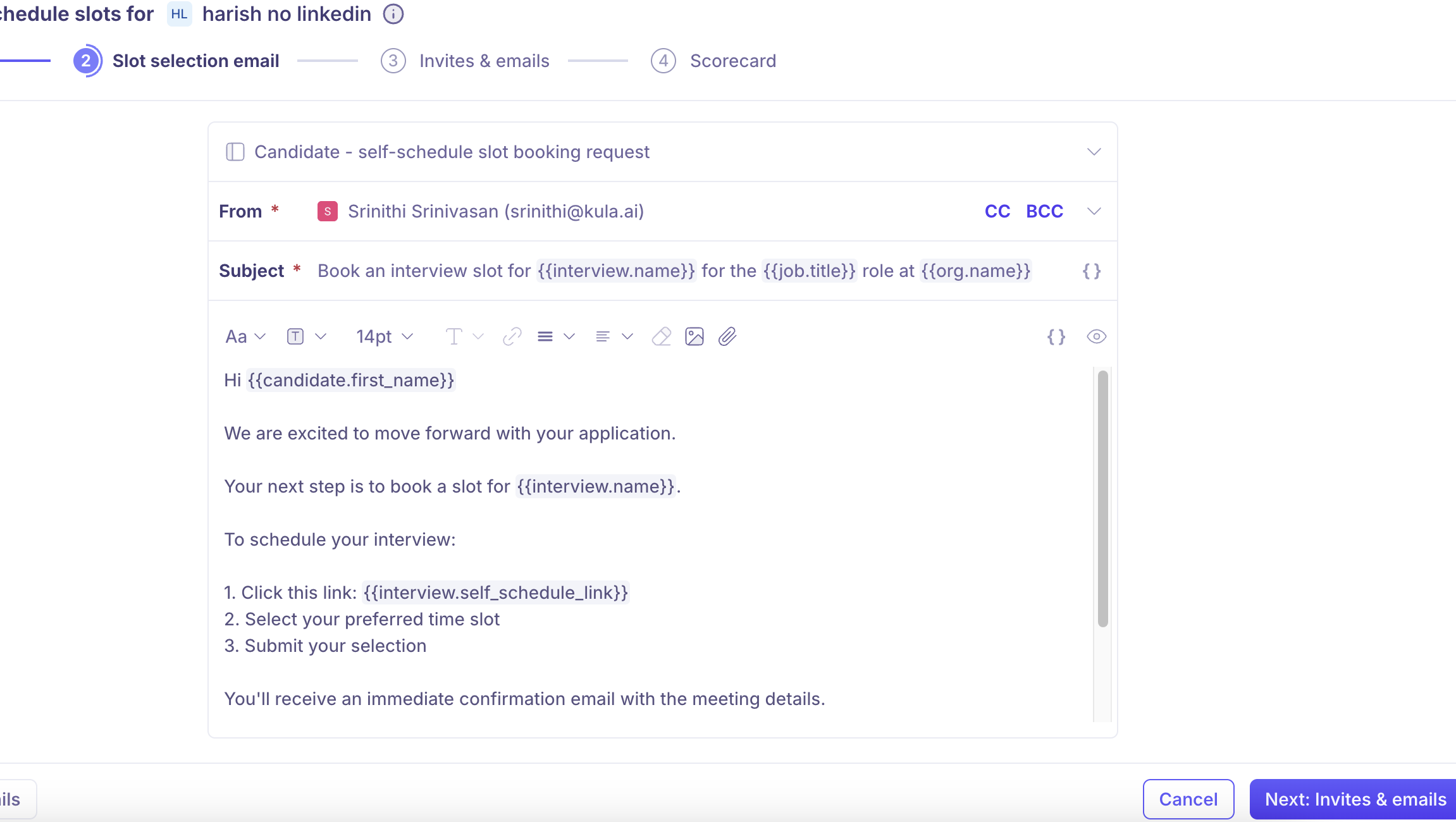
Email Template: Choose a template to send the candidate. Make sure the "From" email is set correctly (usually your recruiting team's email).
Message (Optional): Add a personal note to the candidate (e.g., "Please schedule your phone screen within the next 5 days").
Click "Send Link". The candidate receives an email with a link where they can select from available time slots.
The candidate opens the link and selects their preferred time from the available slots shown on the interviewer's calendar.
Once they confirm, calendar invites are automatically sent to the candidate and interviewer, and the interview appears in your pipeline.
Tip: For phone screen interviews, which candidates often find less formal, self-scheduling works great. For final rounds with executives, manual scheduling gives you better control.
Customizing Interview Invites and Emails
After selecting interview basics, you'll customize the email invitations sent to the candidate and interviewer(s). This is where you control the message and tone of your interview communication.
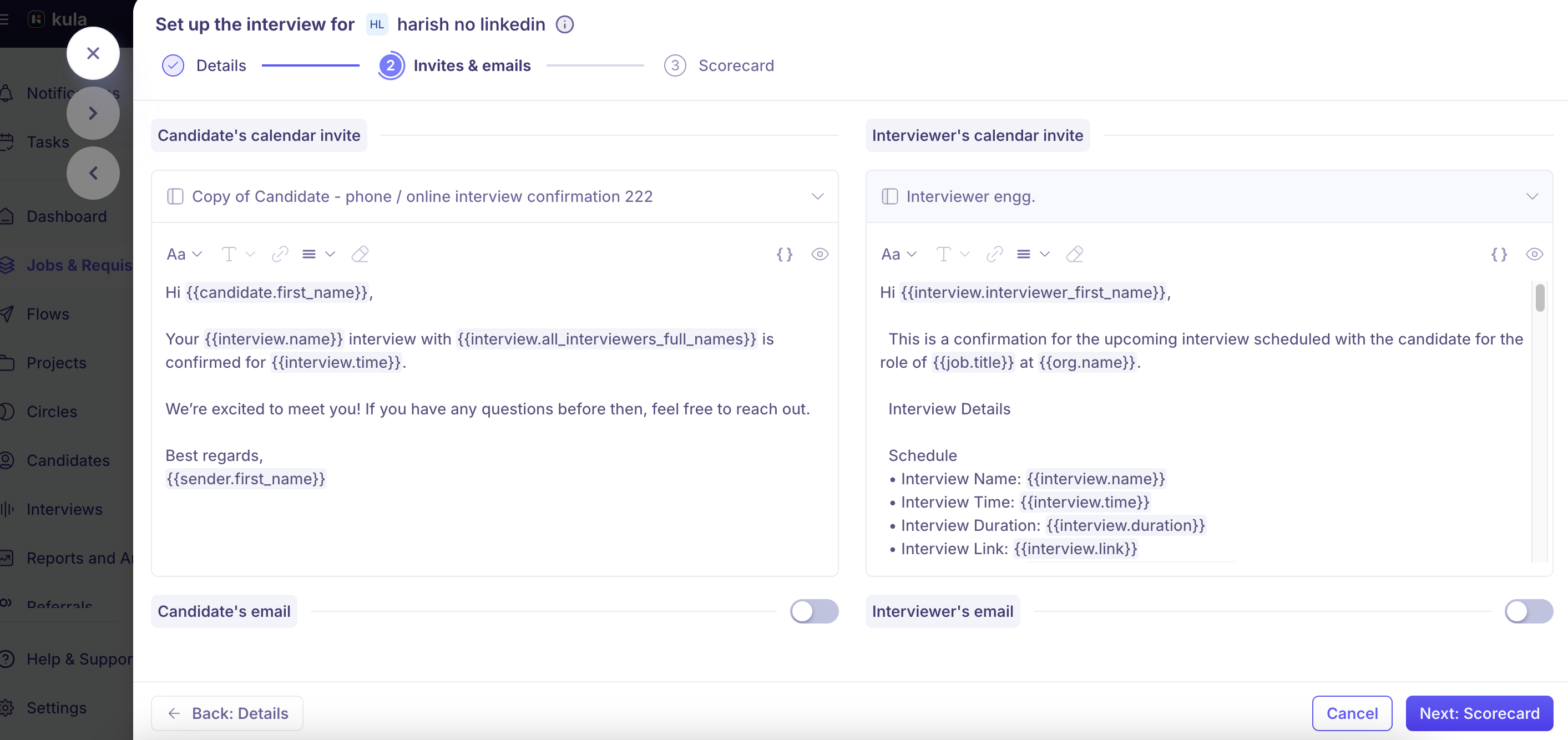
In the scheduling flow, go to the "Invites & Emails" tab.
You'll see two sections:
Candidate's Calendar Invite: Customize the email the candidate receives with interview details and a calendar invite.
Interviewer's Calendar Invite: Customize the email the interviewer(s) receive with interview details.
For each email, you can:
Select an email template: Choose from pre-built templates (e.g., "Phone Screen Confirmation"). Templates come with standard messaging.
Edit the subject and body: Customize the email text directly. Use dynamic variables to personalize messages (see reference table below).
Toggle sending: Use the toggle to control whether the email is sent. For example, you might disable the candidate email if you're scheduling an interview on behalf of someone else.
After customizing emails, review the details and proceed to the next tab.
Rescheduling and Canceling Interviews
Plans change. Candidates or interviewers may need to reschedule, or you may need to cancel an interview. Kula makes this process straightforward.
Open the candidate's profile and locate the scheduled interview.
Click on the interview to view details.
Select "Reschedule" or "Cancel" from the options menu.
To Reschedule: Select a new date and time (for manual scheduling) or send a new self-scheduling link. Updated invites are sent to all participants.
To Cancel: Confirm the cancellation. A cancellation notice is sent to the candidate and interviewer(s).
The interview status updates, and the activity log shows the change.
Interview Status Reference
Status | Meaning |
Scheduled | Interview is confirmed and calendar invites have been sent |
Pending | Self-scheduling link sent; waiting for candidate to select a time |
Completed | Interview has taken place |
Rescheduled | Interview was moved to a different date/time |
Canceled | Interview was canceled; invites withdrawn |
Frequently Asked Questions
1. Can I schedule multiple interviews for one candidate?
Yes. You can schedule as many interviews as needed at different stages of the pipeline. Each interview is tracked separately with its own date, time, and interviewer(s).
2. What happens if an interviewer is not available?
When scheduling manually, the interviewer availability will be showing in the calendar on the left, for you to choose slots from. For self-scheduling, Kula shows only available time slots from interviewers' calendars, so candidates can only book when interviewers are free.
3. Do interviewers get notifications about scheduled interviews?
Yes. Calendar invites are sent to all interviewers when you schedule an interview (manually or after a candidate books via self-scheduling). They'll also appear in the Kula interface if interviewers have it connected to their calendar.
4. What email template should I use for self-scheduling?
Your Kula admin or recruiting lead will have set up standard templates. Common templates are "Phone Screen Self-Schedule" or "Interview Scheduling." Match the template to the interview stage (e.g., use a phone screen template for phone screen interviews). Always verify the "From" email is correct.
5. Can I see all interviews for a candidate in one place?
Yes. When you open a candidate's profile, all scheduled, pending, and completed interviews are shown. You can also view interview history in the Activity Feed to see when interviews were scheduled, rescheduled, or completed. You can also see them in the Interviews page.
If you have questions about scheduling interviews or need assistance with interview configurations, reach out to support@kula.ai or use the in-app chat for help.