Analytics roles and permissions
Last updated: September 8, 2026
Kula controls access to Reports and analytics through role permissions. A role can grant no access at all, read-only access to the built-in reports, or full access to build and share custom reports, depending on which of four Analytics permissions it has.
Path: Admin configuration > Roles and permissions > Analytics roles and permissions
Use these permissions to match analytics access to what someone actually needs: give a recruiter read-only access to the built-in reports without letting them build custom reports, or limit who can export the row-level candidate data behind a report.
This article covers who can open Reports and analytics at all. It's a separate layer from a specific report's sharing settings, which control who can see or edit that one report once someone already has analytics access.
The four Analytics permissions
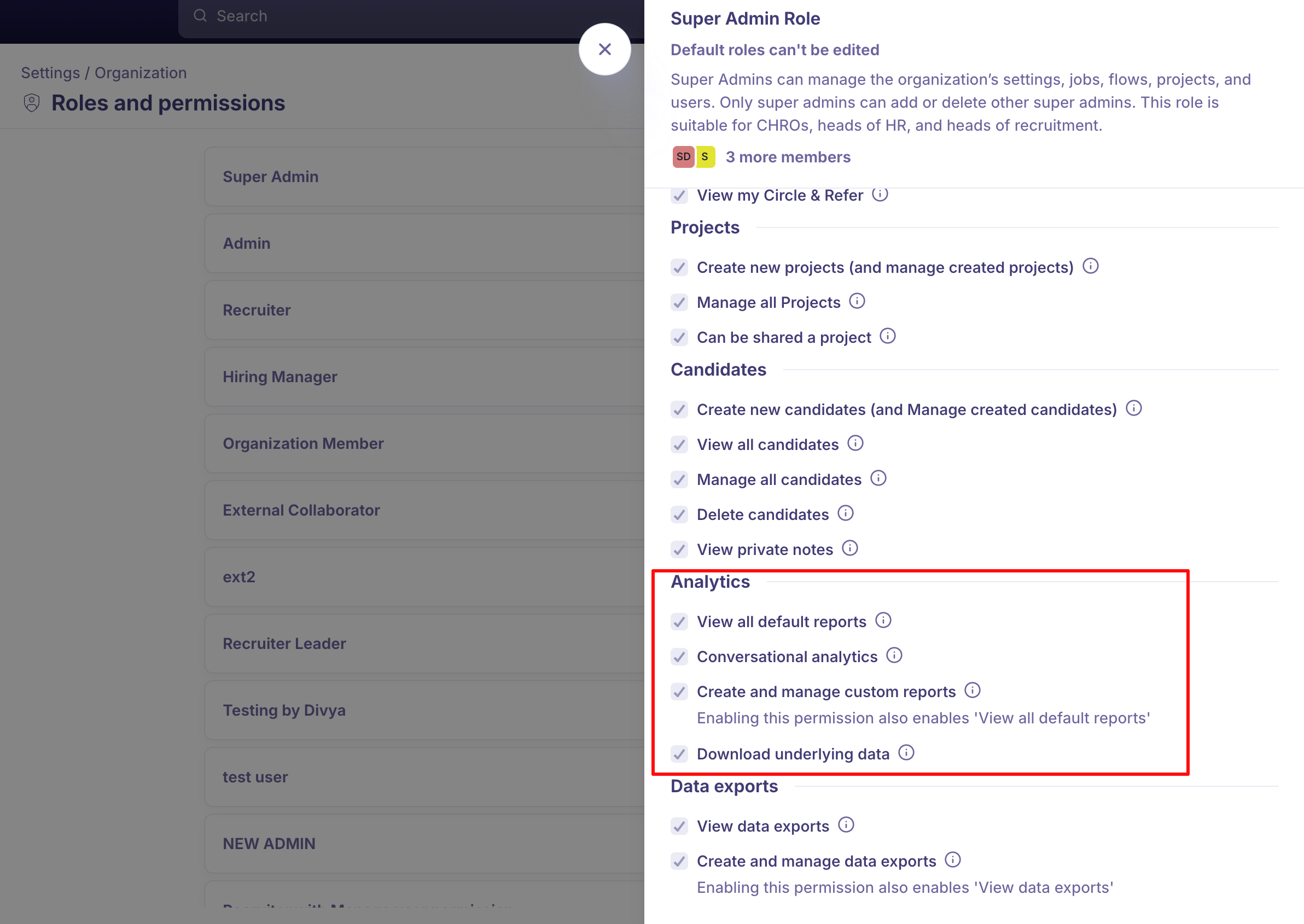
A role's permissions are grouped by area in Kula, and Analytics is one of those groups. It contains four permissions:
View all default reports: access the built-in reports, schedule them by email, and share them via Slack.
Conversational analytics: ask questions about your hiring data in natural language instead of building a report.
Create and manage custom reports: create, edit, and share custom reports. Turning this on also turns on View all default reports, since you need to see reports to build them.
Download underlying data: export the row-level data behind a report, not just the numbers on screen.
Note: Create and manage custom reports and View all default reports are linked. You can't turn on custom report management without view access, and turning off view access turns off custom report management too.
Default roles and analytics access
Out of the box, only two of Kula's built-in roles include any Analytics permissions:
Super Admin: all four Analytics permissions.
Admin: all four Analytics permissions.
Recruiter: none.
Hiring Manager: none.
Organization Member: none.
External Collaborator: none.
Note: Recruiters and hiring managers can't see Reports and analytics by default. If your recruiters need report access, you have to grant it explicitly, as described below.
Granting analytics access to other roles
Kula's built-in roles can't be edited directly. To give a role like Recruiter access to Analytics, create a custom role instead:
Go to Settings > Roles and permissions.
Clone an existing role close to what you need, or click Add role to start from scratch.
In the Analytics section, turn on the permissions you want the role to have.
Save the role, then move the relevant users into it.
Who can change these permissions
Only Super Admins can create, edit, or clone roles, so only a Super Admin can grant or change Analytics access for other people. Admins have full Analytics access themselves, but can't manage roles.
If nobody in your account can see Reports and analytics
Reports and analytics also has to be enabled for your account as a whole, separately from any role's permissions. If Super Admins and Admins can't see it either, contact Kula support to check whether it's enabled for your account.
Need help?
If you have questions or need assistance, reach out to us at support@kula.ai or use the in-app chat.