Source & Add Candidates
Last updated: July 1, 2026
Build your pipeline by adding candidates to Kula. Whether you're sourcing candidates manually, importing from a list, or receiving resumes via email, Kula provides flexible options to get talent into your system quickly.
This article covers:
Creating candidates manually
Bulk importing from CSV
Adding candidates via email
Assigning candidates to jobs
Frequently asked questions
Creating Candidates Manually
Add individual candidates one at a time when you find promising talent through LinkedIn, networking, or other sourcing channels.
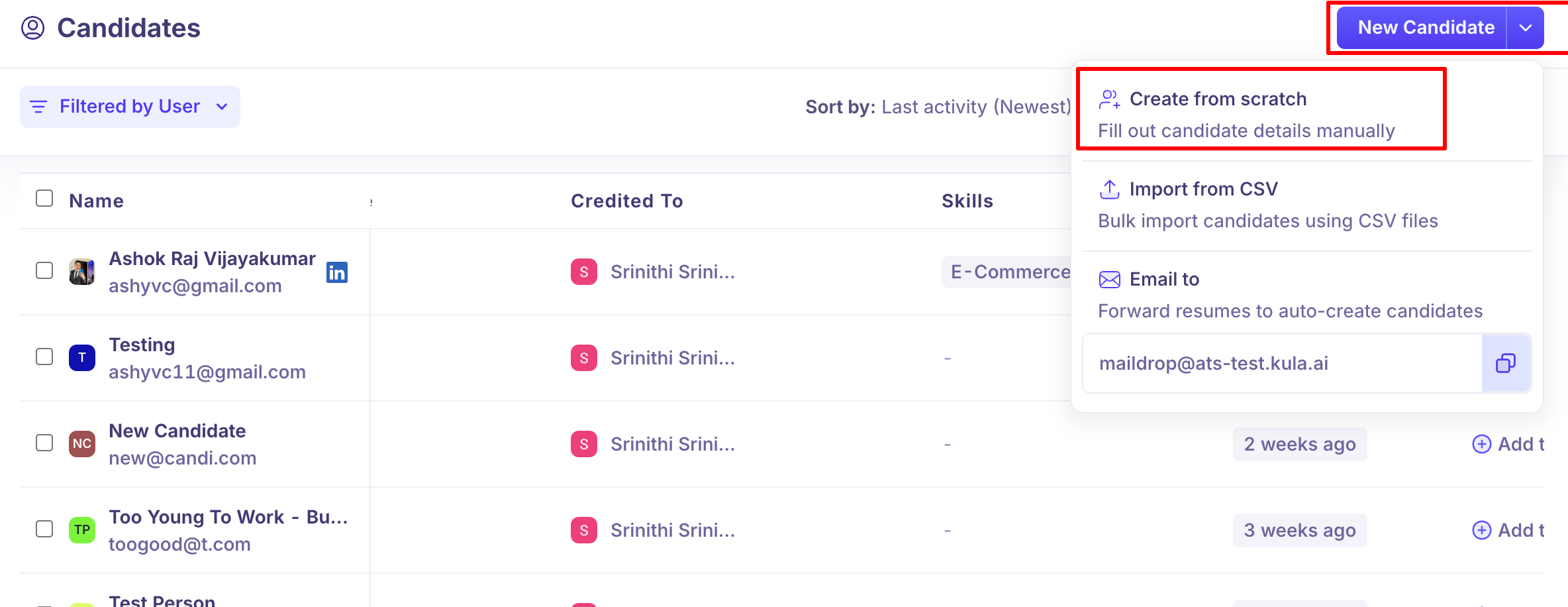
Click the New Candidate button (top right of the screen).
Select Create from scratch.
Fill in the candidate details:
First name
Last name
Email address
Phone number (optional)
LinkedIn profile URL (optional)
Select the job(s) to add this candidate to.
Click Create Candidate.
Tip: LinkedIn profile links help your team learn more about candidates. Include them when possible for faster evaluation.
Bulk Importing from CSV
Import multiple candidates at once from a CSV file to quickly populate your pipeline. This is ideal for recruitment events, job fairs, or migrating from another recruiting tool.
Click the New Candidate button.
Select Import from CSV.
Download the CSV template to see the required format.
Prepare your candidate list with the following columns:
First Name
Last Name
Email
Phone (optional)
LinkedIn URL (optional)
Select your CSV file and upload it.
Review the import preview to ensure the data is correct.
Select the job(s) to assign these candidates to.
Click Import.
Tip: Kula automatically prevents duplicate candidates. If an email already exists in your system, you'll see a warning before importing.
Adding Candidates via Email
Forward resumes directly to Kula to automatically create candidate profiles. This is the fastest way to add candidates as they come in from job applications or recruiter inboxes.
Click the New Candidate button.
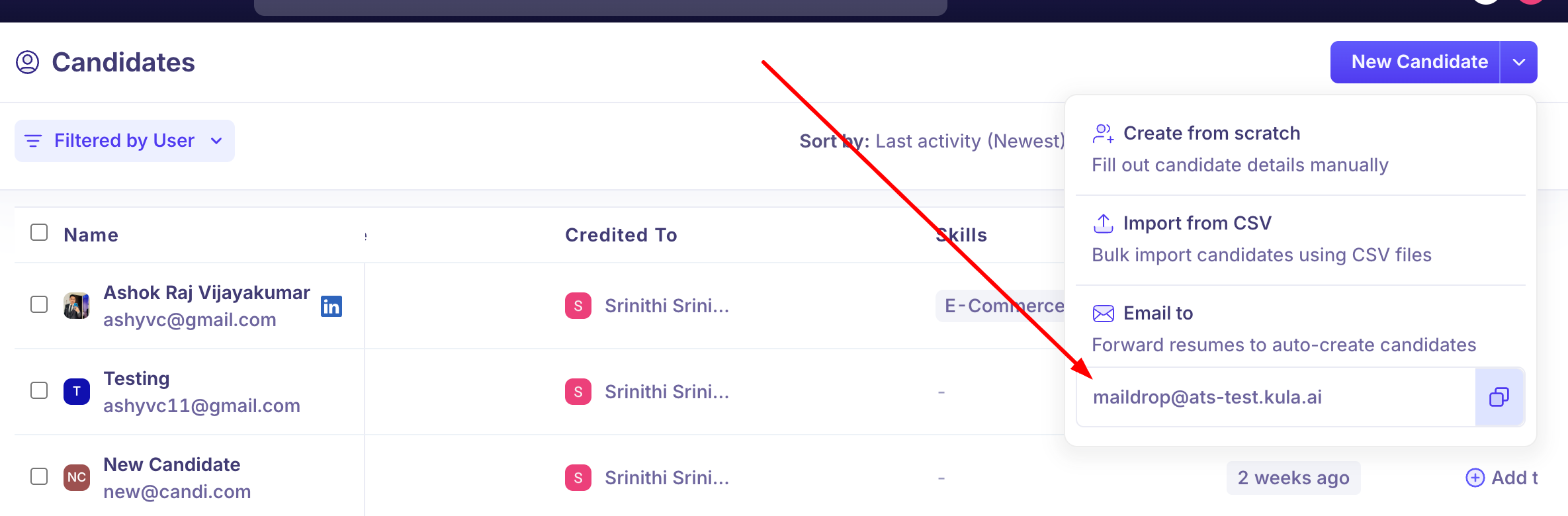
Select Email to.
You'll see your unique Kula email address (e.g., maildrop@ats-test.kula.ai).
Copy this email address and save it in your contacts or email signature.
When you want to add a candidate, forward their resume to this email address from your inbox.
Kula will automatically extract the candidate's information from the resume and create a profile.
Tip: Include a note in the email body with the candidate's desired job title or company. This helps your team categorize the candidate correctly.
Assigning Candidates to Jobs
Once a candidate is in Kula, you can assign them to one or more open jobs.
Open a candidate's profile.
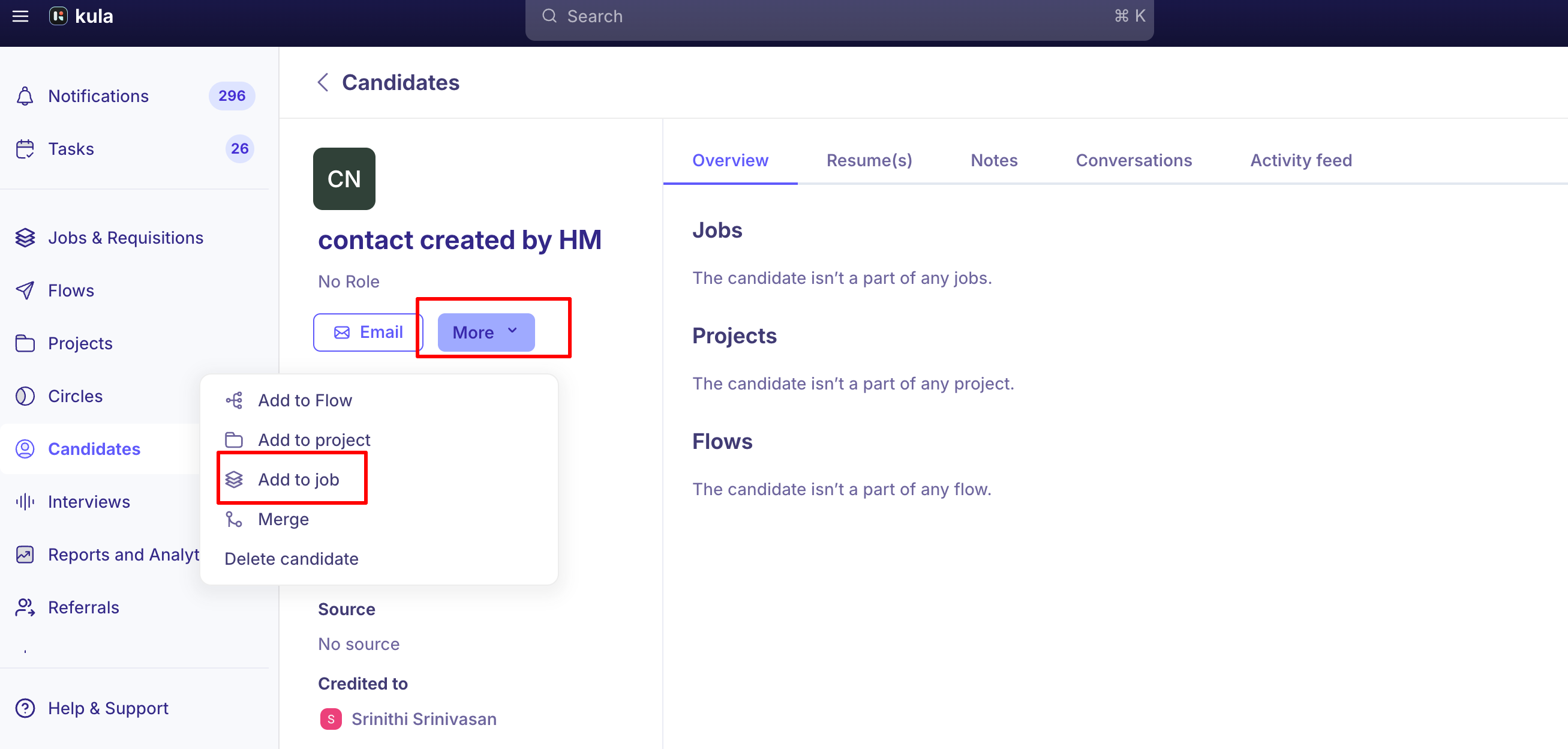
Click the More button.
Click Add to Job.
Select one or more open positions.
Set the pipeline stage (e.g., Prospect, Application Review).
Click Save.
Candidates can be assigned to multiple jobs simultaneously, allowing them to progress through different pipelines at different rates.
Frequently Asked Questions
1. Can I add candidates without assigning them to a job immediately?
Yes. You can create a candidate profile first and assign them to jobs later when relevant openings appear or as their candidacy develops.
2. What information is extracted from resumes when I email them to Kula?
Kula extracts name, email, phone number, and work history from resumes. You can edit any of this information after the profile is created.
3. Can I change a candidate's assigned job after they're created?
Yes. Open the candidate's profile, go to the Jobs tab, and add or remove jobs as needed.
4. What's the maximum file size for CSV imports?
CSV files can typically be up to 10MB, which supports several thousand candidates depending on the data included.
5. Will duplicate candidates be created if I import the same email twice?
No. Kula automatically detects duplicates by email address and will alert you before creating a duplicate profile.
6. Can multiple team members use the same email forwarding address?
Yes. Your Kula email address is shared across your entire team. Anyone can forward resumes to it and candidates will be added to your pipeline.
Need Help?
If you have questions about adding candidates, reach out to support@kula.ai or use the in-app chat for help.