Outlook Calendar Integration for Scheduling
Last updated: March 4, 2025
Integrating Outlook Calendar for Scheduling
Overview
We now support integration with Outlook Calendar for scheduling, similar to how Google Calendar is utilized. This enhancement allows users to streamline their scheduling process while leveraging Microsoft Teams as the conferencing solution.
Key Features
Outlook Calendar Integration: Users can now schedule and manage their meetings seamlessly using Outlook Calendar.
Microsoft Teams Conferencing: Along with scheduling, users can set up meetings with Microsoft Teams as their preferred conferencing platform.
Slack Notifications: At this stage, notification support is available only for Slack. Outlook Calendar notifications are not yet supported.
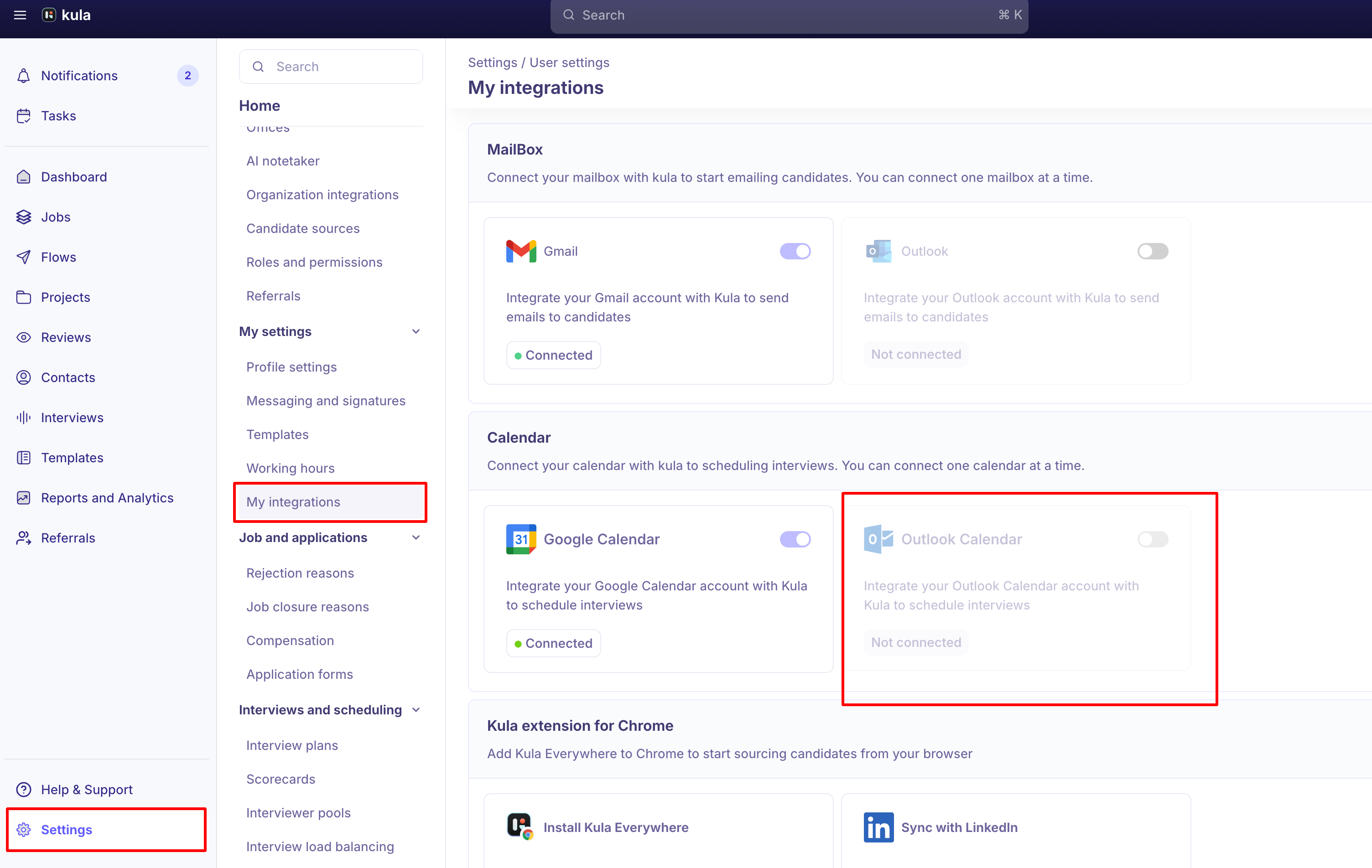
How to Use
Connect Outlook Calendar:
Navigate to the settings section.
Select the option to integrate Outlook Calendar.
Authenticate using your Microsoft account.
Schedule a Meeting:
Choose a date and time within the scheduling interface.
Select Outlook Calendar as your scheduling option.
Enable Microsoft Teams conferencing if needed.
Receive Notifications:
If you have Slack connected, meeting notifications will be sent through Slack.
Notifications via Outlook Calendar are not yet supported.
Limitations
No Outlook Calendar Notifications: Currently, meeting notifications can only be sent through Slack.
Limited Conferencing Options: While Microsoft Teams is available for meetings, additional conferencing solutions may be considered in the future.
Conclusion
With Outlook Calendar integration, scheduling meetings has become more flexible and efficient. While notifications are currently limited to Slack, we are continuously working on improving our integration capabilities.
For further assistance, please reach out to our support team.