How to Integrate Certn with Kula
Last updated: March 19, 2026
Kula integrates with Certn to enable fast, compliant background checks directly from your ATS — no switching tabs, no manual follow-ups. With this integration, you can initiate background check orders from a candidate's profile, track status in real time, and view the completed report inline, all within Kula.
⚡ Key Highlights
End-to-end Certn case creation and status tracking from Kula
Send background check invitations to candidates directly from their profile
Real-time status updates as candidates progress through the check
View the completed Certn report inline within Kula once ready
Certn report PDF is automatically saved to the candidate's Files tab
Full audit trail of all Certn activities logged in the Activity Feed
Support for region-specific Certn APIs (NA, UK/EMEA, APAC)
⚙ Step 1: Connection Setup
Requirements: You must be a Kula Admin and have an active Certn account.
Getting your Certn API key:
Before connecting in Kula, you'll need to generate an API key from your Certn dashboard:
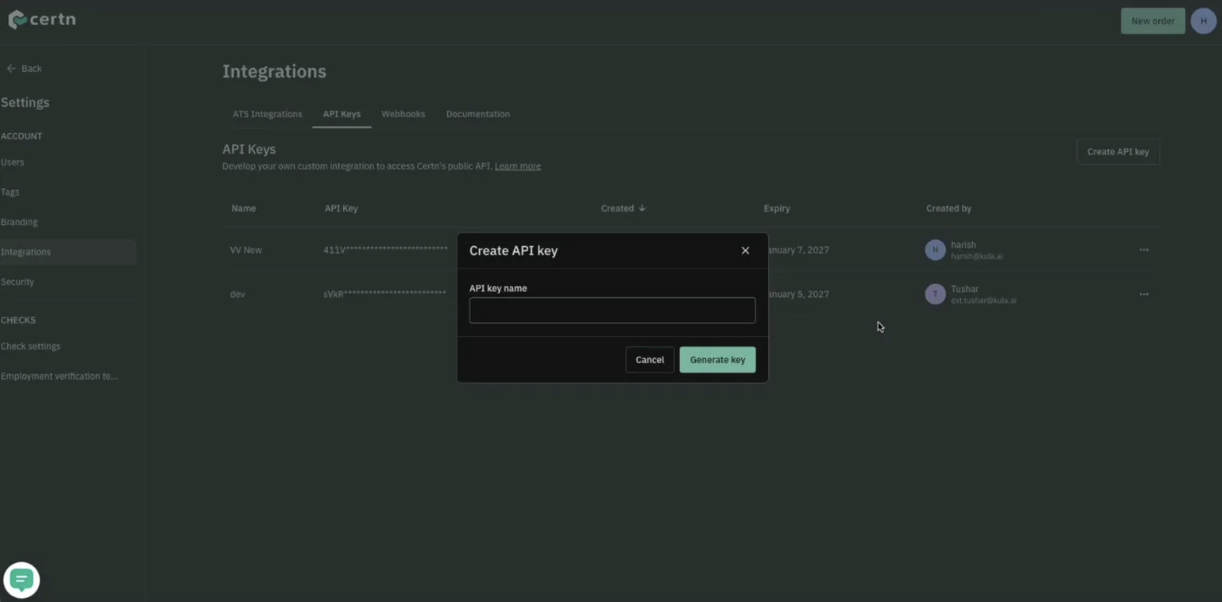
Log in to your Certn account and go to Settings > Integrations > API Keys.
Click Create API key, enter a name for the key, and click Generate key.
In the Save your key modal, copy the key immediately — for security reasons, it will not be visible again. If lost, you will need to generate a new one.
Connecting Certn in Kula:
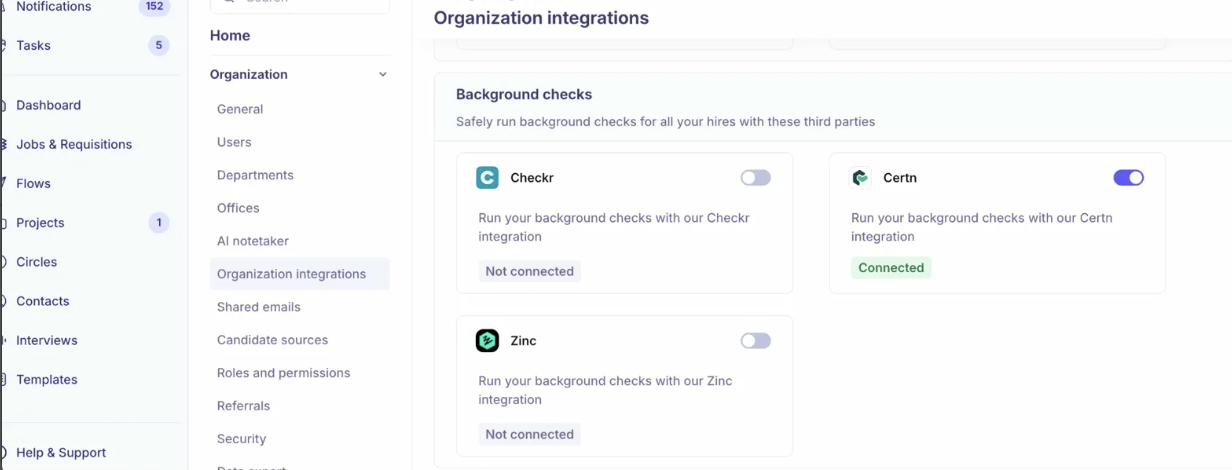
Navigate to Settings > Organization Integrations > Background Checks.
Locate Certn and click Enable Integration.
In the settings panel:
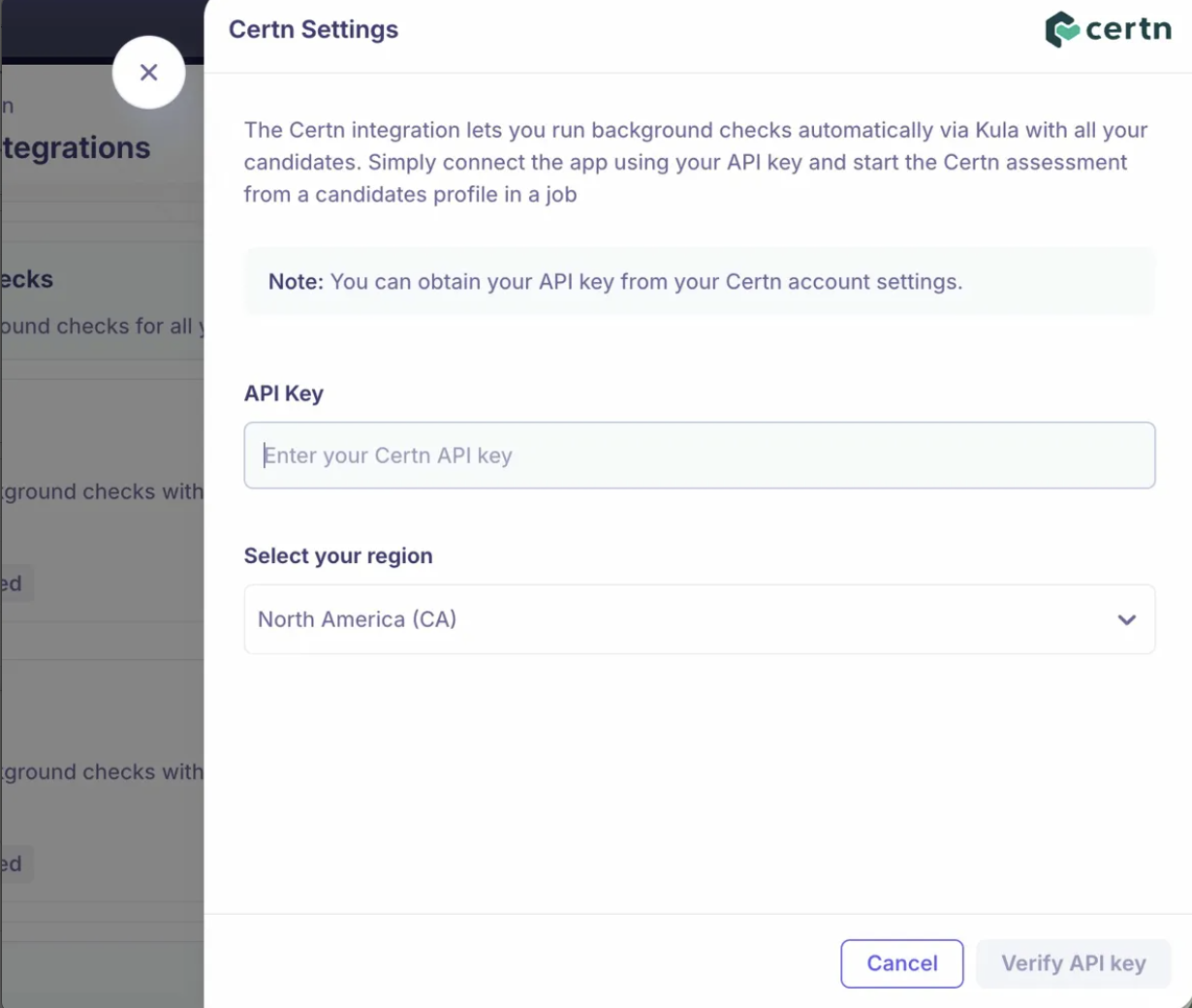
Enter your Certn API Key.
Select your region from the dropdown (North America, UK/EMEA, or APAC).
Click Verify API Key. Once the status shows as Connected, you're ready to go!
🛠 Step 2: Sending a Certn Background Check
Certn background checks are initiated ad-hoc from a candidate's profile.
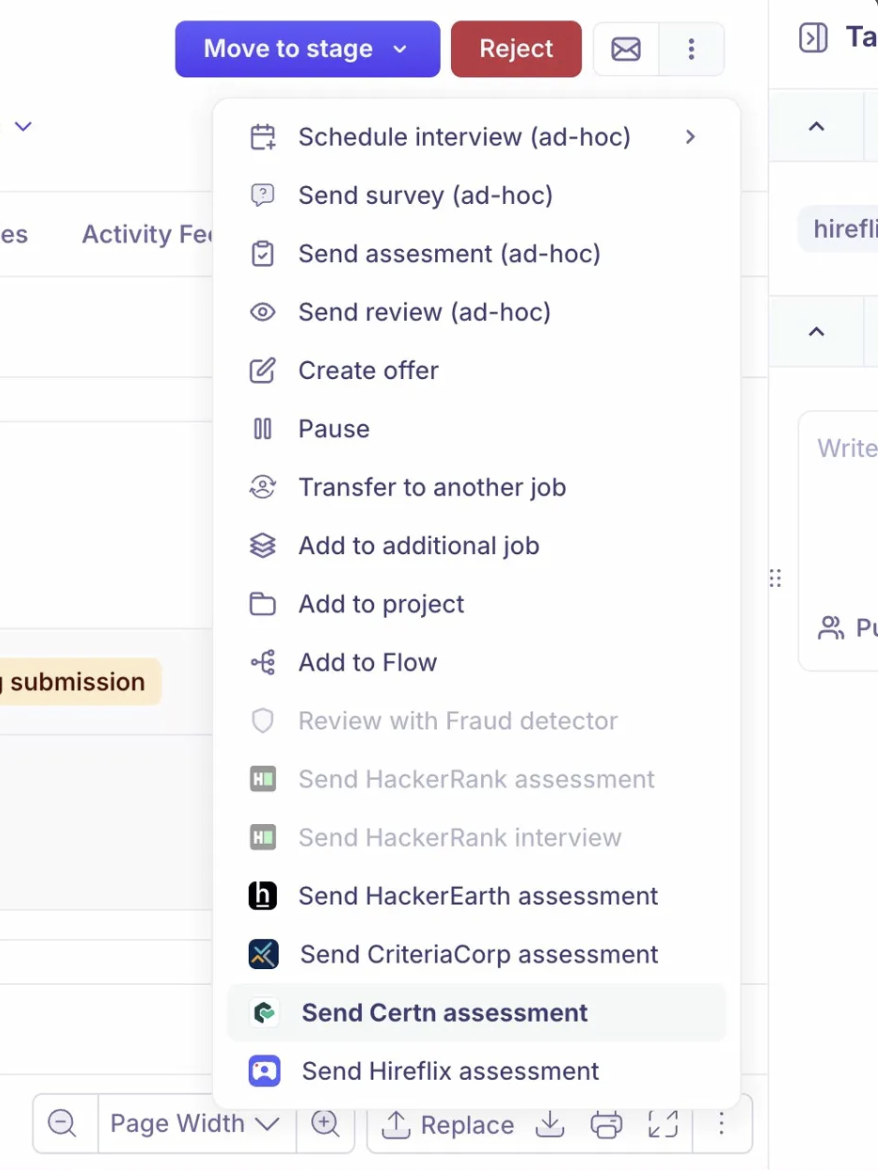
Open the candidate's profile and click three dots (top right).
From the dropdown, select Send Certn assessment.
In the Create Certn background check modal, select the package you want to run from the dropdown.
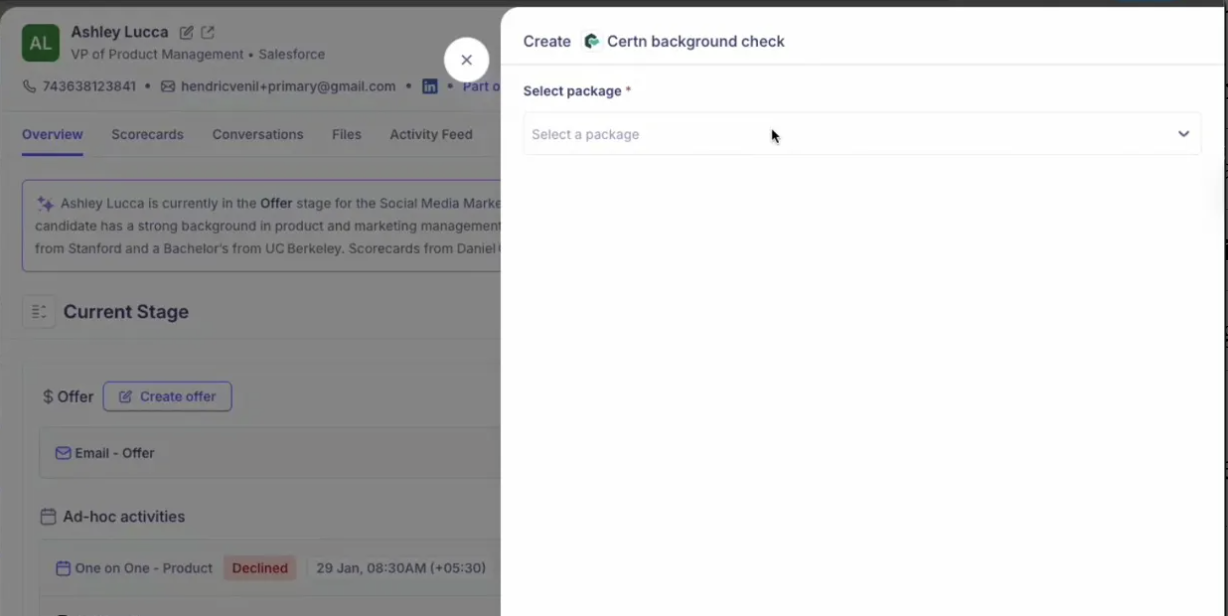
Click Submit.
The candidate will receive an invitation to complete the background check. The check will appear under Ad-hoc activities on the candidate's Overview tab.
📋 Step 3: Tracking Status
Once a background check is initiated, you can monitor it directly from the candidate's profile. The status updates automatically as the check progresses:
Status | What it means |
Invitation completed | The invitation has been sent to the candidate |
Candidate started | The candidate has begun the background check process |
Eligible | The background check is complete — report is ready to view |
Each status update is also logged in the candidate's Activity Feed tab, giving you a full audit trail of all Certn events (check sent, candidate started, result marked eligible, etc.).
📄 Step 4: Viewing the Report
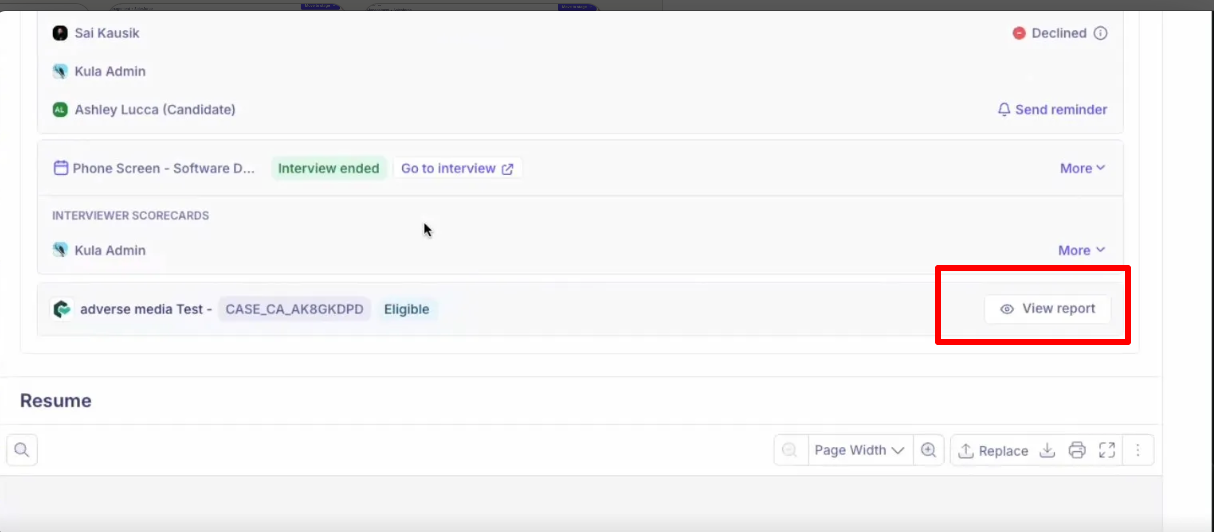
Once the background check status shows Eligible, a View report button appears on the activity card.
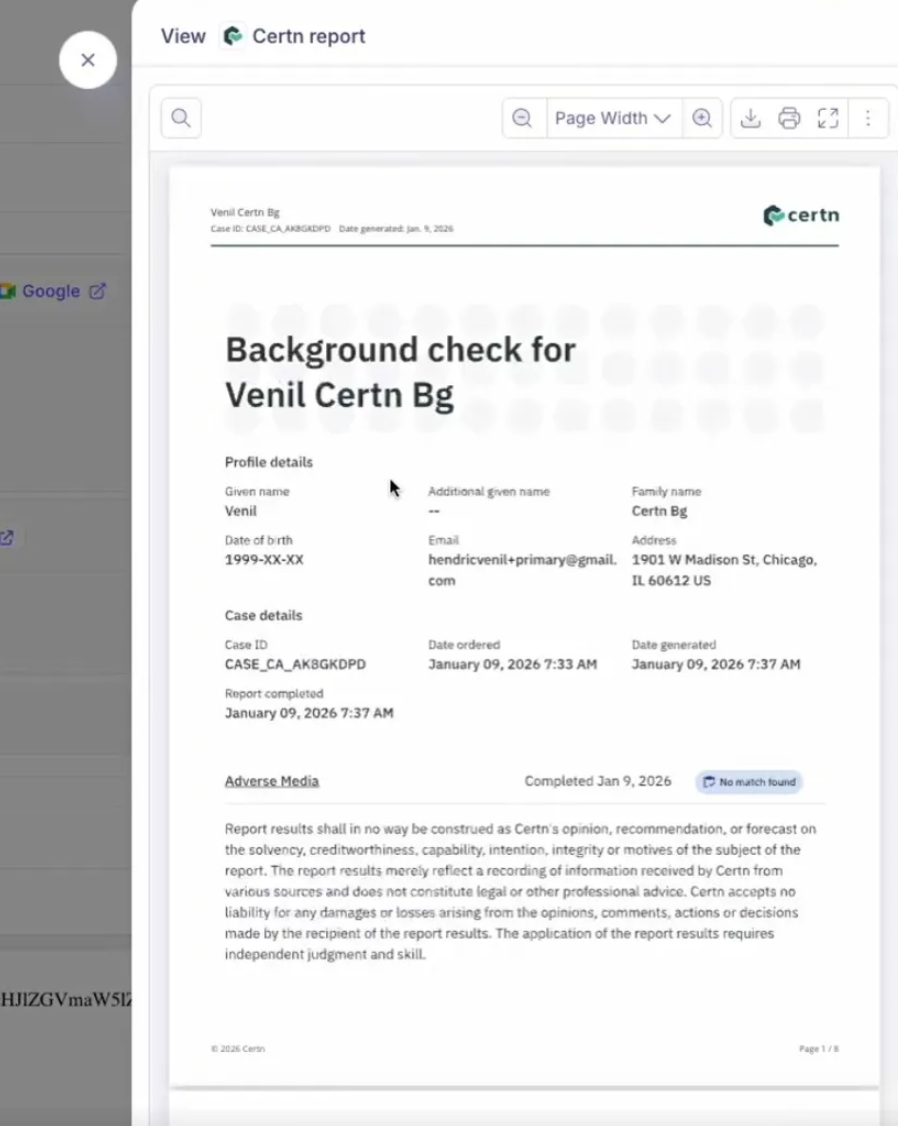
Click View report to open the Certn report inline within Kula — no need to log into Certn separately.
The report includes profile details, case ID, date ordered, date completed, and results for each check type (e.g., Adverse Media).
The completed report is also automatically saved as a PDF under the candidate's Files tab, named
Certn_Report_[CASE_ID].pdf, where you can preview or download it at any time.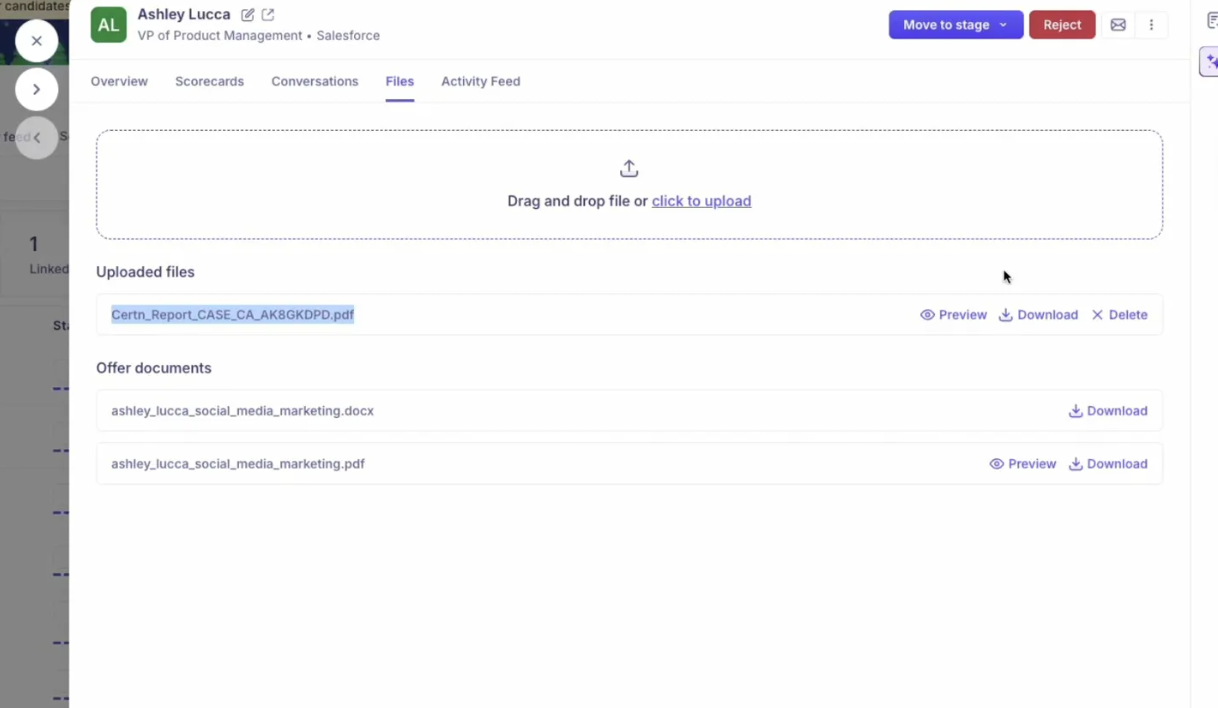
❓ FAQ
Q: Where do I find my Certn API key?
A: Log in to your Certn dashboard, go to Settings > Integrations > API Keys, and generate a new key. Copy it immediately after generation — it won't be shown again.
Q: Which regions are supported?
A: Kula supports region-specific Certn APIs for North America (CA/US), UK/EMEA, and APAC. Make sure to select the correct region during setup to ensure your checks route properly.
Q: Where can I see the background check report?
A: Once the status updates to Eligible, click View report on the activity card to see the report inline. It's also saved automatically as a PDF in the candidate's Files tab.
Q: Are tenant-only checks like Questionnaire or Income Verification available?
A: No — these check types are excluded for HR accounts. Only checks applicable to HR/recruitment use cases are surfaced in Kula.
Need Help?
If you have questions or need assistance with setup, feel free to reach out to us at support@kula.ai or use the in-app chat for assistance.