How to integrate Docusign with Kula
Last updated: February 25, 2026
Kula ATS integrates with DocuSign to streamline your offer letter and document signing workflows. Once connected, your team can send documents for e-signature directly from Kula, track signing status in real time, and manage the entire offer lifecycle — without switching tools.
Prerequisites
An active DocuSign account
Admin access in Kula ATS
Envelope sending permissions enabled in DocuSign
⚙Step 1: Integration Setup
Go to Settings > Integrations > E-Signature section
Find Docusign in the list and click Enable Integration.
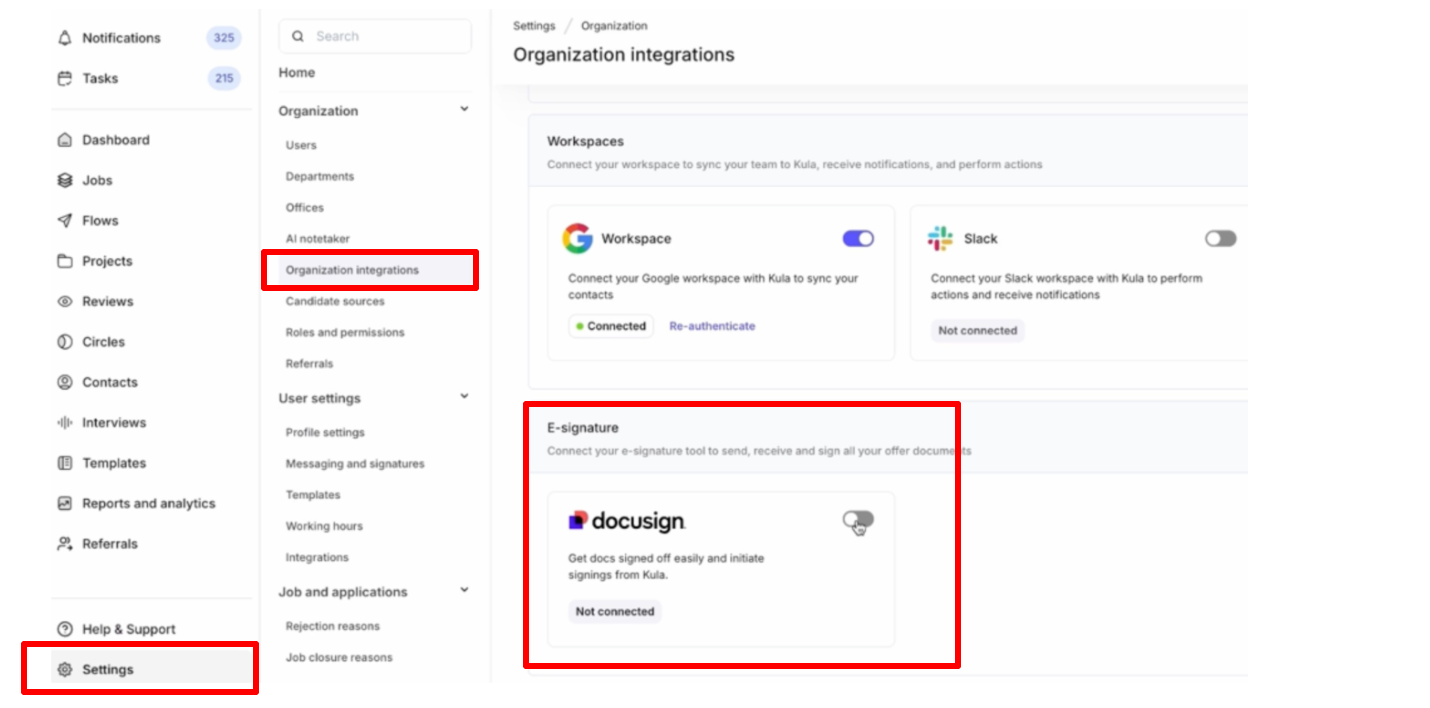
You will be redirected to the DocuSign login page.
Enter your DocuSign login credentials.
Click Allow Access to authorize Kula.
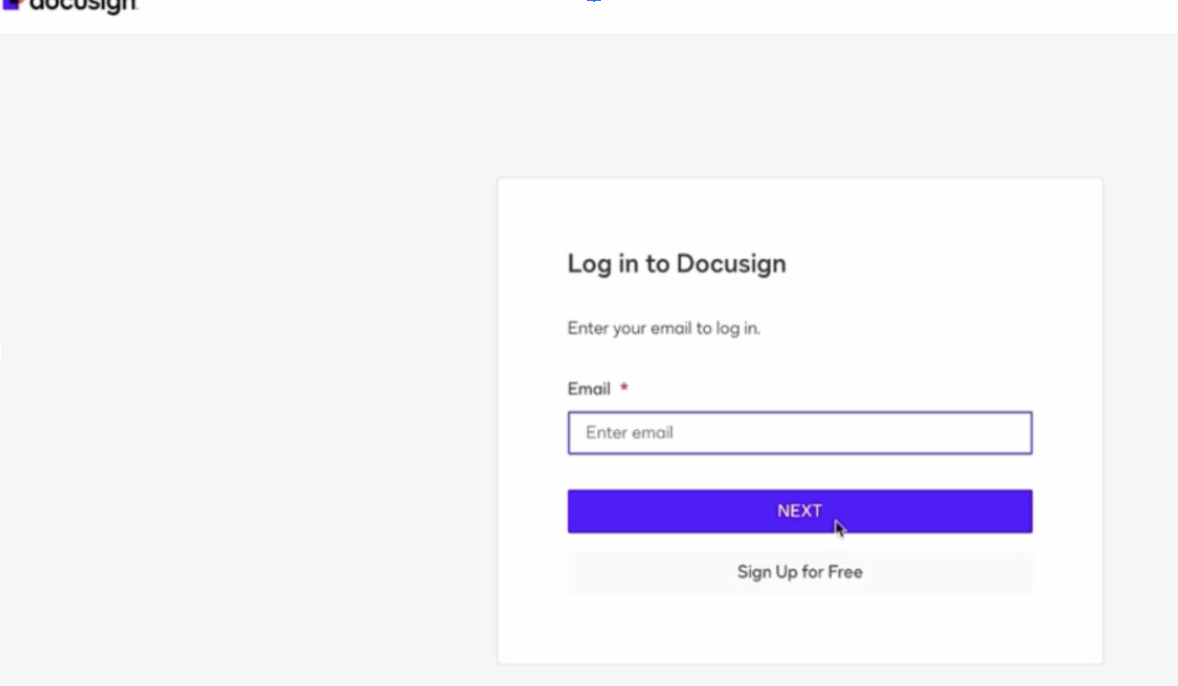
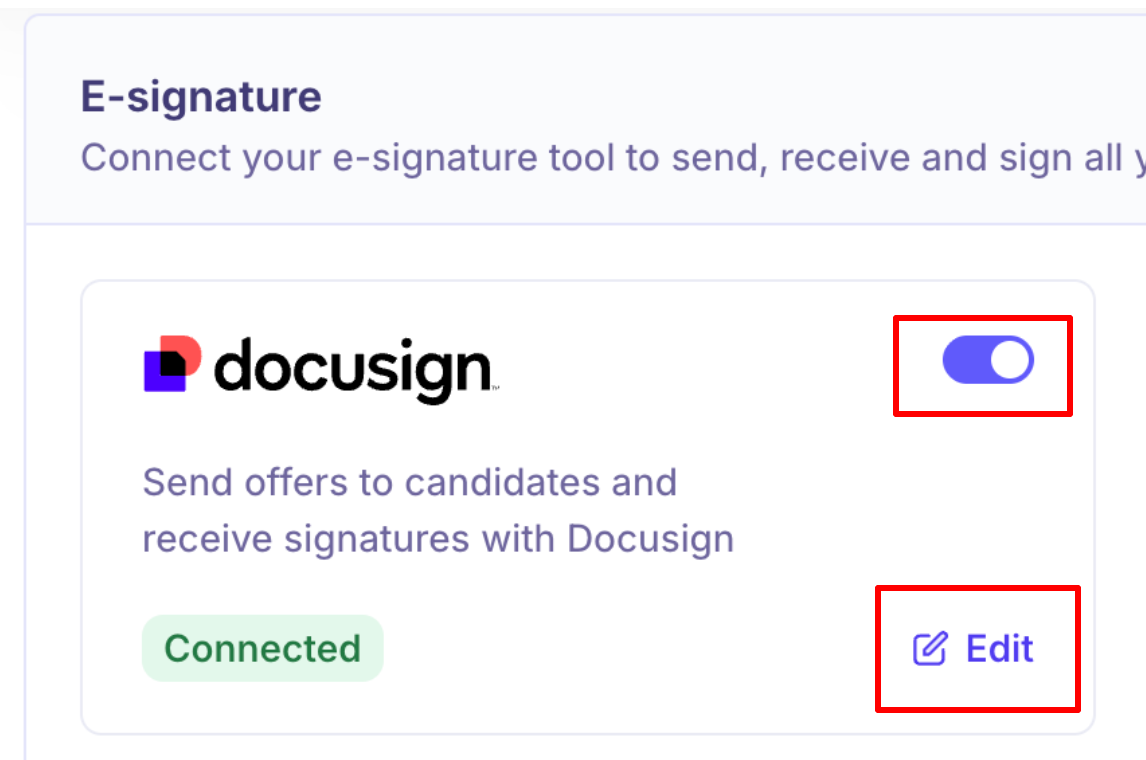
Once authentication is successful, you will be redirected back to Kula and the integration status will show as Connected.
Once the integration toggle is enabled, Click the edit icon.
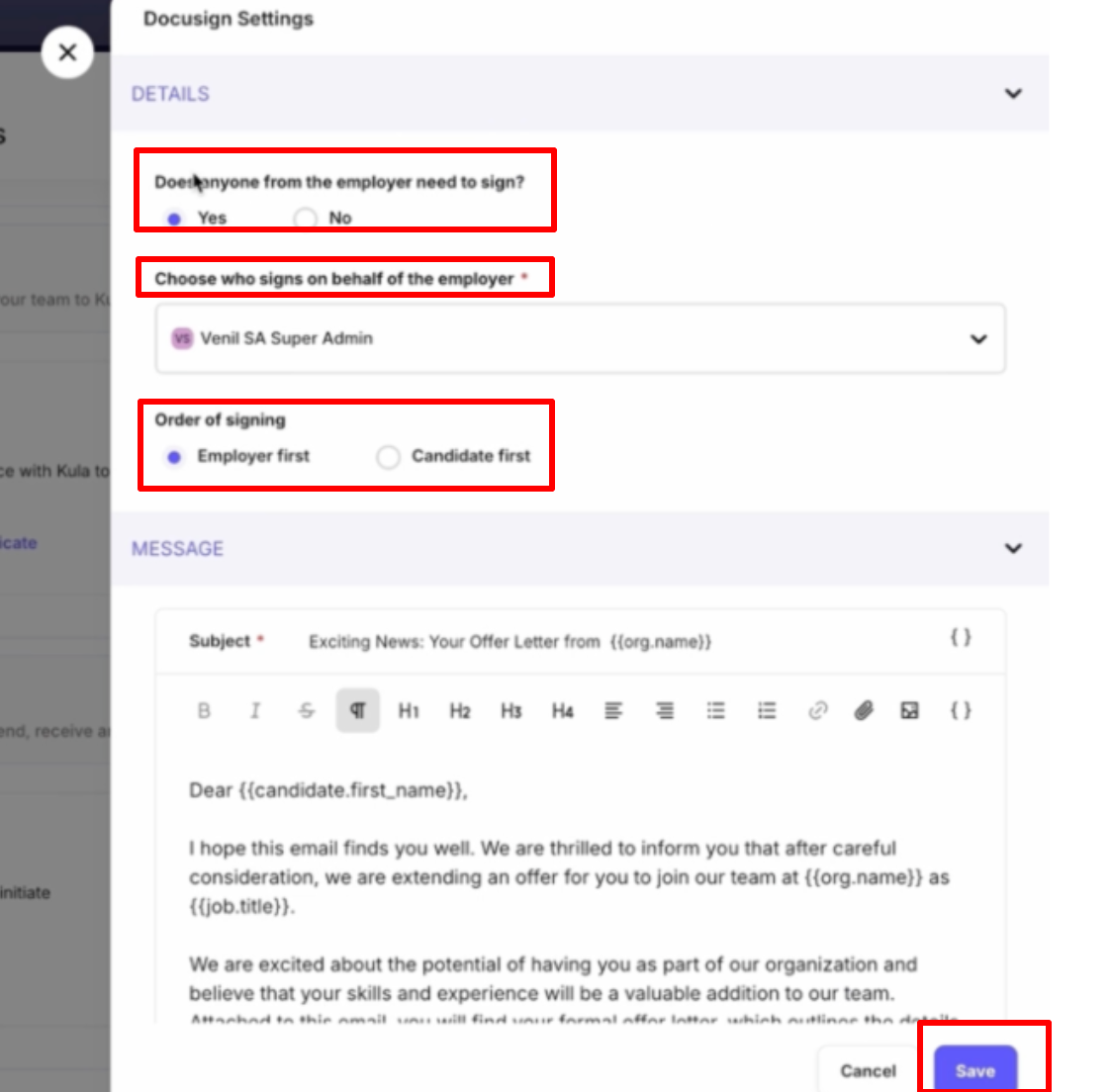
You can now configure the below details.
Employer Signature Requirement - “Does anyone from the employer need to sign?”
Select Yes if an internal representative must sign the document.
Select No if only the candidate needs to sign.
If “Yes” is selected, additional signer configuration will be required.
Choose Employer Signer - If "Yes" is selected in the above step : “Choose who signs on behalf of the employer”
Select the internal signer from the dropdown (e.g., Super Admin or authorized signatory).
The selected user will receive the DocuSign envelope for signing.
Set Order of Signing - Under Order of signing, choose:
Employer first – Internal signer signs before the candidate.
Candidate first – Candidate signs before the employer.
Customize the Email Message:
Edit the subject line and email body, using tokens (e.g., {{candidate.first_name}}, {{org.name}}) to personalize the message.
Click "Save" to save the settings configured.
🛠 Step 2 : Using Docusign in Kula
After integration, you can send offer letters and supporting documents for e-signature directly from the candidate’s offer stage.
Open Profile: Navigate to the Jobs > Candidates > select the Candidate.
Create the Offer: Once the candidate has progressed to the Offer stage, go to the Current Stage section and click Create Offer.
Enter Offer Details: Enter the "Offer details" such as "Requisitions(mandatory while creating offer), Start data, Offer date" - These fields are configured under Settings → Offer Fields.
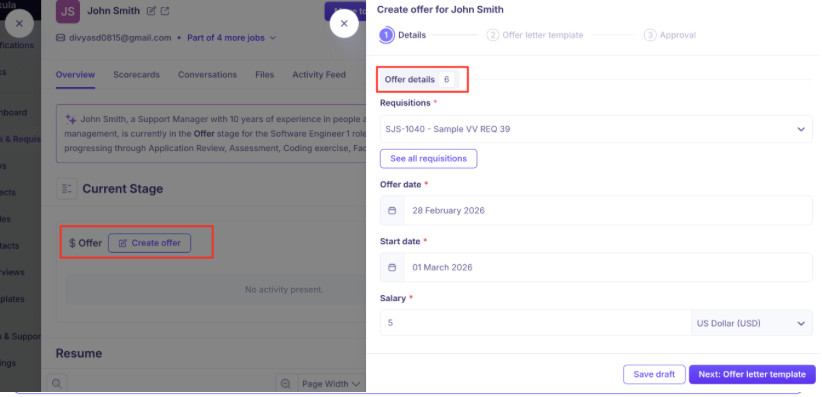
Click "Next: Offer Template".
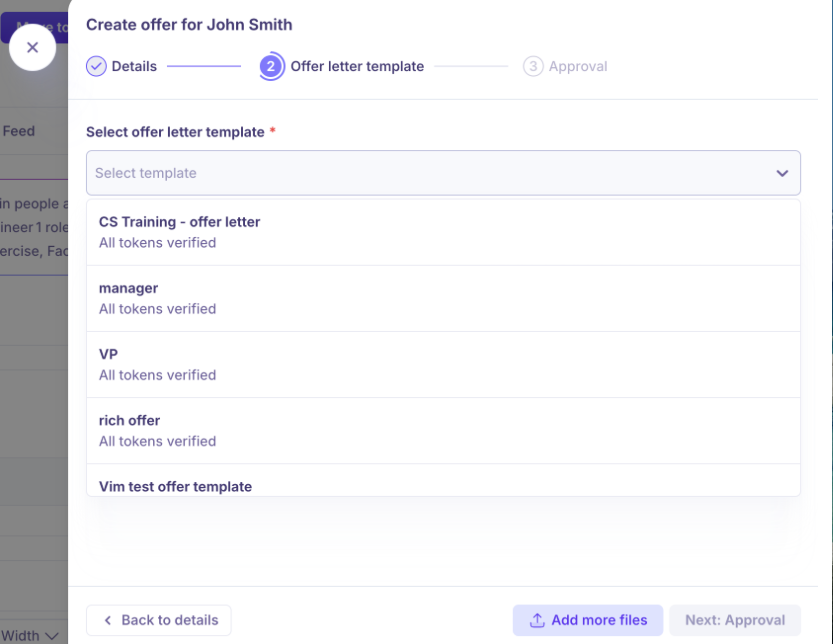
Select Offer Template: Choose the appropriate template from the dropdown list(Templates are managed under Settings → Offer Templates).
Click "Next: Approvals".
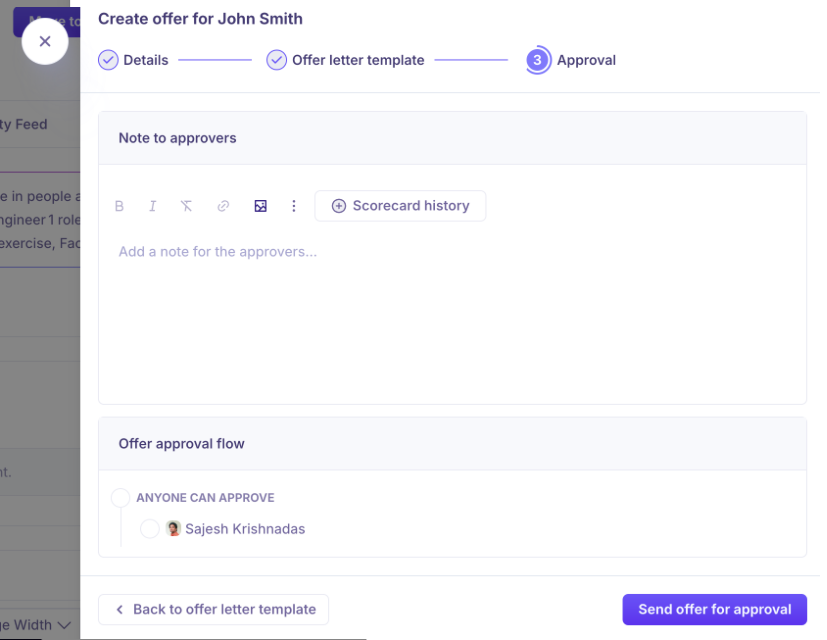
Send for Approval: In the Approvals section - Add a note for the approvers (optional) and Review the configured approval flow (set under Settings → Offer Approvals).
Click "Send offer for approval".
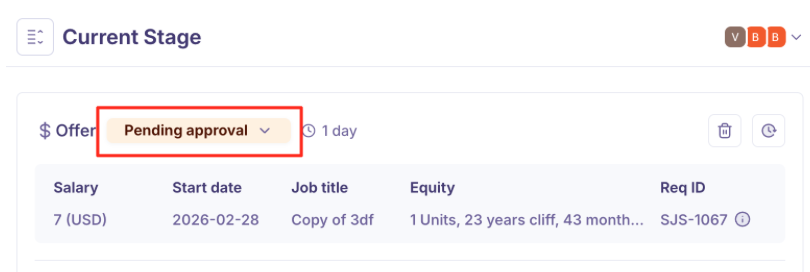
Once sent, the status will update to Pending approval under the Current Stage section.
Approvers will receive notifications via email, Slack, or in-app to review and approve the offer.
Once the approver completes the review, the status will change to Approved.
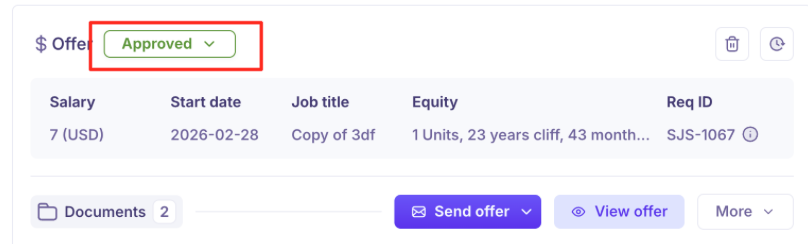
You will now see the options View Offer and Send Offer in the Documents section.
Review and Send via DocuSign: Click View Offer to preview the offer details and attached documents and Click the dropdown next to Send Offer
Select Send with DocuSign.
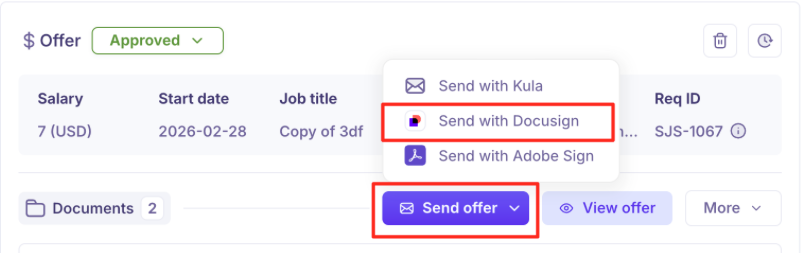
The offer letter will be sent to the candidate via DocuSign, and a confirmation message “Offer sent” will appear.
Step 3: Offer Status Tracking
Kula automatically syncs with DocuSign to reflect real-time signing progress.
You can track:
Pending approval
Approved
Sending offer with DocuSign
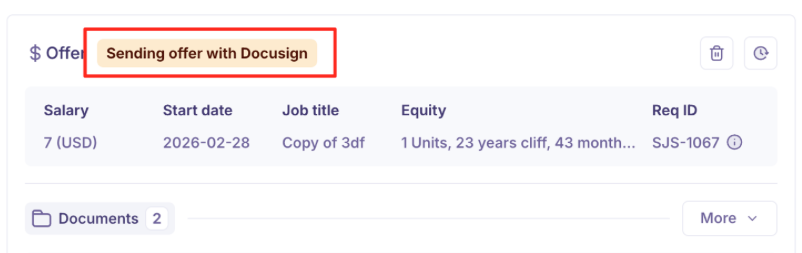
Pending on candidate

Accepted by candidate
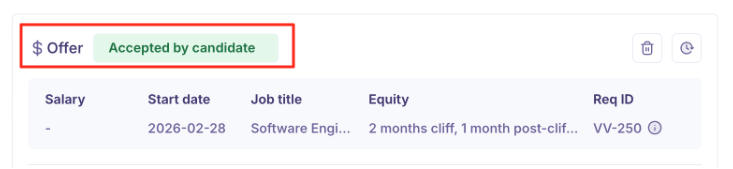
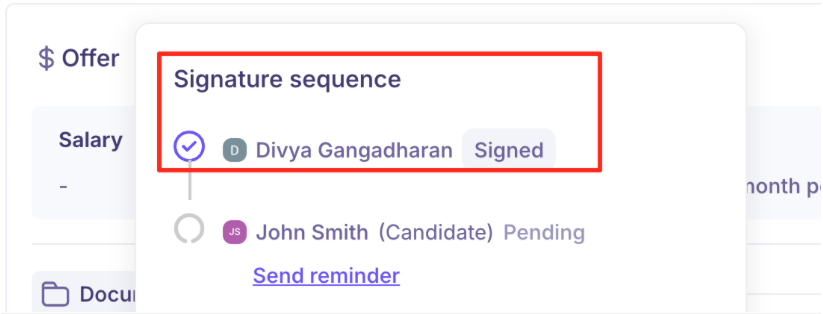
You can also view the signature sequence, see who has signed, and send reminders to pending signers directly from Kula.
Additional Documents & Signing Behavior
When creating an offer in Kula, you can upload additional documents along with the primary offer letter. Here’s how they are handled in DocuSign:
All additional documents uploaded during offer creation will be visible directly within DocuSign during the signing process.
If any additional document contains DocuSign tokens (for example, signature fields), DocuSign will automatically prompt signers to complete those fields, just like the primary offer document.
Once all parties have completed signing, a final signed document is generated as a single merged PDF.
The merged PDF will include:
The primary offer document
All additional documents appended sequentially
Documents will appear in the exact order they were uploaded in Kula.
This ensures a consistent signing experience and prevents unsigned supporting documents from being overlooked.
Need Help?
If you have questions or need assistance with setup, feel free to reach out to us at support@kula.ai or use the in-app chat for assistance.