Managing Personal Integrations
Last updated: March 17, 2026
My Integrations is your personal integrations hub in Kula. It allows you to connect your mailbox, calendar, and Chrome extension to enable end-to-end hiring workflows — from emailing candidates to scheduling interviews and sourcing profiles directly from the web.
To access this page, navigate to Settings → My Settings → My Integrations.
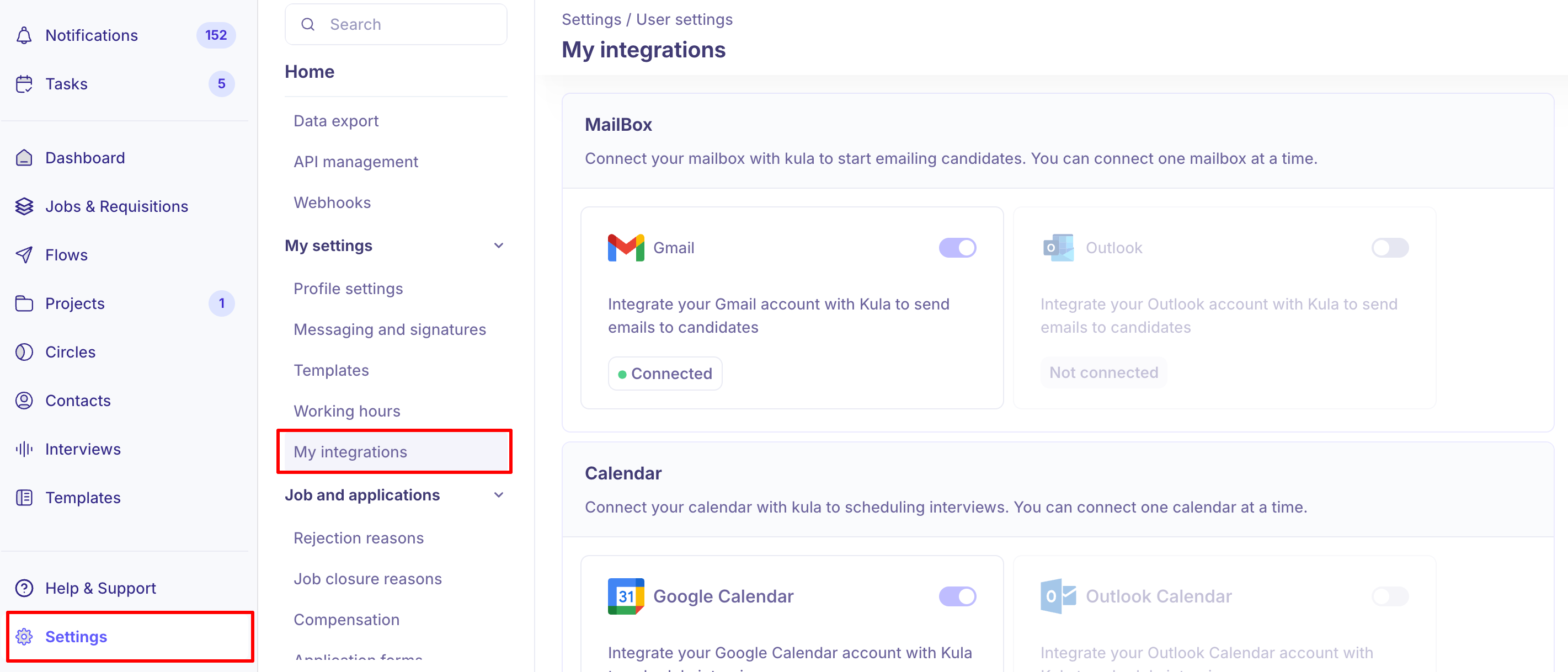
This page contains three sections:
Mailbox — connect your email account to send and track candidate communications
Calendar — connect your calendar to sync availability and schedule interviews
Kula extension for Chrome — install Kula Everywhere to source candidates from your browser and sync LinkedIn contacts.
Integration | What it does | Supported providers |
Mailbox
Connecting your mailbox allows Kula to send emails to candidates on your behalf, track replies, and log all communication to the candidate's profile. You can connect one mailbox at a time.
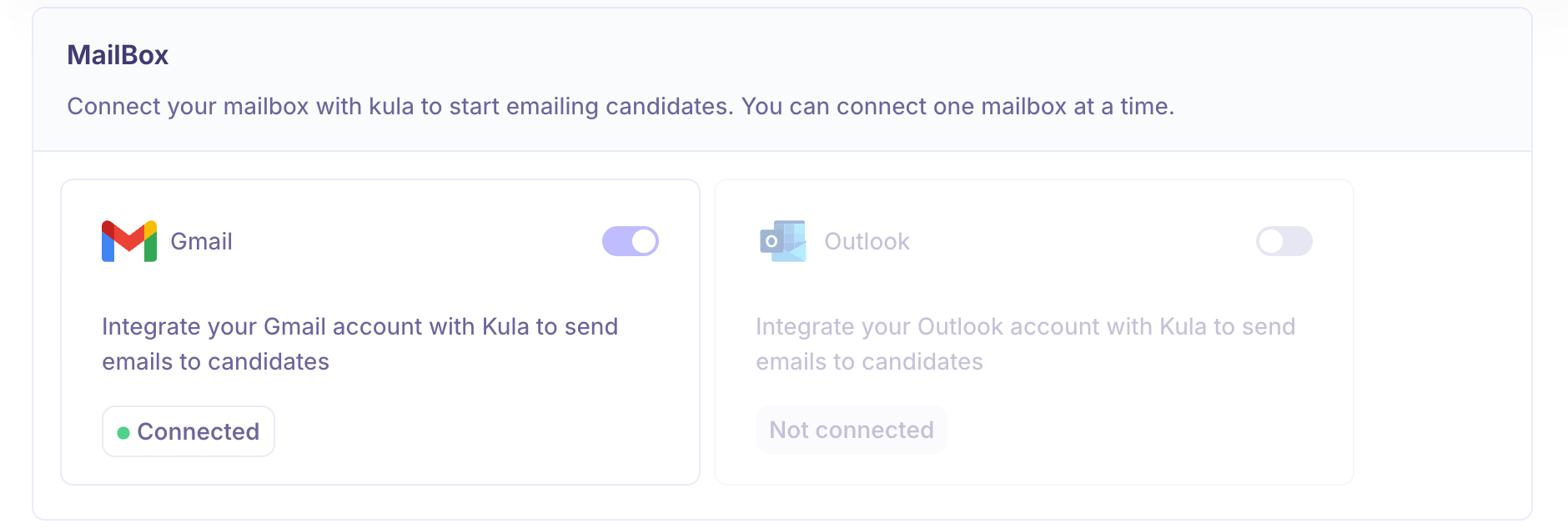
Supported providers
Gmail — connect your Google Workspace or personal Gmail account
Outlook — connect your Microsoft Outlook or Office 365 account
What mailbox integration enables
Send emails directly from Kula to candidates
Track candidate replies under Candidate → Conversation
Appear in the From dropdown when sending emails or offer letters
Automatically log email communication to candidate profiles
How to connect your mailbox
Navigate to Settings → My Settings → My Integrations → Mailbox.
Click the toggle next to your preferred provider (Gmail or Outlook).
Sign in with your work email credentials.
Grant the requested permissions.
Once connected, the status below your provider will display Connected.
Note: You can only connect one mailbox at a time. To switch providers, disconnect the current one before connecting a new one.
For a full setup guide including troubleshooting and FAQs, see: How to Connect Your Mailbox and Calendar in Kula → https://support.kula.ai/articles/7857760610-enabling-mailbox-calendar-integrations-in-kula
Calendar
Connecting your calendar allows Kula to sync your real-time availability, prevent double-booking, and enable interview scheduling. You can connect one calendar at a time.
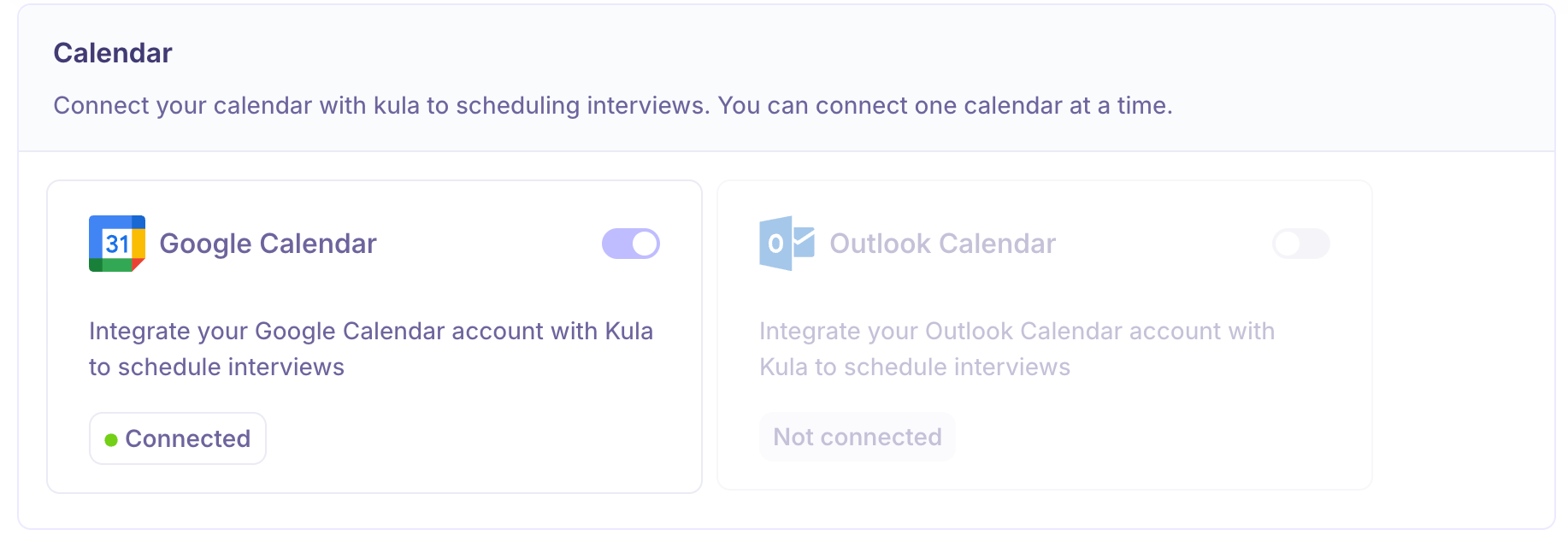
Supported providers
Google Calendar — connect your Google Workspace calendar
Outlook Calendar — connect your Microsoft Outlook or Office 365 calendar
What calendar integration enables
Sync real-time availability for interview scheduling
Prevent double-booking by checking Free/Busy status
Participate in interviewer pools for panel interviews
Block off interview slots during busy events or approved time off
Ensure interview invites are sent to the correct calendar
How to connect your calendar
Navigate to Settings → My Settings → My Integrations → Calendar.
Click the toggle next to your preferred provider (Google Calendar or Outlook Calendar).
Sign in to your account.
Grant calendar access permissions.
Once connected, the status below your provider will display Connected. Your availability will sync automatically and interview scheduling will respect your working hours.
Note: You can only connect one calendar at a time. If you switch providers, disconnect the current calendar first.
For a full setup guide including troubleshooting and FAQs, see: How to Connect Your Mailbox and Calendar in Kula → https://support.kula.ai/articles/7857760610-enabling-mailbox-calendar-integrations-in-kula
Kula Extension for Chrome
The Kula extension for Chrome section lets you install and manage Kula Everywhere — a Chrome extension that allows you to source candidates directly from your browser and sync your LinkedIn contacts into Kula.
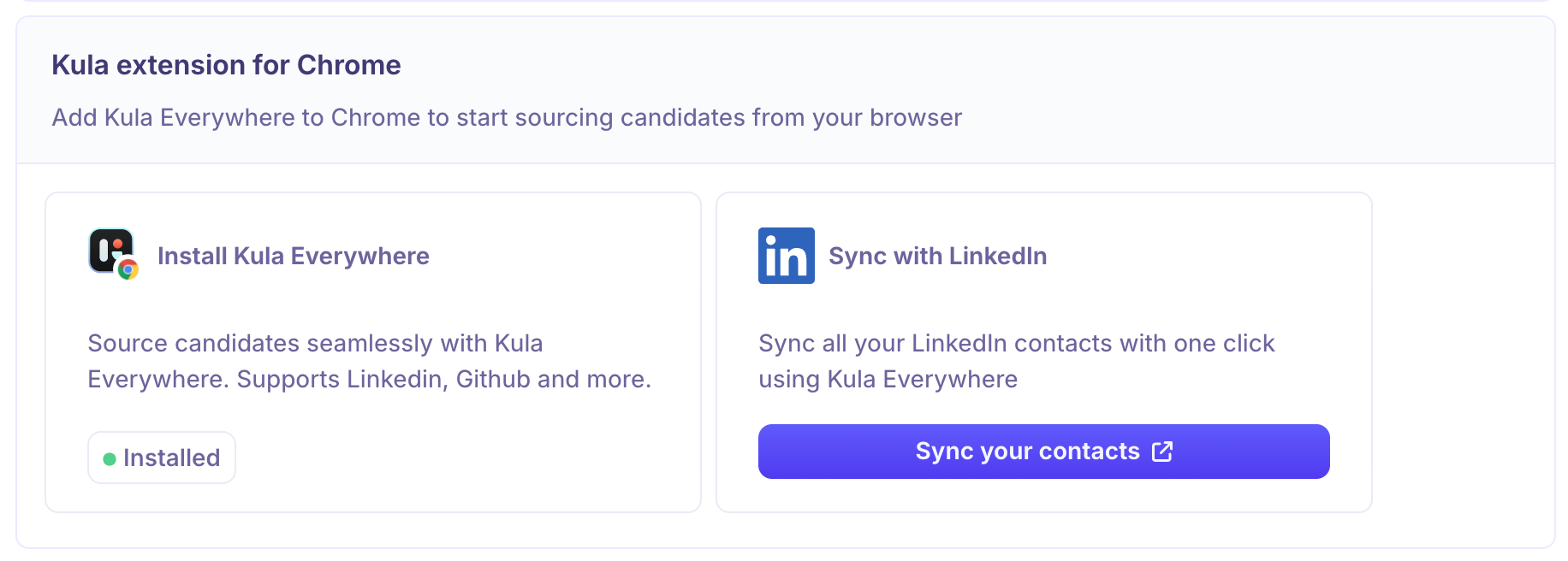
Install Kula Everywhere
Kula Everywhere is a Chrome extension that lets you add candidates to Kula from LinkedIn, GitHub, and other platforms without leaving your browser.
Click Install Kula Everywhere in the Kula extension for Chrome section.
You will be redirected to the Chrome Web Store.
Click Add to Chrome and confirm the installation.
Once installed, the status in Kula will update to Installed.
Note: Kula Everywhere supports sourcing from LinkedIn, GitHub, and more. It must be installed in Chrome to use sourcing features from your browser.
Sync with LinkedIn
Once Kula Everywhere is installed, you can sync all your LinkedIn contacts into Kula in one click using the Sync your contacts option.
Click Sync your contacts next to Sync with LinkedIn.
Kula Everywhere will open in your browser and initiate the LinkedIn sync.
All your LinkedIn connections will be imported into your Kula contacts.
Note: You must have Kula Everywhere installed in Chrome before you can sync LinkedIn contacts. The Sync your contacts button opens an external link and requires the extension to be active.
PDF Fallback for Profile Parsing
Kula Everywhere includes a PDF fallback mechanism to ensure candidate details are captured even when standard profile parsing fails. When the extension cannot parse a profile using the standard method on a supported platform, it automatically switches to a PDF-based flow.
How it works
1. When standard parsing fails on a supported platform, the fallback is triggered automatically.
2. The profile page content is auto-downloaded as a PDF.
3. The PDF is parsed to extract candidate information such as name, contact details, and experience.
4. Improved error handling ensures parsed profiles remain stable, even during page refreshes or overlay interactions.
This means you can continue sourcing without interruptions, even when third-party page structures change or parsing breaks unexpectedly.
Current limitations
PDF download limit: Limited to 100 PDF downloads per account per month. Once the monthly limit is reached, the fallback stops triggering until the next billing cycle.
Not the default flow: The PDF fallback is only triggered when standard parsing fails. It does not run on every profile.
Parsing accuracy: PDF parsing accuracy may vary based on the quality and structure of the source page.
Best Practices
Connect both your Mailbox and Calendar before starting any hiring activity — Kula works best when both are active.
Use your official work email account for the mailbox integration to ensure compliance and proper tracking.
If you change your email or calendar password, reconnect your integrations immediately to avoid disruption.
Install Kula Everywhere if you actively source candidates on LinkedIn or GitHub — it significantly speeds up the sourcing workflow.
Sync your LinkedIn contacts periodically to keep your Kula contact database up to date.
Permissions
My Integrations is a personal settings page — each user manages their own mailbox, calendar, and Chrome extension connections independently. These settings are not visible to or manageable by other users or admins.
Need Help?
If you have questions or need assistance with setup, feel free to reach out at support@kula.ai or use the in-app chat for help.