Setup your Profile
Last updated: February 24, 2025
The Profile Settings section allows users to edit and manage personal information and preferences within their Kula account. Ensure your profile settings are up-to-date to optimize your experience within the system.
Click on the Settings icon that is located at the very bottom of the left-side menu.
Under the User Settings section, click on Profile Settings.
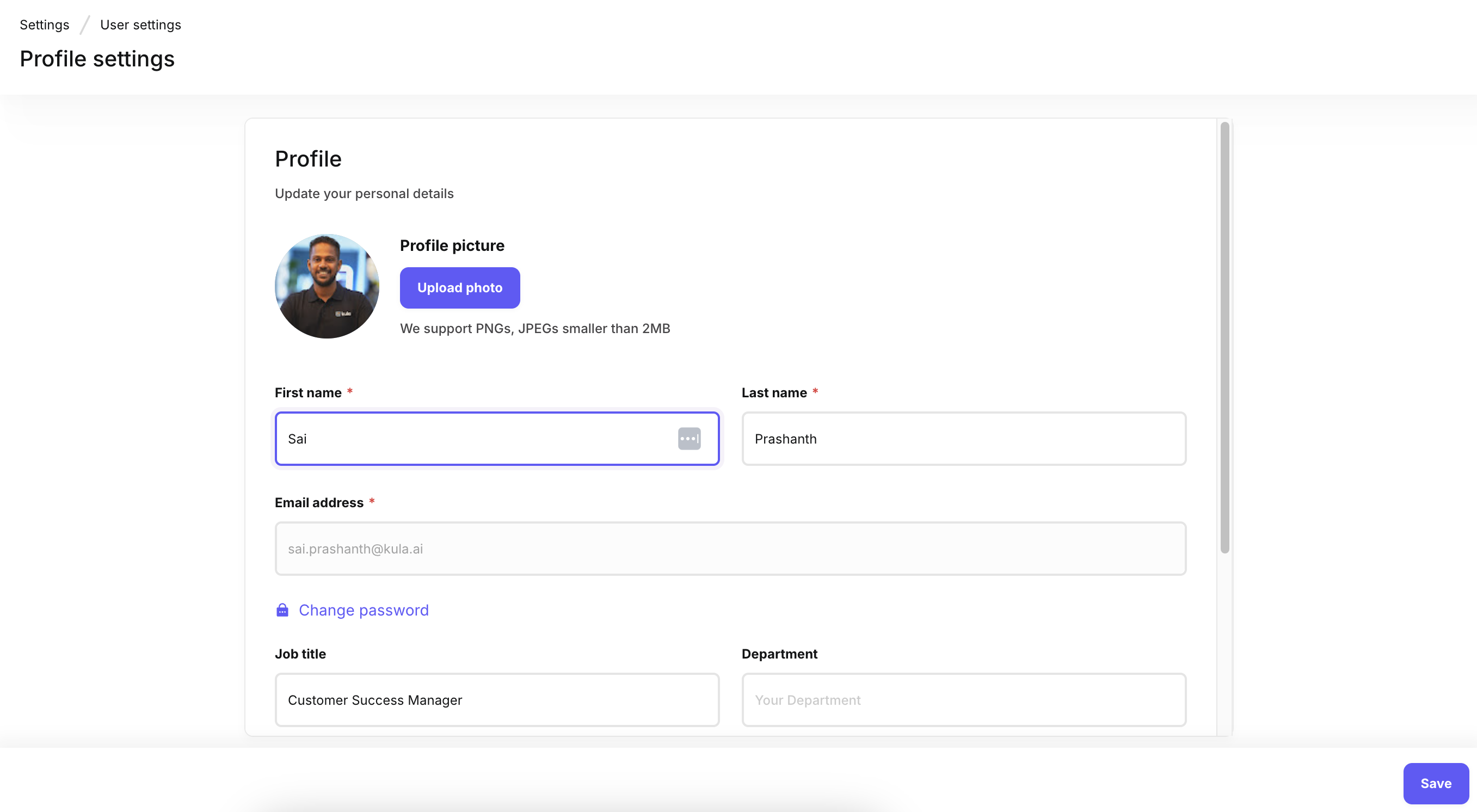
Here’s a quick overview of what can be updated:
Profile Picture: Upload or change your profile picture for a personalized experience.
First Name: Update your first name.
Last Name: Update your last name.
Email Address: The email address is pre-filled with the one you signed up with or were invited through.
Change Password: Secure your account by updating your password as needed.
Job Title: Specify or update your current role within the organization.
Department: The department is pre-filled with the value your admin or super admin user assigned.
Timezone: This is critical as it affects the timing of your outreach and other system activities like interview scheduling.
Date Format: Choose how dates will be displayed (MM/DD/YYYY or DD/MM/YYYY or YYYY/MM/DD).
Time Format: Select between a 12-hour or 24-hour clock format.
Complete the action and save all the configurations successfully by clicking on the Save button.