Sending surveys to candidates
Last updated: September 25, 2026
There are two ways to send a survey: from a stage in the job's pipeline, or inside a rejection email. Use a stage when you want to time the survey, for example sending a candidate survey right after an interview stage, or a hiring manager survey once someone reaches Hired. Use a rejection email to hear from candidates you didn't move forward.
Who can do this: creating and publishing surveys needs the Manage Surveys permission (Admin and Super Admin by default). Adding a survey activity to a stage needs permission to edit the job. Attaching a published survey to a rejection email is open to anyone who can reject a candidate. Where to find it: surveys: Settings → Jobs & Requisitions → Surveys. Stage surveys: the job → Settings → Interview Plan. Rejection surveys: the rejection email composer.
Before you start: the survey must be created and published. Surveys start as drafts and can't be sent until they're published. See Setting up surveys.
From a pipeline stage
Step 1: Add a survey activity to the stage
Go to the job's Settings → Interview Plan.
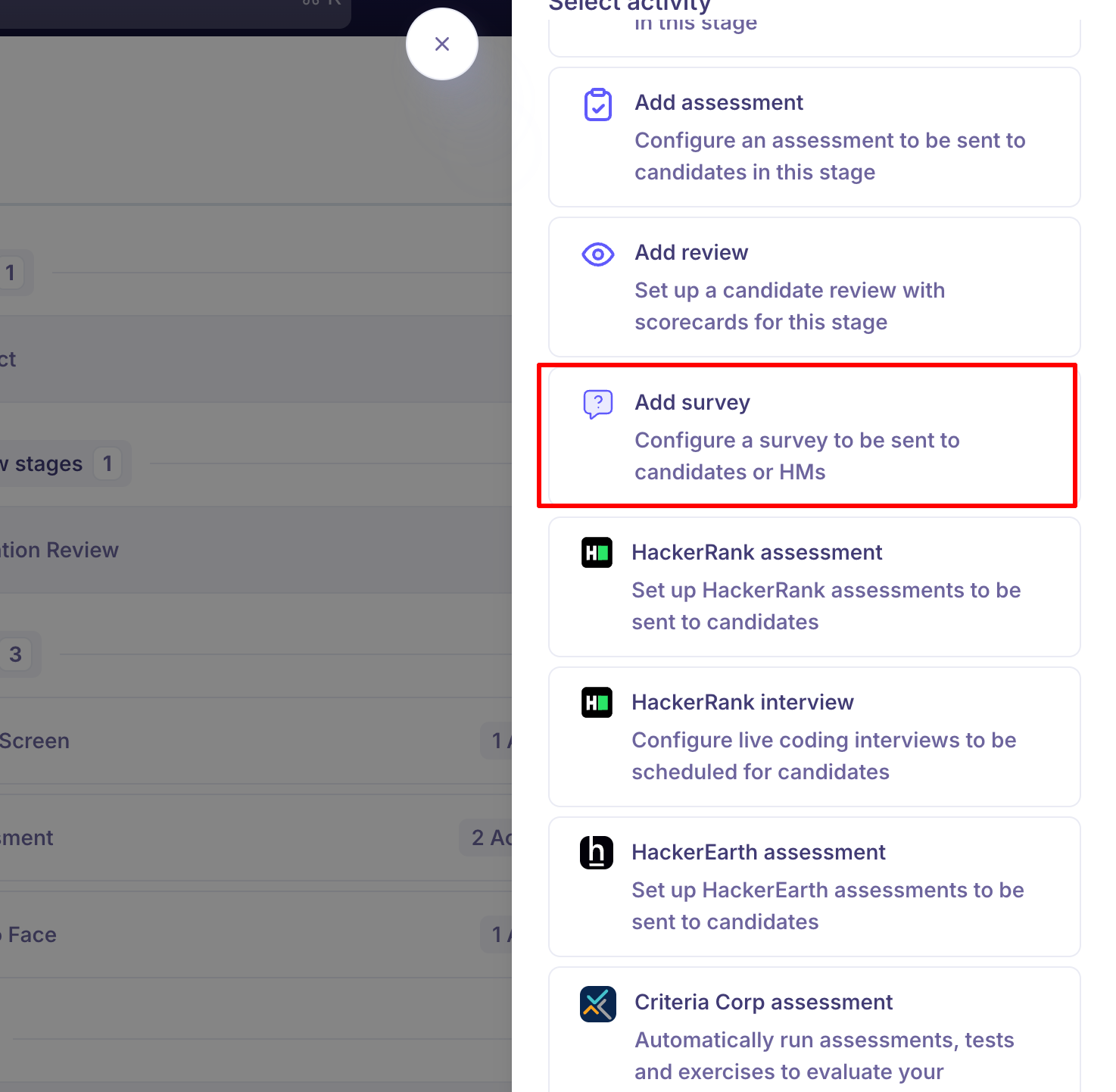
Open the stage where you want to send the survey, click Add activity and choose Add survey.
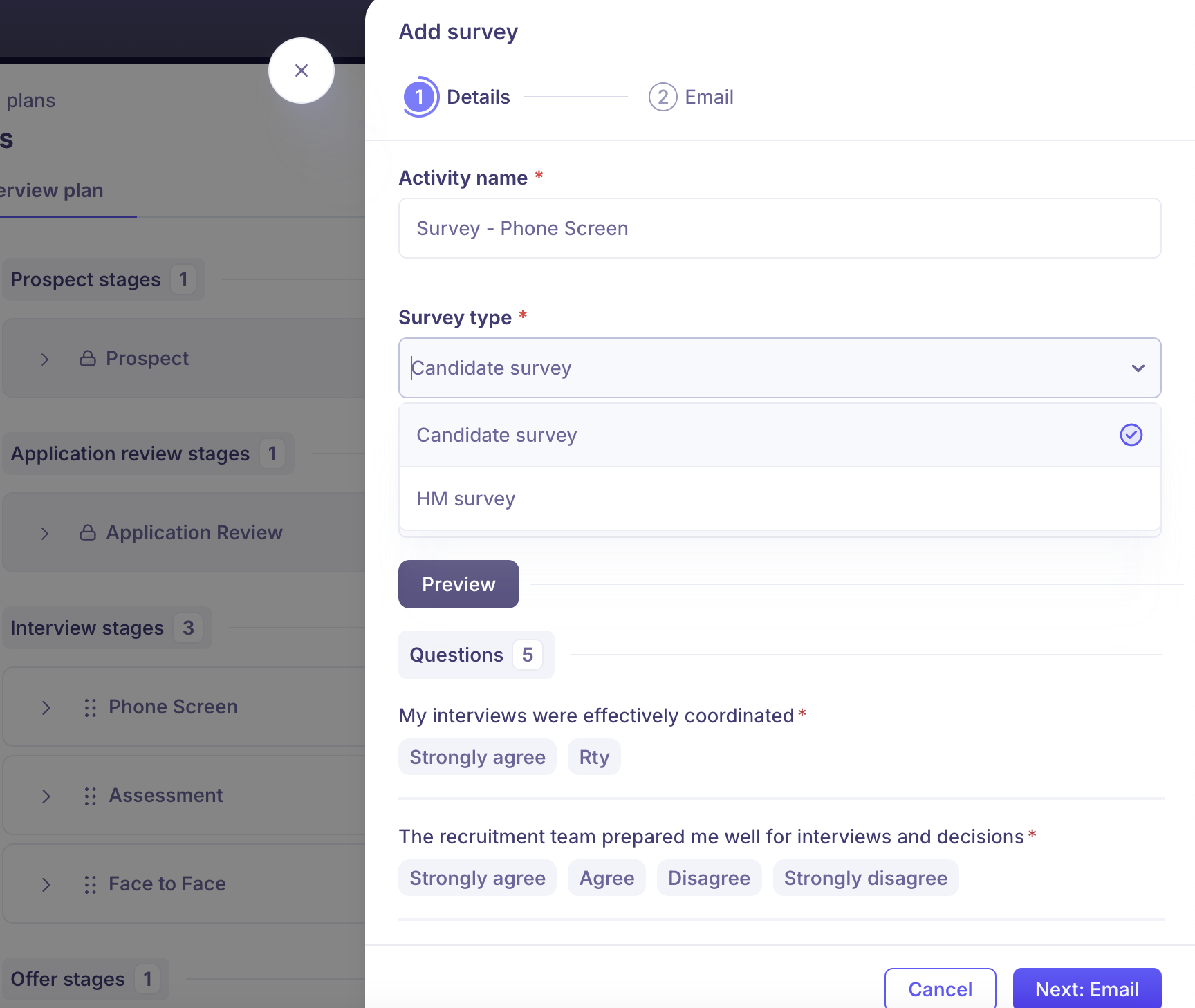
On Details, name the activity, choose the survey type (Candidate survey or HM survey), select the survey and preview it.
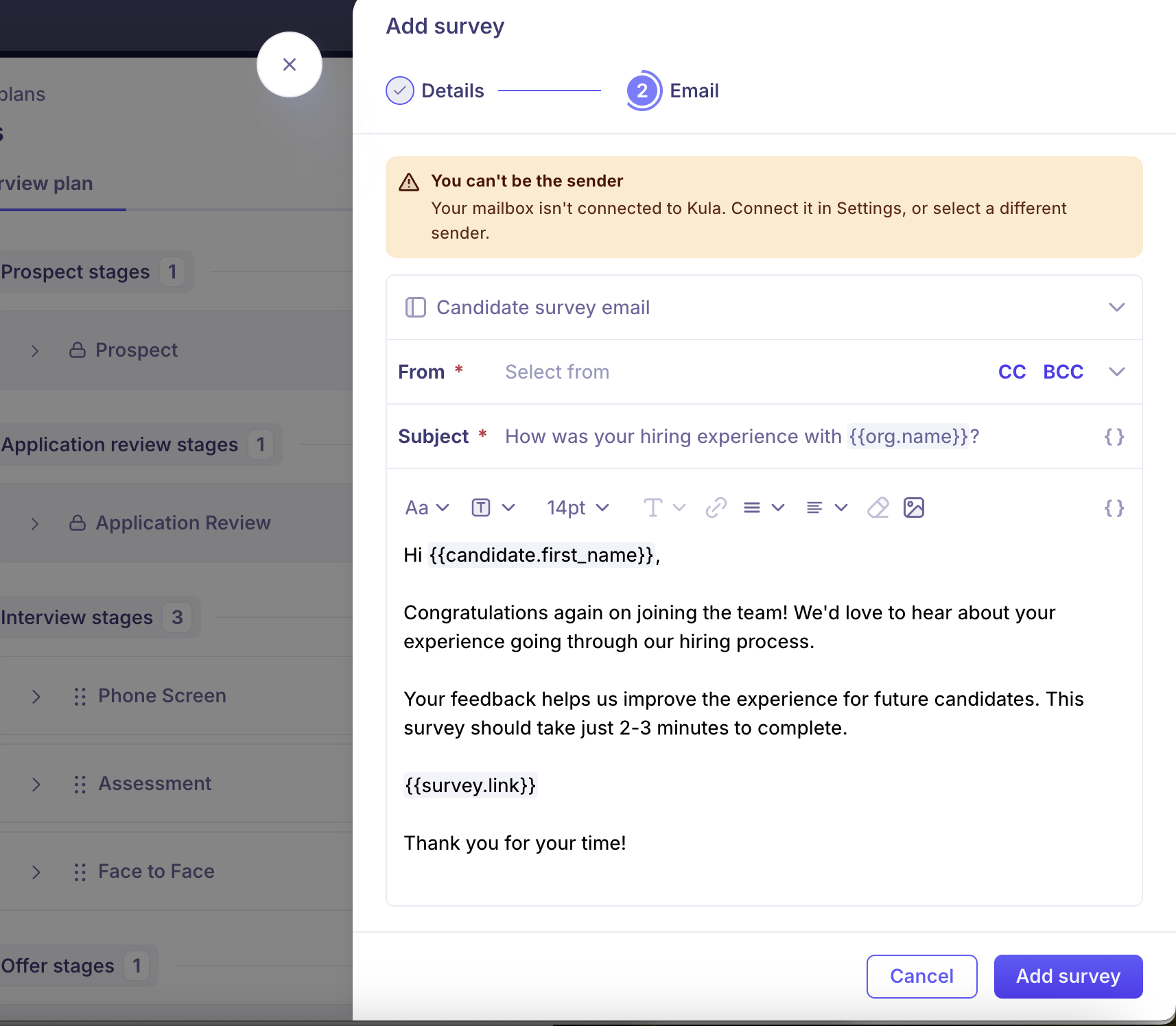
On Email, choose a template and write the email that carries the survey.
Step 2: Send it
When a candidate is in that stage, a Send survey button appears on their Current Stage card. Click it to send. If the stage has an automation, the survey can go out on its own instead. See Stage automation.
You can still send a survey after a candidate reaches Hired, for post-hire feedback.
With a rejection email
Add the survey to the rejection email templates your team uses. Templates that include a survey show a Has Survey tag.
When you reject a candidate, pick a rejection template that has a survey, or select the survey directly in the rejection composer.
The candidate gets the rejection email with the survey link.
Where responses go
Responses appear as soon as they're submitted. See them under Settings → Jobs & Requisitions → Surveys → Submissions, or on the job under More → View surveys in job. See Viewing survey responses.
Good to know
Only published surveys can be sent. A draft won't appear in the list.
Add survey is greyed out if your account has no surveys yet. Create one first.
Rejected candidates only get a survey if the rejection email includes one. Kula doesn't send one separately after rejection.
Every survey has one NPS question (0–10). It's added when you build the survey.
Surveys can be limited to departments, offices or work types, or left available to every job.
FAQ
Can a survey go automatically when someone is rejected from a certain stage? Not on its own. The survey goes with the rejection email, so attach it to the rejection templates your team uses most.
Can I send a survey to the hiring manager? Yes. Choose HM survey as the survey type on the stage's survey activity.
Why don't I see my survey in the list? It's still a draft, or it's limited to other departments, offices or work types. Publish it or change its scope.
Can I send a survey after the candidate is hired? Yes. Add a survey activity to the Hired stage.
Need help?
If you have questions or need assistance, reach out to us at support@kula.ai or use the in-app chat.