Setting up surveys
Last updated: September 25, 2026
Surveys help you measure satisfaction with your hiring process and identify areas for improvement. Send Candidate Surveys to applicants and Hiring Manager Surveys to hiring managers—both include a Net Promoter Score (NPS) question to gauge overall satisfaction.
Who can do this: Creating, editing and publishing surveys requires the Manage surveys permission, which Super Admin and Admin have by default.
Where to find it: Settings → Jobs & Requisitions → Surveys
There are two types of surveys in Kula
Candidate survey: Candidate surveys are often sent to candidates at the end of their hiring process, either during rejection or after they are hired. These surveys include an NPS question to gauge the candidate’s overall satisfaction with the hiring process.
HM survey: HM surveys are sent to hiring managers or internal employees, often when a candidate is hired. These surveys include an NPS question to gauge the HM’s overall satisfaction with the hiring process.
Creating a new survey
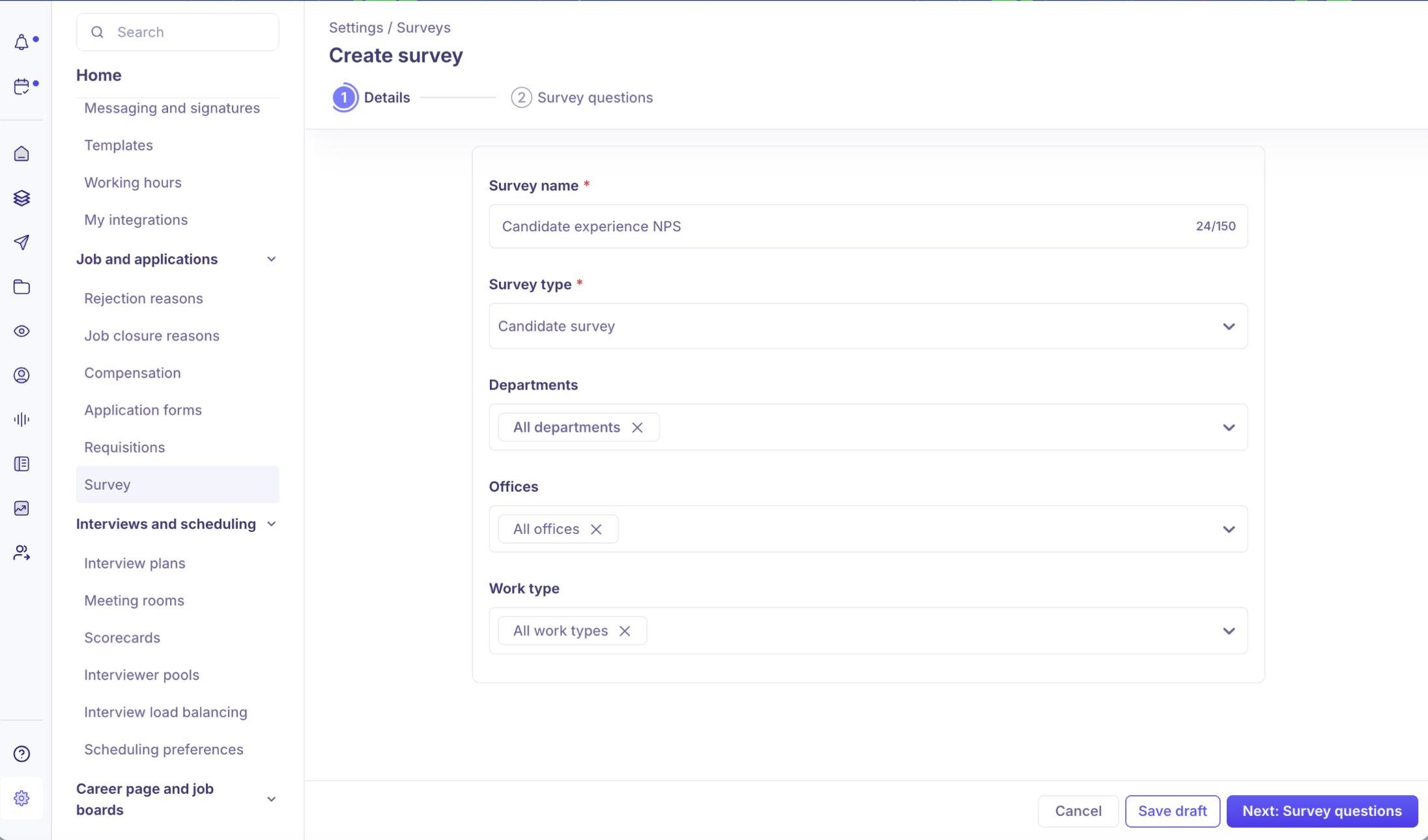
To create a new survey:
Click the Create survey button on the top-right
Enter a Survey name.
Select the Survey type. You can choose either the Candidate survey or HM survey type.
Set the Department, Office, and Work type for the survey. This survey will only be usable in jobs that match the department, office, and work type combination set here.
You can always leave the creation by clicking Save draft and coming back to the survey creation later.
In the Survey questions tab, start by adding questions to the survey.
Questions can be created in the following types
Short text
Long text
Single select
Multi-select
Yes / No
5 star scale
0 to 10 scale
Date
Number
URL
File upload
Note: An NPS question is always added to the survey. You can edit the question and change its description, but you can't remove it because it captures the overall sentiment. Answers to the NPS question are aggregated in analytics.
Questions can be set as mandatory by setting Is required to Yes - Questions can be set as mandatory by setting
The submission visibility controls who can see the answer submitted to this question on the candidate profile page for a job. By default, answers are visible to. This helps control access to feedback that you might not want the hiring team to see.
The survey can be previewed at any time. Use the Preview survey button to view how candidates or HMs will experience the survey.
Once all the questions are added, the survey can be published by clicking Publish survey. Published surveys can be added to interview plans or sent to candidates and HMs within jobs.
Reviewing submissions
Once a survey is created, it can be used in jobs by either adding it to the interview plan or sending it ad hoc to candidates and HMs. Once submissions start flowing into the survey, they can be reviewed in the Submissions tab.
Here, there is a list of submissions from candidates and hiring managers on the survey. The NPS can be seen upfront, and the detailed answers can be seen by clicking on the submission.
The submissions can be downloaded using the Export CSV button on the top-right. This exports all the submissions for a particular survey in the form of a CSV which can then be ingested into external tools for analysis.
Kula also provides a visual mechanism to analyze the submissions to Yes/no, single select, multiple-select, 5-star ratings, 10-point ratings and NPS questions. This can be found in the Summary tab.
Good to know
Every survey has an NPS question. You can edit its wording and description, but you can't remove it.
A survey only appears on matching jobs. It's usable only in jobs that match the department, office and work type you set on the survey.
Only published surveys can be used. A draft can't be added to an interview plan or sent until you click Publish survey.
You control who sees each answer. Use Submission visibility on each question to hide answers from parts of the hiring team.
FAQ
Can I remove the NPS question from a survey?
No. You can edit its wording and description, but every survey keeps its NPS question.Why can't I pick my survey when I add it to a job?
Check that the survey is published and that its department, office and work type match the job.How do I get all the responses out of Kula?
Open the survey's Submissions tab and click Export CSV.How is the NPS worked out?
See How NPS is calculated in Kula.
Need Help?
If you have questions or need assistance, reach out to us at support@kula.ai or use the in-app chat.