Connect BambooHR to Kula
Last updated: September 18, 2026
Connecting BambooHR lets you push a hired candidate straight into BambooHR as a new employee, with the details you already hold in Kula filling the form for you.
Who can do this: Super Admin, Admin
Where to find it: Settings → Organization → Organization integrations → HRIS and onboarding
How to Integrate BambooHR with Kula
Go to Settings → Organization → Organization integrations.
Find the BambooHR card under HRIS and onboarding.
Turn the toggle on. A secure connection window opens.
Sign in to BambooHR as an administrator and approve the requested access.
Close the window. You will see "Connected to BambooHR".
The field mapping screen opens automatically straight after a successful connection, so you can set your mappings while you are already there. You can reopen it at any time — see below.
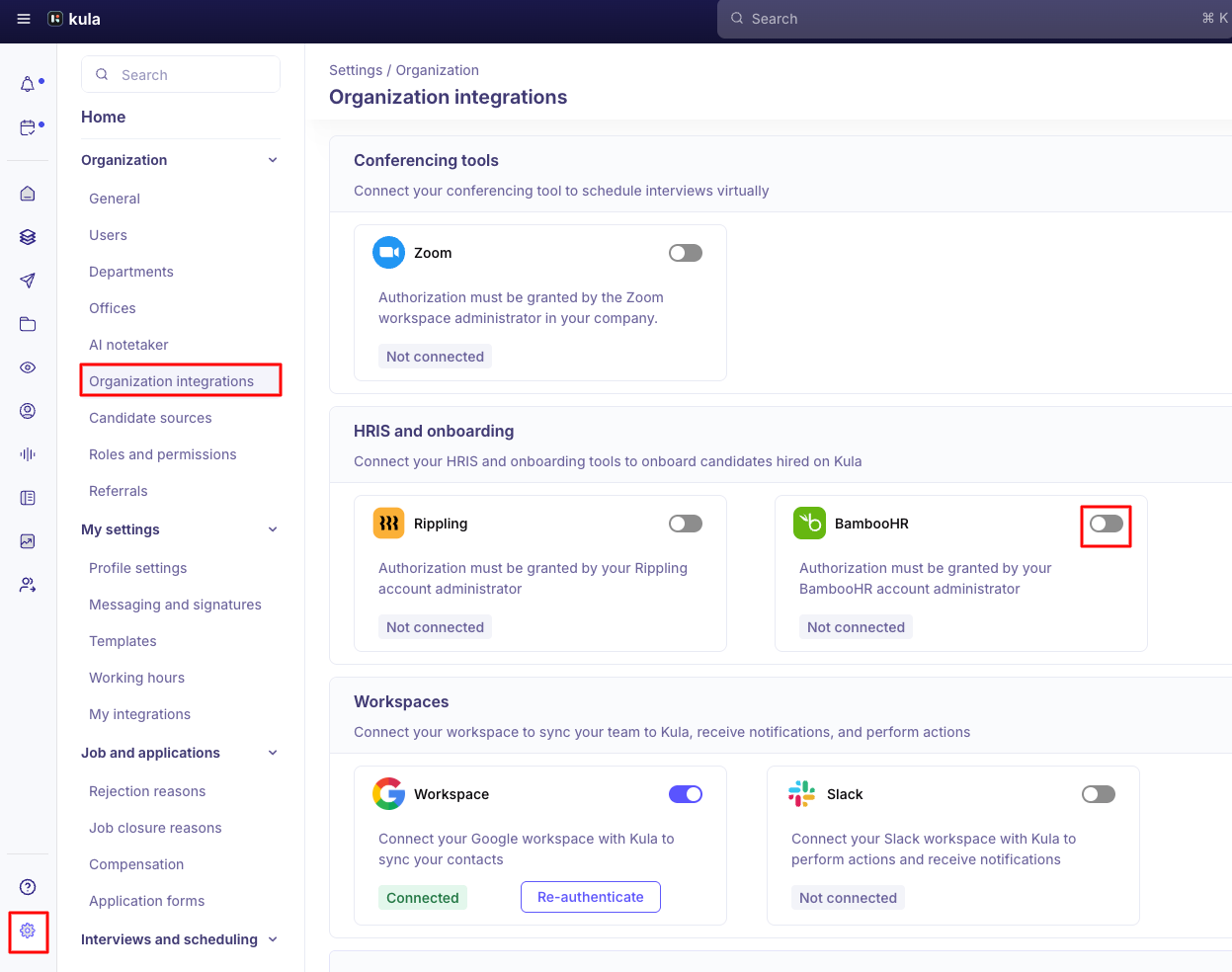
Authorisation has to be granted by your BambooHR account administrator. If you are not an administrator in BambooHR, the authorisation screen will not let you finish.
Map your Kula fields to BambooHR
Field mapping decides which Kula value fills which BambooHR field, so the employee form arrives prefilled instead of blank.
Hover over the connected BambooHR card.
Click Edit.
Match each BambooHR field to the Kula field that should fill it.
Save.
These Kula fields are available to map, from your job, requisition and offer records:
Group | Fields you can map |
|---|---|
Organisation | Department, Sub Department 1, Sub Department 2, Sub Department 3 |
Address | Full Address, Street, City, State, Country, Zipcode |
Office | Office Name, Office Location |
Dates | Hire Date — the date the candidate was last moved to the Hired stage |
Push a hired candidate to BambooHR
Once the mapping is set, open the hired candidate's application and send them to BambooHR. Kula loads the BambooHR employee form, prefills every mapped field, and fetches BambooHR's own dropdown options live so the values you pick are always valid.
You can also attach documents from the application — offer letters and other files — and choose which BambooHR document category each one goes into.
For the full flow, see Handing off to your HRIS.
Fix an invalid connection
If the card shows Invalid, the authorisation was revoked or expired on the BambooHR side and pushes will fail.
Hover over the BambooHR card.
Click Re-authenticate.
Sign in to BambooHR again and approve access.
Your existing field mappings are kept — you do not have to set them up again.
Good to know
Only hired candidates can be pushed. If the application is not in the Hired stage, Kula blocks the push.
Documents are limited to 20 MB per file. Anything larger is rejected. Files over 10 MB, and any push covering more than one document category, upload in the background — the push itself completes straight away and the documents follow.
Pushing the same person twice fails. If the employee already exists in BambooHR, Kula reports it rather than creating a duplicate.
A permissions error means BambooHR, not Kula. If the push fails with a permission error, the BambooHR credentials that authorised the connection do not have rights to create employees. Ask your BambooHR administrator to widen them and re-authenticate.
Where a job or requisition has more than one office, the first office is used when sending to BambooHR.
FAQ
Can I send a candidate to BambooHR before they are marked as hired? No. The push is only available once the application reaches the Hired stage — Kula blocks it before then to avoid creating employees for candidates who have not accepted.
We changed our field mapping — do we need to reconnect BambooHR? No. Mapping and connection are separate. Hover over the card, click Edit, change the mapping and save; the connection is untouched.
A hired candidate failed to push to BambooHR — what usually causes that? Most often a required BambooHR field has nothing mapped to it, so BambooHR rejects the employee. Open the mapping screen from the card's Edit link and check every mandatory BambooHR field has a Kula field against it — phone number is a common gap.
Need help? If you have questions or need assistance, reach out to us at support@kula.ai or use the in-app chat.