Editing or Deactivating a User
Last updated: April 10, 2026
This guide explains how to update an existing user's details or role, deactivate a user who has left your organization, reactivate a previously deactivated user, and perform bulk actions across multiple users.
Permission required: Only users with Admin or Super Admin access can edit, deactivate, or reactivate users.
How to Access the Users Page
Go to Settings → Organization → Users.
Users are organized into three sections:
Active Users — currently active members of your organization in Kula
Pending Users — invited users who have not yet logged in
Deactivated Users — users who have been deactivated
Editing a User
To update a user's profile details, organizational information, or role:
Go to Settings → Organization → Users.
Find the user using the search bar or filters.
Click on the user's name or row to open their profile.
Update any of the following:
Basic Information
First Name, Last Name
Email
Timezone
Organizational Information
Job Title
Reporting Manager
Department
Office
ATS Contact toggle
Interviewer Pool assignment
Role and Permissions
Update the user's assigned role to change their access level across Kula (Jobs, Requisitions, Flows, Circles, Projects, Contacts, Analytics, Admin settings).
Click Save to apply changes.
Deactivating a User
Deactivating a user removes their access to Kula immediately. This does not delete their data — their history, activities, and contributions remain in the system.
Note: Users cannot deactivate their own accounts. This is enforced by a system-level safety guard to prevent accidental self-deactivation.
Go to Settings → Organization → Users → Active Users.
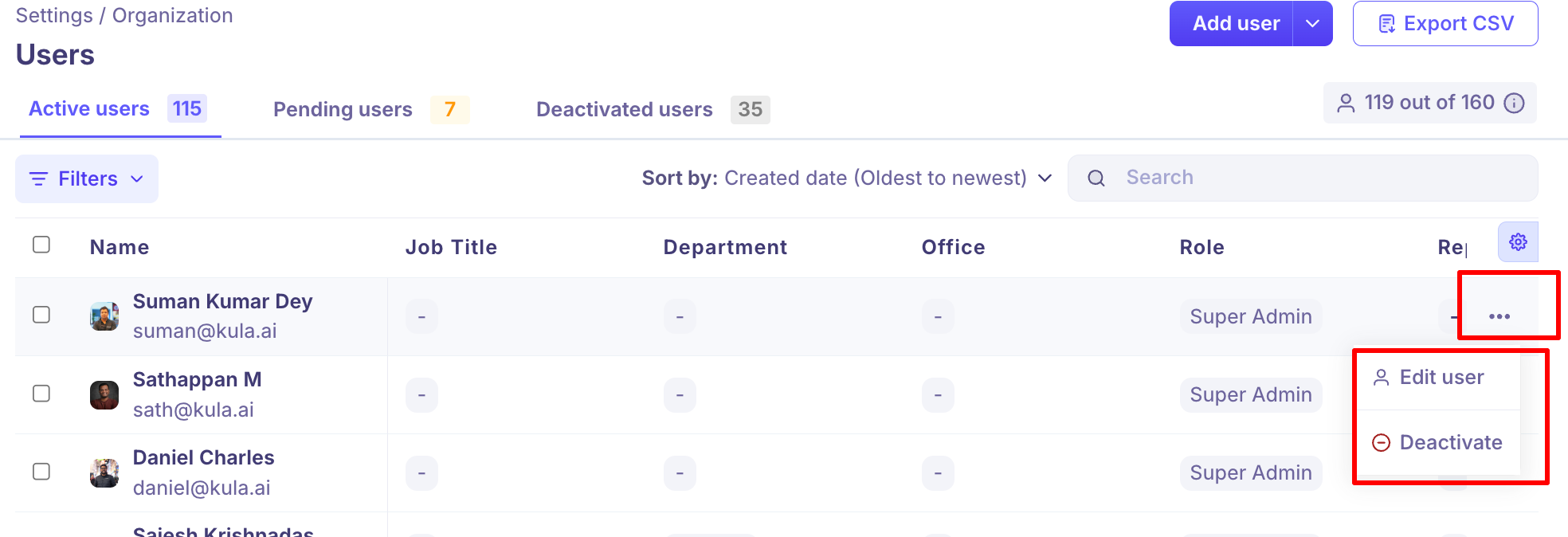
Hover over the user's row and click the Ellipses (...) icon.
Click Deactivate.
In the confirmation pop-up, type
DEACTIVATEto confirm.Click the Deactivate button.
The user is immediately moved to the Deactivated Users section and loses access to Kula.
Reactivating a User
If a previously deactivated user needs to regain access, you can reactivate them from the Deactivated Users section.
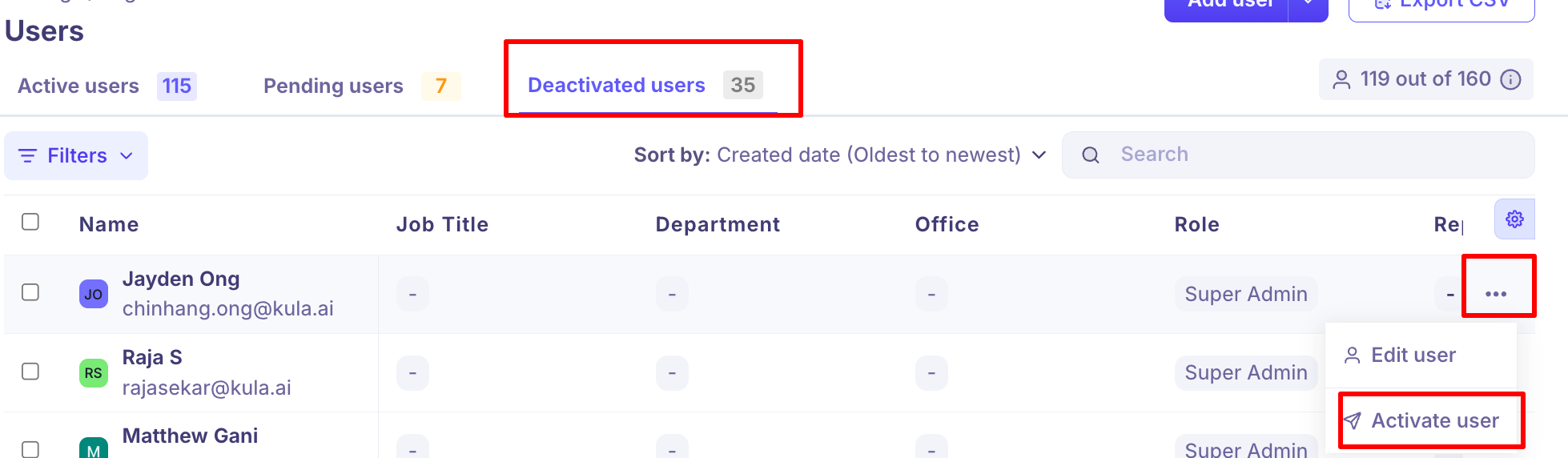
Go to Settings → Organization → Users → Deactivated Users.
Hover over the user's row and click the Ellipses (...) icon.
Click Activate User.
Click Confirm.
The user is immediately moved back to the Active Users section and regains access to Kula.
Note: Reactivated users retain their previous role and organizational information. Review and update their role if needed after reactivation.
Bulk Actions
You can update or deactivate multiple users at once using bulk actions.
Go to Settings → Organization → Users.
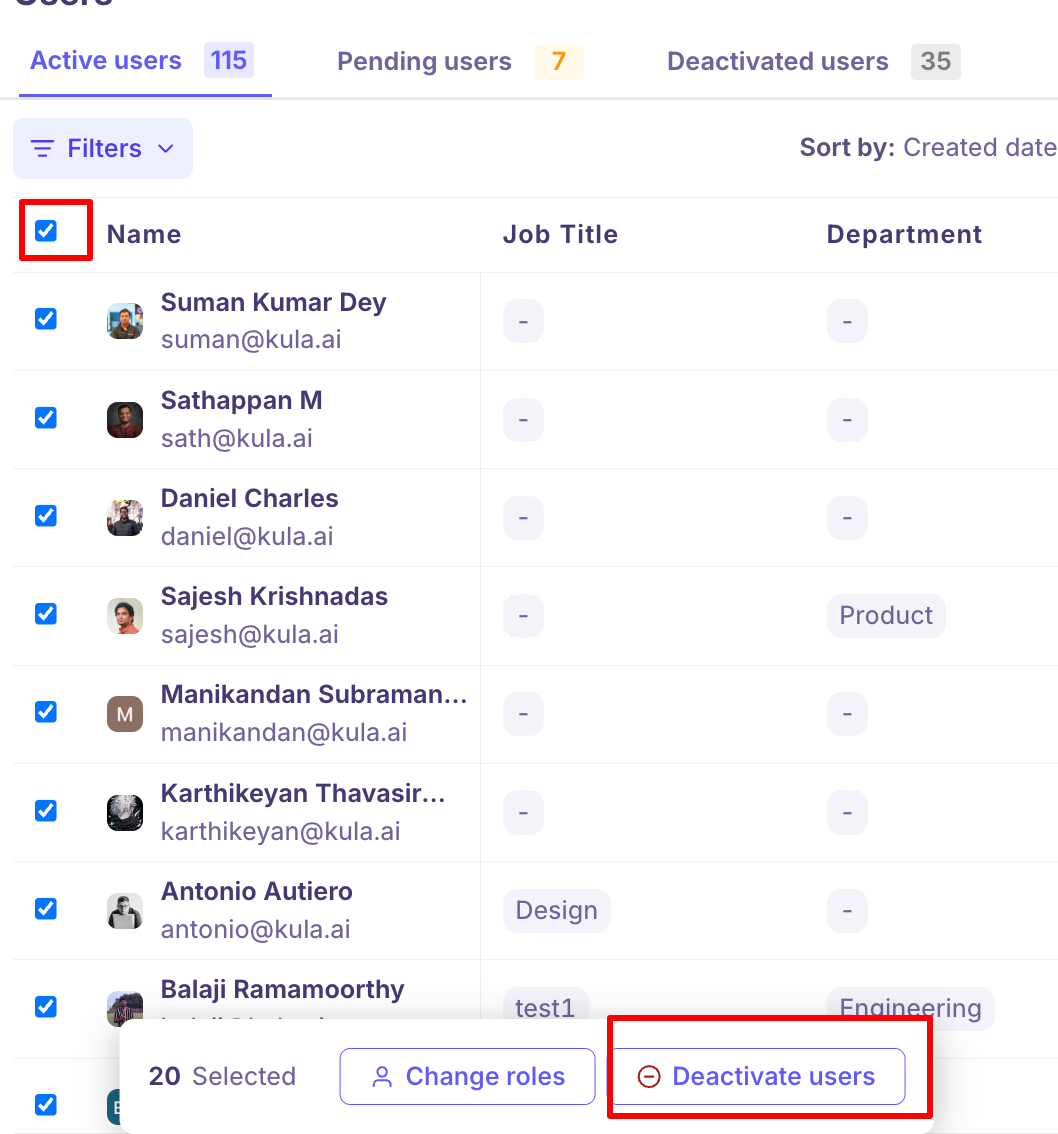
Select users using the checkboxes on the left of each row.
Use the bulk action toolbar to:
Update roles — assign a new role to all selected users simultaneously
Deactivate — deactivate all selected users in one action
This is useful when offboarding multiple team members at once or standardizing roles across a group of users.
FAQs
Does deactivating a user delete their data? No. Deactivating a user removes their access to Kula but preserves all their historical activity — interviews conducted, notes added, scorecards submitted, and more. Their data remains in the system for reporting and audit purposes.
Can a user deactivate themselves? No. Kula prevents users from deactivating their own accounts to avoid accidental self-lockout.
What happens to scheduled interviews when a user is deactivated? Existing scheduled interviews are not cancelled automatically. Review and reassign any upcoming interviews the user is involved in before or after deactivation.
Can I reactivate a user who was auto-deprovisioned by Google Workspace Provisioning? Yes. Users deprovisioned via Google Workspace Provisioning appear in the Deactivated Users section and can be reactivated manually. Note that if Provisioning is still active and the user is no longer in your Workspace directory, they may be deprovisioned again on the next sync.
Can I change a user's email address? Yes. Open the user's profile, update the email field, and save. If your organization uses Google Workspace Provisioning, email changes in Workspace are automatically synced to Kula within 10 minutes.
Can I update roles for multiple users at once? Yes. Use bulk actions — select the users using the checkboxes on the Users page and choose Update roles from the bulk action toolbar.
Who can edit or deactivate users? Only users with Admin or Super Admin access. If you do not see the Settings → Organization → Users section, contact your workspace admin.