Setup the Kula AI Notetaker
Last updated: February 26, 2026
The AI-powered Notetaker in Kula's Interviews Module is designed to streamline the interview process by automatically recording and transcribing interviews in real-time. It provides summarized discussions, assists with scorecards, and offers interactive Q&A, allowing interviewers to focus on evaluating candidates rather than managing notes. This feature enhances the overall interview experience by ensuring key points are captured and helping maintain a clear and objective assessment process.
Enable the AI Notetaker
Click the Settings icon at the bottom of the left-side menu.
In the Organization Settings section, click on AI Notetaker.
Enter the preferred name for the Notetaker bot in the "AI Notetaker Name" field.
Toggle the button to enable the functionality.
Choose whether to enable the Notetaker by default for all jobs:
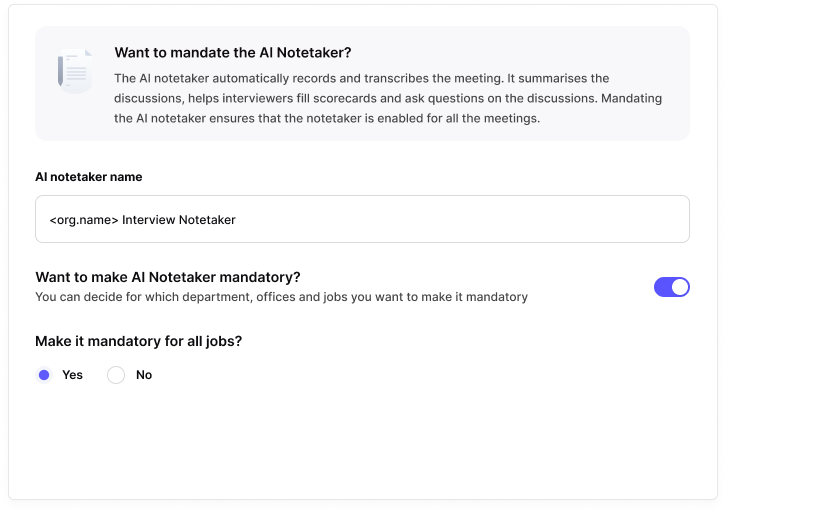
Select "Yes" to apply it to all interviews.
Choose "No" to specify particular Departments or Offices where it should be enabled.
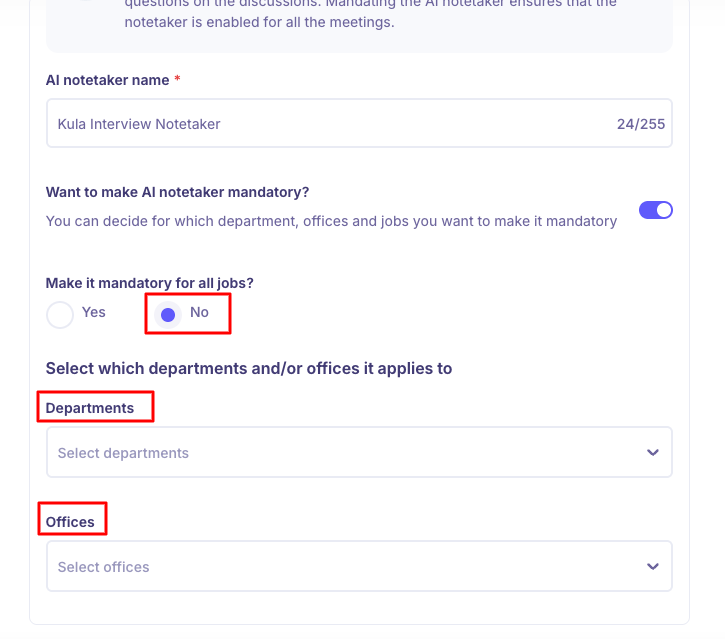
Click Save to finalize and save your configurations.
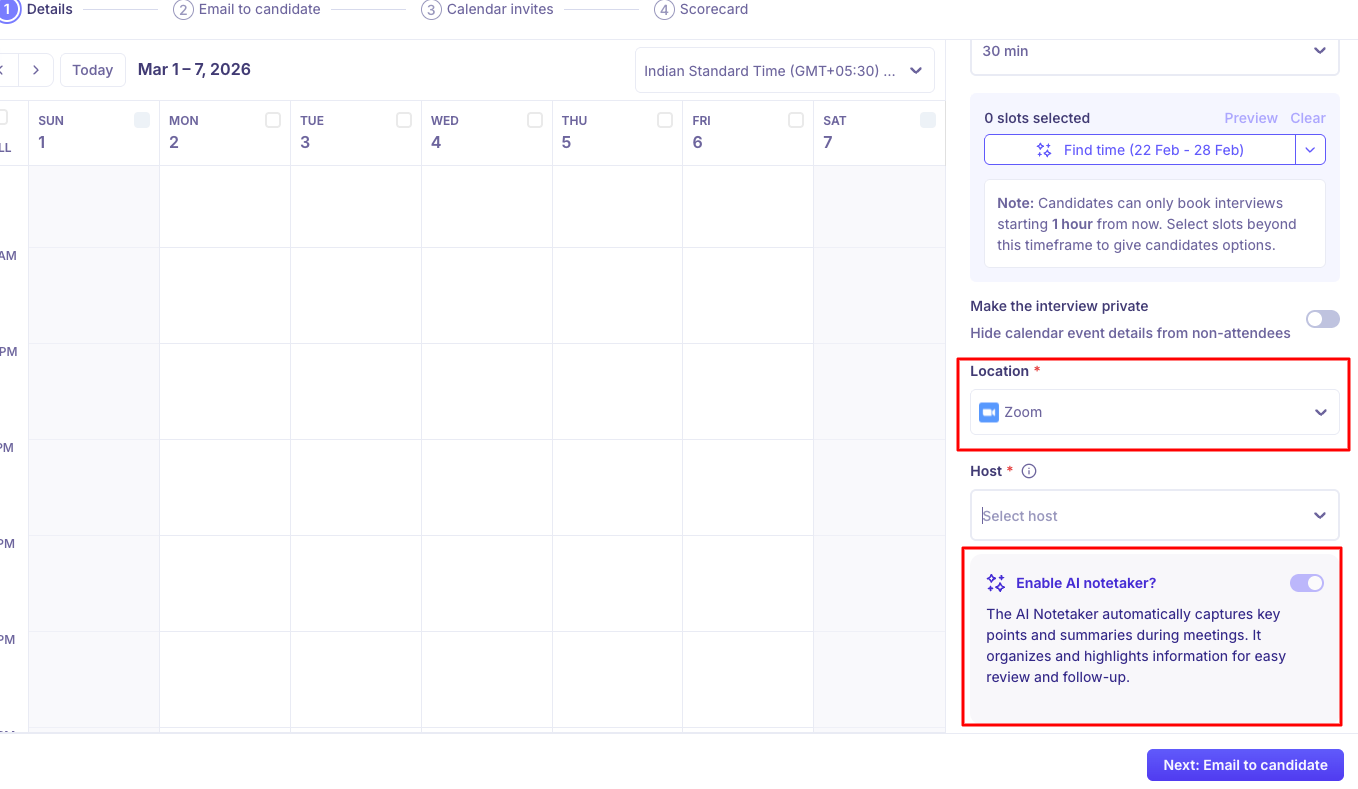
Once enabled and saved, the AI Notetaker will be automatically available for Google Meet and Zoom interviews when scheduling an interview for a candidate.
FAQs
Q: Can I change the name of the Notetaker bot? Yes, you can enter your preferred name for the Notetaker bot in the "AI Notetaker Name" field when configuring the settings.
Q: Can I disable the AI Notetaker later if needed? Yes, you can return to the AI Notetaker settings to toggle the functionality off if you no longer wish to use it.
Q: Can I disable the AI Notetaker while scheduling an interview? If the AI notetaker is enabled in Settings, you would not be able to disable while scheduling interviews.