Organization Settings – General
Last updated: July 9, 2026
The General section under Organization Settings allows you to manage your company’s core details, preferences, and brand assets. Changes made here apply across the entire organization and impact how your company appears internally and to candidates.
To access this page, navigate to Go to Settings → Organization → General.
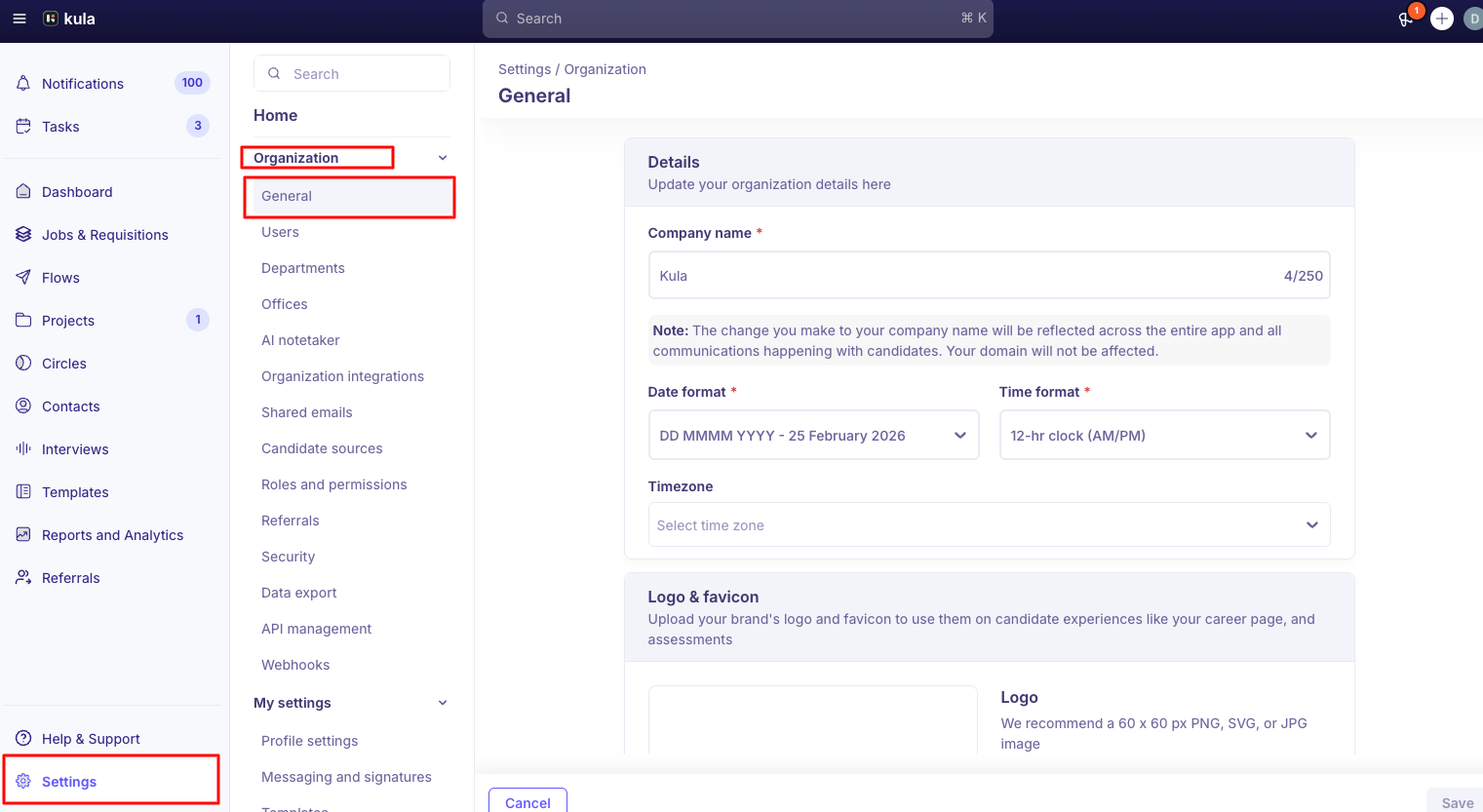
This page contains two sections:
Details
Logo & favicon
Get started
1. Details
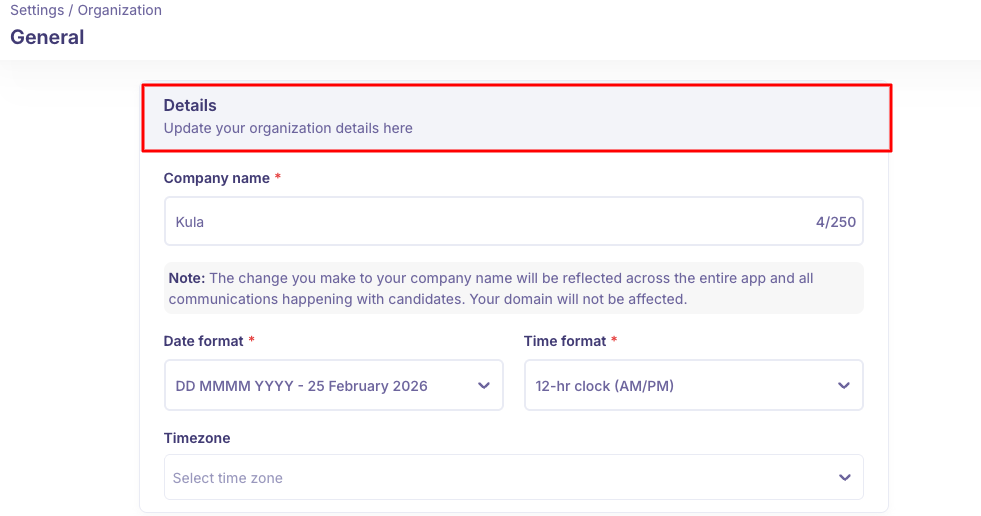
This section allows you to configure the below company information.
Company Name: Update your organization’s display name here.
Note: The change you make to your company name will be reflected across the entire app and all communications happening with candidates. Your domain will not be affected.
Date Format: Select your preferred date display format for the entire organization. (Example: DD MMMM YYYY – 25 February 2026). This format will be applied across: Job postings, Interview schedules, Reports.
Time Format: Choose between - 12-hour clock (AM/PM), 24-hour clock. This setting standardizes how time appears across: Interview scheduling, Calendar events, Notifications.
Timezone: Set the default timezone for your organization.
2. Logo & favicon
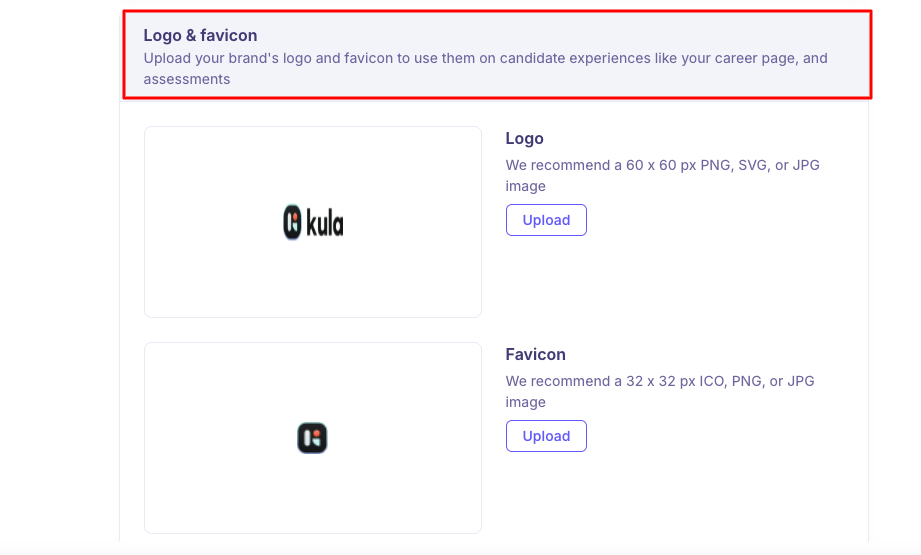
This section allows you to upload your brand assets to personalize candidate-facing experiences like your career page, and assessments.
Logo: Upload your company logo. We recommend a 60 x 60 px PNG, SVG, or JPG image. Using a properly sized logo ensures clean rendering across the platform.
Favicon: Upload your favicon (browser tab icon). We recommend a 32 x 32 px ICO, PNG, or JPG image. The favicon enhances brand visibility when candidates open your pages in their browser.
Best Practices
Use high-resolution SVG files for logos when possible.
Maintain consistent branding between your website and your recruitment portal.
Double-check timezone settings before enabling interview workflows.
Review date and time formats if hiring globally.
Permissions
Only users with Super Admin/Admin access can modify Organization General settings. If you do not see this section, please contact your admin.
Need Help?
If you have questions or need assistance with setup, feel free to reach out to us at support@kula.ai or use the in-app chat for assistance.