Your export history
Last updated: August 17, 2026
Every one-time data export you or your teammates run is logged in one place, so you can find and download a file again without recreating the export from scratch. This is separate from a scheduled export's own configuration, which lives on the Scheduled tab.
Use your export history to grab a file you exported earlier, check whether an export finished or failed, or see who on your team ran a particular export.
Path: Admin configuration > Data export > Your export history
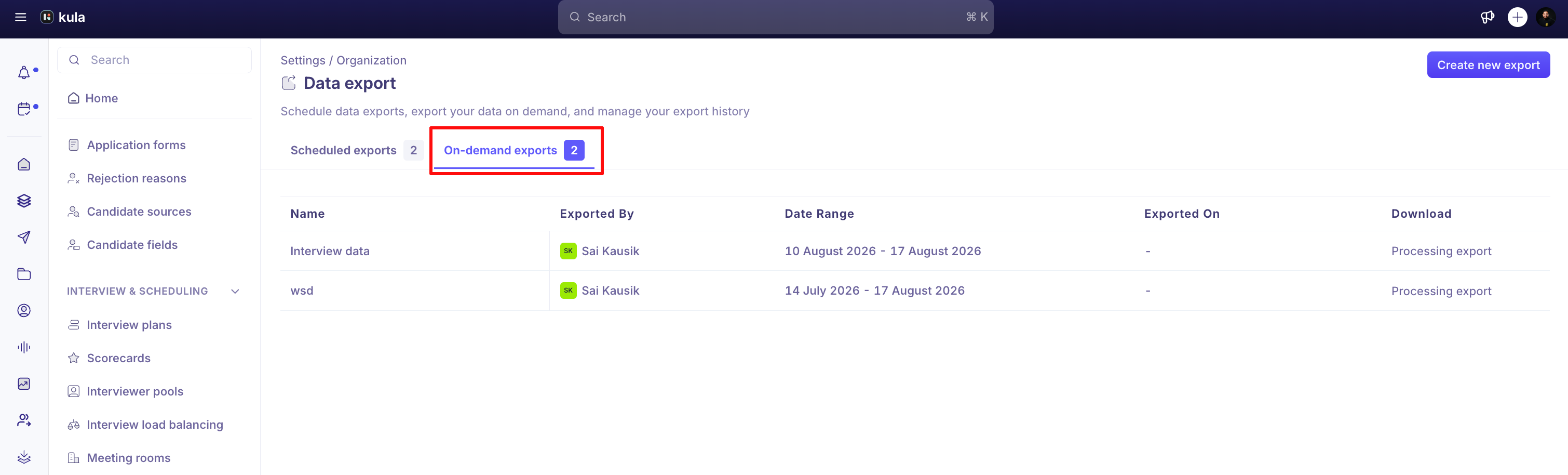
Export history lives in Settings > Data export, on the On-demand tab.
Running a one-time export
A one-time export uses the same setup as a scheduled export, except you set Export type to On-demand export instead of Scheduled export, so it skips the frequency step and runs once.
Go to Settings > Data export.
Click Create new export.
Set Export type to On-demand export, select your data points, date range, and recipients, then save it.
Kula adds the export to the On-demand tab immediately and generates the file in the background.
Reading your export history
The On-demand tab lists every one-time export with:
Name: click it to see which modules and fields the export included.
Exported by: who ran the export.
Date range: the date range the export covered.
Exported on: when the export ran.
Download: the file's status.
The Download column shows one of these:
Processing export: the file isn't ready yet.
Download CSV: click to download. Hover to see the exact expiration date.
No longer available: the download link expired.
Export failed: the export didn't complete.
Note: A download link is only valid for 7 days after the export finishes. After that, it shows as no longer available, and you'll need to run the export again.
Need help?
If you have questions or need assistance, reach out to us at support@kula.ai or use the in-app chat.