Managing Scorecards for Candidate Evaluations
Last updated: February 16, 2026
Scorecards play a critical role in collecting feedback from interviewers, helping recruiters and hiring managers make data-driven hiring decisions. It's best to create role-specific, location-specific, or work-type-specific feedback forms and link them to interview plans to standardize evaluations.
How to Create Scorecards
Click the Settings icon at the bottom of the left-side menu.
Under the Interviews & Scheduling section, click Scorecards.
Click the Add Scorecard button in the top-right corner.
In the Details section, fill in all required fields according to your recruitment needs.
Department and Office Selection: Scorecards are linked to specific configurations. For example, if you create a scorecard and select Department: Engineering and Office: Bangalore, this scorecard will automatically be fetched for any job created with that same department and office configuration.
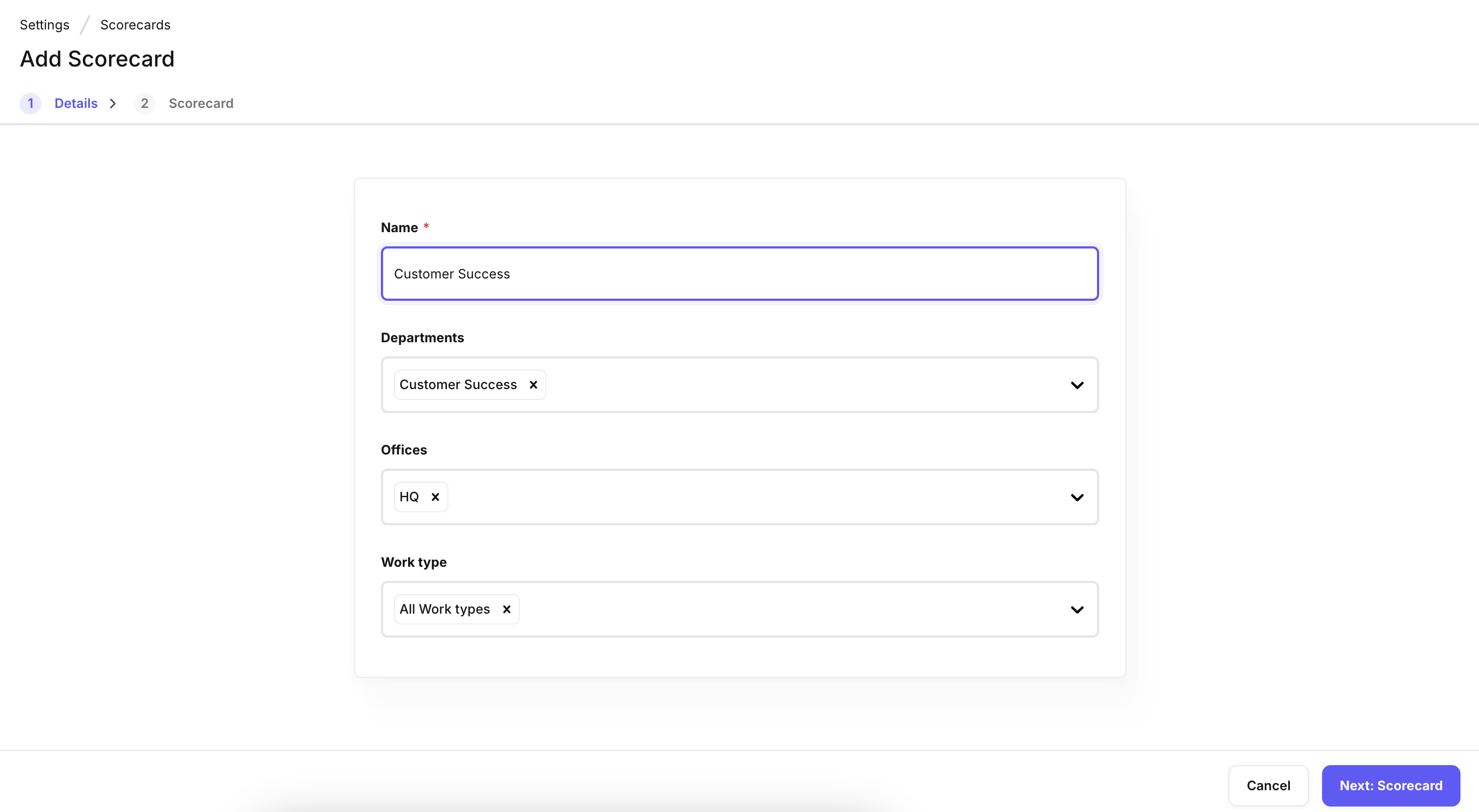
Click Next: Scorecard at the bottom-right of the screen.
You are now in the Scorecard section.
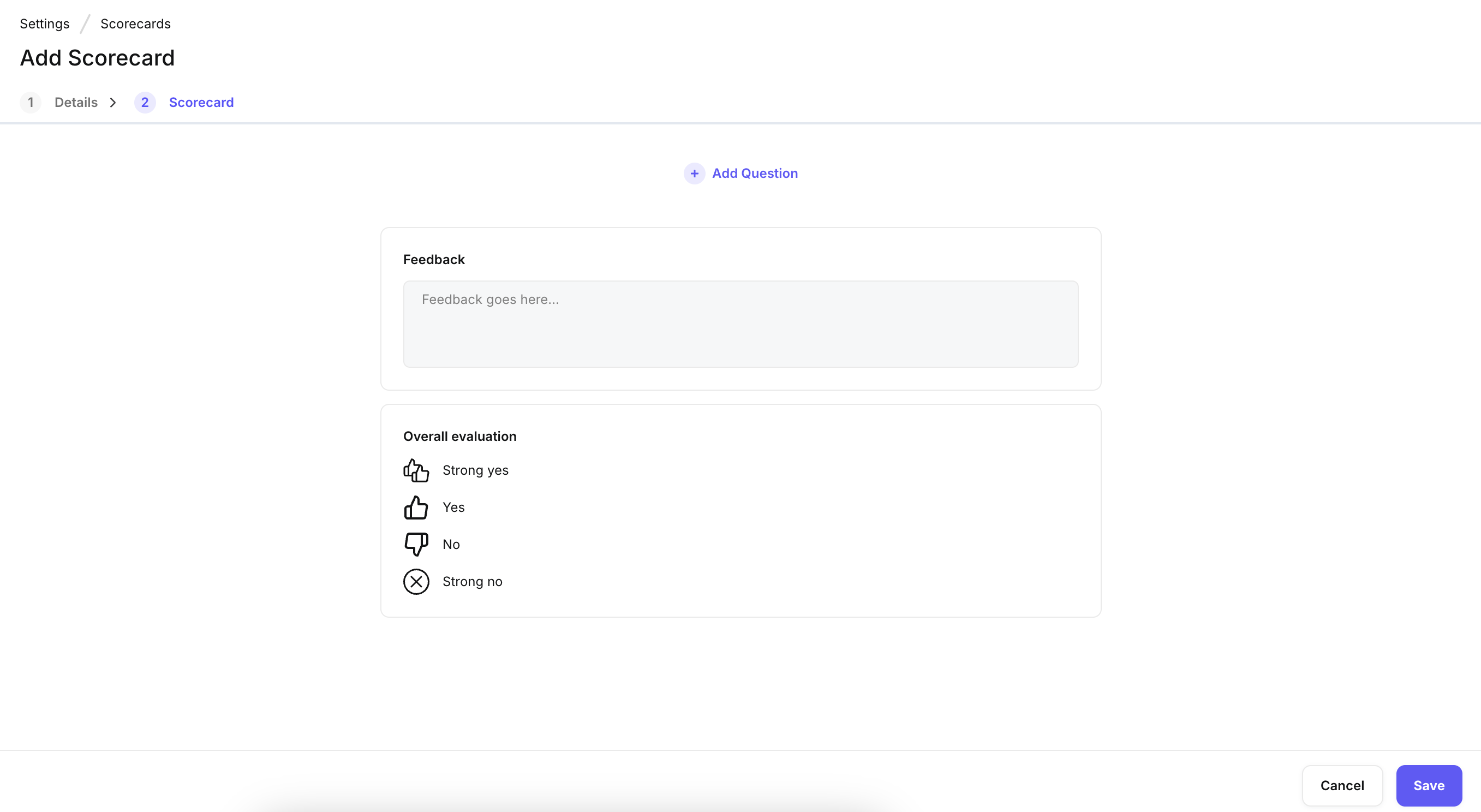
Click the Add Question button to create evaluation criteria.
Choose from the following scorecard formats:
Stars (1-5)
Score (1-10)
Yes/No
Open Question
Single Select
Multi-Select
Add specific questions under each format to help interviewers provide a thorough evaluation.Important Notes:
To remove a scorecard format, click the Delete icon on top of the respective format.
To make a format mandatory, check the This Field Is Mandatory box.
Two default scorecard formats—Feedback and Overall Evaluation—are provided in Kula and cannot be edited.
Once all questions and formats are added, click Save to finalize the scorecard.
How to Edit a Scorecard
On the Scorecards homepage, hover over the scorecard you want to edit.
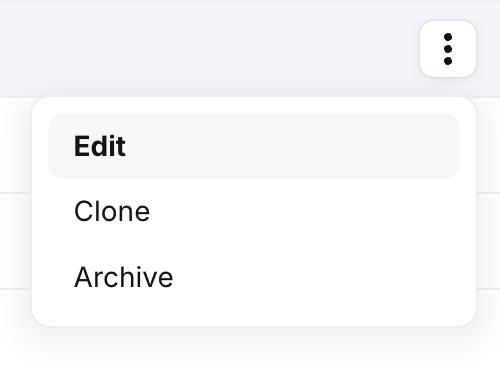
Click the Ellipsis (three dots) icon and select Edit.
Update the Details and Scorecard sections as needed.
Click Save to confirm your changes.
How to Clone a Scorecard
On the Scorecards homepage, hover over the scorecard you wish to clone.
Click the Ellipsis icon and select Clone.
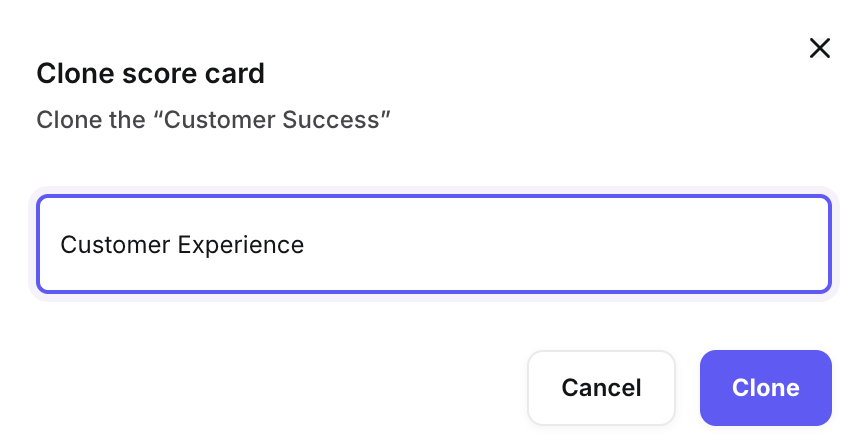
Enter the new scorecard name in the Add Name Here field.
Click Clone to create a copy of the scorecard.
How to Archive a Scorecard
On the Scorecards homepage, hover over the scorecard you wish to archive.
Click the Ellipsis icon and select Archive.
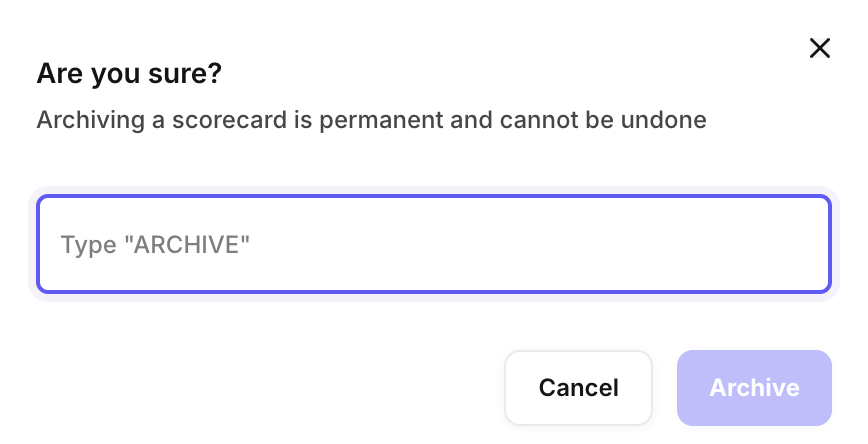
In the confirmation modal, type ARCHIVE to confirm.
Click Archive to finalize the process.
Scorecard customizations
We let you customize how scorecards work for your team — so you can balance transparency, collaboration, and independent judgment in the way that fits your hiring culture best.
💡 Why this matters:
We have introduced these controls to ensure Kula adapts to your specific hiring culture, rather than forcing a one-size-fits-all process.
For teams prioritizing bias reduction: Lock down scorecard visibility to keep evaluations truly independent. This prevents "groupthink" and ensures every interviewer’s perspective is unfiltered.
For collaborative hiring teams: Enable transparency so interviewers can build on each other's observations, leading to more comprehensive and better-informed decisions.
For flexible workflows: Tailor your process by adjusting visibility per role or toggling AI assistance based on the interview type—keeping it on for high-volume screenings and off for executive cultural assessments.
You are no longer locked into a single approach. These controls adapt to your process, not the other way around.
Get started 👉
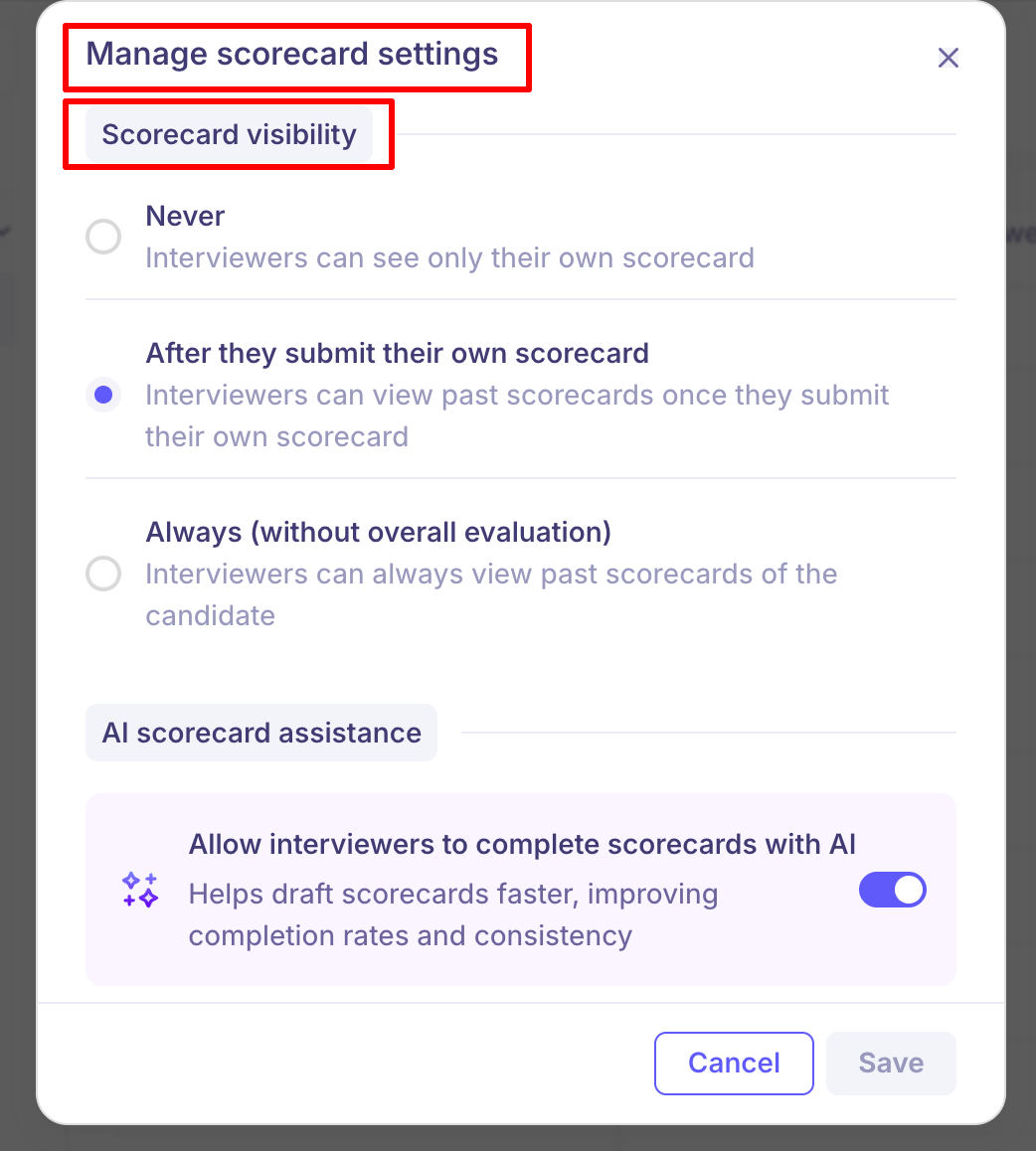
Navigate to Settings --> Scorecards --> Click "Settings"(top right corner), to configure scorecard visibility preferences and AI scorecard assistance settings.

Scorecard visibility settings
Choose when interviewers see each other's scorecards:
Never – Keep evaluations completely independent to minimize bias.
After submission – Let interviewers see past feedback once they've formed their own opinion.
Always – Enable full transparency for collaborative hiring teams (with overall evaluations hidden until submission to preserve independent judgment).
Note: Hiring teams and admins always have full visibility since they need complete context for decision-making.
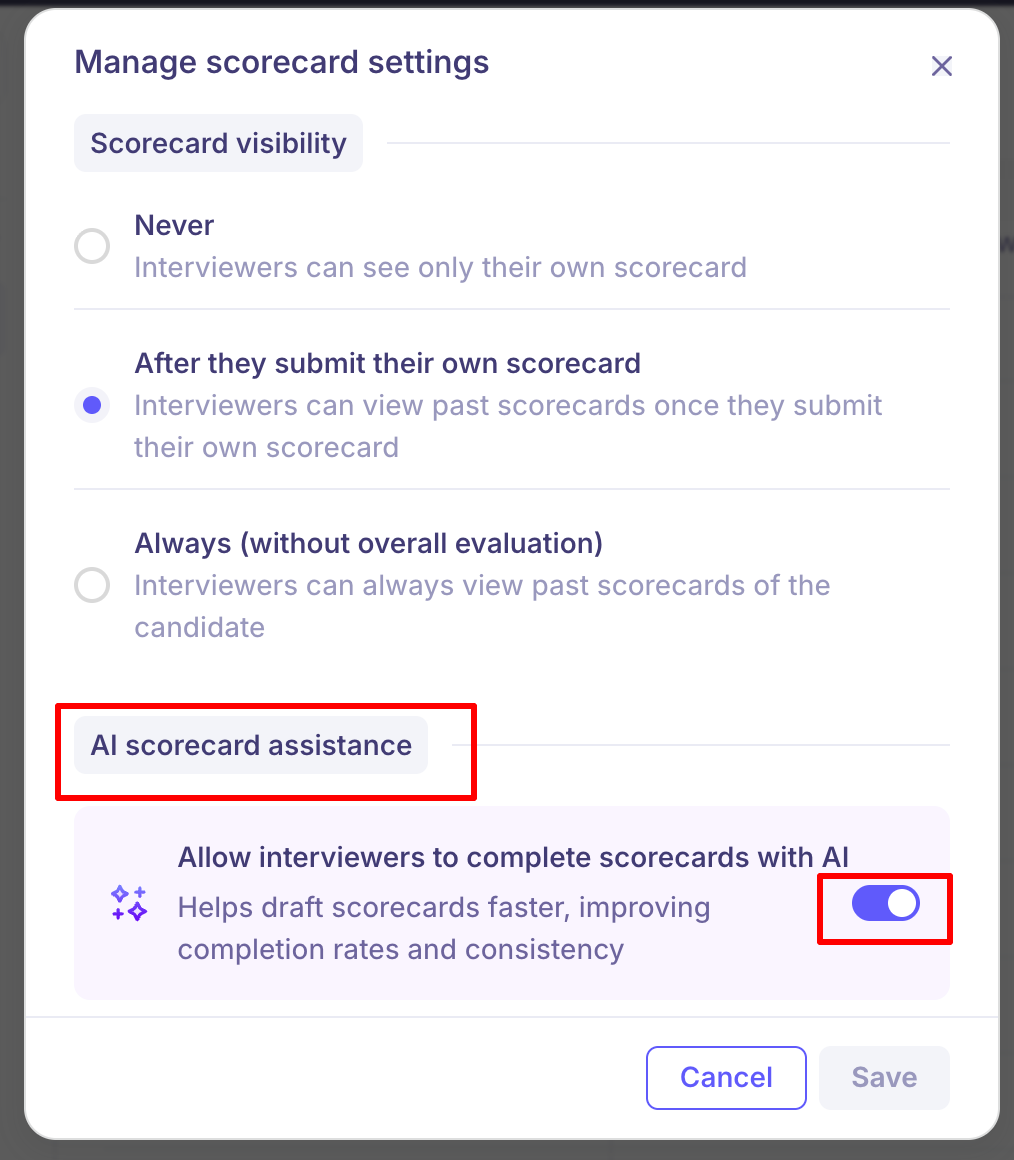
AI scorecard assistance controls
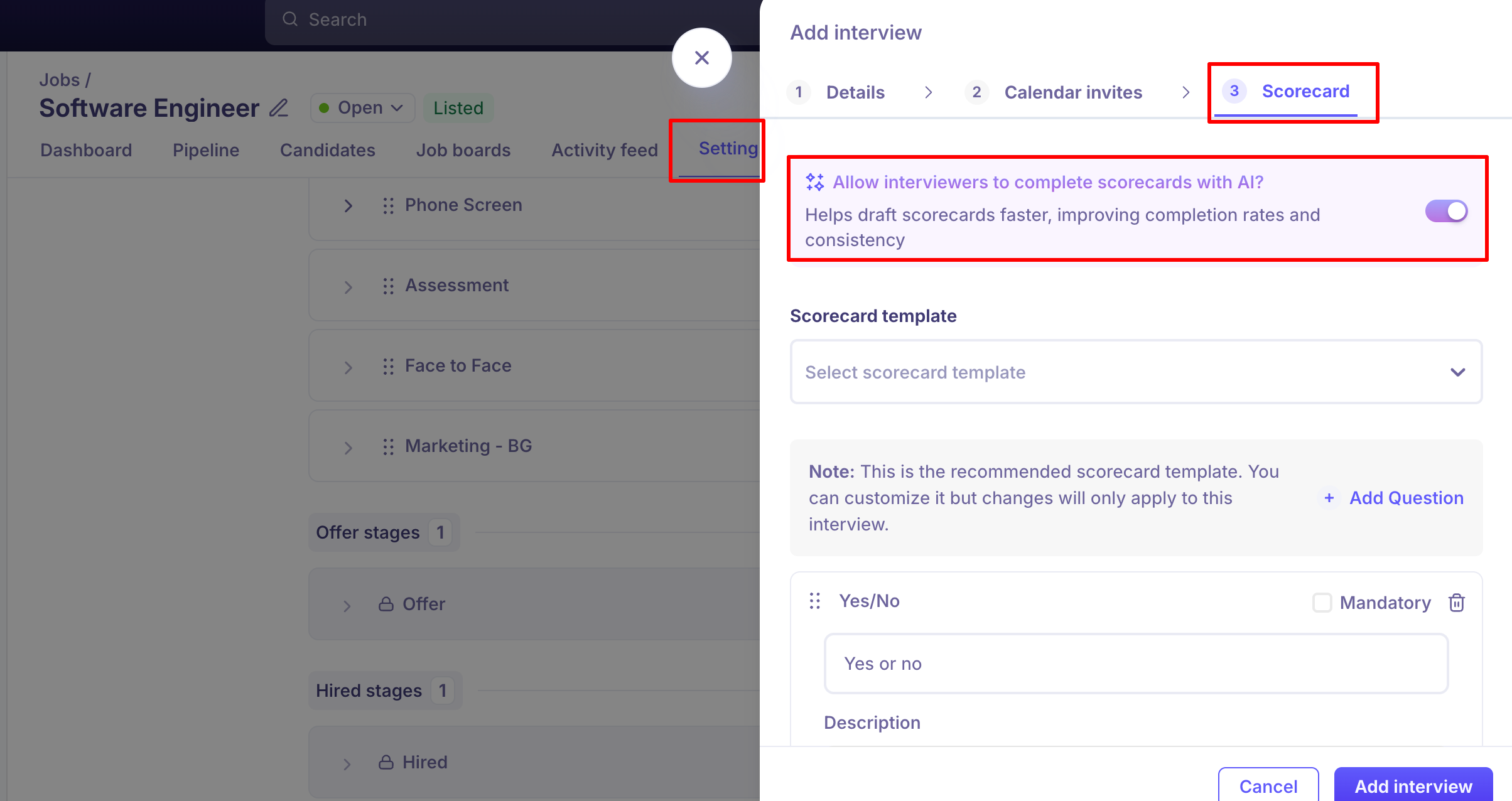
You now have two levels of control over AI scorecard assistance:
Account level: Admins decide whether to enable this feature for the organization.
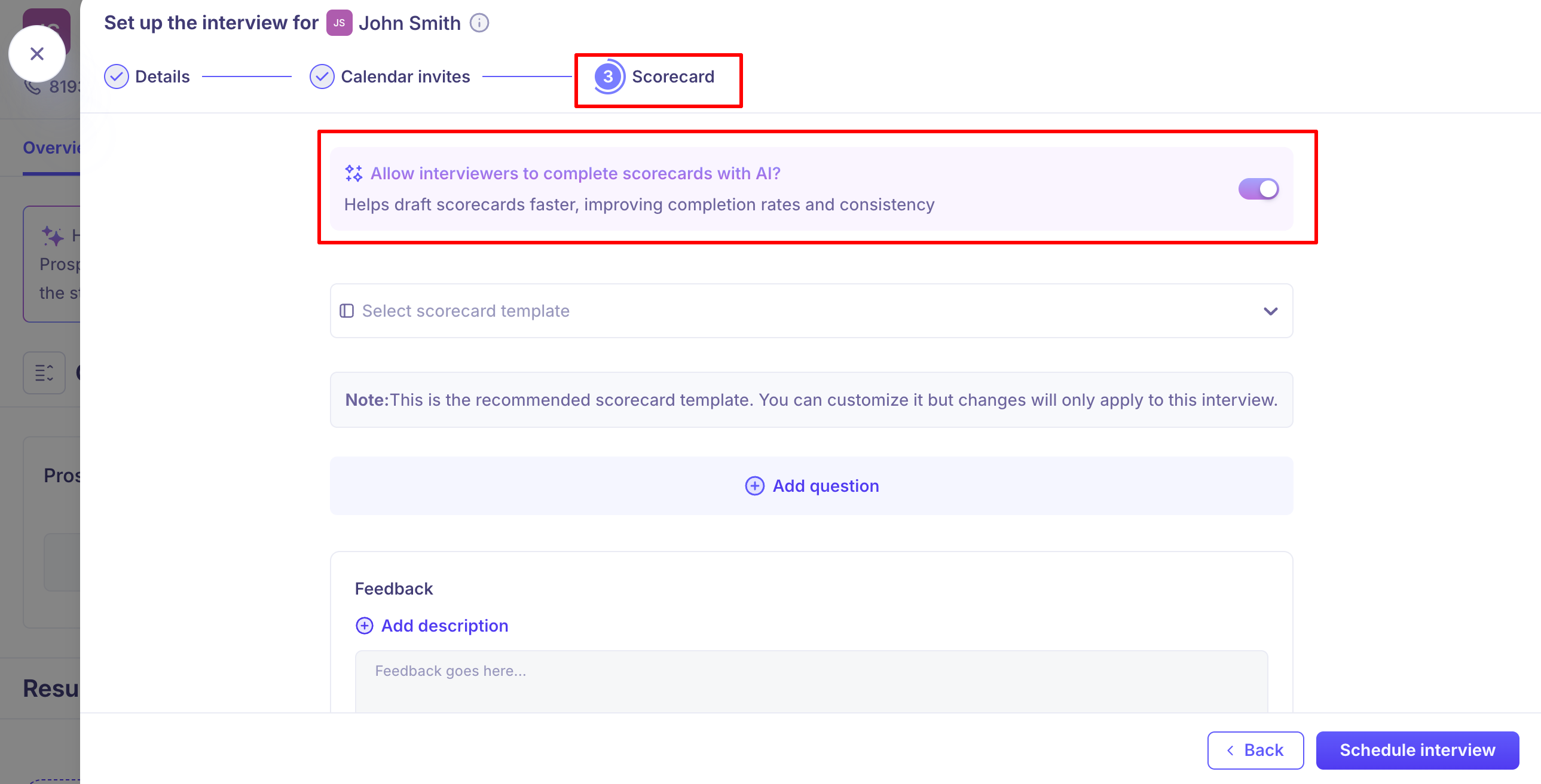
Interview level: Once enabled, recruiters can turn it on or off for specific interviews based on the role or interview type
Note: This applies to Ad-hoc interviews and to interviews scheduled through the Interview Activity section while configuring the interview plan for a job
This means you can keep AI notetaking while selectively using AI scorecard assistance only where it makes sense — giving you maximum flexibility without an all-or-nothing approach.
Need Help?
If you have questions or need assistance with setup, feel free to reach out to us at support@kula.ai or use the in-app chat for assistance.