Generating and managing API keys
Last updated: August 19, 2026
An API key is what lets an outside system prove it's allowed to talk to your Kula account. You create keys in Kula and hand them to whoever is building the integration.
Who can do this: Super Admin, Admin — anyone with the Manage API tokens permission
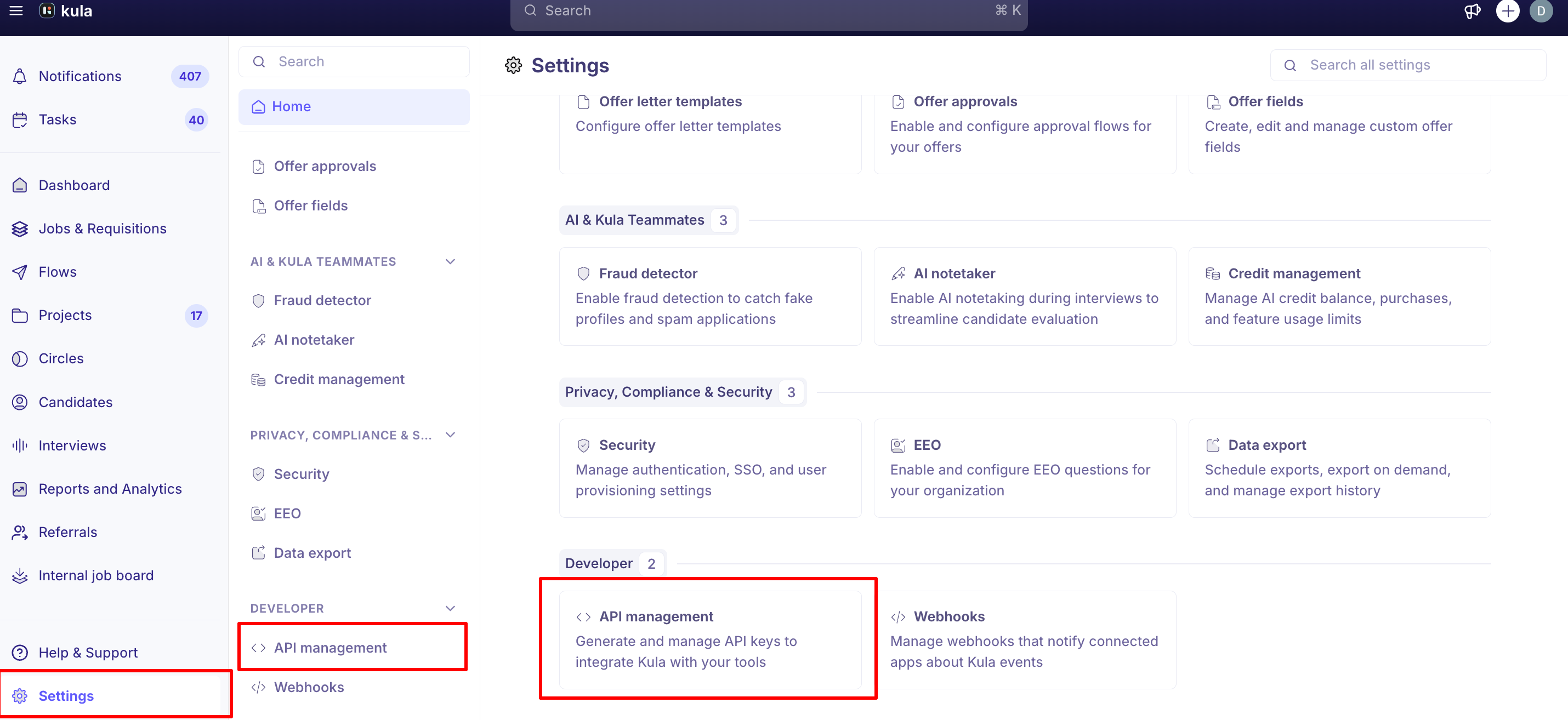
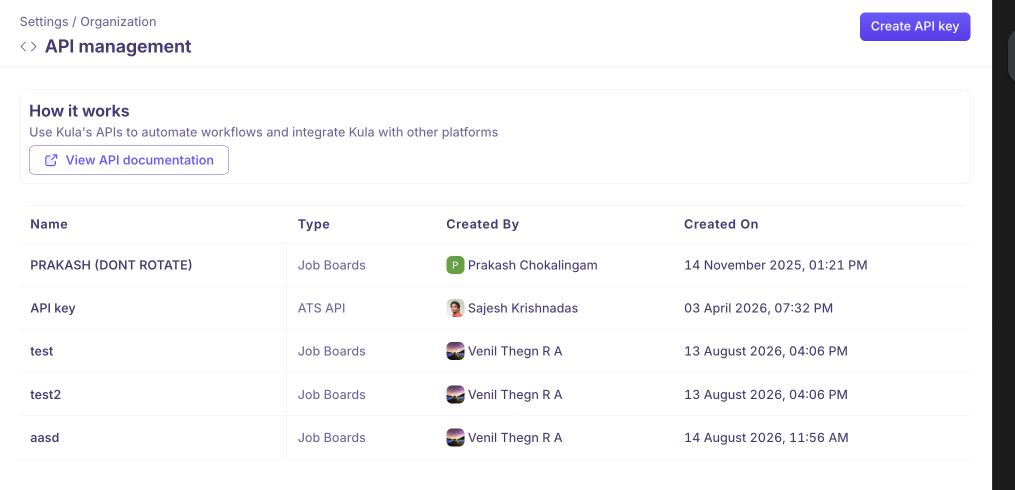
Where to find it: Settings → Organization → API management
How to Create an API key in Kula
Go to Settings → Organization → API management.
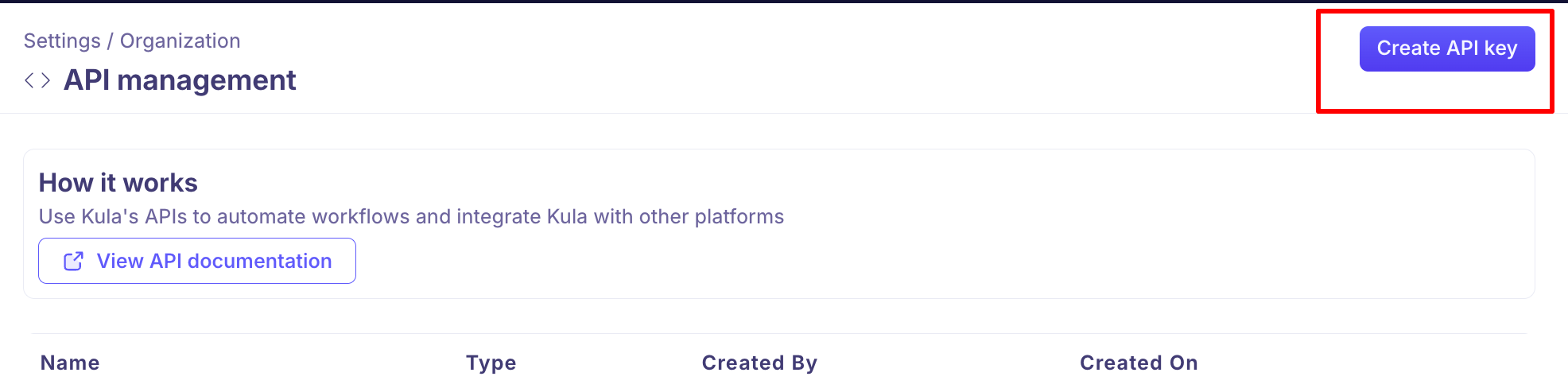
Create a new key by clicking "Create API Key"
Enter an API key name. Name it after what will use it — "Careers Page Integration" tells you what breaks if you revoke it; "Key 1" doesn't.
Choose the Type:
Job Boards — for pulling your open jobs onto a careers site or job board.
Application API — for submitting applications into Kula.
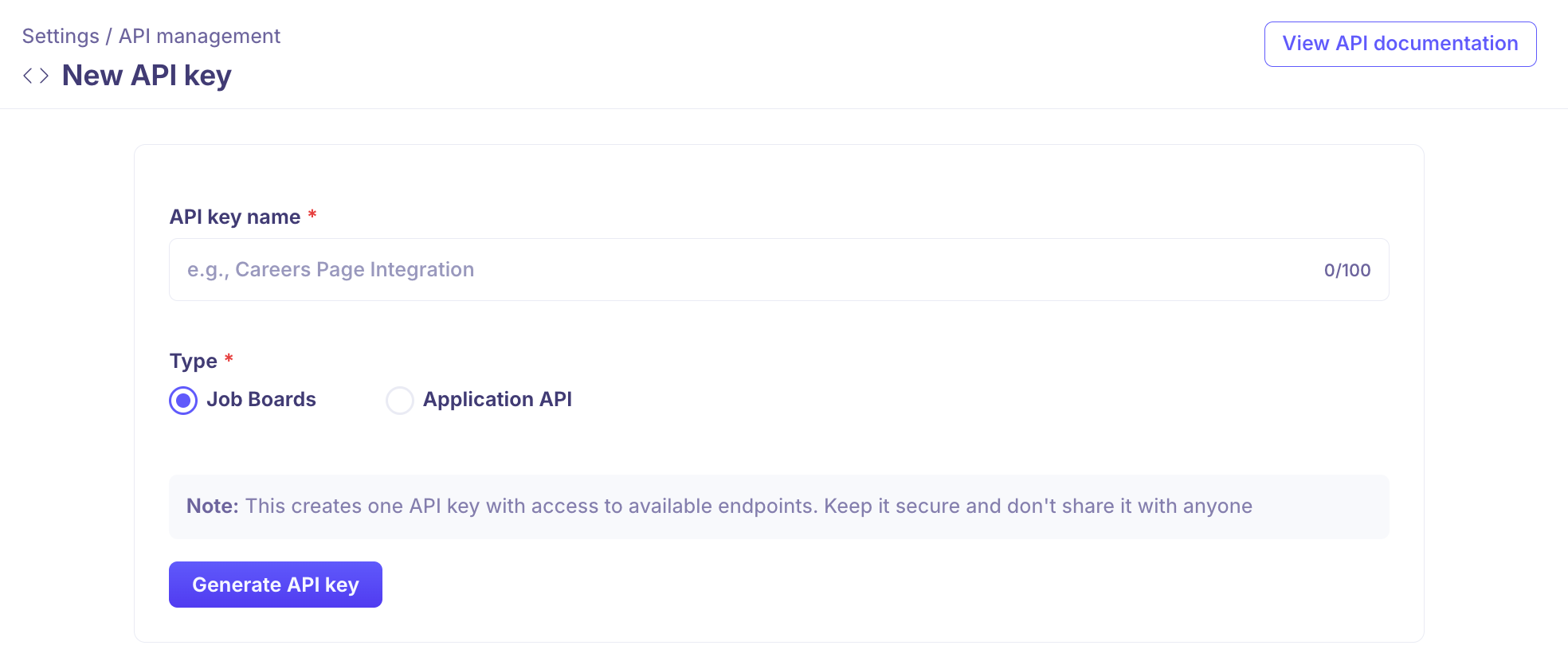
Generate the API key.
Copy the key immediately
The key is shown once. When it's created you get a Copy to clipboard button — use it there and then. Once you close the screen, Kula can't show you the key again.
If you lose it, you can't recover it. Create a new key and update whatever was using the old one.
Hand it over securely. A key gives access to your account's data, so treat it like a password: send it through a password manager or a secrets tool rather than email or chat.
See your keys
You don't have to capture the key at the moment you create it. Open any key from API management and you'll see it masked — first few and last few characters, the rest hidden — with three controls:
Control | What it does |
|---|---|
Copy | Copies the full key to your clipboard, without revealing it on screen. |
Reveal key | Shows the full value. It becomes Hide key so you can mask it again. |
Rotate key | Replaces the key with a new one. |
Copy is usually what you want. It puts the real key on your clipboard without displaying it, which matters if you're sharing your screen or sitting in an open office.
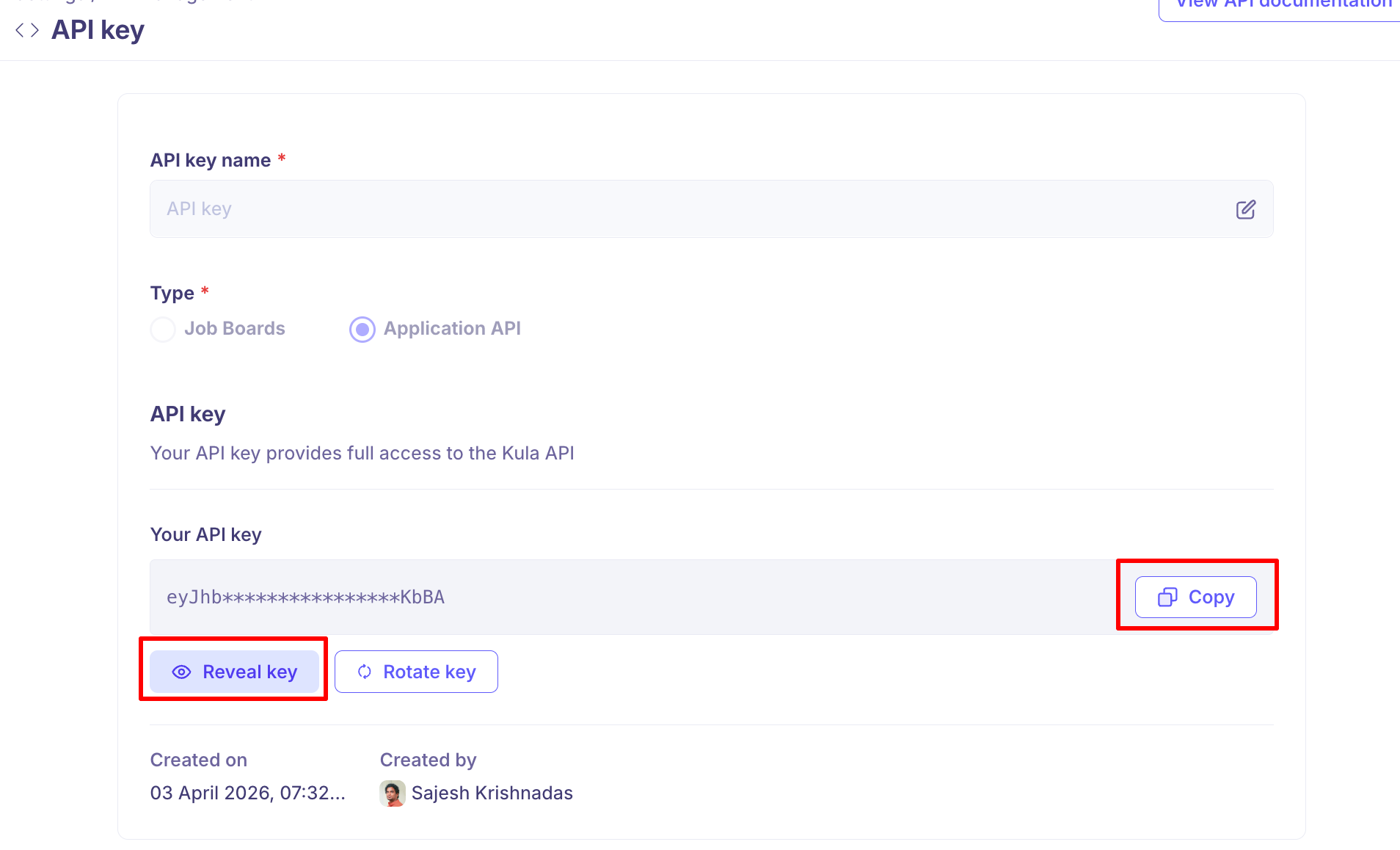
The page also shows Created on and Created by, and you can rename a key at any time — renaming doesn't affect the key itself, so it's safe to clarify a vague name later.
Rotate a key
Rotating replaces a key's value with a new one, keeping the same name and type. Use it when someone with access leaves, if a key may have been exposed, or on whatever schedule your security policy sets.
Open the key from API management.
Click Rotate key.

Rotating takes effect immediately. Kula warns you before you commit: "Rotating will immediately invalidate the current key. You'll need to update it everywhere you're currently using it. This action cannot be undone."
There's no grace period and no overlap — the moment you confirm, the old value stops working and anything still using it starts failing. So:
Know where the key is used before you rotate, which is what good naming buys you.
Have the new value ready to deploy, so the gap is seconds rather than hours.
If an outage isn't acceptable, create a second key, move the integration to it, then rotate or delete the first. That gives you a clean switch with no downtime.Rotate when someone leaves, if a key may have been exposed, or on whatever schedule your security policy sets. Deleting a key takes effect immediately — anything still using it stops working, so step 3 matters.
Good to know
Keys can be revealed and copied at any time. You don't have to save the value elsewhere at creation.
Rotating is immediate and can't be undone. Anything using the old value fails straight away.
Renaming is safe. It changes the label, not the key.
A key has full access to its API. There's no way to narrow it to particular endpoints or data.
Name keys after their consumer. Names are how you know what breaks when you rotate.
Only Super Admins and Admins can manage keys.
FAQ
I didn't save the key when I created it. Can I get it back? Yes. Open the key from API management and use Copy, or Reveal key to see it on screen.
What happens when I rotate a key? The old value stops working immediately and is replaced by a new one. Anything still using the old value will start failing, so update it everywhere at the same time.
How do I rotate without downtime? Rotating a key in place always creates a brief gap. If you can't take one, create a second key, point the integration at it, confirm it works, then rotate or delete the original.
Someone with a key has left the company. What should we do? Rotate it. That invalidates the copy they hold immediately. Have the new value ready to deploy so the interruption is short.
What's the difference between Job Boards and Application API? Job Boards keys serve a public careers site or job board — listing jobs and accepting applications. Application API keys work with candidates, applications, jobs, requisitions and users. Pick the one matching what the integration does.
Can I limit a key to certain data or endpoints? No. A key provides full access to the Kula API for its type, which is why they should be shared carefully and rotated when people change.
Can I rename a key without breaking anything? Yes. Renaming only changes the label.
Need help? If you have questions or need assistance, reach out to us at support@kula.ai or use the in-app chat.