Creating and Editing an Interview Plan
Last updated: April 15, 2026
Creating a New Interview Plan
Interview plan templates are created and managed under Settings → Interviews & Scheduling → Interview Plan.
Steps
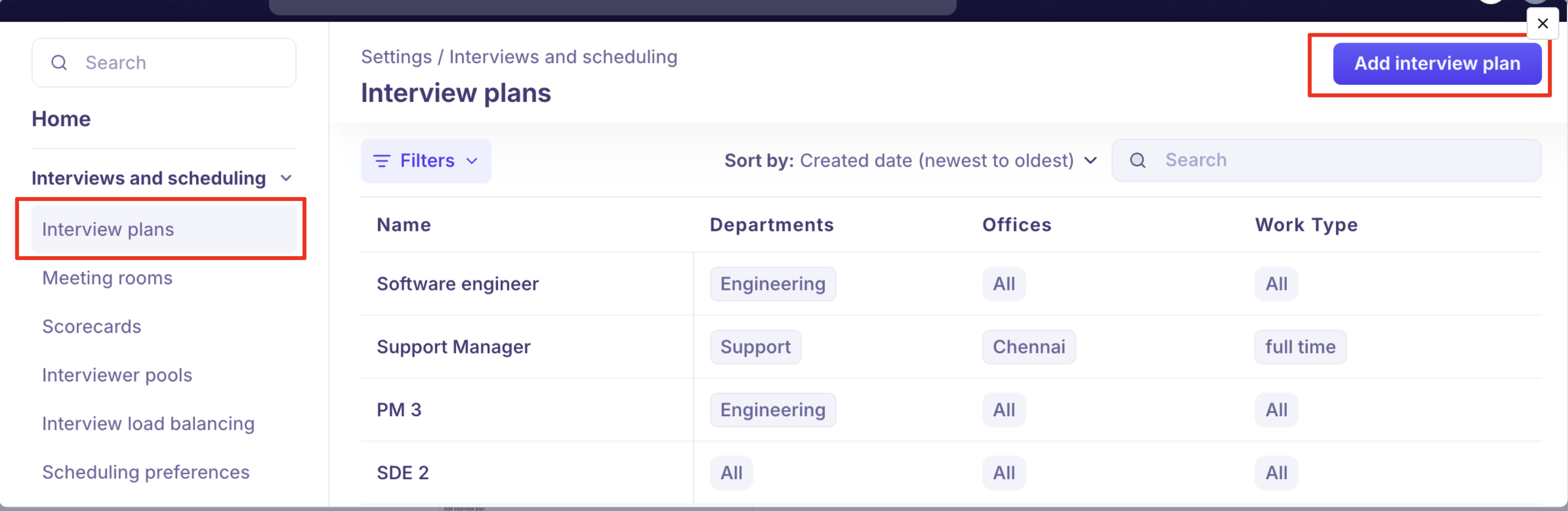
Click the Settings icon at the bottom of the left-side menu.
Under Interviews & Scheduling, click Interview Plan.
Click Add Interview Plan in the top-right corner.
Fill in the Details section — give the plan a clear name and configure any plan-level settings.
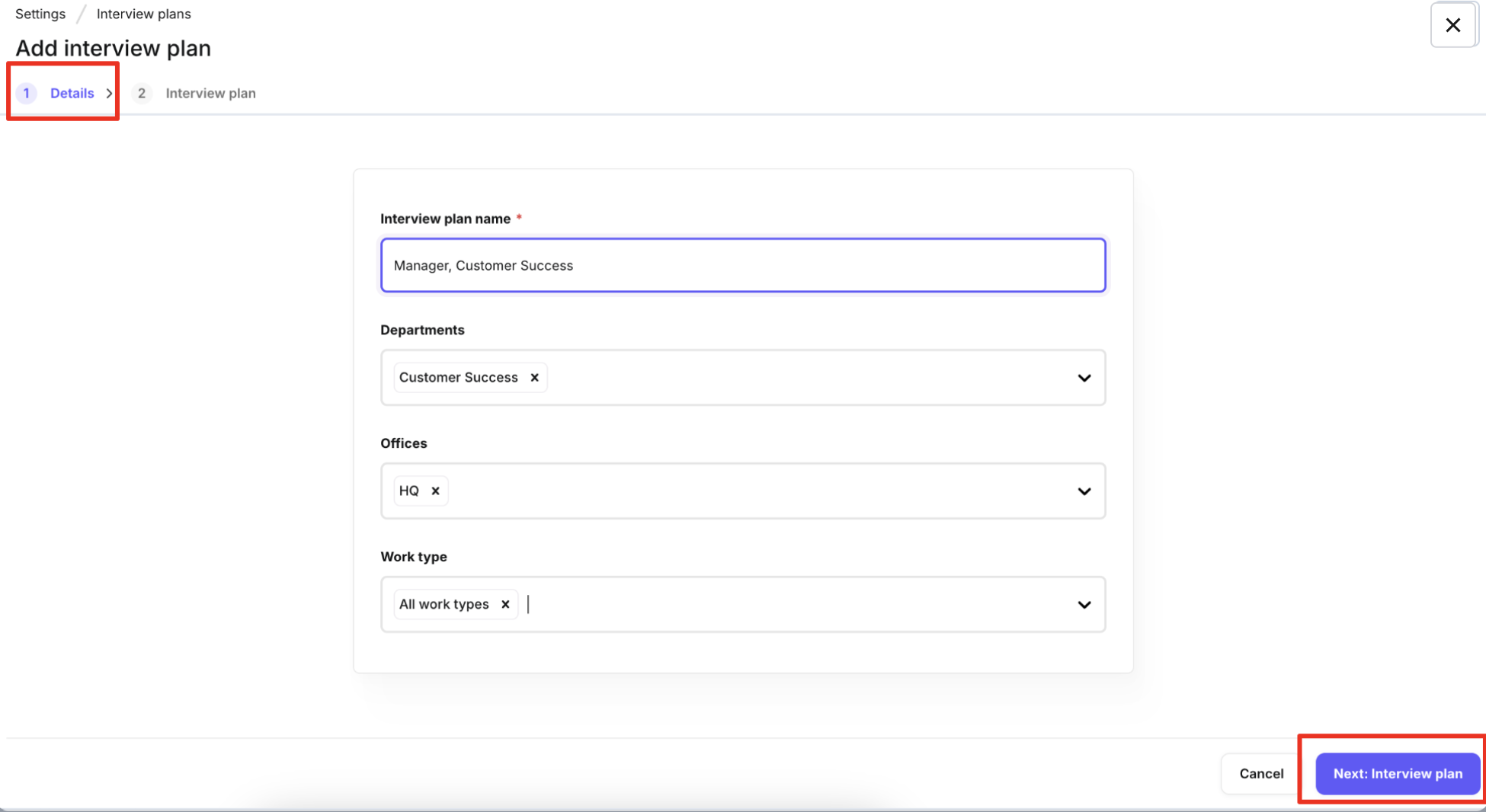
Click Next: Interview Plan to proceed to the stage builder.
You will see the five fixed milestones Kula provides for every plan:
Prospect — for sourcing and early-stage engagement
Application Review — for initial screening of active applicants
Interview — where the bulk of evaluation happens (editable stages)
Offer — for final selection and negotiation
Hired — for post-hire engagement
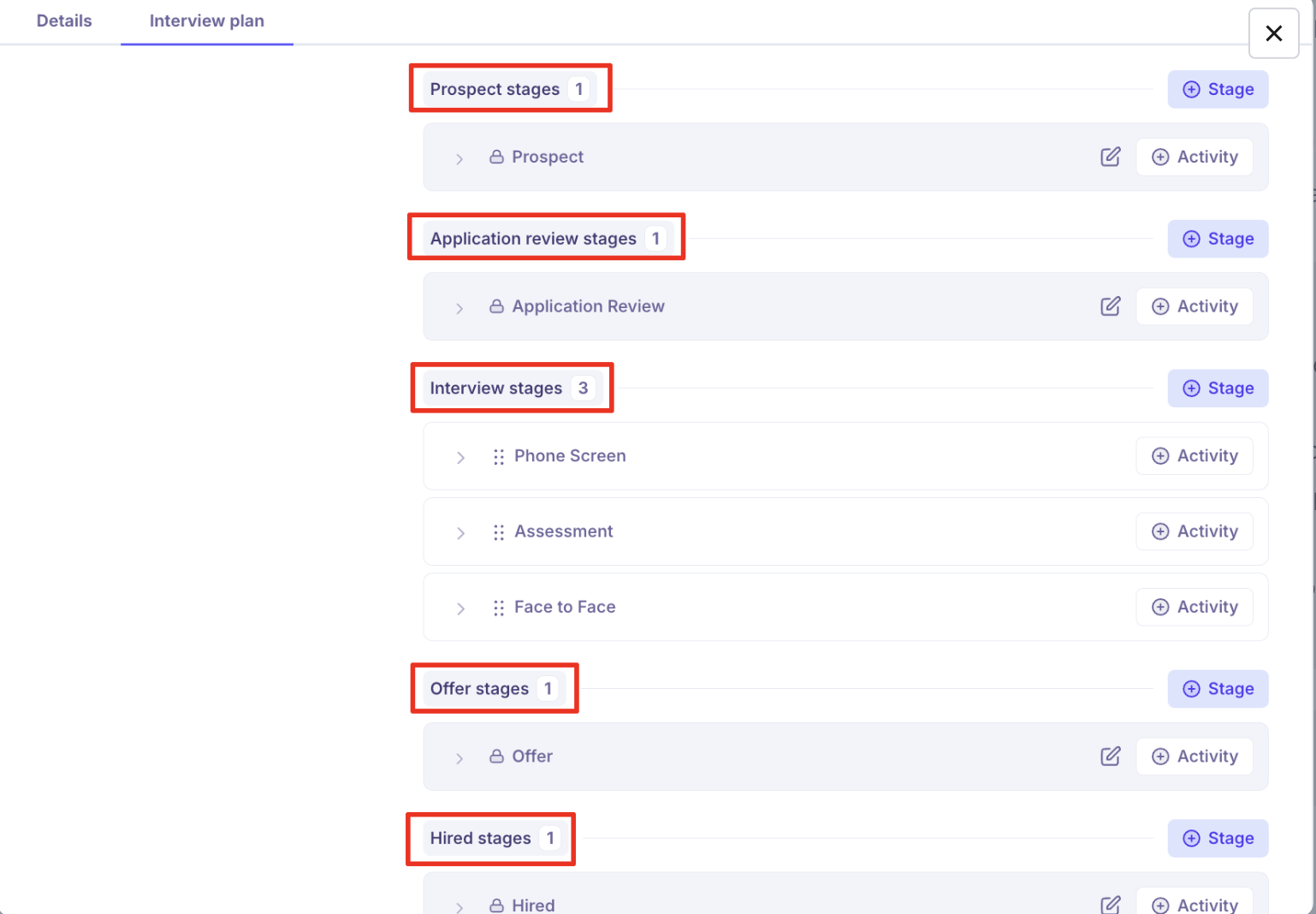
Add and configure stages within each milestone (see below).
Add activities to each stage to automate your workflow (see the activity-specific articles for detail).
Adding Stages
The Prospect, Application Review, Offer, and Hired milestones each come with a default locked stage that cannot be removed. You can add additional stages within any milestone to suit your hiring process.
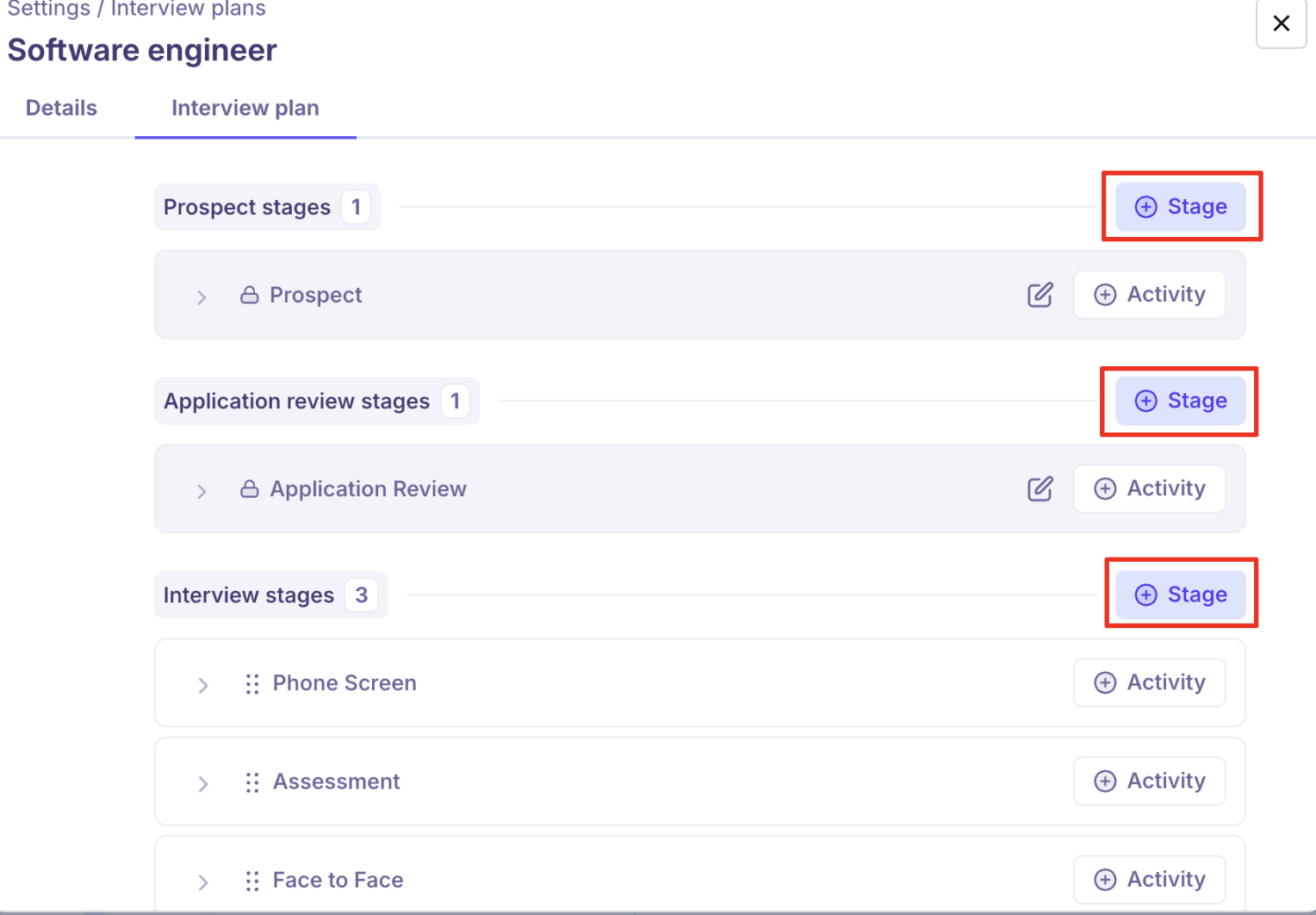
To add a stage
Click Add Stage inside the milestone where you want to add it.
Enter a Stage Name.
Set a Target Time in Stage — this is a soft deadline for making a decision on candidates at this stage. It does not block progression but surfaces as a signal in your pipeline view.
Click Create Stage.
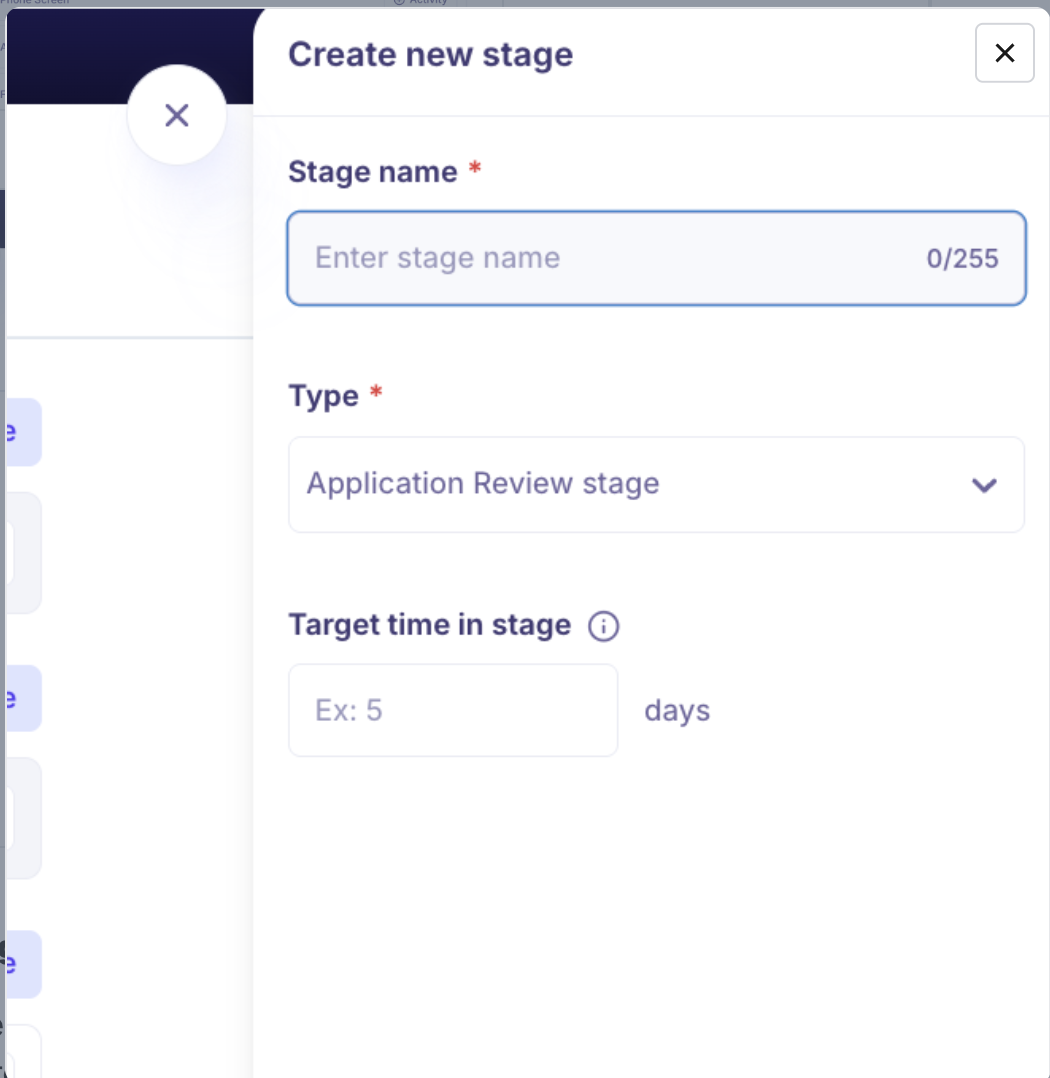
Any stages you add between Application Review and Offer are grouped together as Interview stages in Kula's reporting. This is by design — all mid-funnel evaluation stages roll up into the interview bucket for analytics purposes.
Adding Activities to Stages
Once your stages are set up, add activities to each one by clicking Add Activity in the relevant stage block.
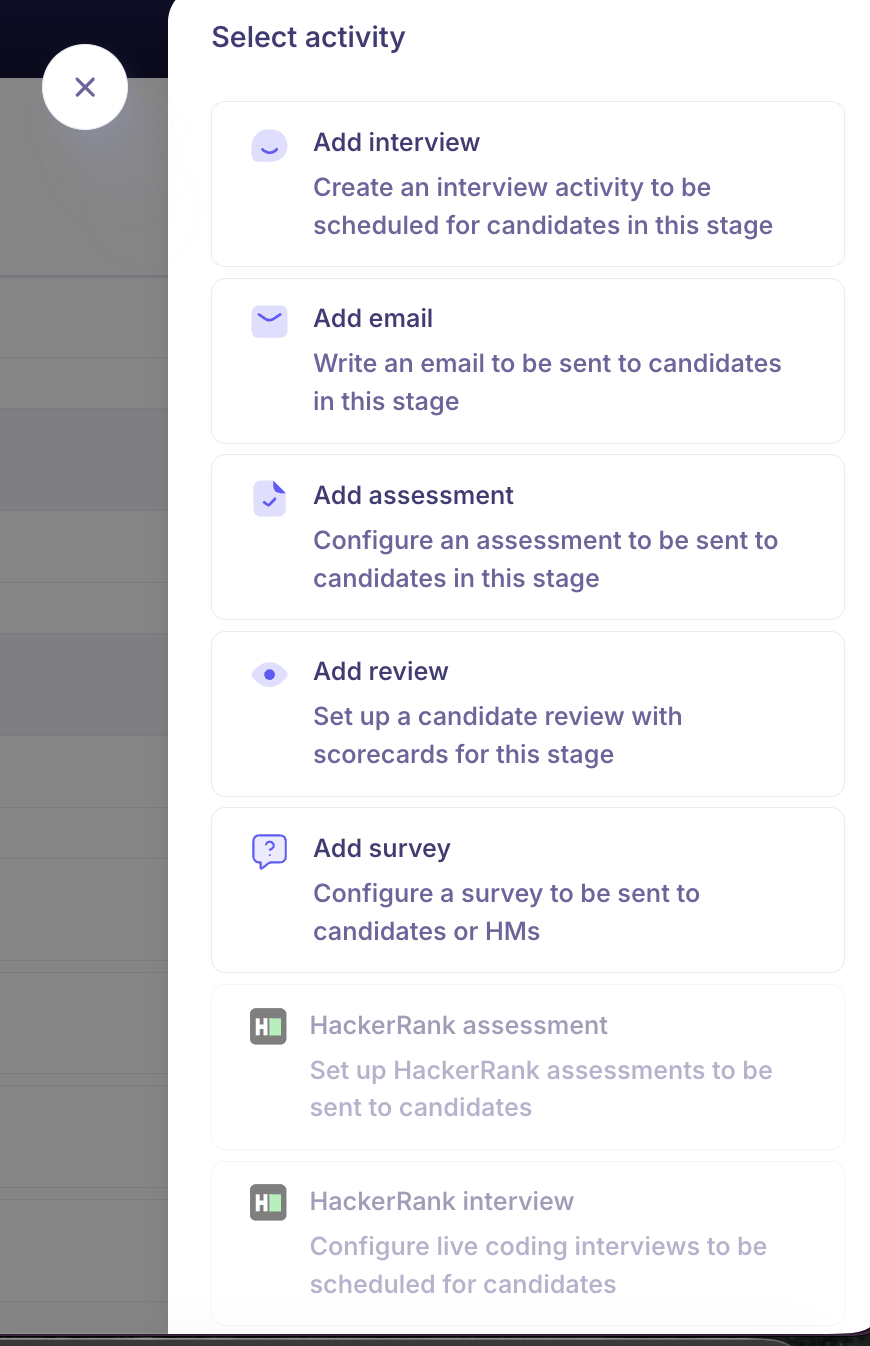
Available activity types are:
Activity | What it does |
Add Interview | Schedules an interview; configure type, interviewers, duration, platform, calendar invites, and scorecard |
Add Email | Sends an automated email to the candidate when they enter this stage; uses a pre-defined template |
Add Assessment | Sends a Kula-native assessment with questions and file attachments; supports scorecard on completion |
Add Review | Requests structured feedback from designated reviewers using a scorecard template |
Add Survey | Triggers a candidate or hiring manager survey; available in Hired stage |
Integrated Assessment | Sends assessments via connected platforms (HackerRank, HackerEarth, CriteriaCorp, etc.) configured under Settings → Integrations |
Editing an Interview Plan
On the Interview Plan homepage, hover over the plan you want to edit.
Click the Ellipsis (⋯) icon and select Edit.
Update the Details and stage configuration as needed.
Click Save to confirm your changes.
Important: Editing a global template does not update jobs already using that template. Each job holds its own copy of the plan from the point it was applied. To update existing jobs, you need to edit the interview plan at the job level individually.
Archiving an Interview Plan
Archiving removes a plan from active use without permanently deleting it.
On the Interview Plan homepage, hover over the plan you want to archive.
Click the Ellipsis (⋯) icon and select Archive.
In the confirmation modal, type ARCHIVE.
Click Archive to finalize.
Archived plans are no longer available for selection when creating new jobs.
Frequently Asked Questions
Q: Can I edit an interview plan after it has been applied to a job?
Yes, but changes work differently at each level. Editing the global template does not affect jobs already using it. To update the plan for a specific job, go to the job's Settings → Interview Plan tab and edit it there — changes made at the job level only affect that job.
Q: If I update the global template, do all jobs using it get updated automatically?
No. This is a commonly reported pain point. Once a template is applied to a job, the job holds its own independent copy. Updating the global template later will not push changes to existing jobs. You will need to update each job's interview plan manually. This is expected behaviour — it ensures that in-flight hiring processes are not disrupted by template changes.
Q: Can I delete a stage I created?
Custom stages can be removed. The default locked stages within each milestone (Prospect, Application Review, Offer, Hired) cannot be deleted — they are core to the pipeline structure.
Q: What is "Target Time in Stage" and does it block candidates from moving forward?
Target Time in Stage is a soft deadline — it signals how long a candidate should ideally stay in a given stage before a decision is made. It does not block recruiters from moving candidates forward or backward. It is used as a pipeline health indicator to flag stages where candidates are sitting longer than expected.
Q: Can I reorder stages within a milestone?
Yes, stages within a milestone can be reordered by dragging them into the desired sequence in the interview plan builder.
Need Help?
If you have questions or need assistance with setup, feel free to reach out to us at support@kula.ai or use the in-app chat for assistance.