Linking Scorecards to Stages
Last updated: April 15, 2026
What Is a Scorecard?
A scorecard is a structured feedback form that interviewers and reviewers use to evaluate a candidate after an interview, assessment, or review activity. Each scorecard contains a set of questions — in configurable formats — that guide evaluators toward consistent, comparable feedback.
Scorecards are created globally under Settings → Interviews & Scheduling → Scorecards and then linked to specific activities within interview plan stages.
Creating a Scorecard
Click the Settings icon at the bottom of the left-side menu.
Under Interviews & Scheduling, click Scorecards.
Click Add Scorecard in the top-right corner.
Fill in the Details section:
Scorecard name
Department and Office — scorecards are linked to specific configurations. If you select Department: Engineering and Office: Bangalore, this scorecard will automatically be suggested for any job created with that same department and office combination.
Click Next: Scorecard.
Click Add Question and choose a format:
Format | Best used for |
Stars (1–5) | Overall impression, culture fit ratings |
Score (1–10) | Granular skill ratings |
Yes / No | Hard requirements (e.g. "meets minimum qualifications?") |
Open Question | Free-text feedback and observations |
Single Select | Fixed-choice evaluations |
Multi-Select | Multiple applicable attributes |
Add questions under each format. Mark questions as mandatory by checking This Field Is Mandatory.
Click Save to finalize.
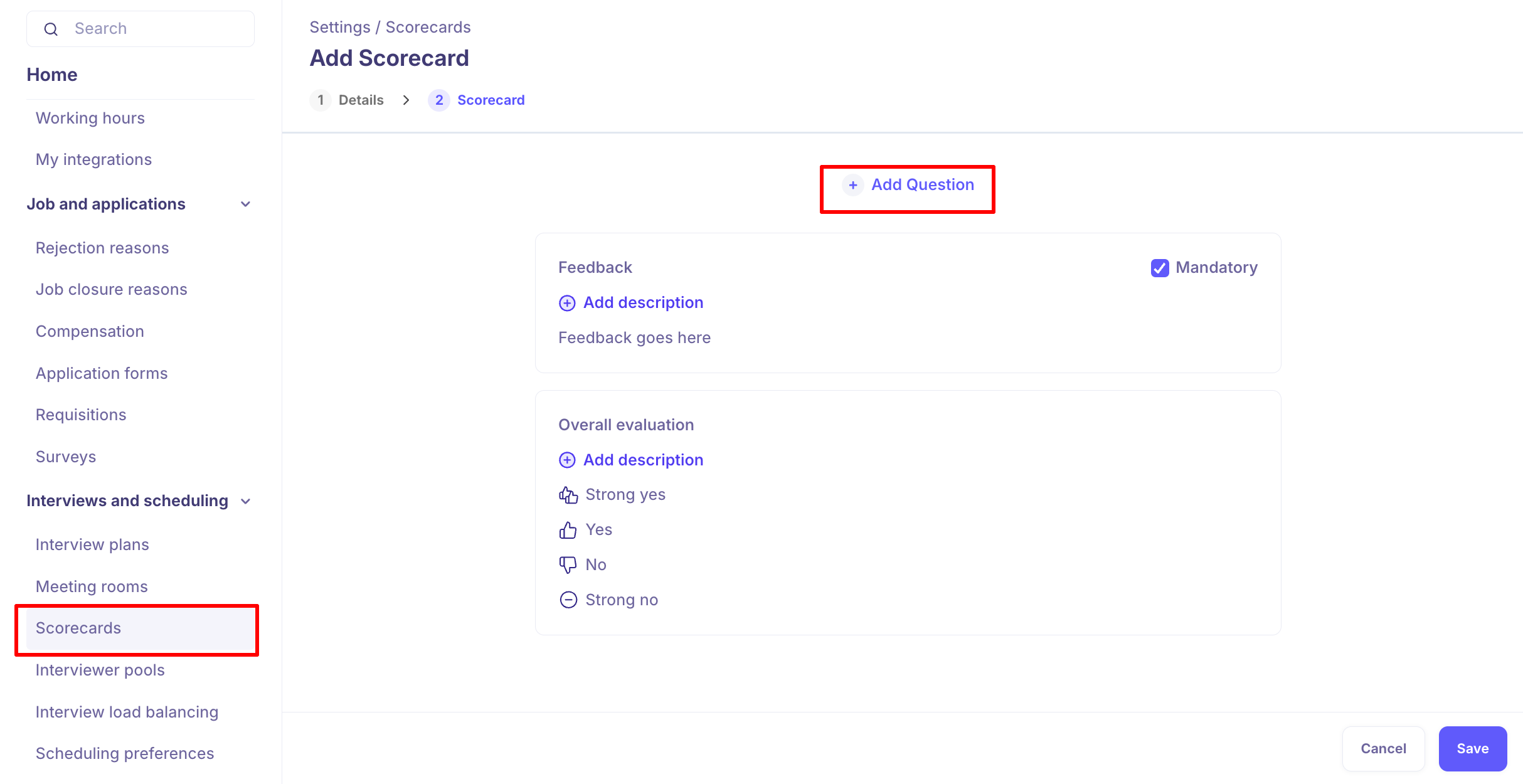
Two default scorecard fields — Feedback and Overall Evaluation — are always present in Kula scorecards and cannot be edited or removed.
Attaching a Scorecard to a Stage
Scorecards are linked to stages through activities — specifically through interview, assessment, and review activities.
Via an Interview activity
When adding an interview activity to a stage, proceed through the Details and Calendar tabs.
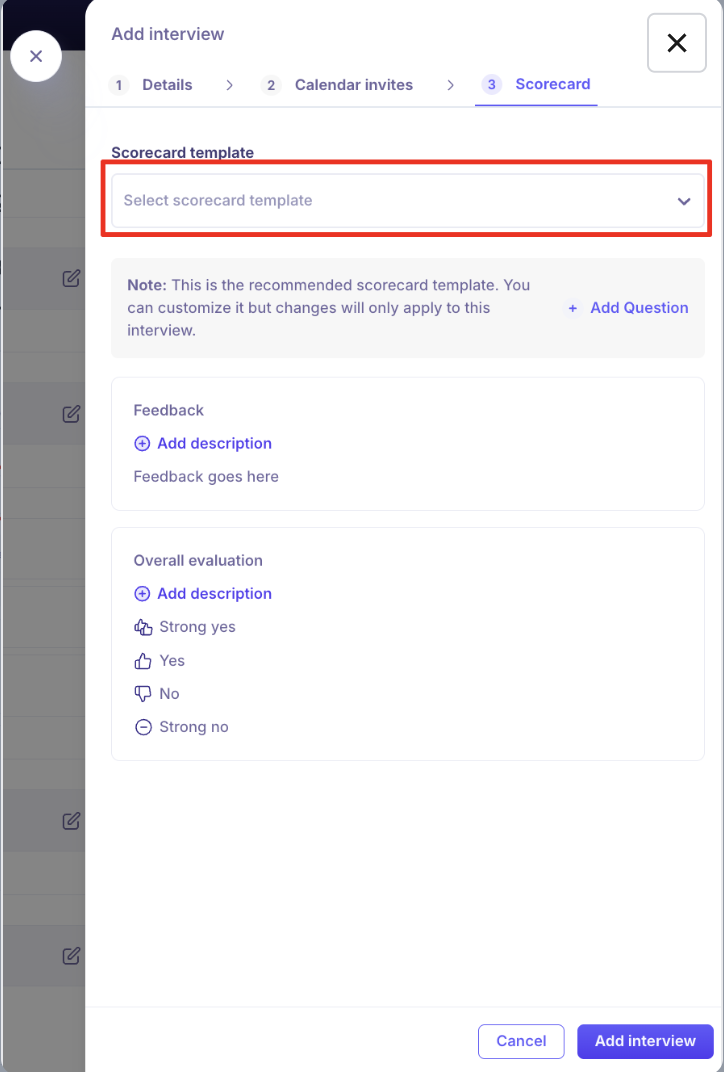
On the Scorecard tab, select a scorecard template from the dropdown.
You can add stage-specific questions without modifying the master template — these additions apply only to this interview activity.
Click Add interview to save.
Via an Assessment or Review activity
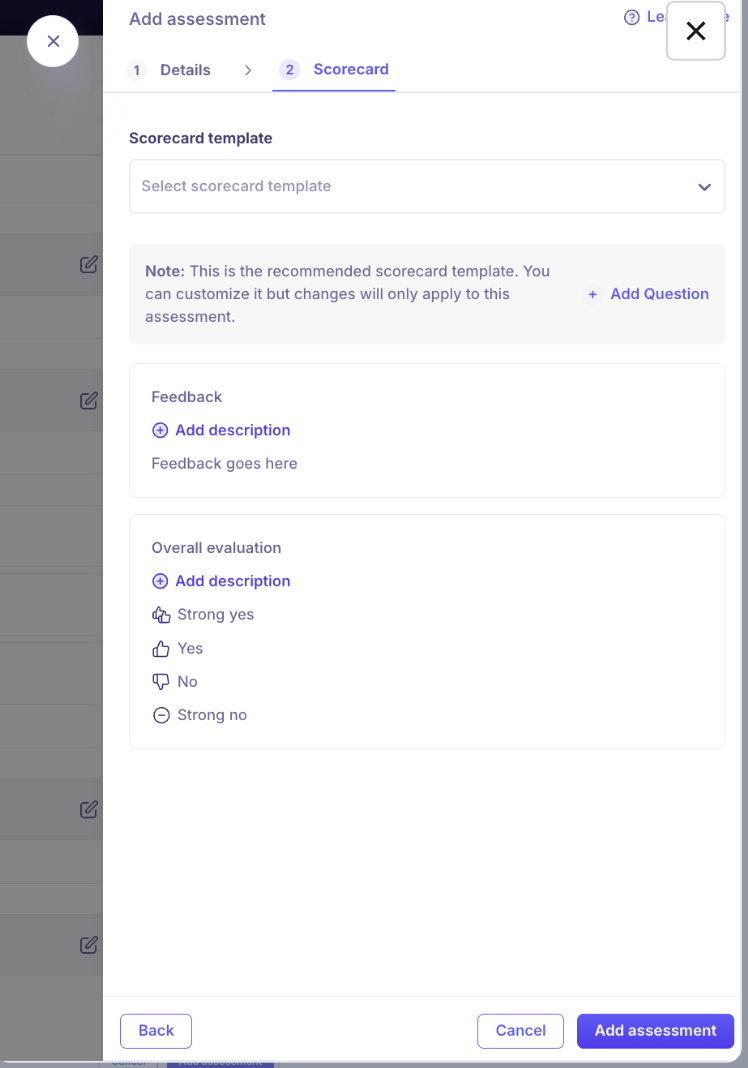
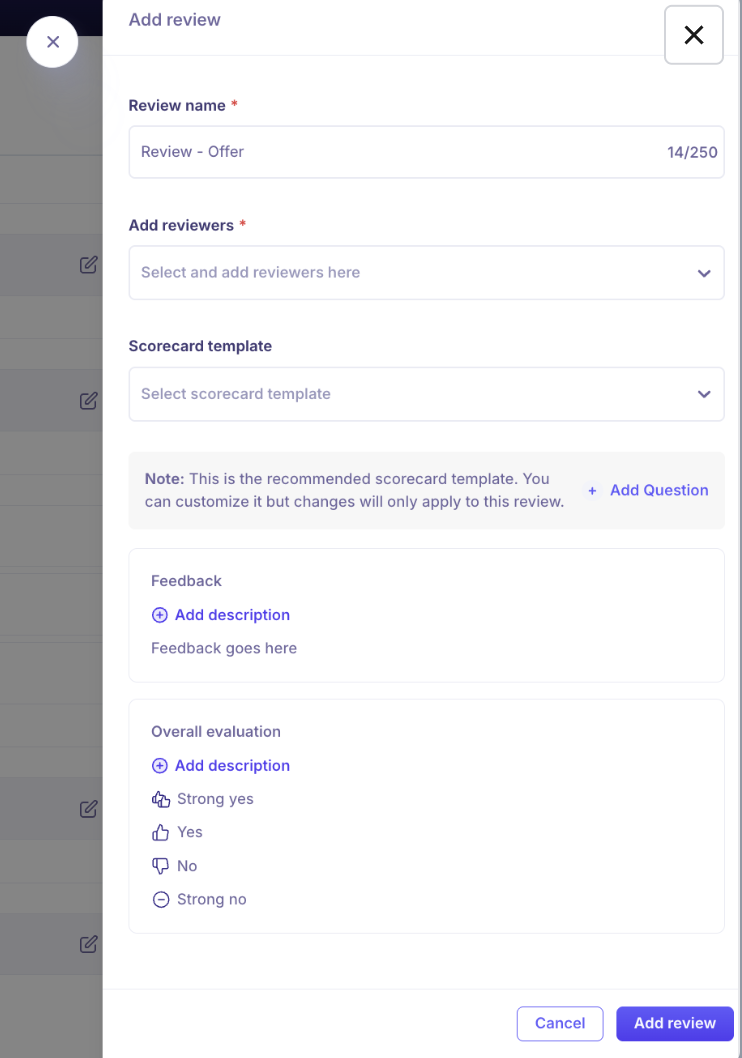
When configuring an assessment or review activity, proceed to the Scorecard tab.
Select a scorecard template. You can customize it for this activity without changing the global template.
Complete and save the activity.
Only scorecards matching the job's department and office configuration are shown by default. If you don't see the scorecard you expect, verify that its department and office settings match the job.
Scorecard Completion Threshold
You can now control how many reviewers must submit their scorecard before an assessment or review activity is considered complete.
Configure this at:
Settings → Interview Plan (template level)
Job-level interview plan (per job)
Ad hoc when sending assessments or reviews directly
Available rules:
All — every assigned reviewer must submit
Any one — a single submission completes the activity
At least X — a minimum number of submissions required
This feature is supported for Reviews, internal Kula assessments, and external third-party assessments with scorecards (HackerRank, HackerEarth, CriteriaCorp, etc.).
Scorecard Visibility Settings
Admins can configure when interviewers see each other's scorecards, balancing independence and collaboration.
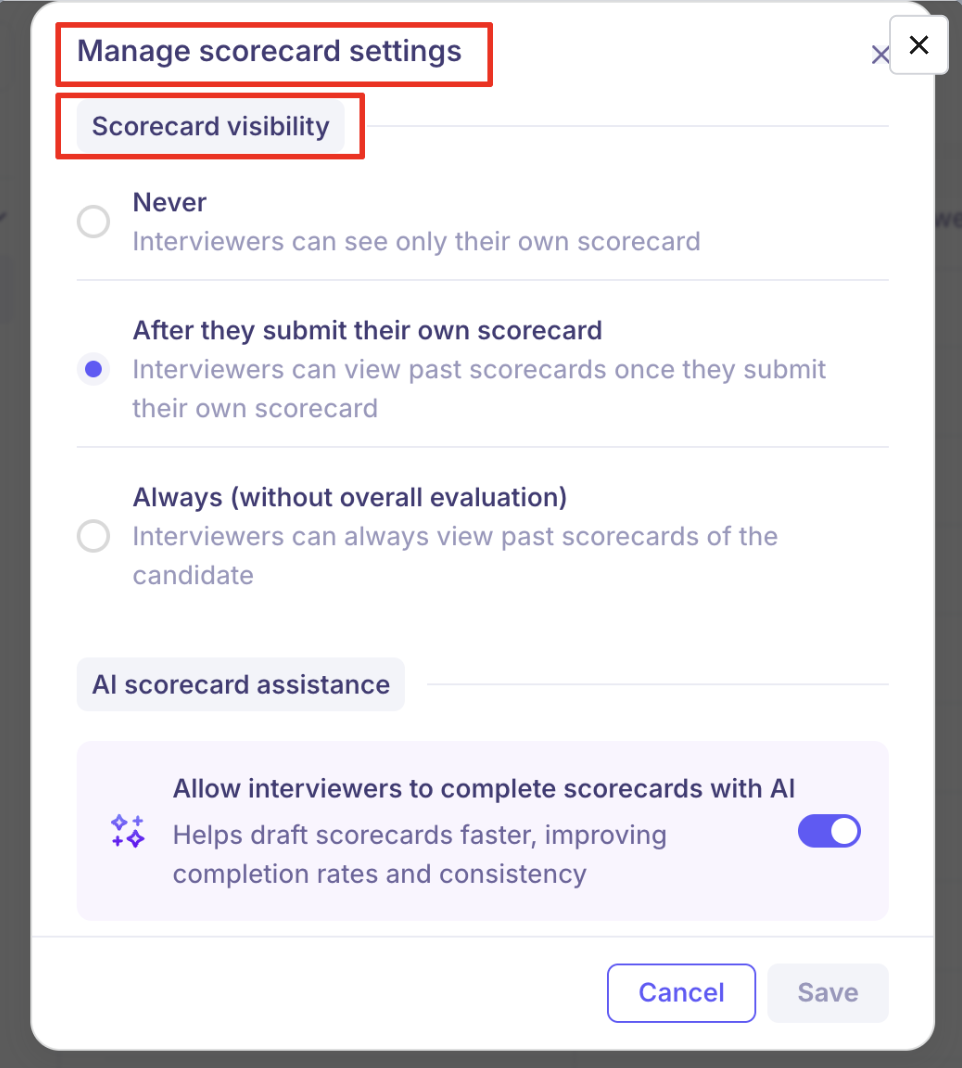
Navigate to Settings → Scorecards → Settings (top-right corner) to configure:

Setting | Behaviour |
Never | Interviewers never see each other's scorecards — fully independent evaluations |
After submission | Interviewers see others' feedback only after they have submitted their own |
Always | Full transparency — interviewers can see all submitted scorecards at any time (Overall Evaluation is hidden until submission) |
Hiring team members and admins always have full visibility regardless of this setting, since they need complete context for decision-making.
AI Scorecard Assistance
Kula offers AI-powered scorecard assistance that can help pre-fill scorecard responses based on interview notes and transcripts.
Two levels of control:
Account level — admins enable or disable AI scorecard assistance for the whole organization under Settings → Scorecards → Settings.
Interview level — once enabled at account level, recruiters can toggle it on or off for individual interviews, giving flexibility based on role type or interview format.
This allows you to keep AI notetaking active while selectively using AI scorecard assistance only where it adds value (e.g. high-volume phone screens) without applying it everywhere.
Editing, Cloning, and Archiving Scorecards
Action | Steps |
Edit | Hover over the scorecard → Ellipsis (⋯) → Edit → make changes → Save |
Clone | Hover over the scorecard → Ellipsis (⋯) → Clone → enter a new name → Clone |
Archive | Hover over the scorecard → Ellipsis (⋯) → Archive → type ARCHIVE → confirm |
Downloading a Scorecard as PDF
You can download a complete scorecard PDF for any candidate from the Scorecards tab on their application page. The PDF includes:
Candidate overview and (if enabled) AI summary
Full scorecard history with stage, activity, interviewer, and timeline
All interview questions, responses, and ratings
Individual scorecards listed by round for easy review
Frequently Asked Questions
Q: The scorecard I created isn't showing up when I configure an interview activity. Why?
Scorecards are filtered by department and office. If the scorecard's department and office mapping doesn't match the job's configuration, it won't appear in the dropdown. Check the scorecard's Details settings and align them with the job's department and office.
Q: Can I add extra questions to a scorecard for a specific interview without changing the global template?
Yes. When attaching a scorecard to an interview, assessment, or review activity, you can add stage-specific questions directly in the activity configuration. These additions apply only to that particular activity and do not modify the master scorecard template.
Q: I updated the scorecard in the interview plan after an interview was already scheduled. Will the change reflect in that interview's scorecard?
No. Scorecards are attached at the time an interview is scheduled. Updating the scorecard in the interview plan or global settings does not retroactively update already-scheduled interviews. The updated scorecard will apply to future interviews created after the change.
Q: Can interviewers see each other's scorecards during the process?
This depends on your organization's scorecard visibility setting. Your admin can configure it to Never, After submission, or Always under Settings → Scorecards → Settings. If you're unsure of your current setting, ask your admin.
Q: Scorecards are not appearing for candidates after their interview. What should I check?
First, confirm that the scorecard was properly attached to the interview activity in the interview plan (both globally and at the job level). If the interview plan was changed after job creation, the scorecard configuration may not have carried over — in that case, check the job-level interview plan and re-add the scorecard to the relevant activity. If the issue persists, contact support.
Need Help?
If you have questions or need assistance with setup, feel free to reach out to us at support@kula.ai or use the in-app chat for assistance.