Creating and applying tags
Last updated: April 9, 2026
Tags are free-text labels that help your team organize, categorize, and quickly find candidates across your pipeline. You can add tags to individual candidates or to multiple candidates at once, and then use them as filters to pull up specific groups instantly. Tags are stored at the contact level — so a tag applied to a candidate is visible across all jobs they are associated with.
Tags – Section Overview
Tags can be created and applied from two places in Kula:
Contacts page: your full talent database across all jobs
Job → Candidates tab: the candidate list within a specific job.
Adding a tag to a single candidate
You can add a tag directly from the candidates list view or from the candidate’s profile.
From the contact's page:
Open the contact's profile.
Locate the Tags field: in the profile details.
Type a tag name: and press Enter to add it.
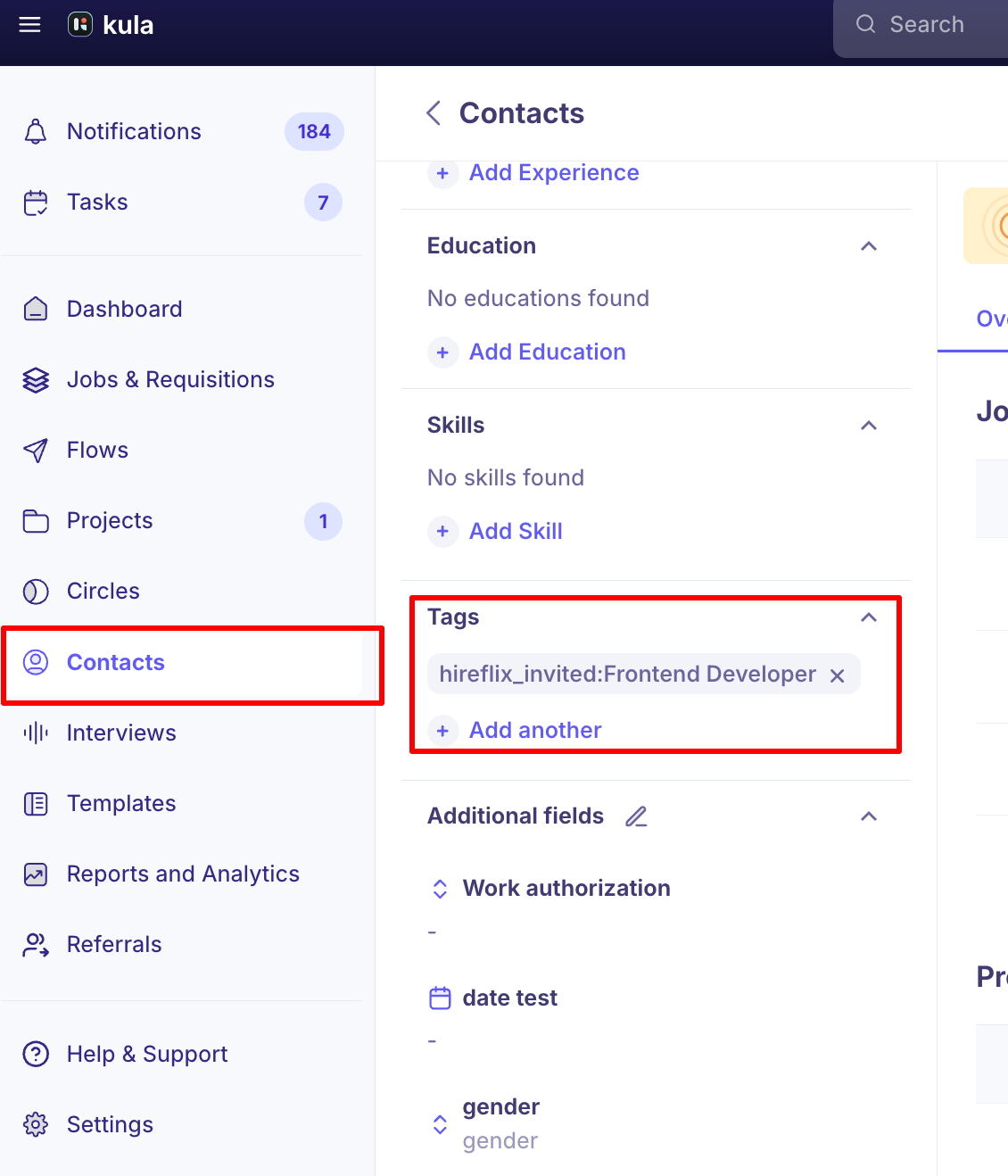
From the Candidates list inside a job:
Open a job: go to the Candidates tab.
Find the candidate: you want to tag in the list.
Click on the tag field: in the candidate’s row.
Type the tag name: and press Enter to apply it. Existing tags in your account will appear as suggestions as you type.
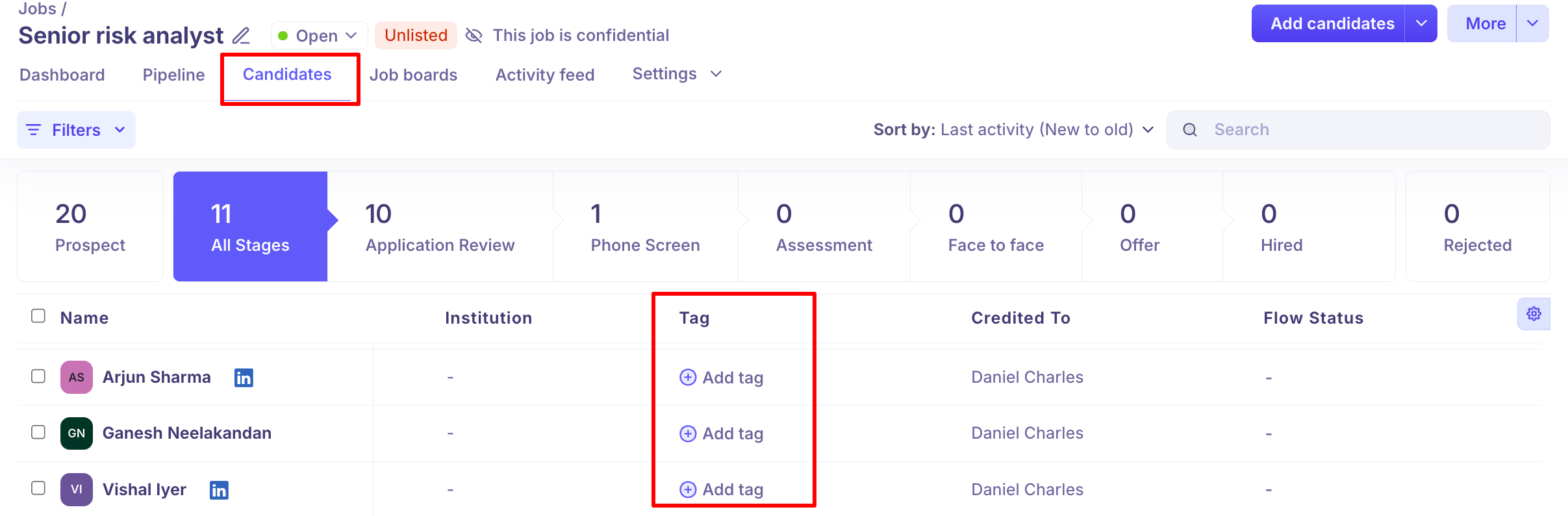
Note: Tags are free-text — there is no pre-set list. Any text you type becomes a tag. Align with your team on naming conventions to keep tags consistent.
Adding tags to multiple candidates at once
Use bulk tagging to apply a tag to several candidates in one action.
From the Contacts page:
Navigate to Contacts.
Select the contacts: you want to tag using the checkboxes.
Click three dots: in the action bar at the bottom of the page.
Select Add Tags.
Type the tag name: and confirm. The tag is applied to all selected contacts.
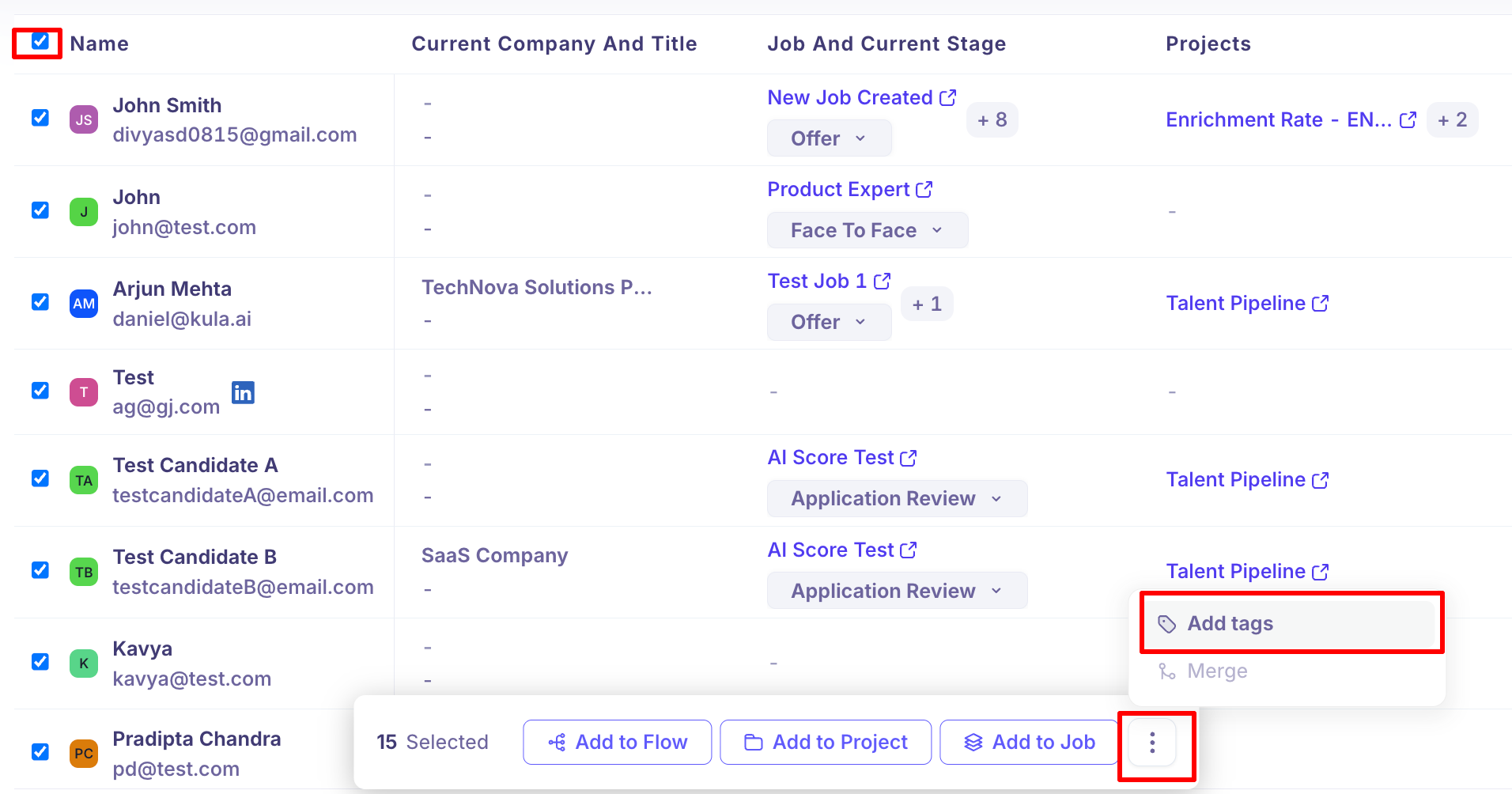
From the Job → Candidates tab:
Open a job: and go to the Candidates tab.
Select multiple candidates: using the checkboxes.
Click three dots: in the action bar at the bottom.
Select Add Tags
Type the tag name: and confirm.
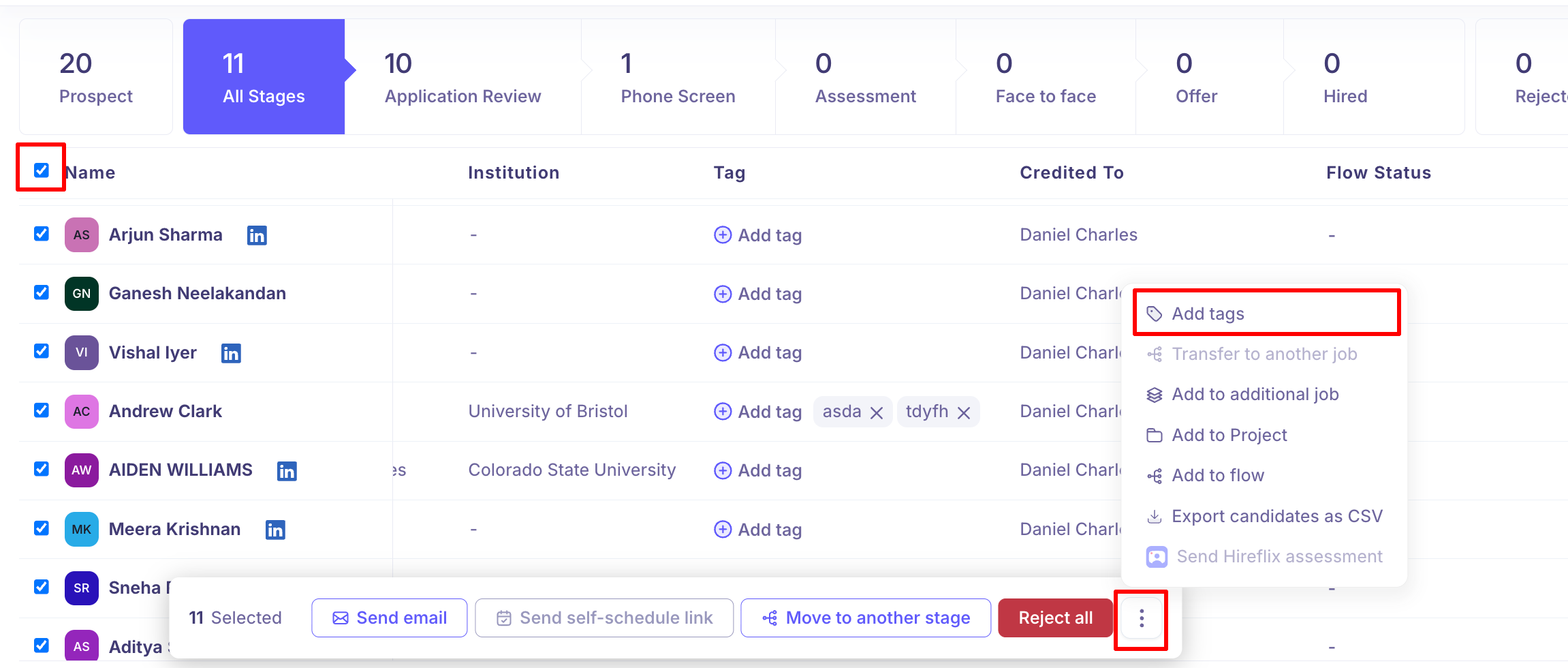
Note: Bulk tagging adds the tag to all selected candidates without removing any tags already on those profiles.
Filtering by tags
Once tags are applied, use them as a filter to find specific groups of candidates quickly.
From the Contacts page:
Go to Contacts.
Click Filters.
Select Tags: from the filter options.
Choose the tag(s): you want to filter by and click Apply.
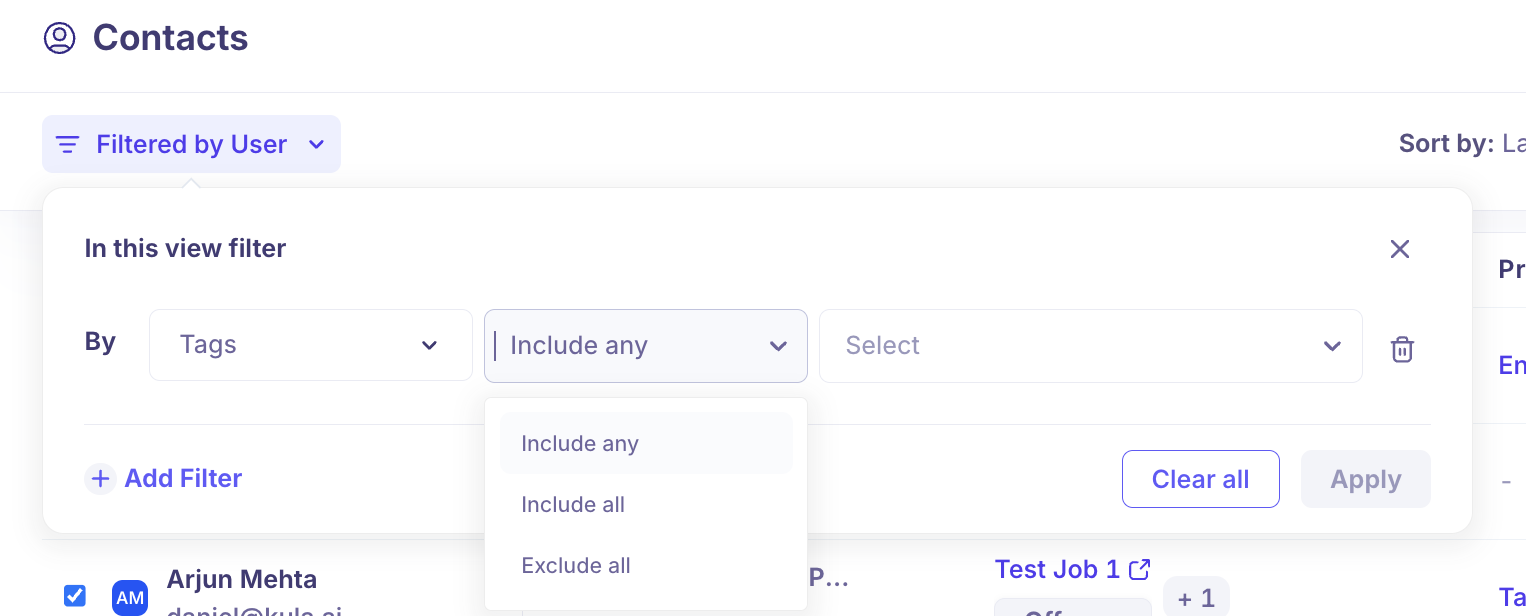
From the Job → Candidates tab:
Open a job: and go to the Candidates tab.
Click Filters.
Select Tags: and choose the tag(s) to filter by.
Click Apply: to view matching candidates.
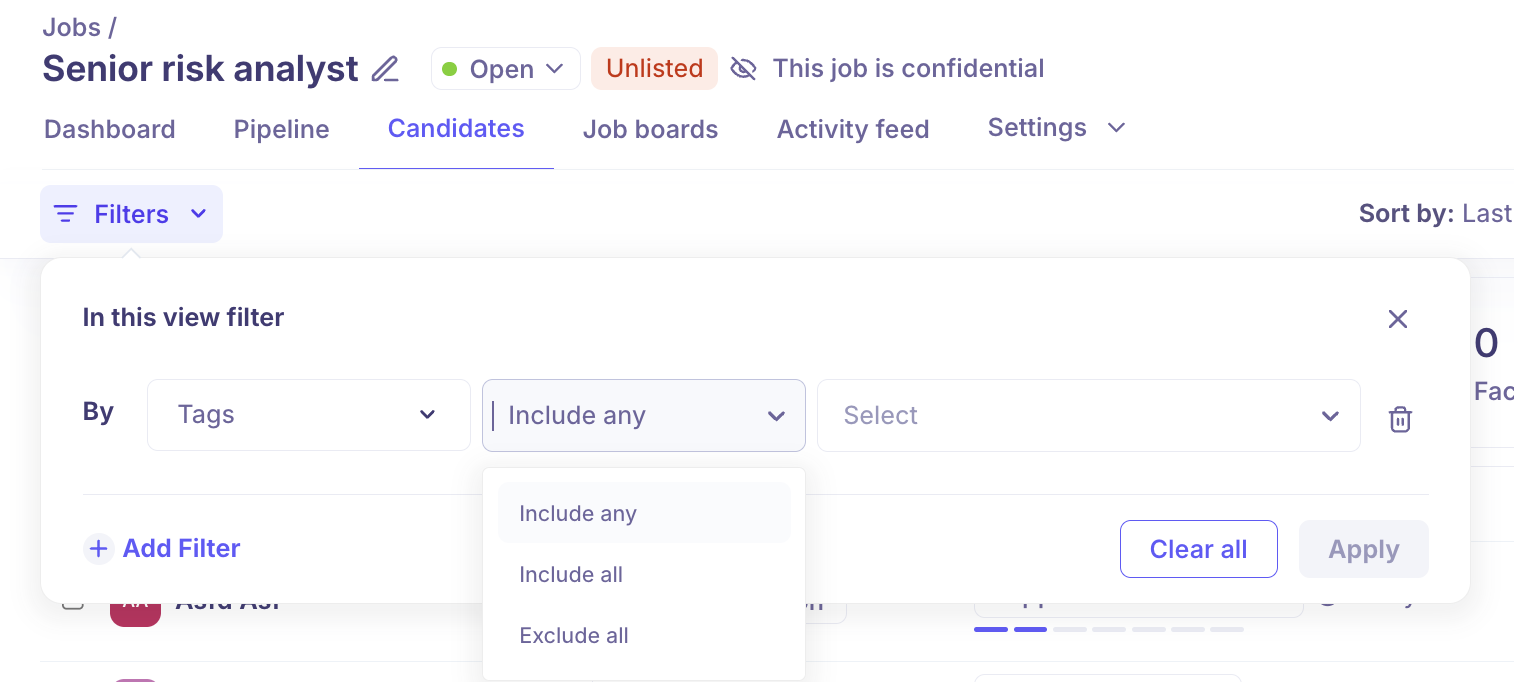
Removing a tag
Open the candidate’s profile: or click the tag field in the candidate list.
Click the ✕: next to the tag you want to remove.
The tag is removed: from that candidate immediately.


Note: Removing a tag from one candidate does not affect other candidates who have the same tag applied. Tags are removed individually per candidate.
Need Help?
If you have questions or need assistance, feel free to reach out to us at support@kula.ai or use the in-app chat for assistance.