Configuring Custom Fields
Last updated: April 9, 2026
Custom fields in Kula let you capture information beyond the default fields — whether it is specific details about a job, extra candidate information, offer-specific compensation data, or requisition attributes.
This article covers how to add, edit, and delete custom fields across all four modules.
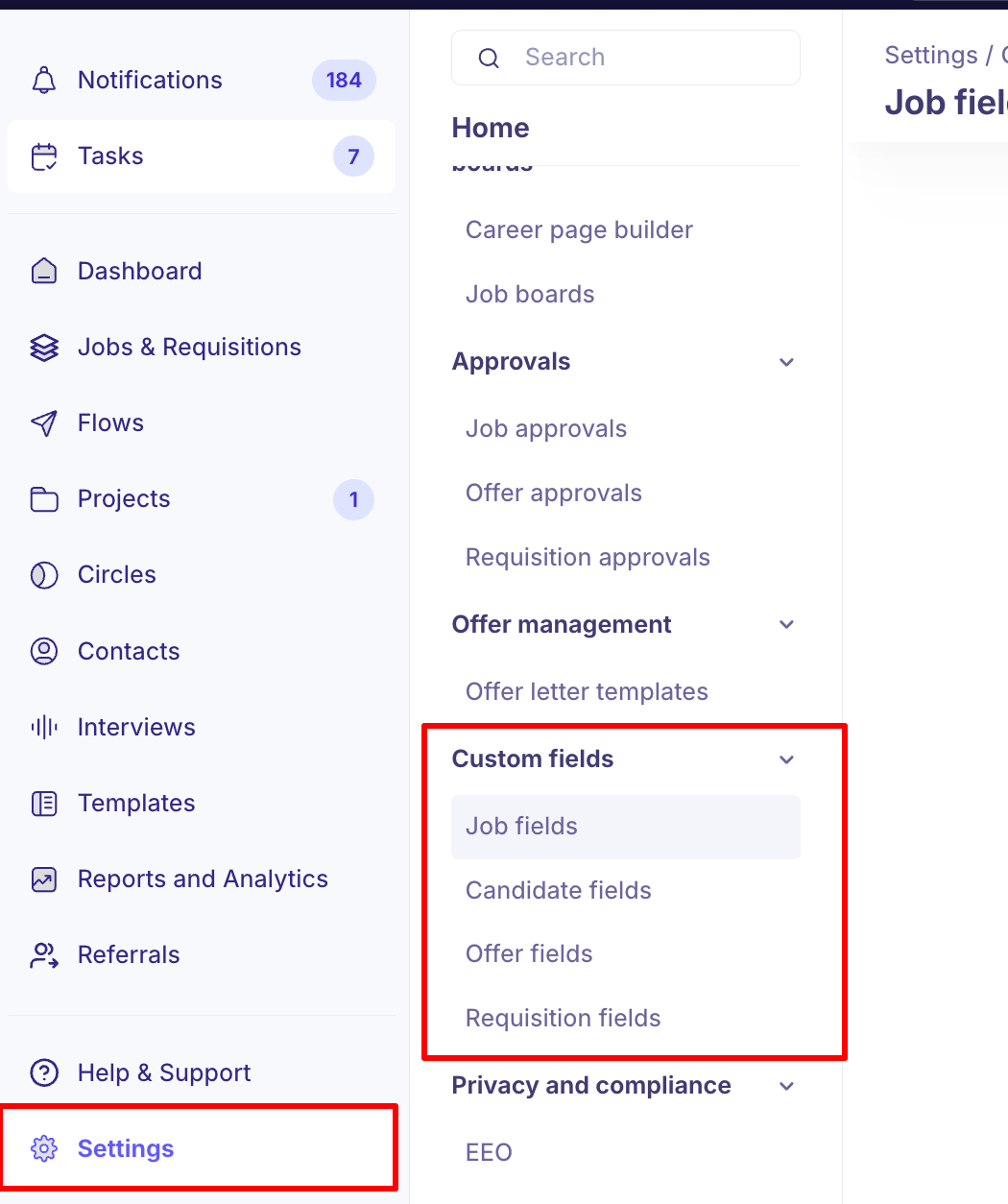
Navigate to Settings → Custom Fields → select the relevant module
Supported field types
The table below shows all available field types. Not all types are available in every module — where a type is restricted, it is noted.
Field type | What it does |
Note: Field Type cannot be changed once a custom field has been created. Choose carefully before saving.
Job Fields
Job fields capture additional details about a job beyond the standard information. Custom job fields appear in the job creation and editing form.
Settings → Custom Fields → Job Fields
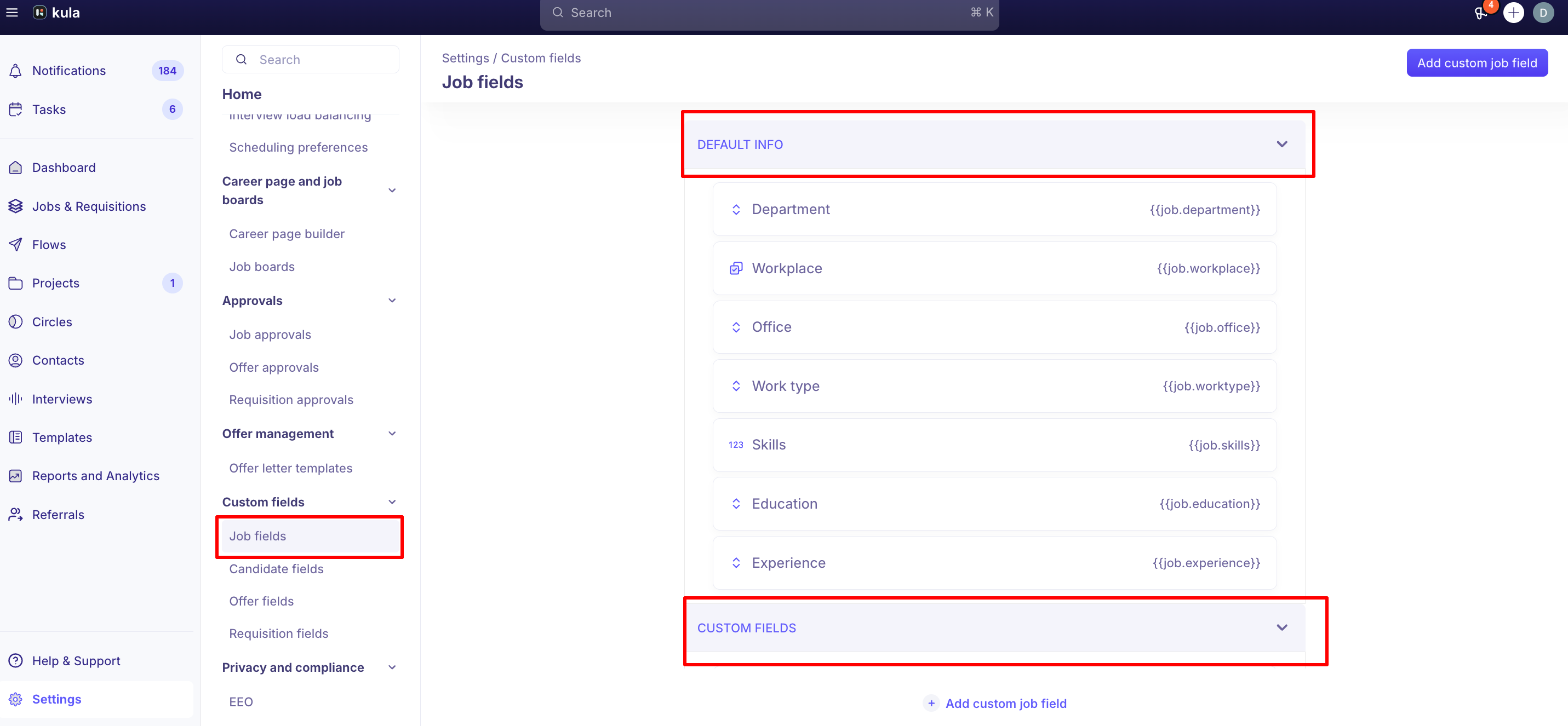
The Job Fields page has two sections:
Default Info: Standard fields such as Department, Workplace, Office, Work Type, Skills, Education, and Experience. These cannot be edited or deleted.
Custom Fields: Fields your team creates for specific use cases.
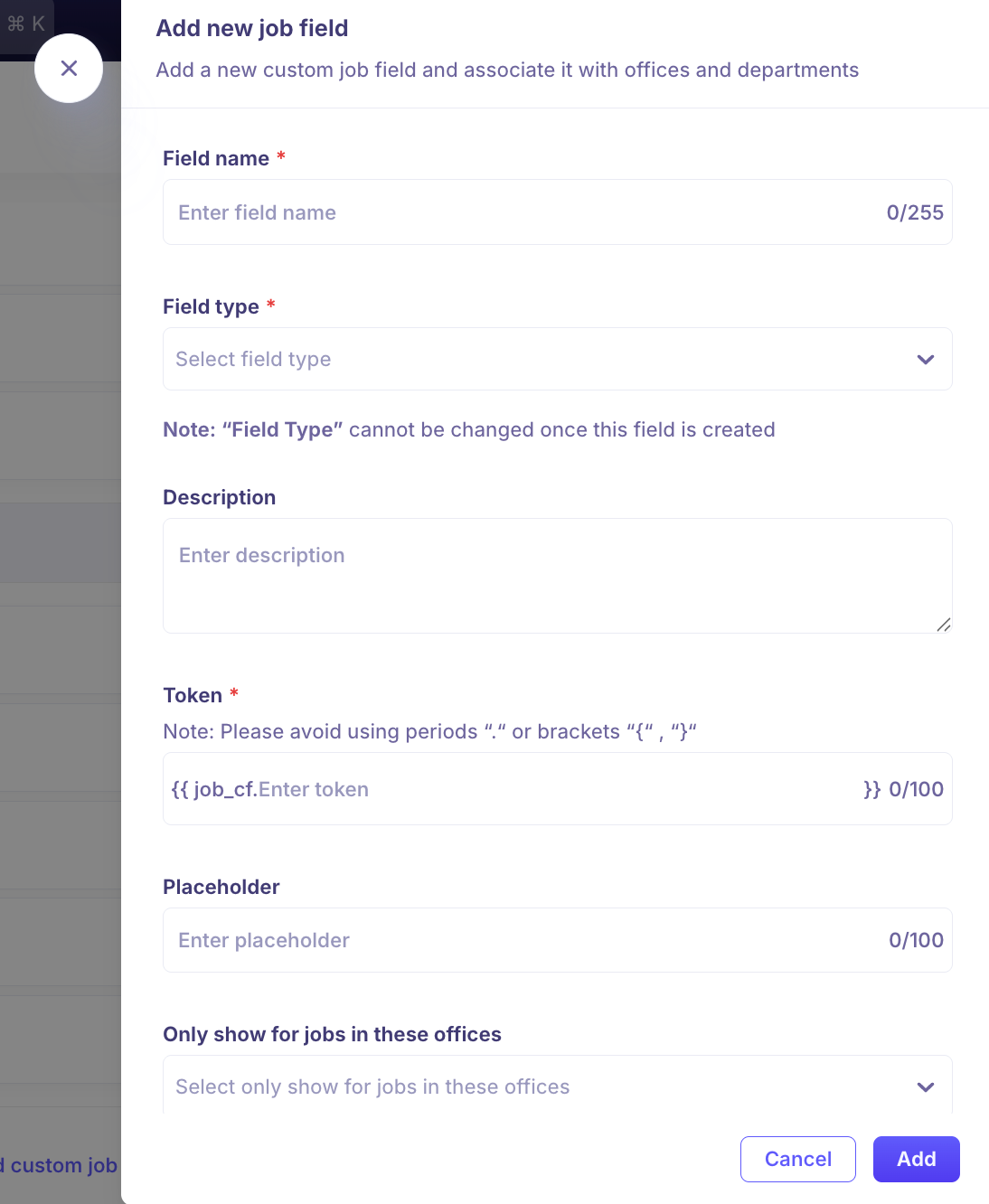
Adding a custom job field
Click Add Custom Job Field: at the top right corner of the page.
Field Name (Mandatory): enter a name for the field.
Field Type (Mandatory): select from the supported field types above.
Description: optionally describe the field’s purpose.
Token: enter a token value if needed. Avoid using periods “.” or brackets “{” “}”.
Placeholder: enter default hint text shown in the input before the user types.
Only Show For Jobs In These Offices: select the offices where this field should appear. Leave blank to show for all offices.
Only Show For Jobs In These Departments: select the departments where this field should appear. Leave blank to show for all departments.
Required Field: check this box if the field must be filled during job creation.
Click Add: to save the custom field.
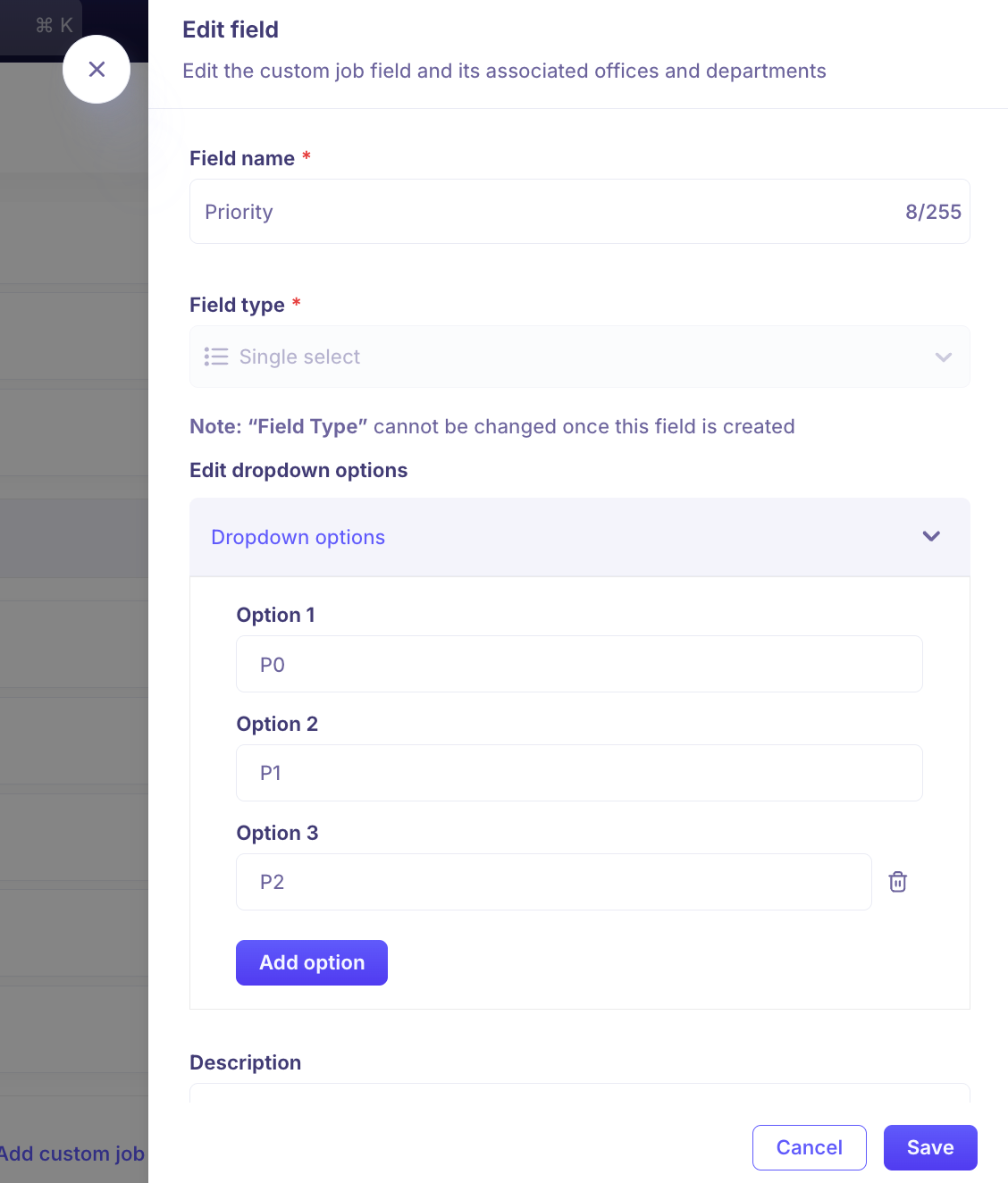
Editing a custom job field
Under the Custom Fields section, click on the field name: you want to edit.
Update the relevant fields.
Click Save.
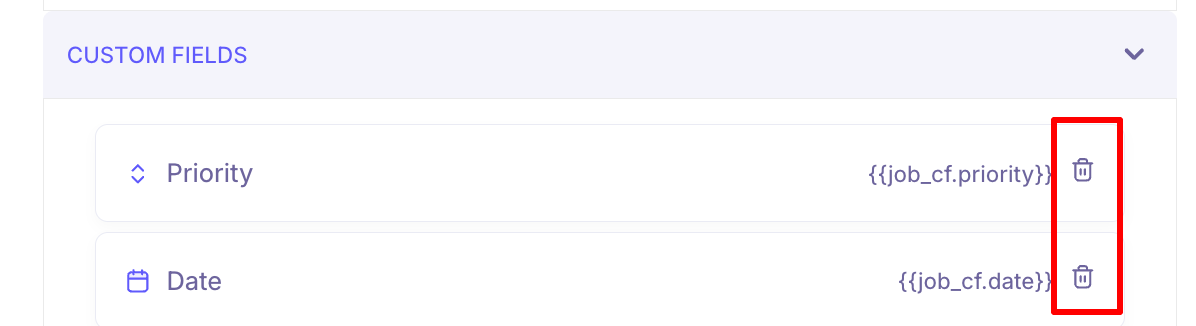
Deleting a custom job field
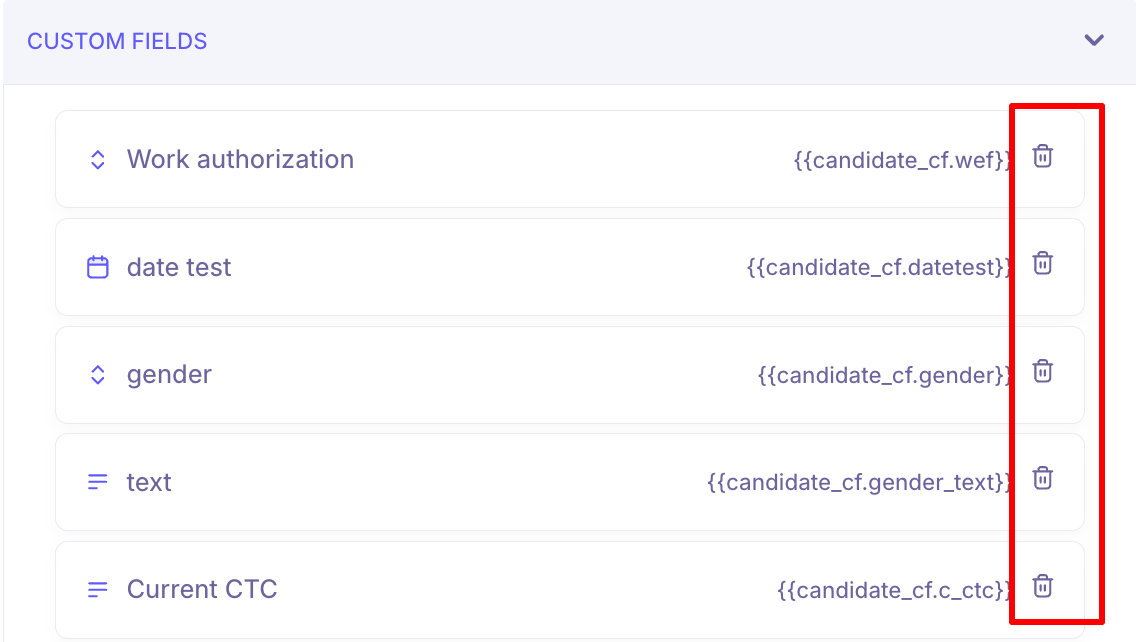
Click the Delete icon: next to the field you want to remove.
A confirmation modal will appear. Click Yes, Delete: to confirm.
Candidate Fields
Custom candidate fields store additional information on a candidate’s profile. They are global — visible across all jobs the candidate is associated with.
Settings → Custom Fields → Candidate Fields
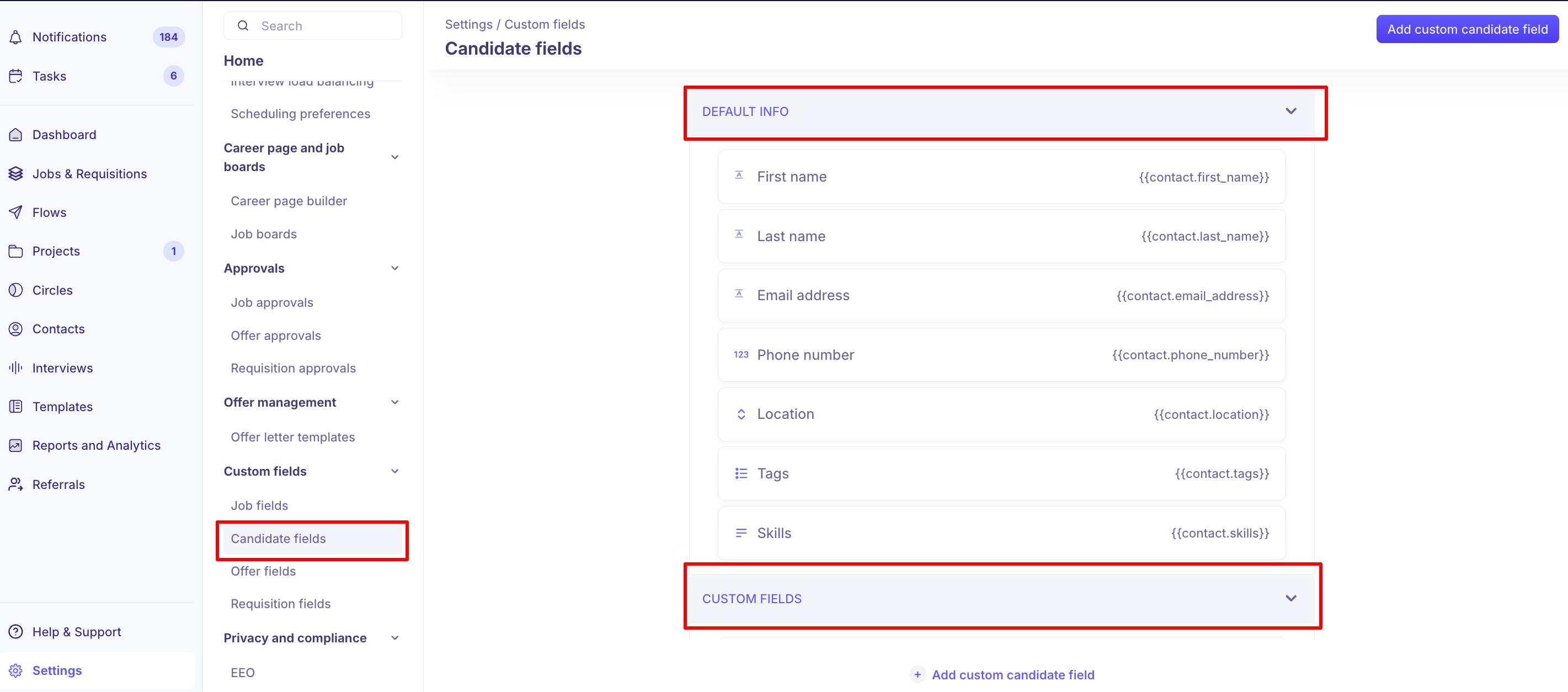
The Candidate Fields page has two sections:
Default Info: Standard fields such as First Name, Last Name, Email Address, Phone Number, Location, Tags, and Skills. These cannot be edited or deleted.
Custom Fields: Fields your team creates for specific use cases.
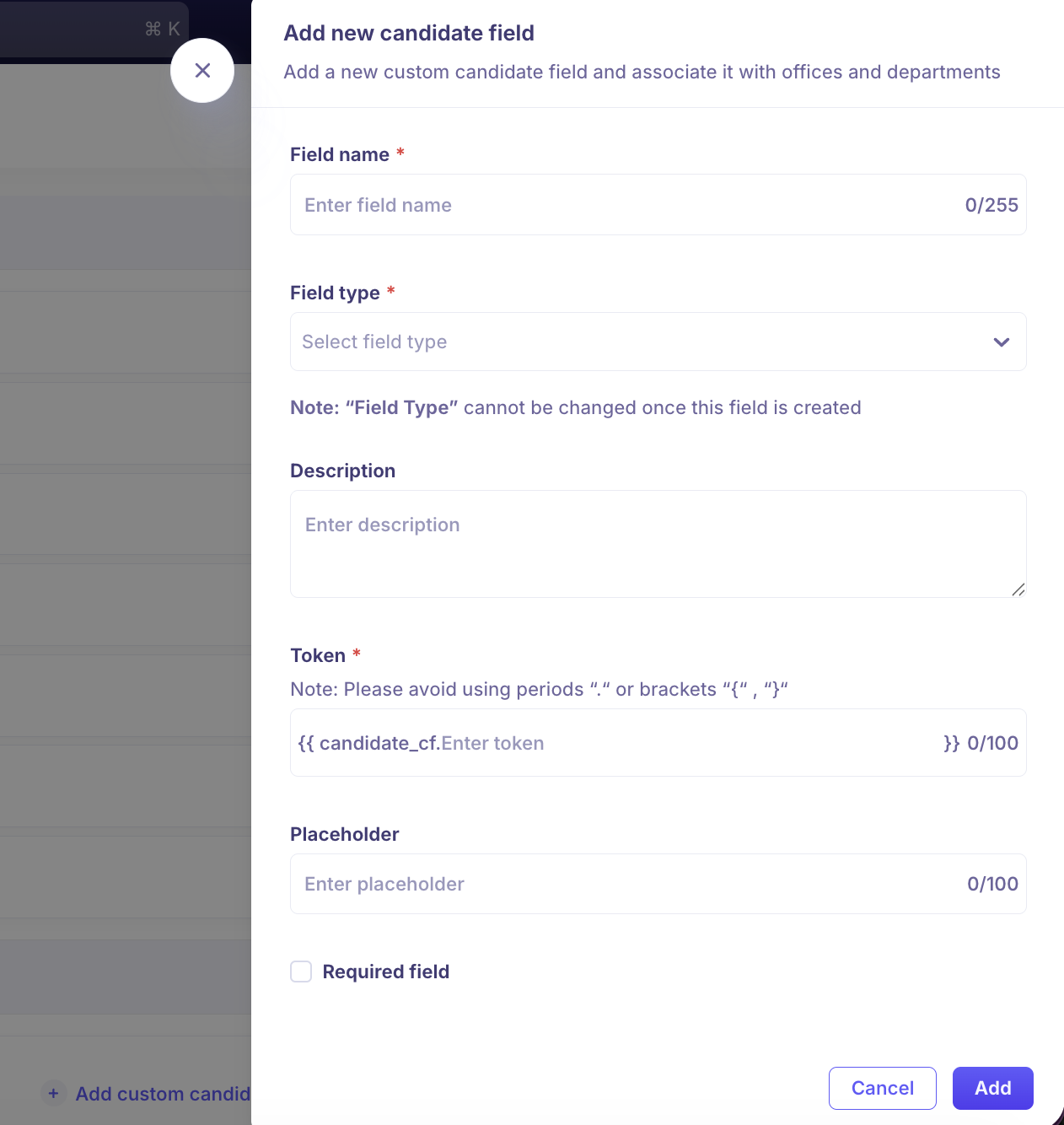
Adding a custom candidate field
Click Add Custom Candidate Field: at the top right corner.
Field Name: enter a name for the field.
Field Type: select from the supported field types above.
Description: optionally describe the field.
Token: enter a token value if needed. Avoid periods and brackets.
Placeholder: enter default hint text for the input.
Required Field: check if the field is mandatory.
Click Add: to save.
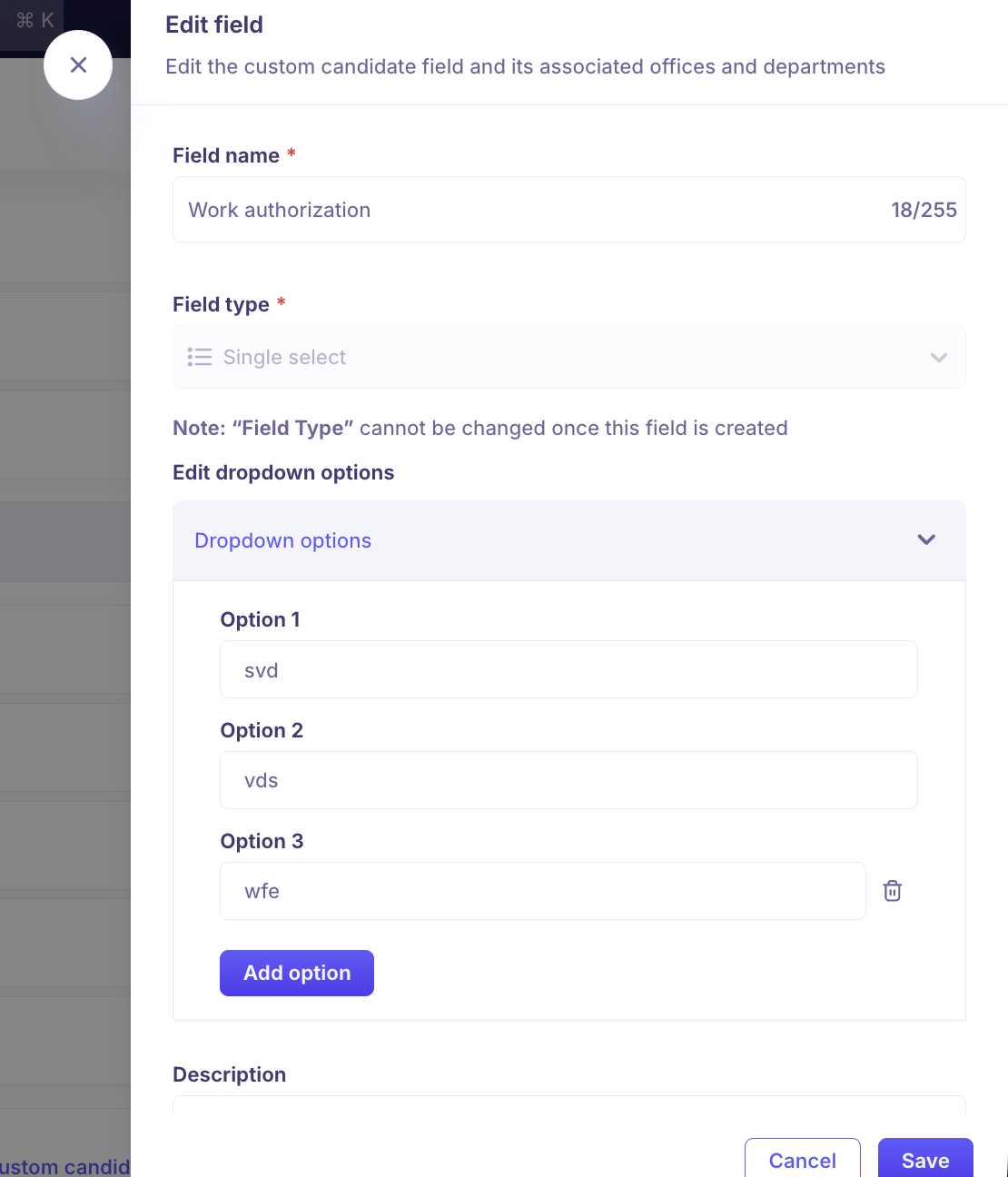
Editing a custom candidate field
Click on the field name: you want to edit.
Update the relevant fields.
Click Save.
Deleting a custom candidate field
Click the Delete icon: next to the field.
Click Yes, Delete: in the confirmation modal.
Offer Fields
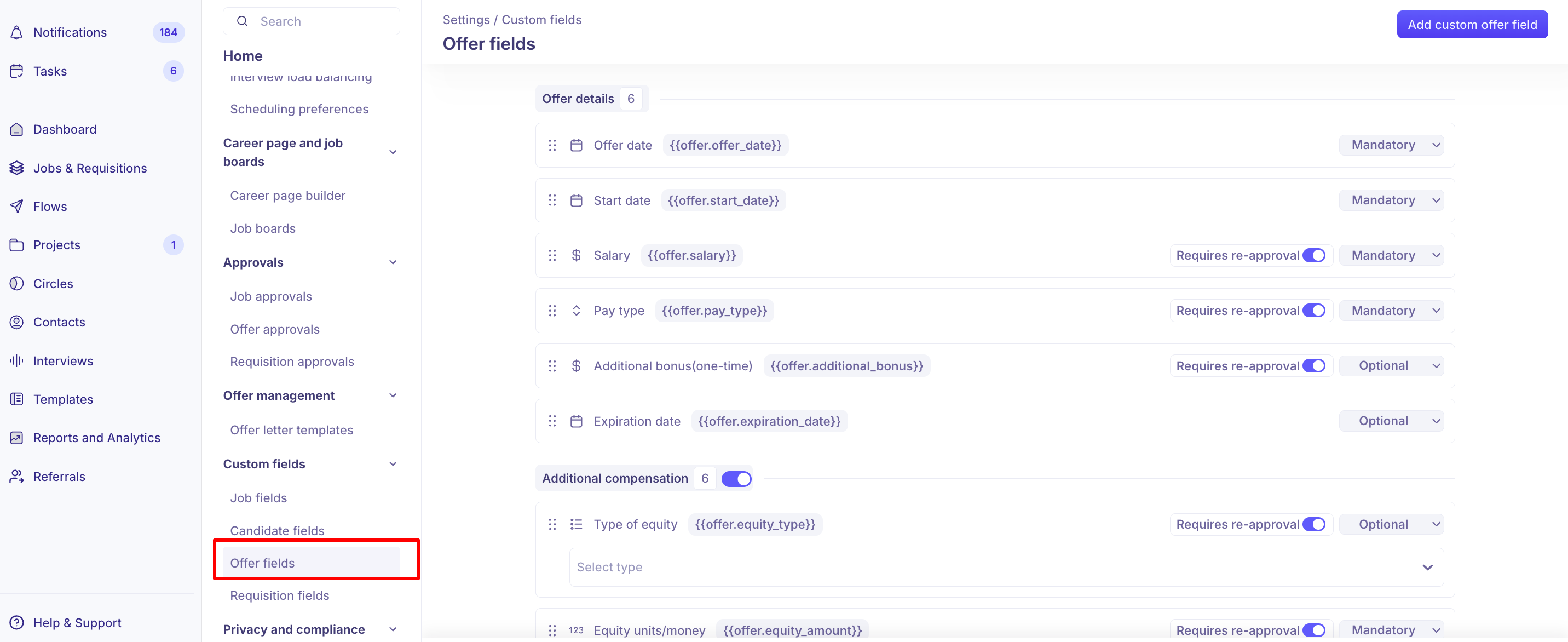
Offer fields control how your offer forms are structured — including what information is captured, how it is displayed, and which changes require re-approval. The Offer Fields page includes both default fields and custom fields.
Settings → Custom Fields → Offer Fields
Default offer fields
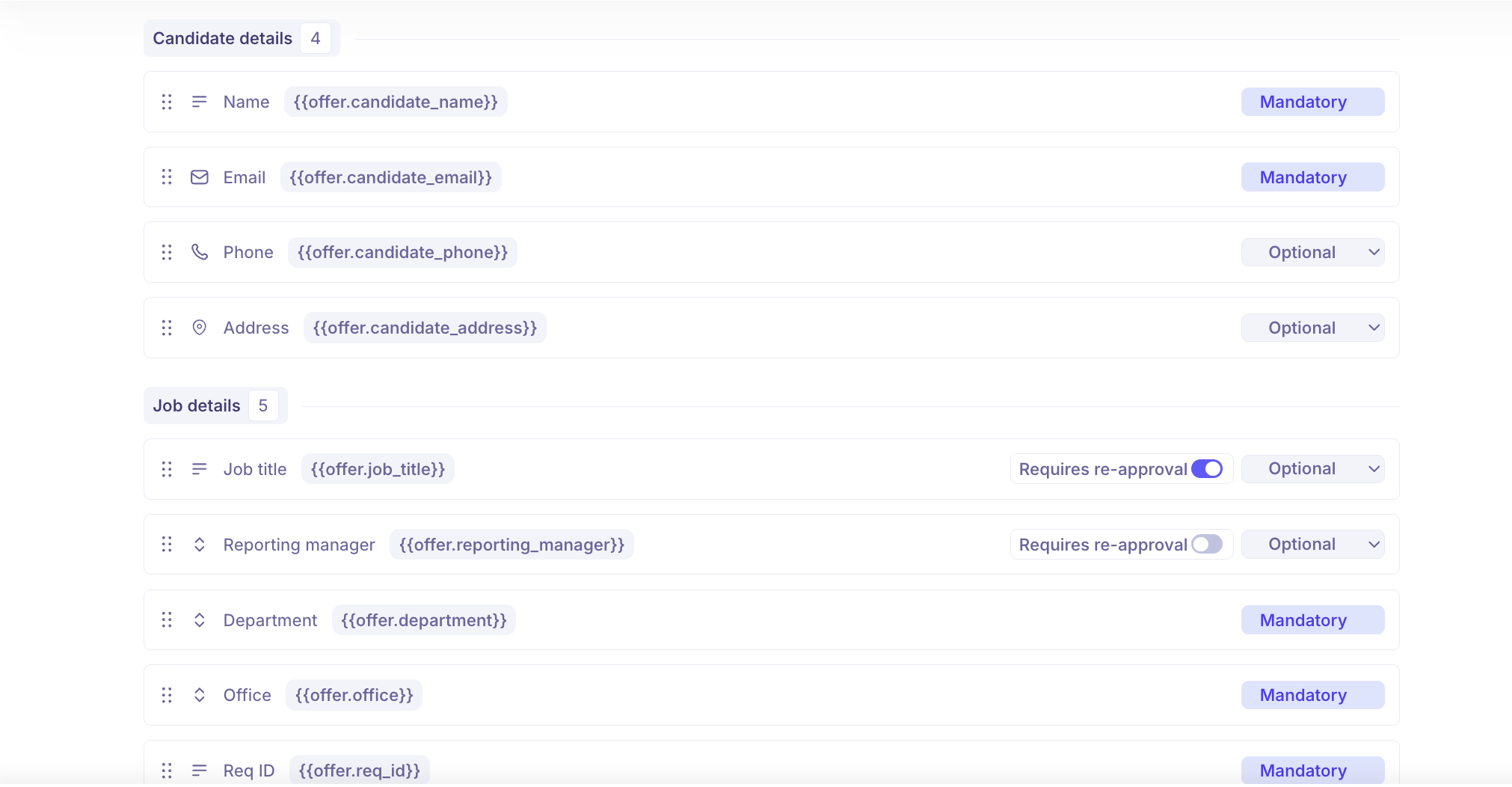
The system includes predefined fields grouped into four sections. These cannot be deleted but can be configured.
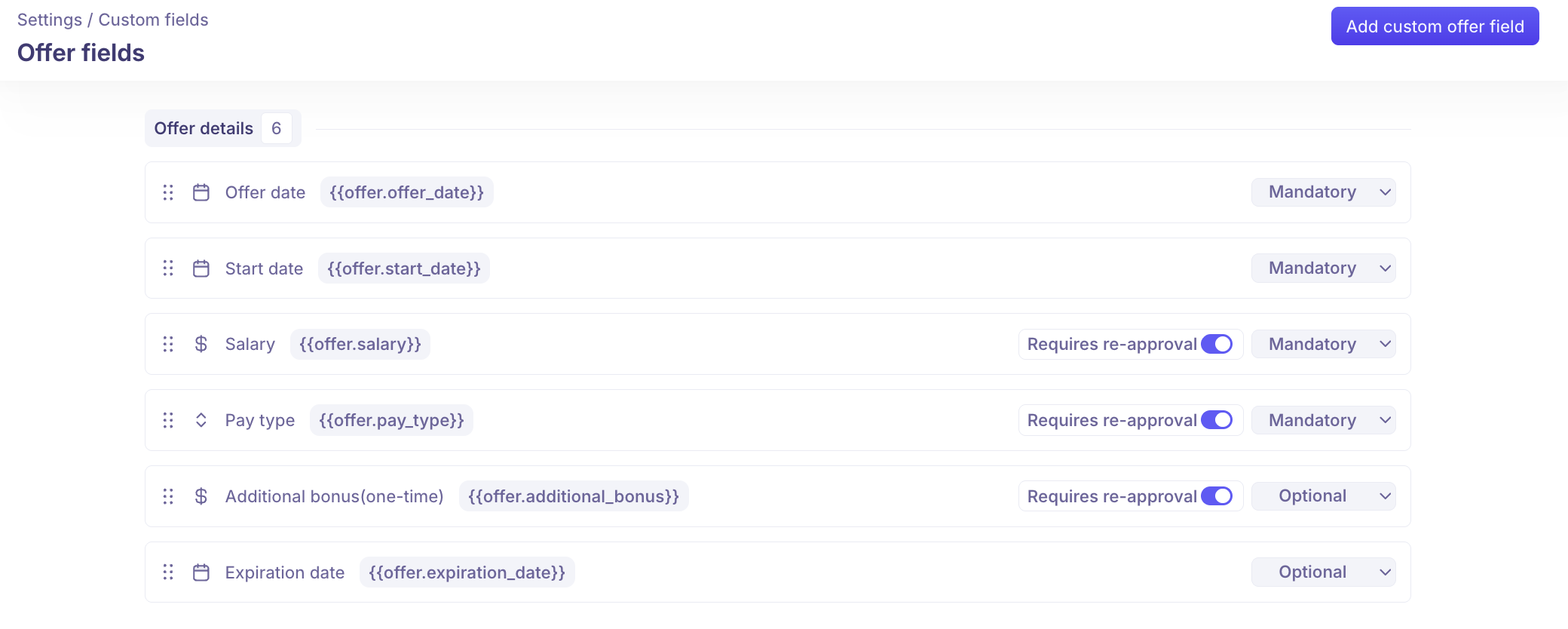
Offer Details: Core offer information: Offer Date, Start Date, Salary, Pay Type, Additional Bonus, Expiration Date.
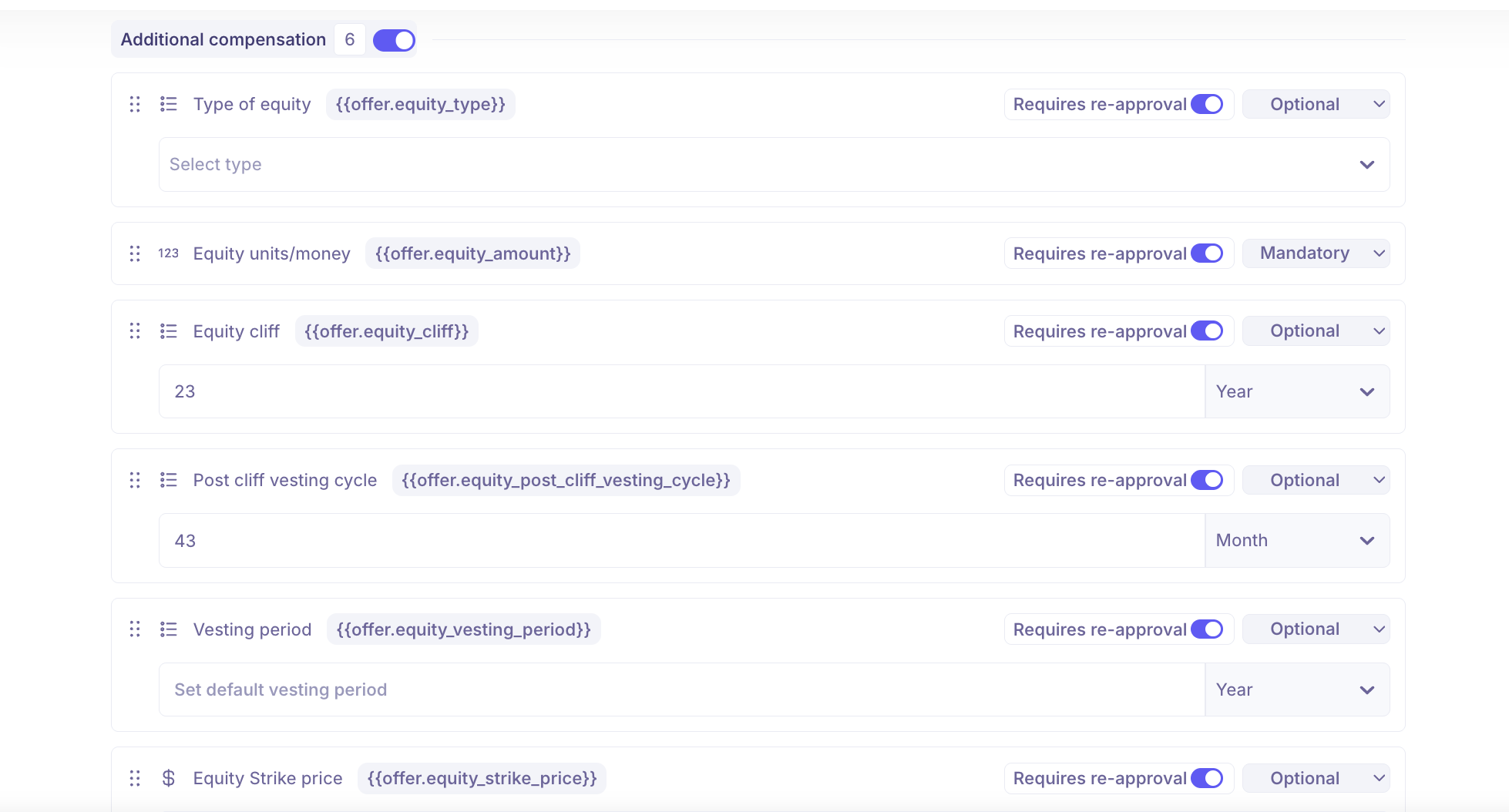
Additional Compensation: Equity-related fields. This entire section can be toggled on or off. Includes: Type of equity, Equity units/money, Equity cliff, Post cliff vesting cycle, Vesting period, Equity strike price.
Candidate Details: Candidate information shown on the offer: Name, Email, Phone, Address.
Job Details: Role information: Job Title, Reporting Manager, Department, Office, Req ID.
Adding a custom offer field
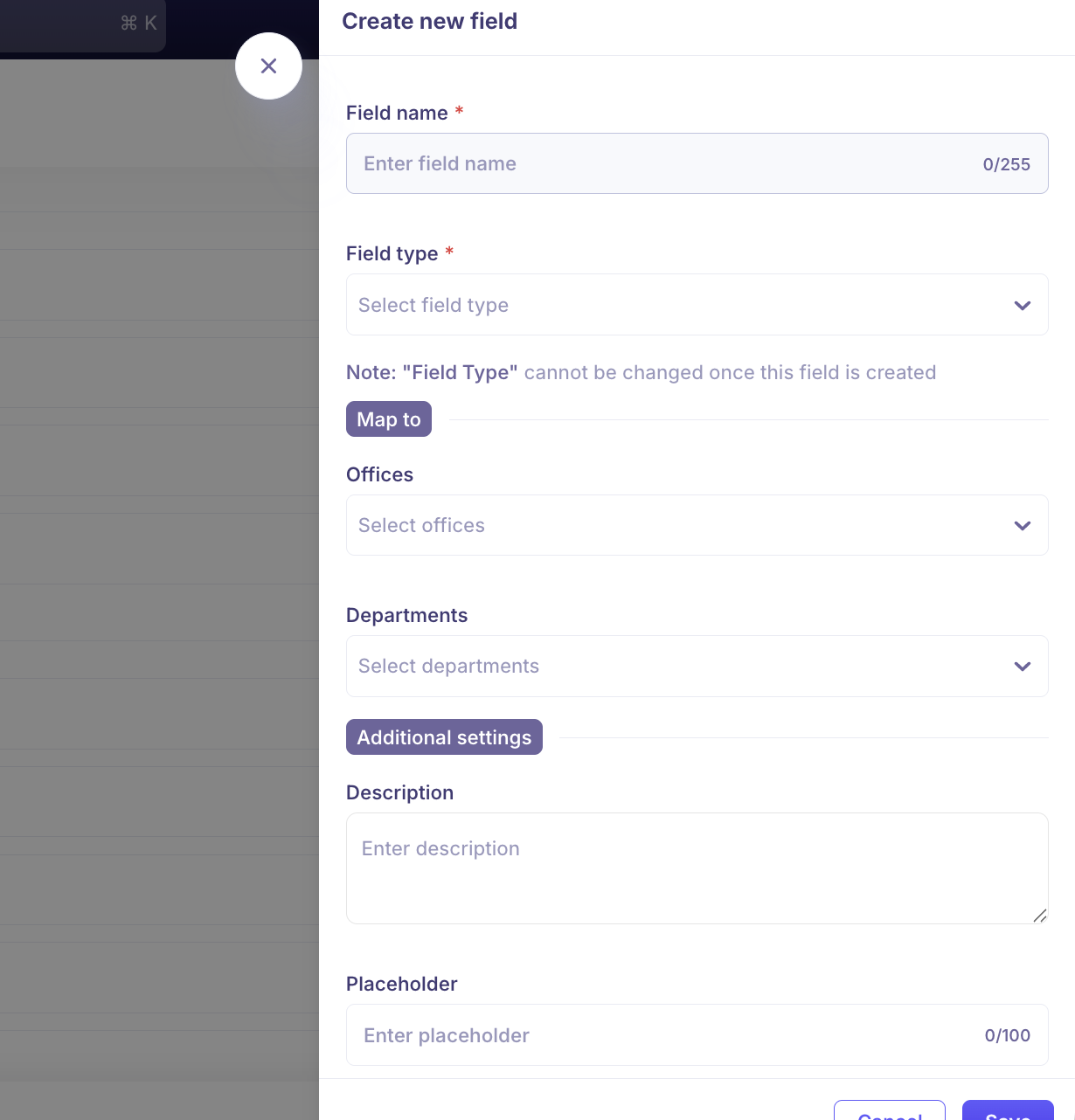
Click Add Custom Offer Field: at the top right corner.
Field Name (Mandatory): enter a name for the field.
Field Type: select from the supported types. Offer Fields also support File upload in addition to the standard types.
Description: describe the field’s purpose. The Token field will auto-populate.
Office and Department: choose which offices and departments the field should appear for.
Token: review or update the token value. Avoid periods and brackets.
Placeholder: add default hint text.
Required Field: check if mandatory.
Click Save.
Offer fields configuration
Beyond adding fields, the Offer Fields section gives you additional controls:
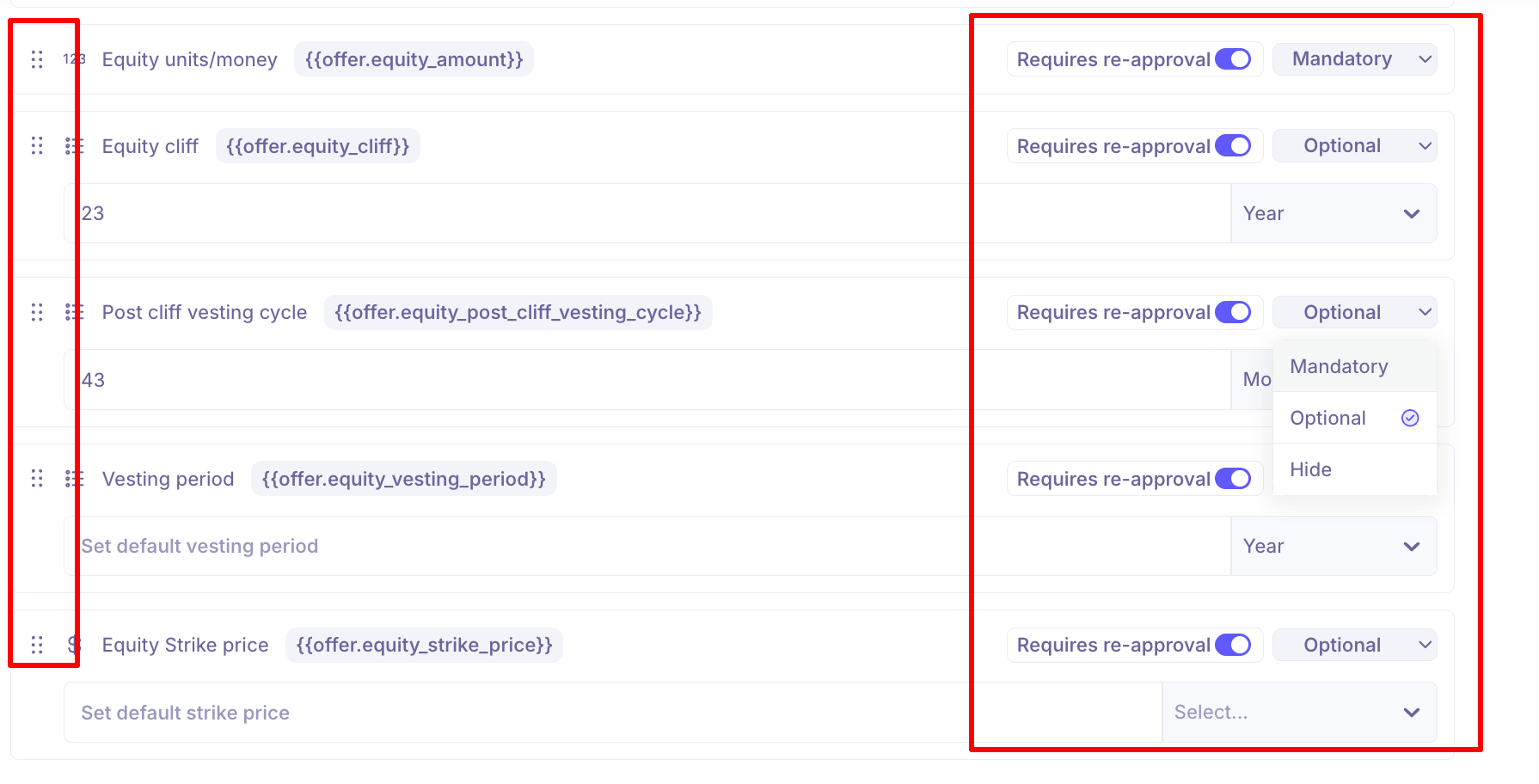
Field reordering: Drag and drop fields to reorder them. This lets you customize the layout, prioritize important fields, and align the form structure by region or role type.
Visibility controls: Each field has a visibility dropdown with three options:
Mandatory: the field must be filled before proceeding.
Optional: the field can be left blank.
Hide: the field will not appear in the offer form.
Requires re-approval: When enabled on a field, any change to that field after an offer has been approved will re-trigger the offer approval workflow. This is recommended for sensitive fields like Salary, Equity, and Bonus.
Editing and deleting a custom offer fields
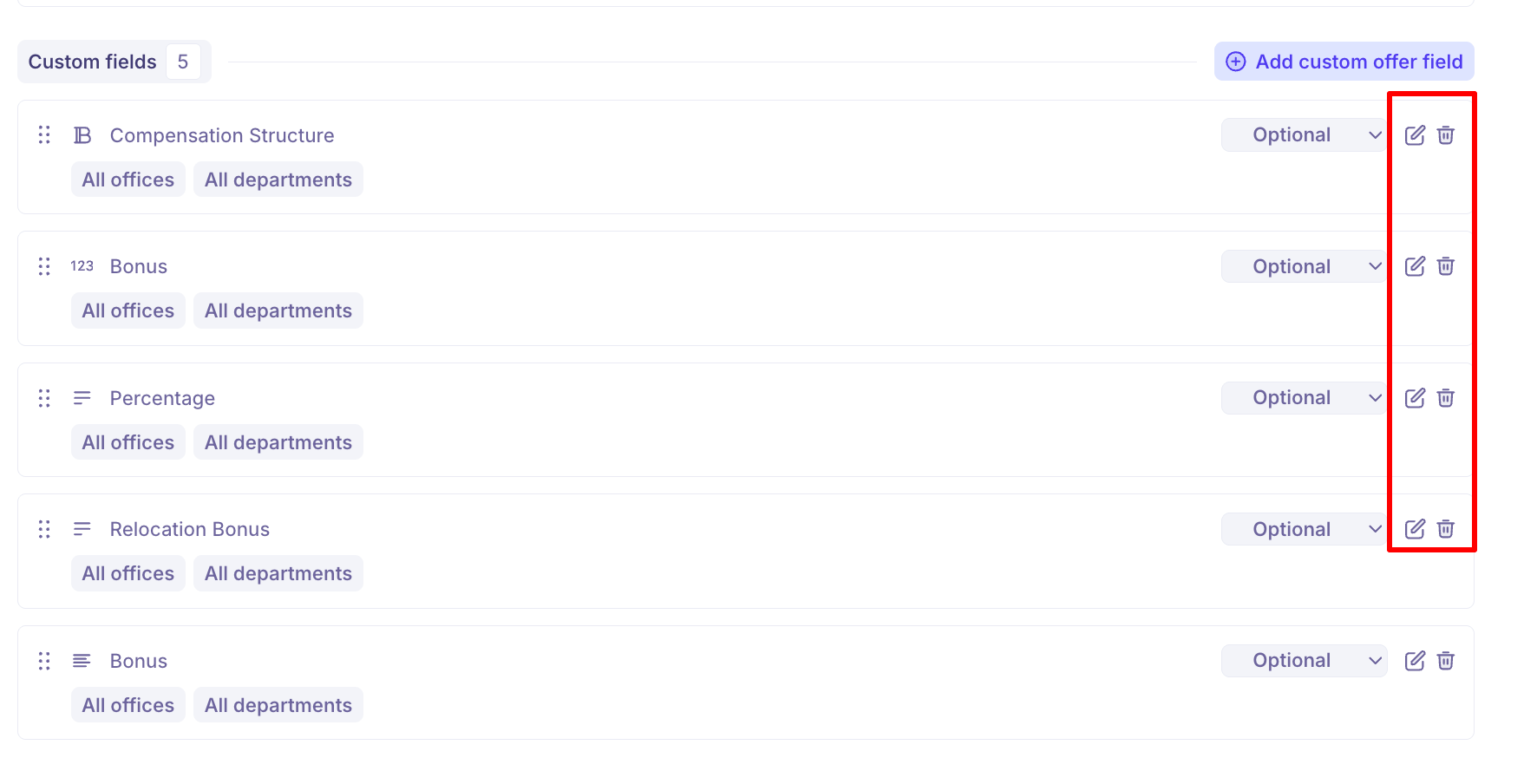
Click the Edit icon next to a field to update its name, office/department scoping, or required status.
Click the Delete icon to remove it. Deleted fields are permanent and cannot be recovered.
Requisition Fields
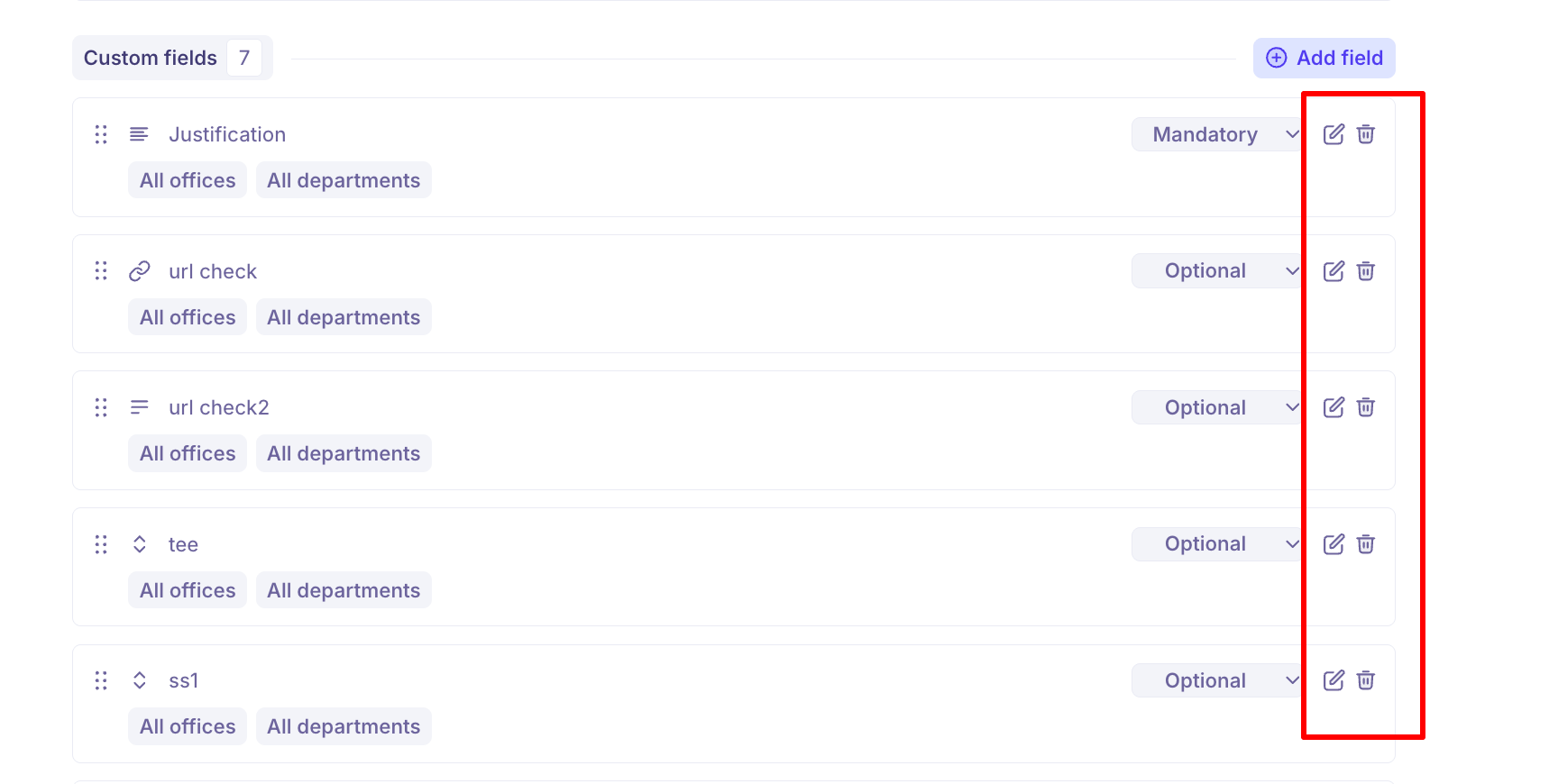
Requisition fields are the fields that need to be filled when creating a new requisition. You can configure which fields are required, which offices and departments they apply to, and which changes should re-trigger approvals.
Settings → Custom Fields → Requisition Fields
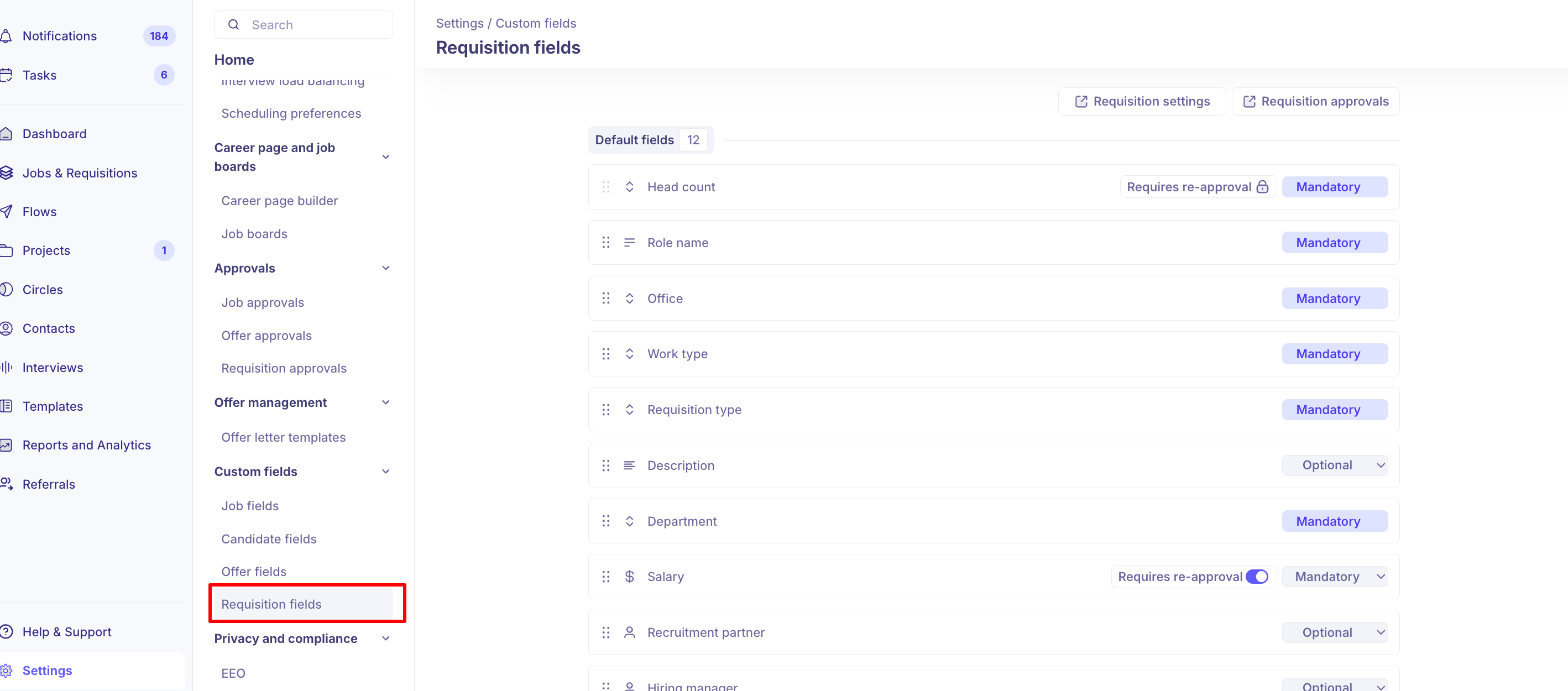
Note: Requisitions must be enabled in your account before Requisition Fields are available. See the Requisitions settings article to learn how to turn this on.
Adding a requisition field
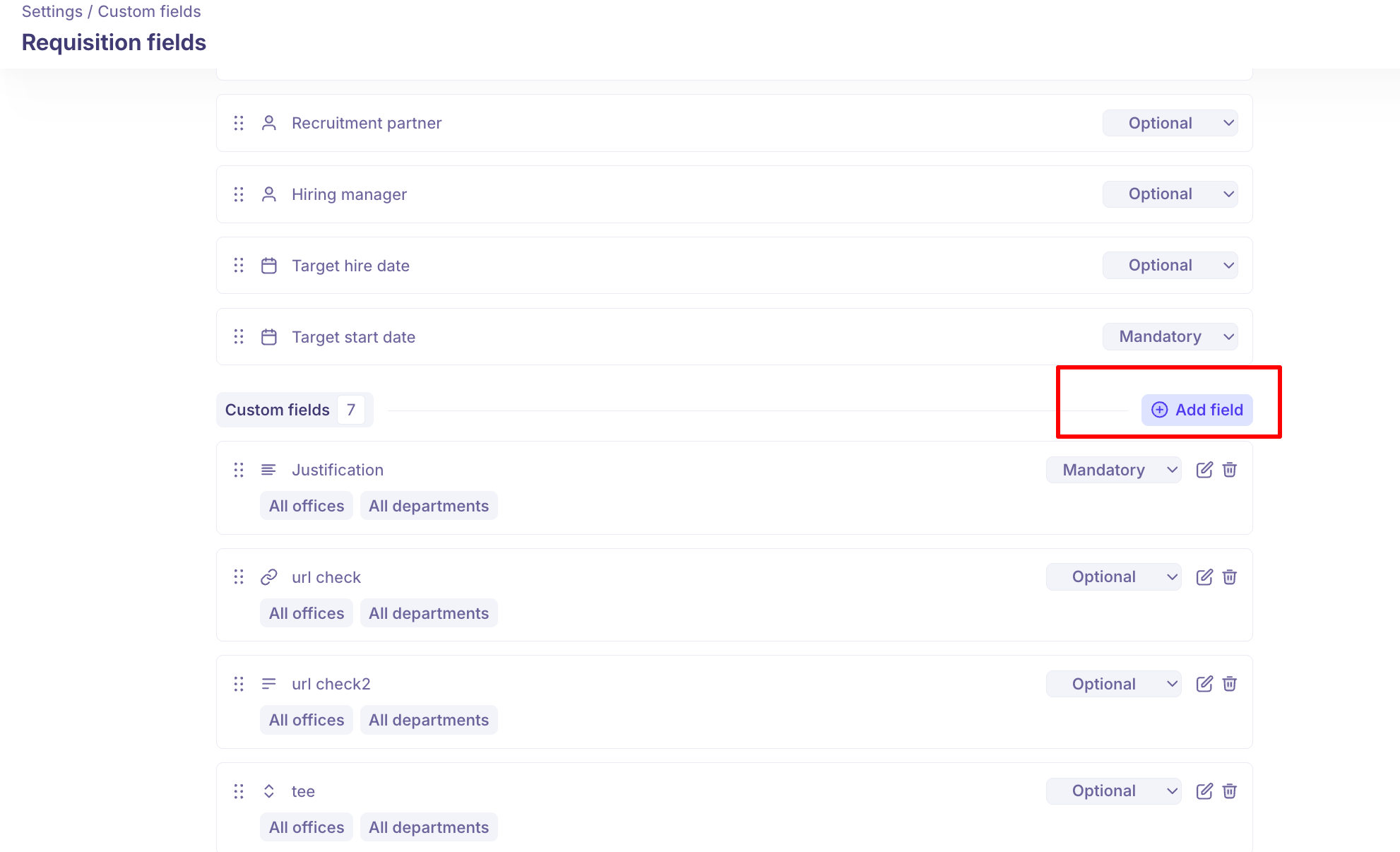
Click Add Field.
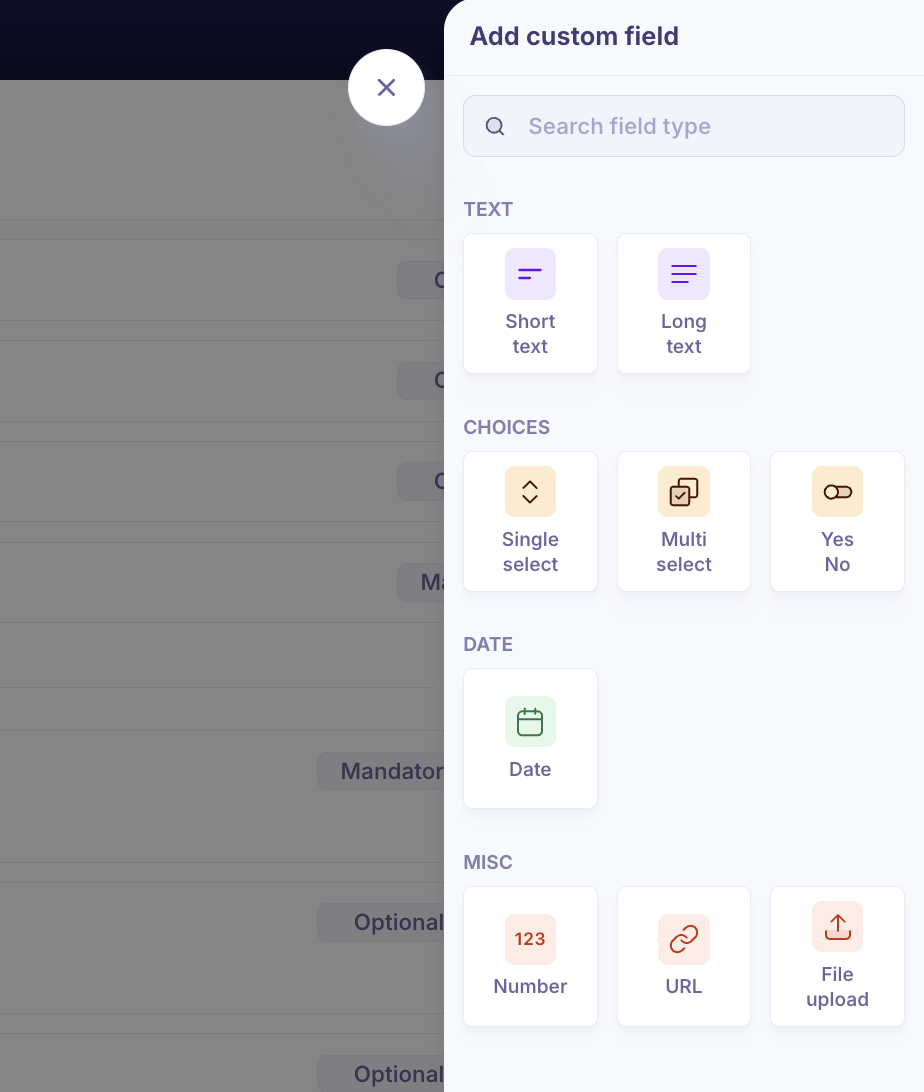
Field Type: select one of the supported types: Short Text, Long Text, Single Select, Multi Select, Yes/No, Date, Number, URL, or File upload.
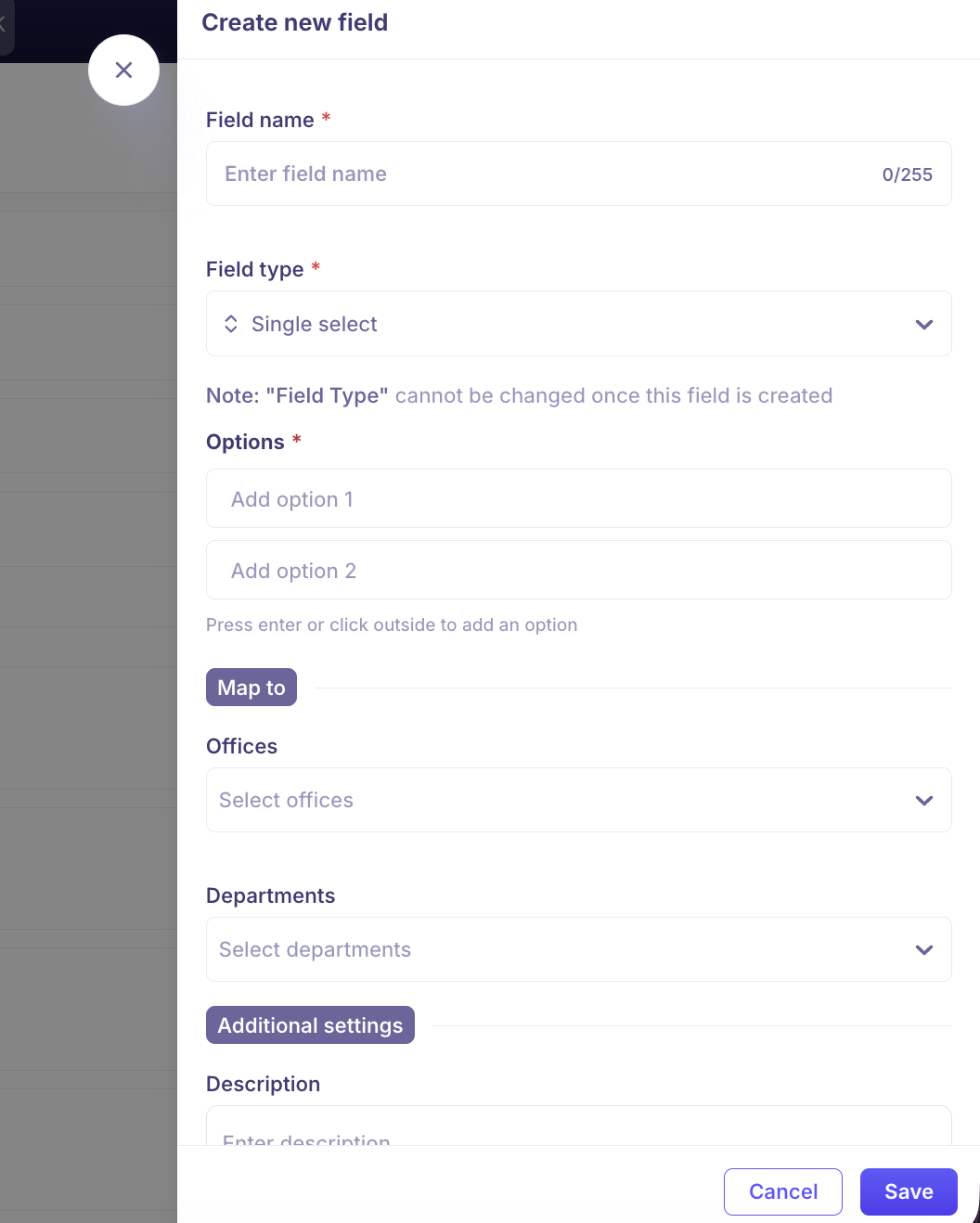
Field Name: enter a name for the field.
Office and Department: optionally select the offices and departments where this field should appear. Leave blank to show for all.
Required Field: check if the field must be filled when creating a requisition.
Click Save.
Once created, the field will appear in requisitions that match the same office and department combination. Fields can be edited or deleted using the Edit and Delete icons next to each field.
Editing and deleting requisition fields
Click the Edit icon next to a field to update its name, office/department scoping, or required status.
Click the Delete icon to remove it. Deleted fields are permanent and cannot be recovered.
Requires re-approval
Some requisition fields can be marked as Requires re-approval.
When enabled, any change to that field after the requisition has been approved will restart the approval workflow from the beginning.

This is useful for sensitive fields like Salary, where a change post-approval should always be reviewed again. Fields like candidate start date can be left without this setting so they can be updated freely without re-triggering approvals.
Need Help?
If you have questions or need assistance, reach out to us at support@kula.ai or use the in-app chat.