Filters in Kula help you quickly narrow down what you see — whether you are browsing candidates, reviewing jobs, tracking interviews, or analyzing reports. Every section of the platform has its own set of filters tailored to the data in that view. This article walks you through all the places where filters are available and what each one does.
Jobs
The Jobs list gives you a view of all jobs in your account. Use filters to focus on the roles that matter to you right now.
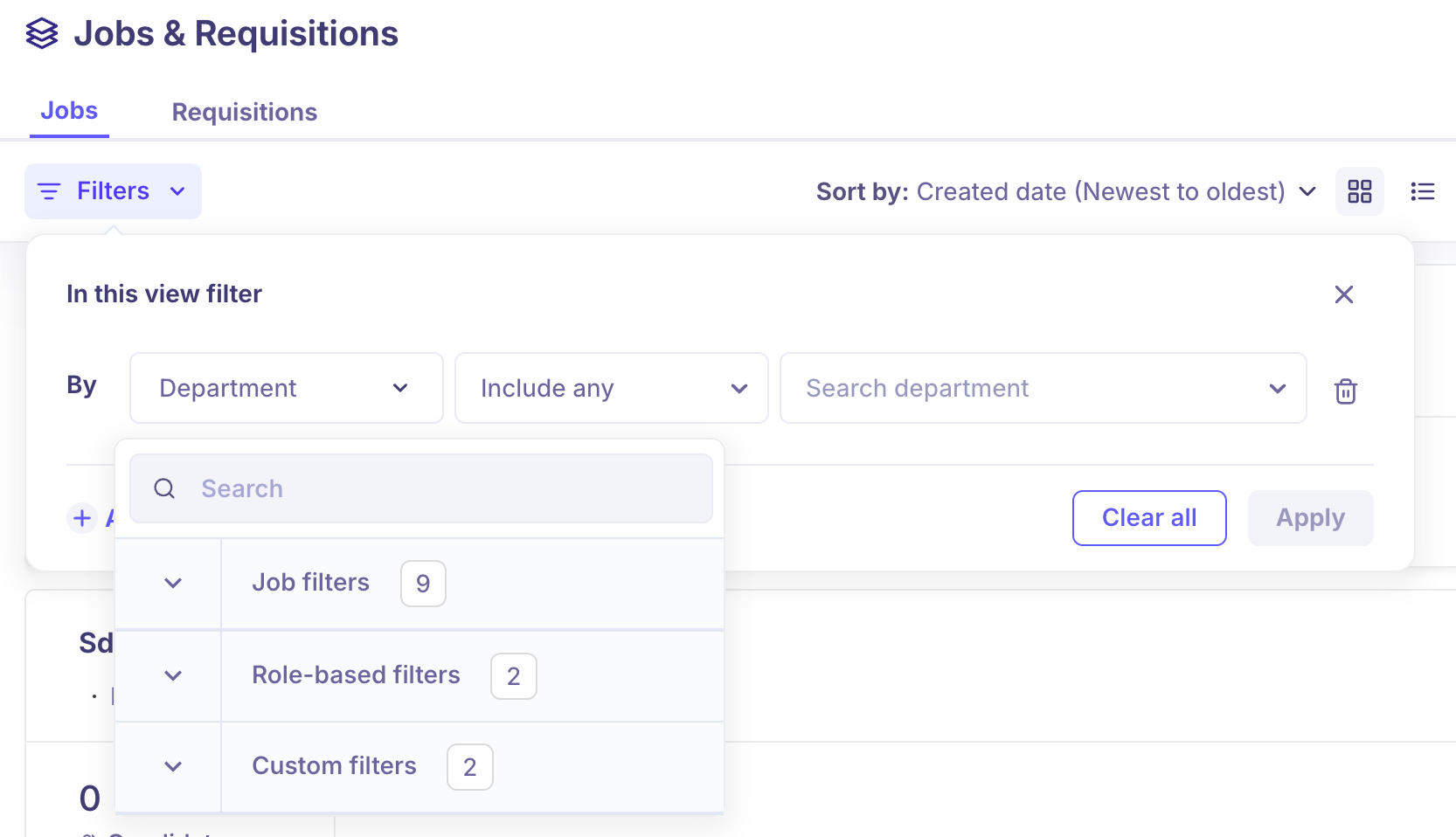
Job filters
Filter | What it does |
Office | Filter jobs by the office or location they are based in. |
Status | Show only Open, Closed, Draft, or On Hold jobs. |
EEOC data collection | Filter by whether EEOC data collection is enabled for the job. |
User | Filter by the team member associated with the job. |
Job posting visibility | Filter by whether the job is Listed or Unlisted externally. |
Work type | Filter by work type — e.g. Full-time, Part-time, or Contract. |
Workplace | Filter by workplace arrangement — e.g. On-site, Remote, or Hybrid. |
Job post | Filter by whether the job has an active job post. |
Confidential | Filter by whether the job is marked as confidential. |
Role-based filters
Filter | What it does |
Primary recruiter | Filter jobs by the recruiter assigned as the primary owner. |
Primary hiring manager | Filter jobs by the hiring manager assigned to the job. |
Custom filters
If your team has set up custom fields on jobs, those fields also appear here as filters.
Requisitions
The Requisitions tab has its own set of filters to help you track and manage open headcount requests.
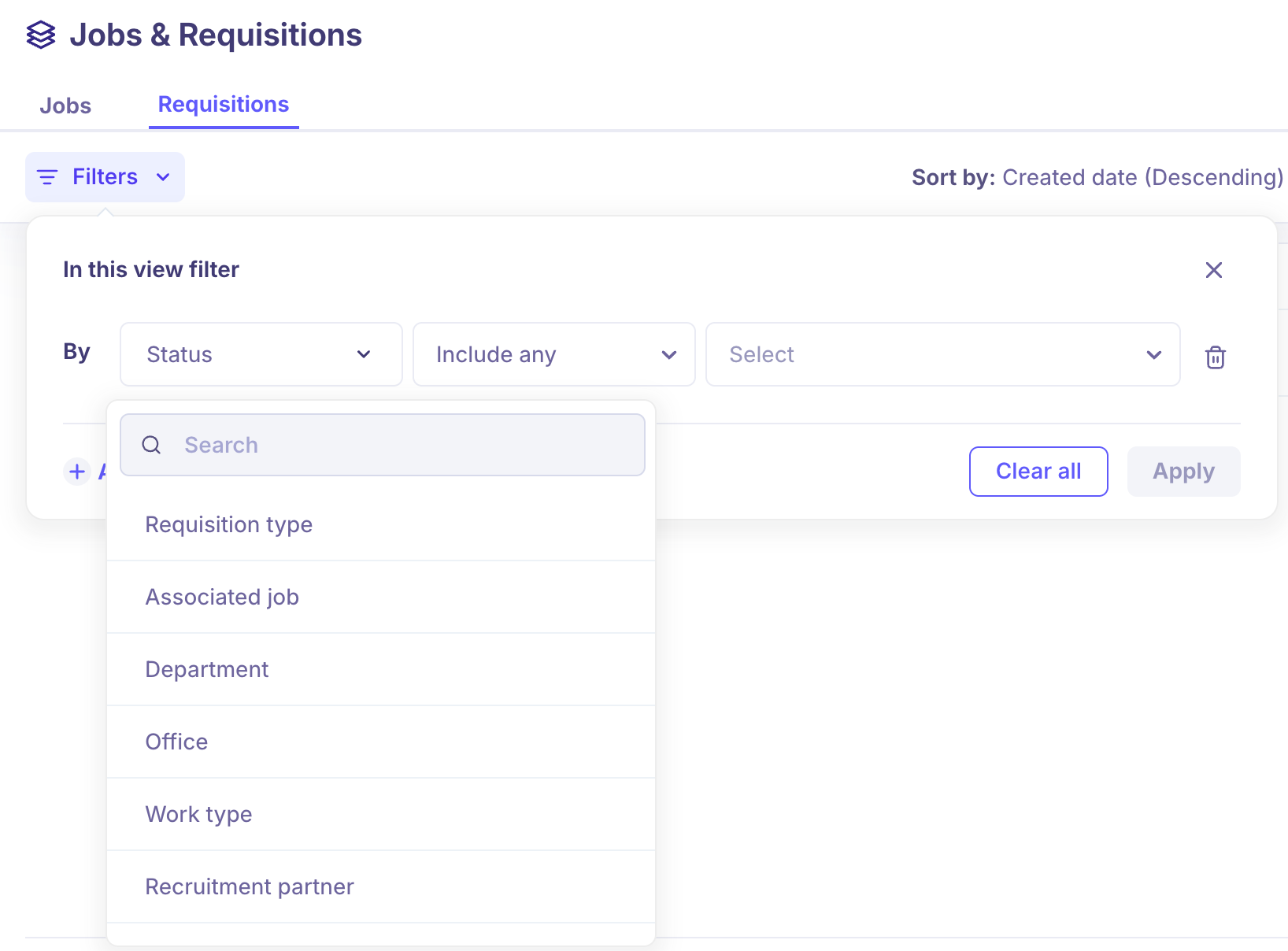
Filte | What it does |
Status | Filter requisitions by their current status — e.g. Open, Closed, or Draft. |
Requisition type | Filter by the type of requisition — e.g. New hire, Backfill, or Contract. |
Associated job | Filter by the job linked to the requisition. |
Department | Filter by the department the requisition belongs to. |
Office | Filter by the office or location the requisition is for. |
Work type | Filter by work type — e.g. Full-time, Part-time, or Contract. |
Recruitment partner | Filter by the recruitment partner assigned to the requisition. |
Hiring manager | Filter by the hiring manager on the requisition. |
Created by | Filter by the team member who created the requisition. |
Created at | Filter by the date the requisition was created. |
Target hire date | Filter by the target date to have the role filled. |
Target start date | Filter by the expected start date for the new hire. |
Candidates (inside a Job)
When you open a job and go to the Candidates tab, you can filter the candidate list to zoom in on specific groups. Filters here are also persistent across sessions.
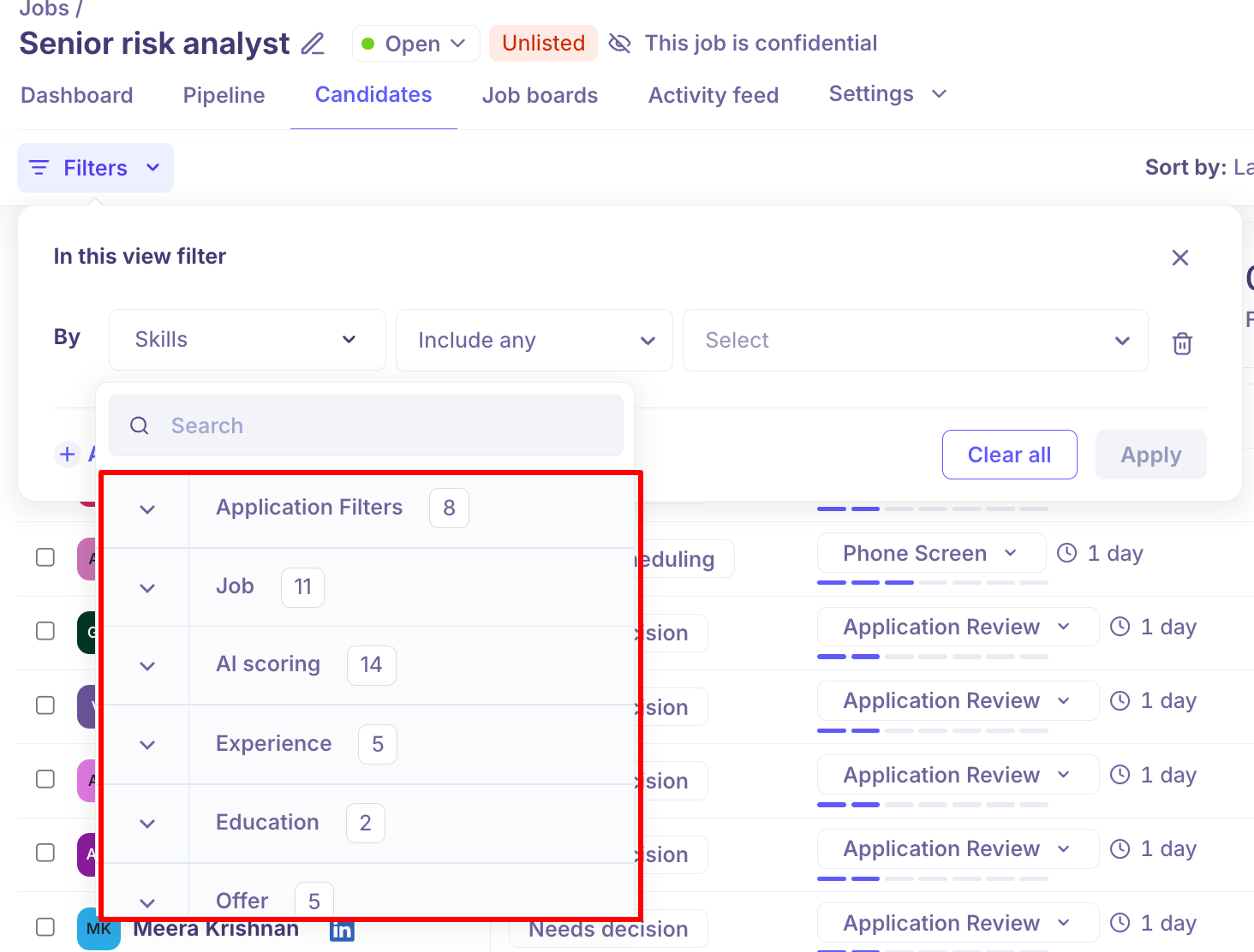
Application filters
Filter | What it does |
Candidate sources | Filter by how the candidate entered the pipeline — e.g. LinkedIn, Career Page, CSV Import, or Referral. |
Has resume | Show only candidates who have a resume attached to their profile. |
Resume search | Search resume content using keywords. Supports multi-word searches with match-all or match-any logic. |
Credited to | Filter by the team member credited for sourcing the candidate. |
Location | Filter by city, state, or country — fully searchable. |
Tags | Filter by tags applied to the candidate. |
Rejected by | Filter by how the candidate was rejected. Requires Application status to be set to Rejected first. |
EEO status | Filter by the candidate's EEO (Equal Employment Opportunity) data. |
Job filters
Filter | What it does |
Rejected Stage | The pipeline stage the candidate was in when rejected. Requires Rejected status to be selected first. |
Rejection reasons | The reason selected when the candidate was rejected. Requires Rejected status to be selected first. |
AI screening score | Filter by the candidate's AI fit score for this job. |
AI screening score status | Filter by the status of the AI screening — e.g. scored or not yet scored. |
Application status | Filter by the current status of the application — Active, Rejected, Hired, etc. |
Interviewers | Filter candidates who have been interviewed by a specific interviewer. |
Hire date | Filter candidates by the date they were hired. |
Rejected by type | Filter by whether the candidate was rejected by a user, by AI, or by an auto-rejection rule. |
Last applied date | Filter by the date the candidate last applied. |
Last Stage Change | Filter by the date the candidate's pipeline stage was last changed. |
Preferred location | Filter by the candidate's preferred work location. |
Experience filters
Filter | What it does |
Current company | Filter by where the candidate currently works. |
Past company | Filter by companies the candidate has previously worked at. |
Industry | Filter by the candidate's industry background. |
Employee size | Filter by the size of the candidate's current or previous company. |
Years of experience | Filter by total years of professional experience. |
Education filters
Filter | What it does |
Degree | Filter by the candidate's highest qualification or degree. |
Institution | Filter by the educational institution the candidate attended. |
Offer filters
Filter | What it does |
Offer department | Filter candidates by the department on their offer. |
Offer office | Filter candidates by the office listed on their offer. |
Offer start date | Filter candidates by their offer start date. |
Custom filters
If your job has custom fields on the application form, those fields appear here as filters. Supported types are Single-select, Yes/No, Date, and Number.
Contacts
The Contacts page is your full talent database across all jobs. Filters here are the most comprehensive in the platform, letting you segment your entire pool by profile attributes, job activity, offer status, and more.
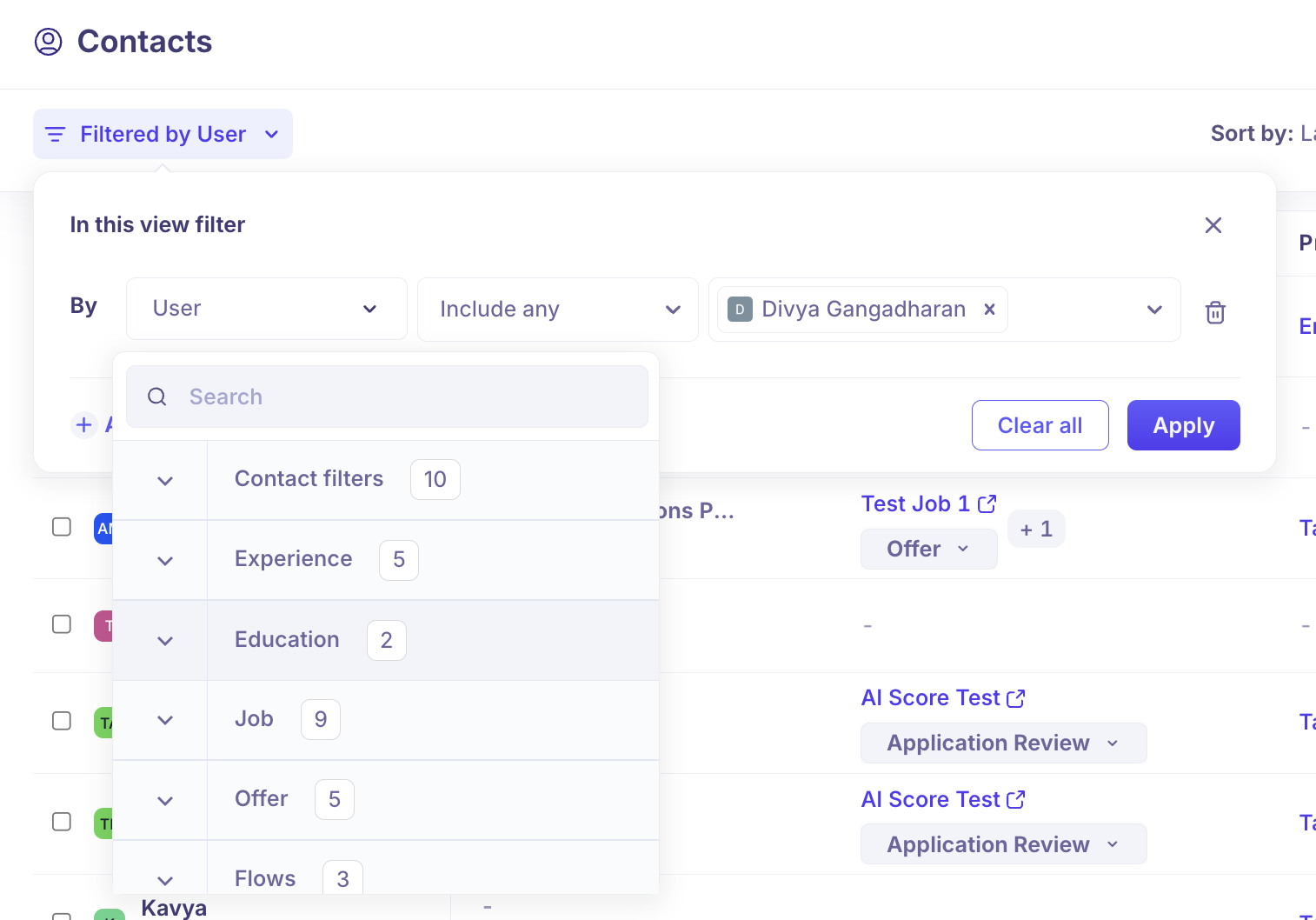
Contact filters
Filter | What it does |
Skills | Filter contacts by skills listed on their profile. |
Location | Filter by city, state, or country — fully searchable. |
Active in a job | Show only contacts who are currently active as a candidate in one or more jobs. |
Candidate source | Filter by how the contact was originally sourced into Kula. |
Credited to | Filter by the team member credited for sourcing the contact. |
Project | Filter contacts by the project they are associated with. |
Has resume | Show only contacts who have a resume on their profile. |
Resume search | Search resume content using single or multi-word terms, with match-all or match-any logic. |
EEO status | Filter by EEO data on the contact's profile. |
User | Filter contacts by the team member who owns or manages them. |
Experience filters
Filter | What it does |
Title | Filter by the contact's current job title. |
Current company | Filter by the contact's current employer. |
Past company | Filter by companies the contact has previously worked at. |
Industry | Filter by the contact's industry. |
Employee size | Filter by the size of the contact's current company. |
Education filters
Filter | What it does |
Degree | Filter by qualification or degree type. |
Institution | Filter by educational institution. |
Job filters
Filter | What it does |
Job name | Filter contacts by the job they are or were associated with. |
Job stage | Filter by the pipeline stage the contact is in for a selected job. Requires a single job to be selected first. |
Job status | Filter by the status of the job the contact is associated with. |
Application status | Filter by the status of the contact's application. |
Rejection reasons | Filter by the rejection reason applied to the contact on a job. |
Interviewers | Filter contacts who have been interviewed by a specific interviewer. |
Hire date | Filter by the date the contact was hired. |
Rejected by | Filter by how the contact was rejected. |
Offer filters
Filter | What it does |
Offer status | Filter contacts by their current offer status. |
Latest offer sent date | Filter by when the most recent offer was sent. |
Offer department | Filter by the department on the offer. |
Offer office | Filter by the office listed on the offer. |
Offer start date | Filter by the offer start date. |
Flow filters
Filter | What it does |
Flows | Filter contacts by the outreach flow they are enrolled in. |
Flow stage | Filter by the stage the contact is currently at within a flow. |
Flow status | Filter by the contact's status within a flow — e.g. Active, Interested, or Not Interested. |
Custom filters
Any custom fields configured for contacts — Single-select, Yes/No, Date, or Number — appear here as filters.
Flows
The Flows page shows all your outreach sequences. Three quick-access filters sit at the top of the page.
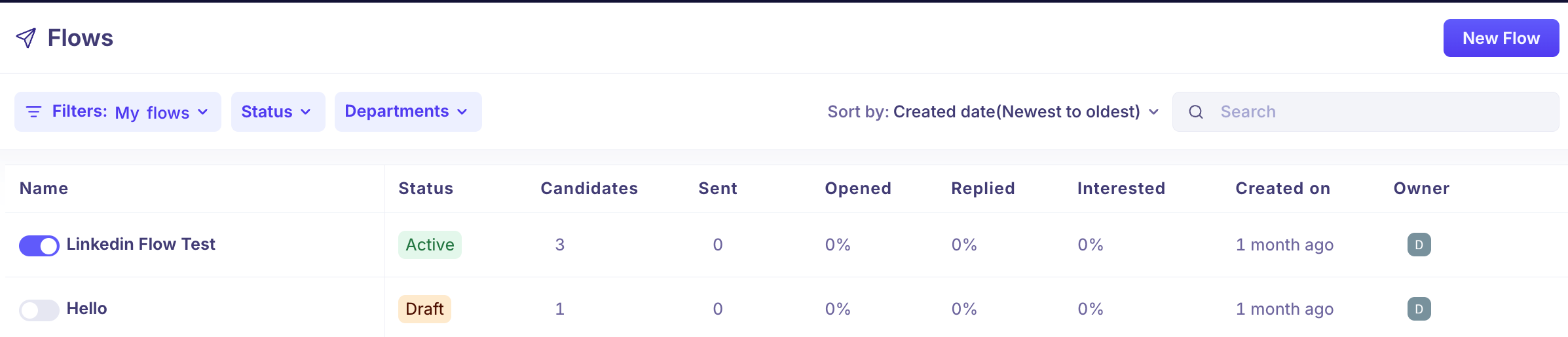
Filter | What it does |
Owner (Filters button) | Switch between My flows, All flows, or filter by a specific team member to see only their flows. |
Status | Filter flows by their current state — Active, Draft, Paused, Completed, or Archived. |
Departments | Filter by department. The picker is searchable and supports multi-level department hierarchies. |
Projects and Reviews
The Projects page has filters across two tabs — Projects and Reviews.
Projects tab

Filter | What it does |
Project (dropdown) | Quickly switch between All Projects, My Projects, Shared Projects, and Archived Projects. |
Talent Pool | Filter projects by the talent pool they are linked to. |
Owner | Filter projects by the team member who owns them. |
Reviews tab
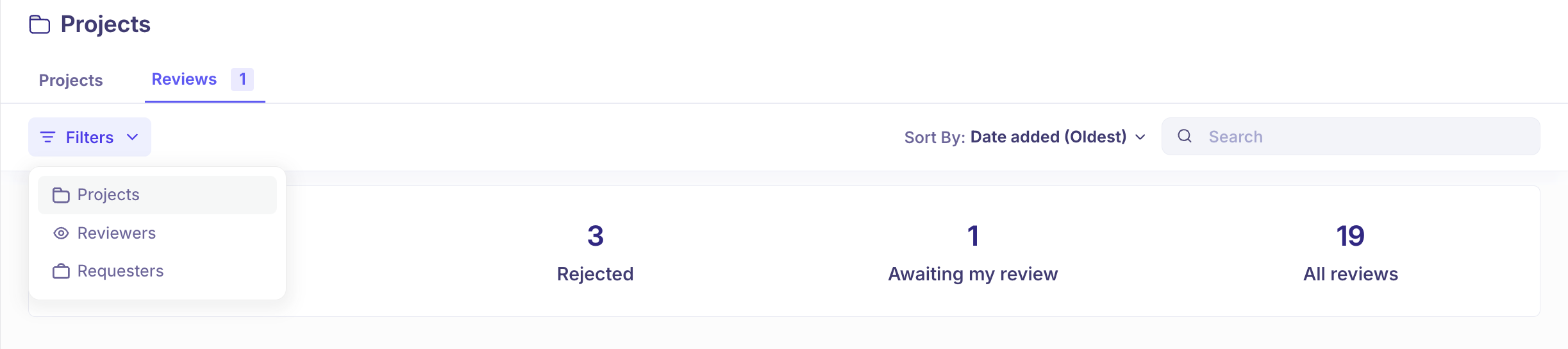
Filter | What it does |
Projects | Filter reviews by the project they belong to. |
Reviewers | Filter by the team member assigned as the reviewer. |
Requesters | Filter by the team member who requested the review. |
Interviews
The Interviews page gives you a view of all interviews across your account. The same set of filters is available across all three tabs — All interviews, Past interviews, and Upcoming interviews.
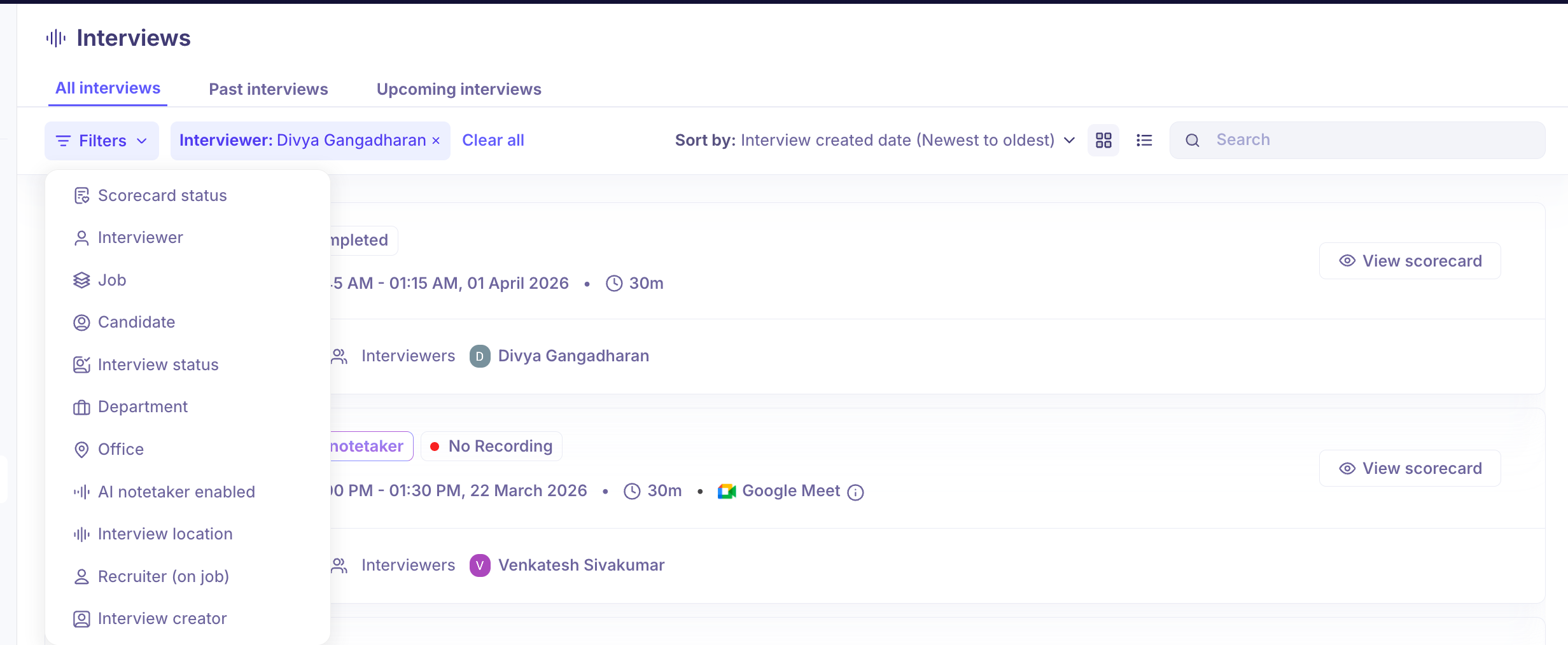
Filter | What it does |
Scorecard status | Filter by whether the scorecard is Pending or Completed. |
Interviewer | Filter by the specific interviewer on the interview. |
Job | Filter by the job the interview is associated with. |
Candidate | Filter by the specific candidate being interviewed. |
Interview status | Filter by the current state of the interview. Options: Scheduled, Bot waiting, Recording denied, In-progress, Recording now, Processing, Pending, Completed, Failed, No recording, Cancelled. |
Department | Filter by the department of the associated job. |
Office | Filter by the office of the associated job. |
AI notetaker enabled | Filter by whether the AI notetaker was turned on for the interview. |
Interview location | Filter by the location or conferencing tool used — e.g. Google Meet, Zoom, Microsoft Teams. |
Recruiter (on job) | Filter by the recruiter assigned to the job. |
Interview creator | Filter by the team member who created or scheduled the interview. |
Analytics & Reports
Filters are available across all default and custom reports in Analytics. Each report has its own set of filters relevant to the data it shows. For a full breakdown of filters per report, visit the Analytics section of the Help Centre.
Common filters available across most reports:
Filter | What it does |
Date range | Set the time period — choose from presets like last 7 days, last month, or last quarter, or enter a custom date range. |
Job name | Filter report data for one or more specific jobs. |
Department | Filter by department. |
Office | Filter by office or location. |
Recruiter | Filter by the recruiter assigned to the job. |
Hiring manager | Filter by the hiring manager on the job. |
Created by / Scheduled by | Filter by the team member who created or scheduled the activity. Available in Jobs, Requisitions, Offers, and Interview reports. |
Note: The Pipeline History report filters by application creation date, not by when a stage transition happened. If a candidate applied on Monday but moved stages on Wednesday, filtering for Wednesday will not show that candidate.
Need Help?
If you have questions or need assistance with setup, feel free to reach out to us at support@kula.ai or use the in-app assistance.