Creating and Managing Shared Emails
Last updated: May 20, 2025
A shared email address (like recruitment@yourcompany.com) lets your team send emails to candidates from a single, professional-looking address instead of individual team members’ accounts. Kula makes it easy to set up and use these shared emails after a quick domain verification process.
How to add shared email & verify your Domain
Before you can add a shared email address, you need to verify ownership of your domain (e.g., yourcompany.com).
1. Go to Organisation Settings > Email Setting > Shared email.
You must be an Admin or Super Admin to access this.
2. Add Your Shared email, Click “Add Email” and enter your company’s domain name (e.g., hiring@yourcompany.com). > Click on Save.
Share access with:
Specific users
User roles (e.g., All recruiters)
Everyone in the org
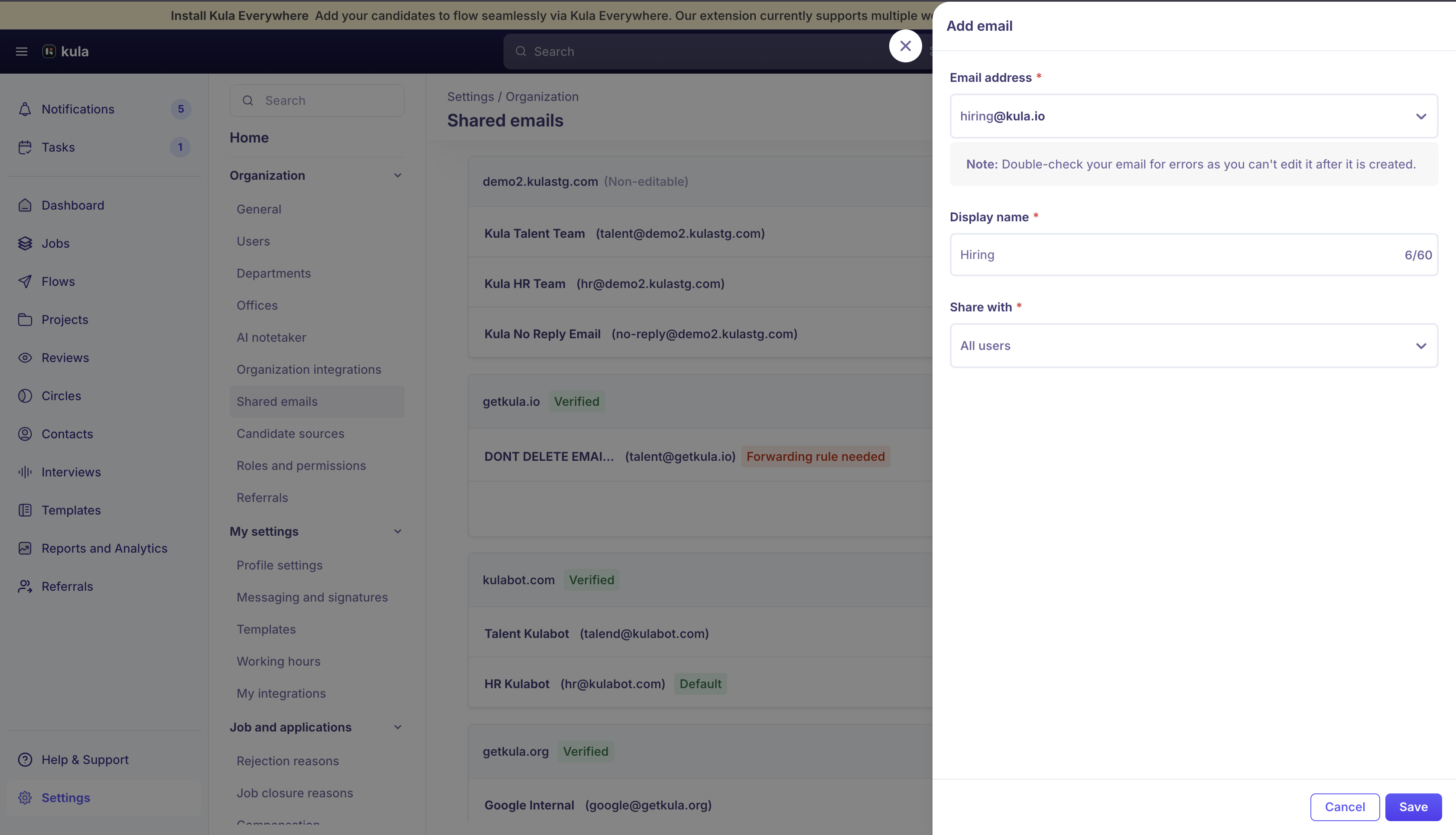
Please click on the dropdown/send to your IT Department.
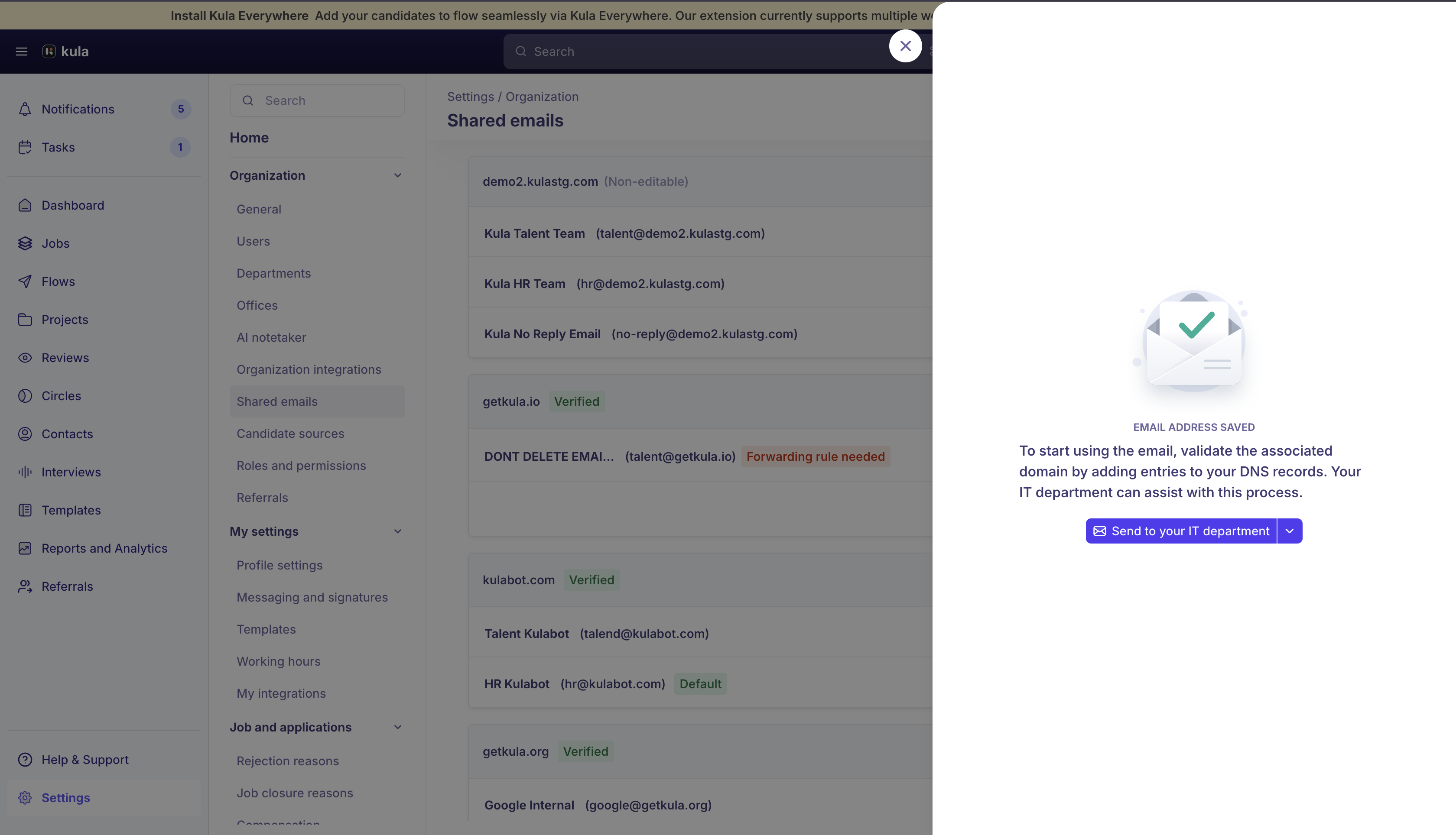
3. Follow the Instructions Based on Your MX record
There are 3 possible DNS cases:
Case 1: No MX Records Present
You’ll need to:
Add MX, TXT, and CNAME records provided by Kula to your DNS
Send these to your IT team or copy-paste directly from the Kula UI
Once DNS records are updated, click “Verify” in Kula
Case 2: Google or Microsoft MX Records Detected Steps:
Add TXT and CNAME records for domain verification
Then, set up an email forwarding rule to Kula
Google: Create a forwarding rule →
Microsoft: Create a forwarding rule →
Come back to Kula and click “Verify"
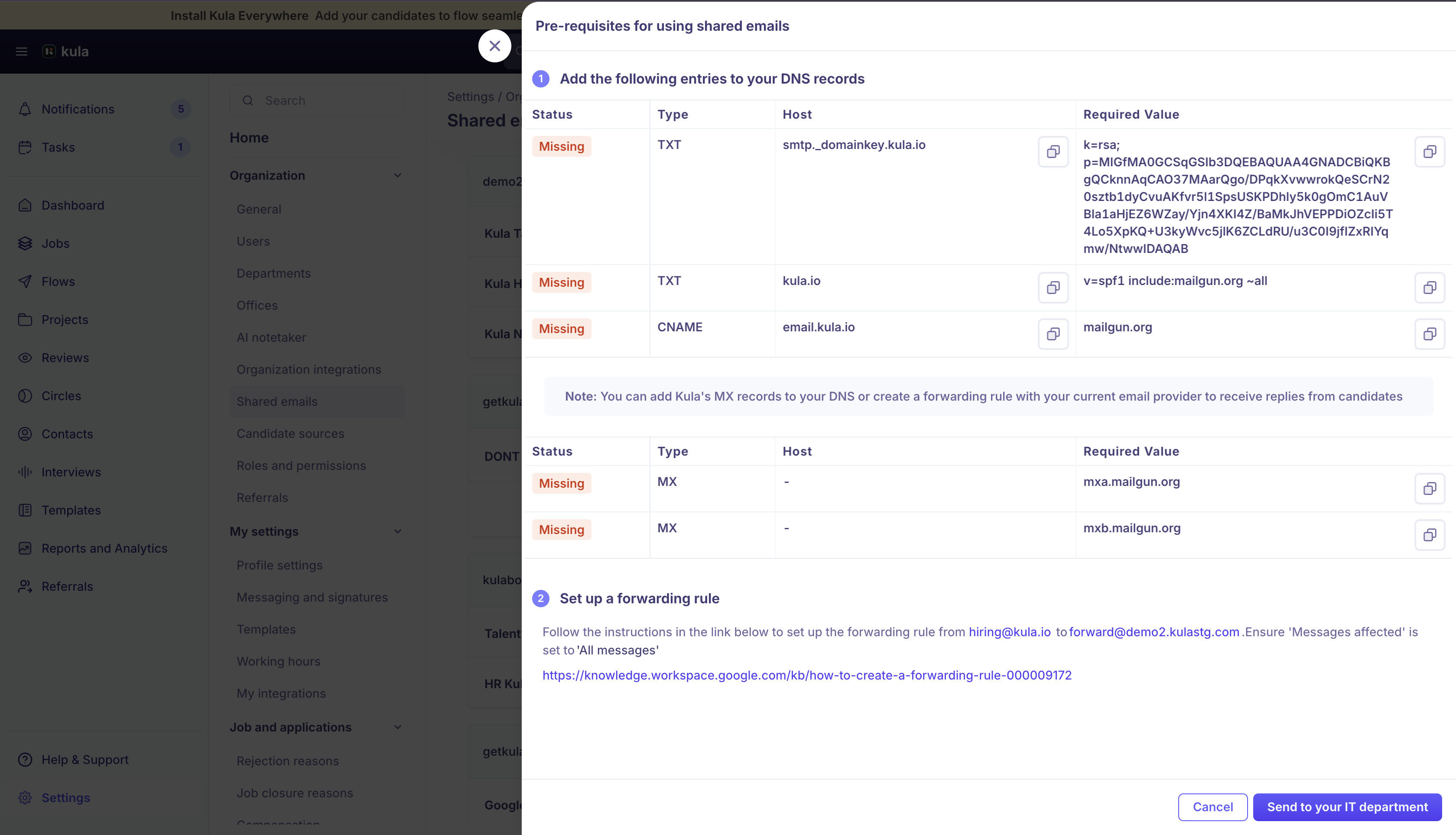
Case 3: Unknown MX Records Detected (Same as case 2):
Add TXT and CNAME records
Ask your email admin to forward emails to the Kula address
Click “Verify” in Kula.
Note - You must verify forwarding rule shared emails with Google, Microsoft or Unknown MX records
How to set up Shared email as Default email
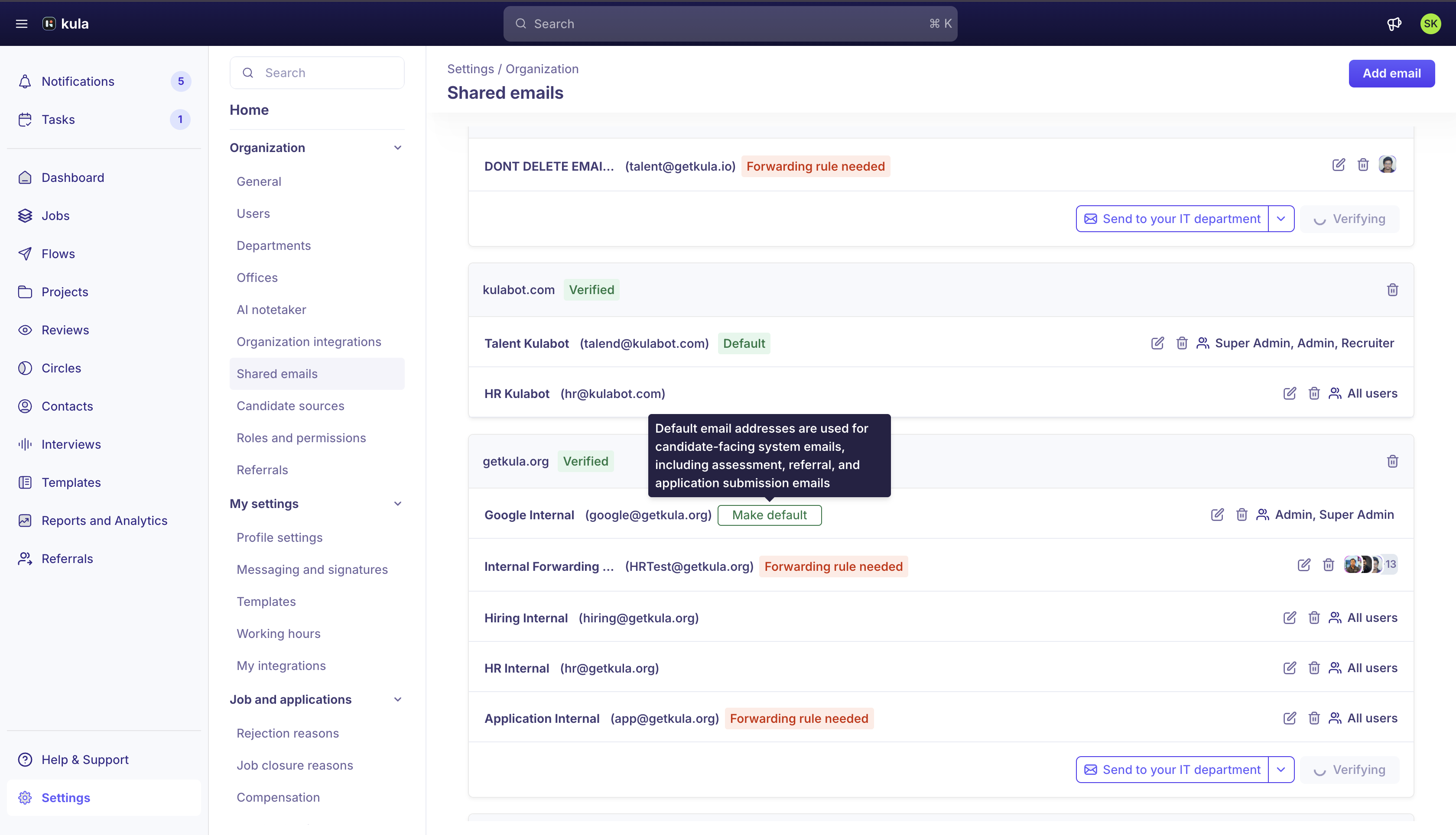
Hover on the email which you would like Make default email. You can click on "Make Default" button.
You can set the shared email as default for system-generated emails like:
- Assessment invites
- Application submissions
- Referral invitations
If no default is set, Kula will use a fallback like talent@company.kula.ai.
Where Can Shared Emails Be Used?
Email activity (conversations tab)
Ad-hoc email (anywhere in the app)
Self-schedule, assessments - (via default)
Rejection emails.
Application submission confirmations - (via default)
Offer emails.
Referral emails. (via default)
Flow emails (job-specific automations)
FAQs:
What is a shared email?
A team email address (e.g., hiring@yourcompany.com) used to send candidate emails from one shared identity.Why use a shared email?
For consistent communication, better branding, and shared team accessWho can add a shared email?
Only Admins or Super Admins.Where do I add a shared email?
Go to Organisation Settings → Email Settings → Shared Email.How do I verify my domain?
Add DNS records (TXT, MX, CNAME) provided by Kula to your domain settings.What if I use Google or Microsoft email?
Add TXT/CNAME records and set up email forwarding before verifying.Can I share access to a shared email?
Yes, with specific users, user roles, or everyone in the org.How do I make a shared email the default?
Hover over the email and click "Make Default".When is the default shared email used?
For assessments, referrals, and application submission emails.Can I use shared email for ad-hoc messages?
Yes, from anywhere in the app.Will the AI use the shared email?
Yes, if it’s set as default for system communication.What if DNS verification fails?
Recheck the records or contact your IT team for help.