Assigning Jobs to Departments and Offices
Last updated: April 10, 2026
In Kula, every job can be assigned to a specific department and office. These assignments do more than organize your jobs list. They drive filtering on your career page, determine which offer letter templates are applied, power analytics and reports, and control how jobs appear on job boards like LinkedIn.
Setting them up correctly from the start ensures everything downstream works as expected.
Before You Begin
Departments and offices must be created in Settings before they can be assigned to jobs. If you haven't set these up yet, refer to:
Assigning a Department and Office When Creating a Job
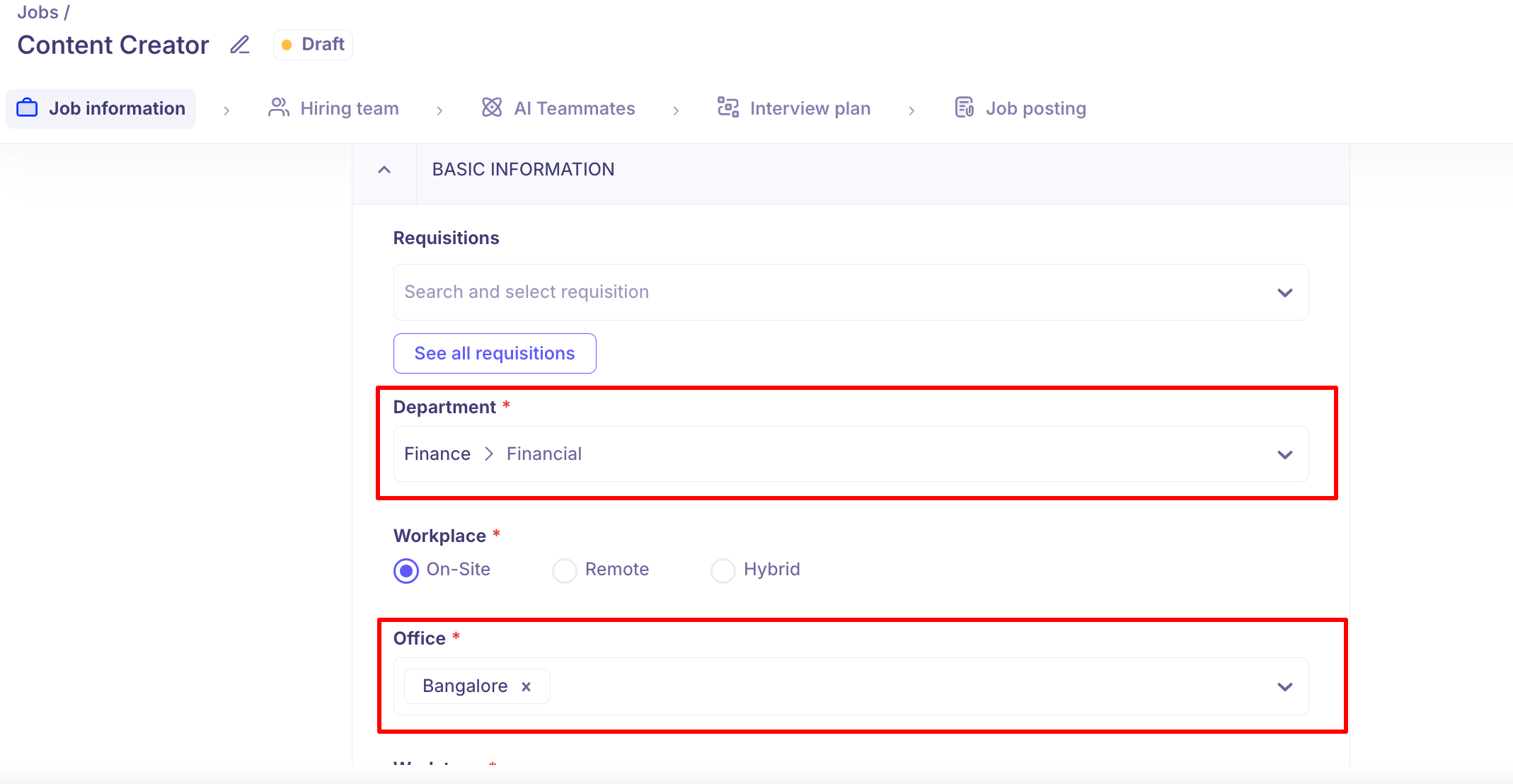
When creating a new job in Kula, department and office are set in the Job Information section.
Navigate to Jobs and click Create Job.
In the Job Information section, fill in:
Department — select the relevant department or sub-department from the dropdown
Office — select one or more office locations for the job
Work Type — select On-site, Hybrid, or Remote
Complete the remaining job details and click Create.
Jobs can be assigned to multiple offices. When multiple locations are added, candidates applying for the job may be asked to indicate their preferred location.
Updating Department and Office on an Existing Job
Navigate to Jobs and open the relevant job.
Go to Settings > Job Info
Update the Department and/or Office fields as needed.
Click Save.
Why Department and Office Assignments Matter
Assigning the correct department and office to a job has several downstream effects across the platform:
Career Page Filtering
Candidates browsing your career page can filter jobs by department and location. Jobs without a department or office assigned will not appear in filtered views, making them harder to find.
Offer Letter Templates
The Department and Office fields on a job are used to match and surface the correct offer letter template during offer creation. If your organisation uses different offer templates by department or location, these fields must be filled in accurately.
Interview Plans and Application Forms
Interview plans and application forms configured in Settings can be scoped to specific departments, offices, and work types. When a job is created with matching values, Kula automatically applies the correct plan and form.
Approval Workflows
Job approval flows and requisition approval flows can be configured by department and office. When a job or requisition is submitted for approval, Kula routes it to the correct approvers based on these fields.
Analytics and Reports
Reports in Kula can be broken down and filtered by department, office, and work type. Accurate job assignments ensure your hiring analytics — including time-to-fill, pipeline health, and recruiter performance — reflect the right segments.
Job Board Distribution
When posting jobs to LinkedIn, Indeed, or other job boards via Kula, the office location determines where the job is listed. Remote offices result in Remote job listings; physical offices result in location-specific listings.
Note on Remote vs. Hybrid: If a job is set to Hybrid in Job Information but the assigned office has the Remote toggle enabled, Kula will send the job to LinkedIn as Remote. To display a job as Hybrid, ensure the Remote toggle is off on the assigned office and set the work type to Hybrid at the job level.
Can a job be assigned to more than one office? Yes. Kula supports multiple office locations per job. When multiple locations are added, candidates may be prompted to select their preferred location when applying.
Can a user be assigned to multiple departments? No. Currently, each user can only be assigned to one department. However, users can still be added to hiring teams across jobs in any department, regardless of their own department assignment.
Need Help?
If you have questions or need assistance with setup, feel free to reach out to us at support@kula.ai or use the in-app chat for assistance.