Creating and managing departments
Last updated: September 17, 2026
Departments are how Kula groups your jobs, requisitions and people. Set them up once and they appear as a filter and a grouping everywhere — on job forms, in reports, on your career page and in your HRIS mapping.
Who can do this: Super Admin
Where to find it: Settings → Organization → Departments
Why departments matter
Every job belongs to one department. That choice does three things.
It sets the job up. Kula can hold a separate setup for each department, so an Engineering job starts with Engineering's and not Sales'. What can differ:
The job form and custom fields
Interview stages and scorecards
Application forms and consent rules
Offer, job description and email templates
Approvals for jobs, requisitions and offers
EEO, compensation and AI notetaker settings
Candidate and employee surveys
It groups your data. Departments are how reports filter and break down, how candidates browse jobs on your career page, and what gets sent to your HRIS.
It limits who sees what. A department head sees only the jobs, candidates, interviews and requisitions in their own departments.
Sub-departments follow their parent unless you give them their own setup, so you only change what is actually different. Pick a parent anywhere — in a report filter or when giving someone access — and you get everything under it too.
Add departments
Click on the Settings icon that is located at the very bottom of the left-side menu.
Under the Organization Settings section, click on Departments.
Click on the Add Department button that is located on the top right corner of the screen.
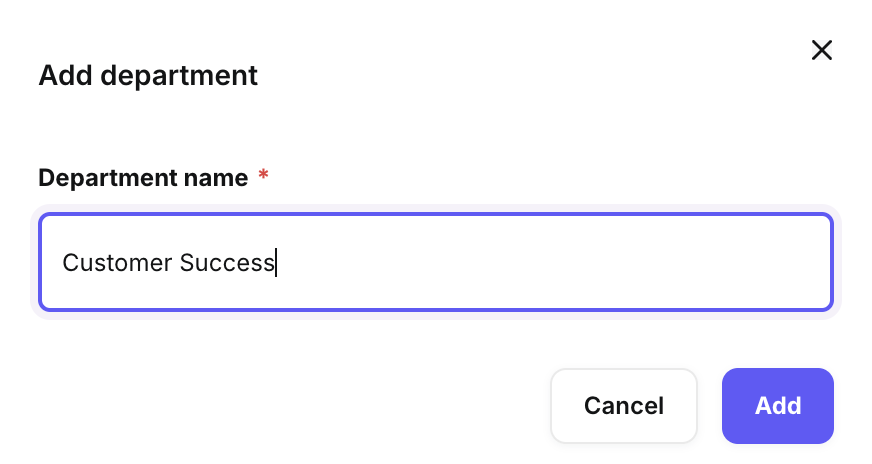
Fill the department’s name in the Department Name field and click on the Add button.
Add sub-departments
Click on the Add sub-department button present on every parent department section on the Departments homepage.
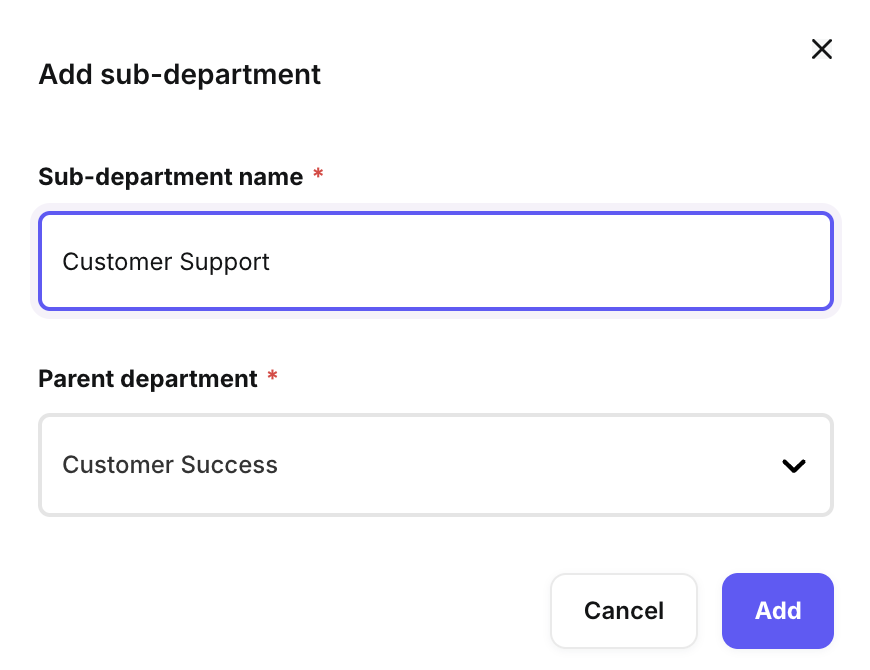
Enter the sub-department’s name > Choose its parent department > Complete the action by clicking on the Add button.
Rename departments and sub-departments
Click on the Edit icon that appears when you hover over the respective sections on the Departments homepage.
Update the name according to your need in the name field > Complete the action by clicking on the Save button.

Delete departments and sub-departments
You can delete a department and its sub-departments by clicking on the Delete icon that appears when you hover over the respective sections on the Departments homepage.
Now you will be prompted to complete the action by either mapping it to a new destination altogether or by simply completing the deletion without mapping.
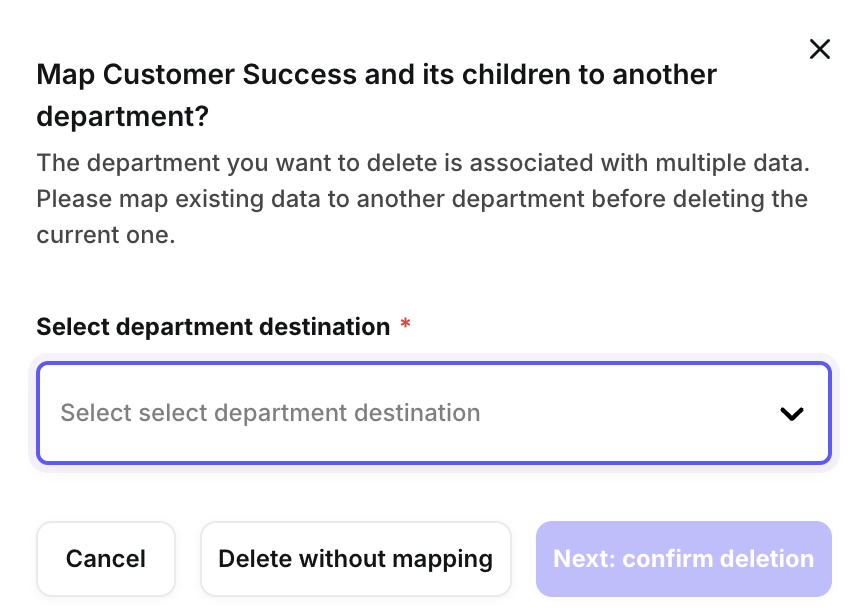
NOTE: These fields are associated with multiple data sets across your Kula environment; the general best practice is to map them to a new department before deleting them to avoid any workflow breakage and any reporting errors.
Move sub-departments
Hover over a department to reveal its actions.
Action | What it does |
|---|---|
Pencil icon | Renames the department in place. |
Up-down arrows | Move to another department — re-parents this department and everything under it. |
Drag handle | Reorders departments by hand. |
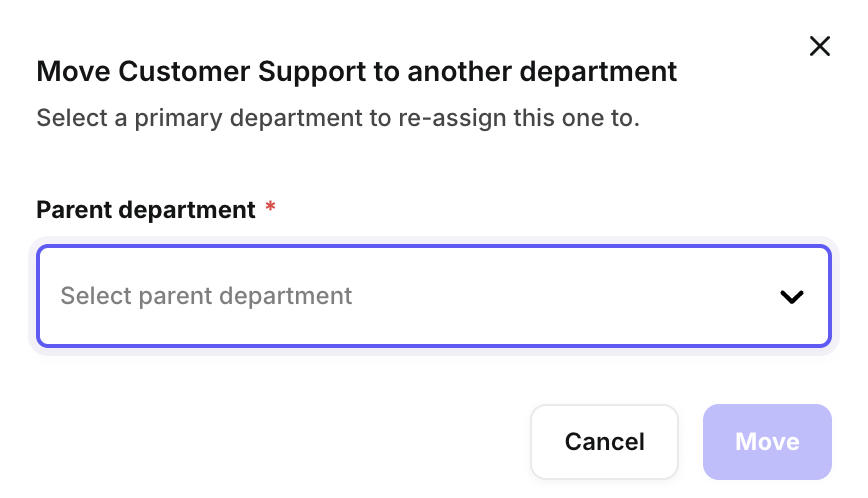
You can move a sub-department by simply clicking on the Move icon that appears when you hover over the respective sections on the Departments homepage.

Now you will be prompted to complete the action by re-assigning to a new parent department altogether.
Good to know
Departments can be nested four levels deep — a department plus three levels of sub-department.
Deleting a parent deletes everything under it. The dialog says so in its title when the department has children.
Deleting is permanent and cannot be undone.
You cannot map a department into itself or into one of its own children — those options are greyed out in the destination list.
Delete without mapping reassigns nothing. Jobs, requisitions and people that used the department are left without one, and you will need to set them again by hand.
Remapping runs in the background. After a delete with mapping, counts and filters can take a moment to catch up.
FAQ
Who can create and change departments? Super Admins.
What happens to jobs and people when I delete a department? If you map it to another department, everything attached moves there. If you delete without mapping, nothing is reassigned — jobs, requisitions and people are left without a department, and you'll need to set them again by hand.
Can I undo deleting a department? No. Deleting is permanent, and deleting a parent also deletes everything under it.
How many levels of sub-department can I have? Four levels in total — a department plus three levels of sub-department.
Can I move a sub-department to a different parent? Yes. Hover over it and use the up-down arrows (Move to another department). Everything under it moves too.
Why are some departments greyed out when I pick where to map or move? You can't map or move a department into itself or into one of its own sub-departments.
Need help? If you have questions or need assistance, reach out to us at support@kula.ai or use the in-app chat.