Setting up office locations
Last updated: September 17, 2026
Offices are the places you hire into. Each one is a real, mapped location, which is what lets candidates filter your career page by city and find their way to an onsite interview.
Who can do this: Super Admin
Where to find it: Settings → Organization → Offices
Why offices matter
A job can have one office or several. They do three things.
They set the job up. Like departments, offices can carry their own forms, templates and approvals — useful when Berlin hires differently from Bangalore.
They tell candidates where the job is. The office is the location shown on your career page and the job boards you post to, and the one candidates filter by. It is also a real place on the map, so an onsite interview invite includes a Google Maps link the candidate can tap to find you. Offices are sent to your HRIS too.
They limit who sees what. A site lead sees only the jobs, candidates, interviews and requisitions at their own offices.
Add an office
Offices are grouped by country. Use Add office in the top right, or the Add office link on a country row to add one under that country.
Click on the Settings icon that is located at the very bottom of the left-side menu.
Under the Organization Settings section, click on Offices.
Click on the Add Office button that is located in the top right corner of the screen.
You can enter the below details.
Office Name: This is Mandatory
Location: You can search, select, and save precise office locations using Google Maps autocomplete. This provides greater accuracy and flexibility compared to manually entering city or state information.
Select the exact office location rather than only a city or region.
With this you can easily differentiate between multiple offices within the same city or geographic area.
Note: For the interview.onsite_location variable, a Google Maps link is now included, allowing candidates to click and navigate directly to the interview location with ease
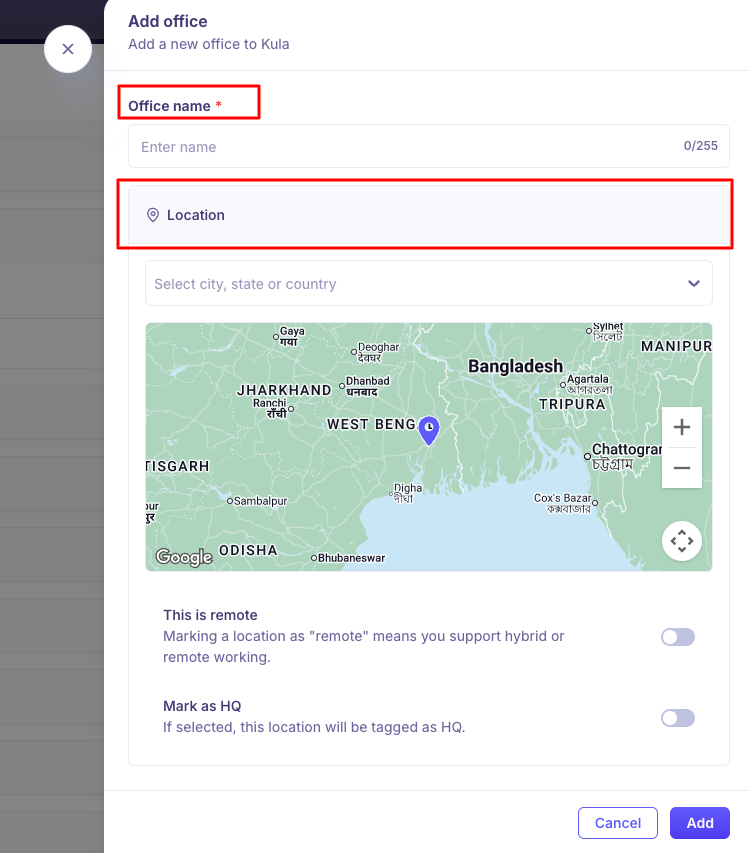
Mark an office as your company's Headquarters by selecting the This is HQ checkbox.
Mark a location as remote-centric by selecting the This is remote checkbox.
Click on the Add button to complete the creation of an office location.
Add multiple offices in a location
To add more office locations under a country section, click the Add Office button in that section on the Offices homepage. Then, follow the previously outlined instructions to complete the setup.

Edit or delete an office
Hover over an office to reveal the pencil and bin icons.
Editing opens the same drawer, so you can correct the name, re-pick the location, or change the remote and HQ toggles.
Deleting takes two steps:
Click the bin icon.
Choose an office destination — everything attached moves there — then click Next: confirm deletion. To delete without moving anything, click Delete without mapping.
Confirm the deletion.
Mapping moves the office's jobs, the people whose profile named it, and any permission scopes built on it.

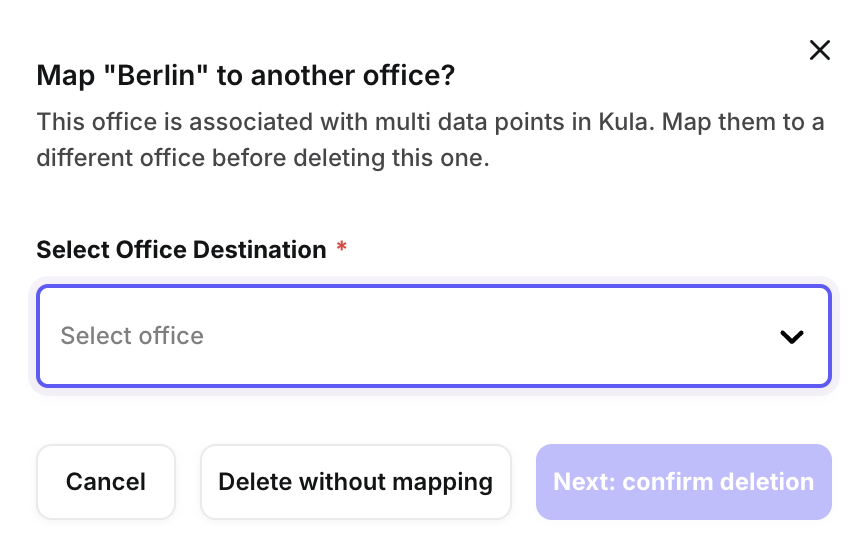
NOTE: These fields are associated with multiple data sets across your Kula environment; the general best practice is to map them to a new destination before deleting them to avoid any workflow breakage and any reporting errors.
Good to know
Picking a country or a state instead of a city marks the office as remote. Kula turns This is remote on automatically when the place you chose has no city in it. If an office is showing as remote when it should not be, re-open it and pick the city itself.
Offices are tagged in the list. Your headquarters shows an HQ tag and remote locations show a Remote tag, so you can see the shape of your setup at a glance.
Deleting is permanent and cannot be undone.
Delete without mapping reassigns nothing. Jobs and people that used the office are left without one.
Remapping runs in the background, so filters and counts can take a moment to catch up after a delete.
You may find offices you never created. Importing from another ATS creates an office for each location it finds, and new accounts start with a couple of sample ones. Deleting them one at a time is fine; clearing out a long list is not self-serve — contact support@kula.ai.
A job can have more than one office, but an HRIS integration only sends the first one.
FAQ
Who can add and change offices? Super Admins.
Why is one of our offices showing as Remote? The location picked for it was a country or state, not a city, so Kula turned on This is remote. Edit the office and pick the city itself.
Can a job have more than one office? Yes. Note that an HRIS integration only receives the first office.
What happens to jobs and people when I delete an office? If you choose an office destination, its jobs, the people whose profile named it, and any permission scopes built on it move there. If you delete without mapping, nothing is reassigned.
There are offices in our list we never created. Where did they come from? Importing from another ATS creates an office for each location it finds, and new accounts start with a couple of sample offices. Delete them one at a time, or contact support to clear out a long list.
How do candidates find the office for an onsite interview? The interview invite includes a Google Maps link to the office location, so candidates can tap it to get directions
Need help? If you have questions or need assistance, reach out to us at support@kula.ai or use the in-app chat.