Bulk Actions on Candidates
Last updated: May 28, 2026
Bulk actions let you perform the same operation on multiple candidates simultaneously, saving time when managing a large pipeline. You can select candidates from the Candidates tab of any job and apply actions such as sending emails, moving stages, rejecting, adding tags, and more.
To use bulk actions, go to a job and click Candidates in the top navigation.
This article covers:
Selecting candidates for bulk actions
Available bulk actions
Send email (bulk)
Send self-schedule link (bulk)
Move to another stage (bulk)
Reject all (bulk)
Additional bulk actions (three-dot menu)
Permissions
Selecting Candidates for Bulk Actions
Before applying a bulk action, you need to select the candidates you want to act on.
To select candidates:
Click the checkbox on the left side of any candidate row to select that individual candidate.
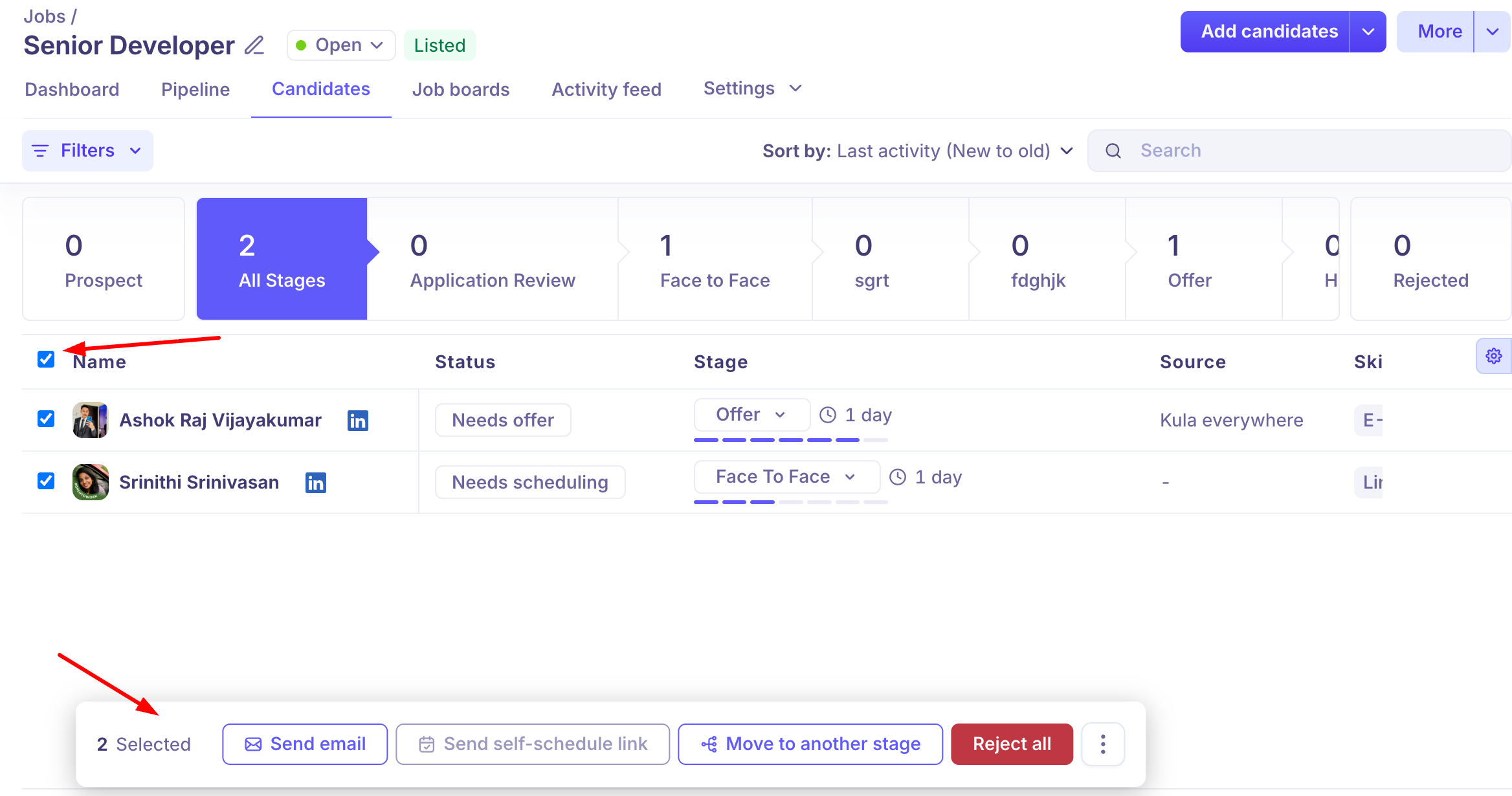
Click the checkbox in the header row (next to the Name column) to select all candidates currently visible on the page.
You can also filter or sort the list first, and then select all to act only on a filtered subset.
Once one or more candidates are selected, a bulk actions bar appears at the bottom of the screen showing the number of selected candidates and the available actions.
Available Bulk Actions
The bulk actions bar provides the following primary actions:
ActionDescription | |
Send email | Compose and send an email to all selected candidates at once |
Send self-schedule link | Send a self-schedule interview link to all selected candidates |
Move to another stage | Move all selected candidates to a specified pipeline stage |
Reject all | Reject all selected candidates and remove them from the active pipeline |
Additional actions are available via the three-dot (⋮) menu on the right side of the bulk actions bar.
Send Email (Bulk)
Use this action to send a single email to all selected candidates simultaneously.
Steps:
Select the candidates you want to email.
Click Send email in the bulk actions bar.
Compose your email in the dialog — you can use email templates if they have been set up.
Review the recipient list and click Send.
Tip: Bulk emails are sent individually to each candidate, so each recipient sees only their own name in the To field — not a group list.
Send Self-Schedule Link (Bulk)
This action sends a self-schedule link to all selected candidates, allowing them to book an interview slot at their convenience.
Steps:
Select the candidates you want to send the link to.
Click Send self-schedule link in the bulk actions bar.
Choose or configure the interview slot settings in the dialog.
Confirm to send.
Each selected candidate receives their own self-schedule link based on interviewer availability configured in your scheduling settings.
Move to Another Stage (Bulk)
Move all selected candidates to a specific stage in a single action.
Steps:
Select the candidates you want to move.
Click Move to another stage in the bulk actions bar.
Choose the target stage from the dropdown.
Confirm the move.
All selected candidates are moved to the chosen stage simultaneously. Stage automations configured for the target stage will be triggered for each candidate.
Reject All (Bulk)
Reject all selected candidates at once. Rejected candidates are removed from the active pipeline and moved to the rejected view.
Steps:
Select the candidates you want to reject.
Click Reject all (red button) in the bulk actions bar.
Confirm the rejection in the dialog. You may be prompted to choose a rejection reason or send a rejection email.
Rejection is reversible. Rejected candidates can be found under View rejected and can be moved back to an active stage if needed.
Additional Bulk Actions (Three-Dot Menu)
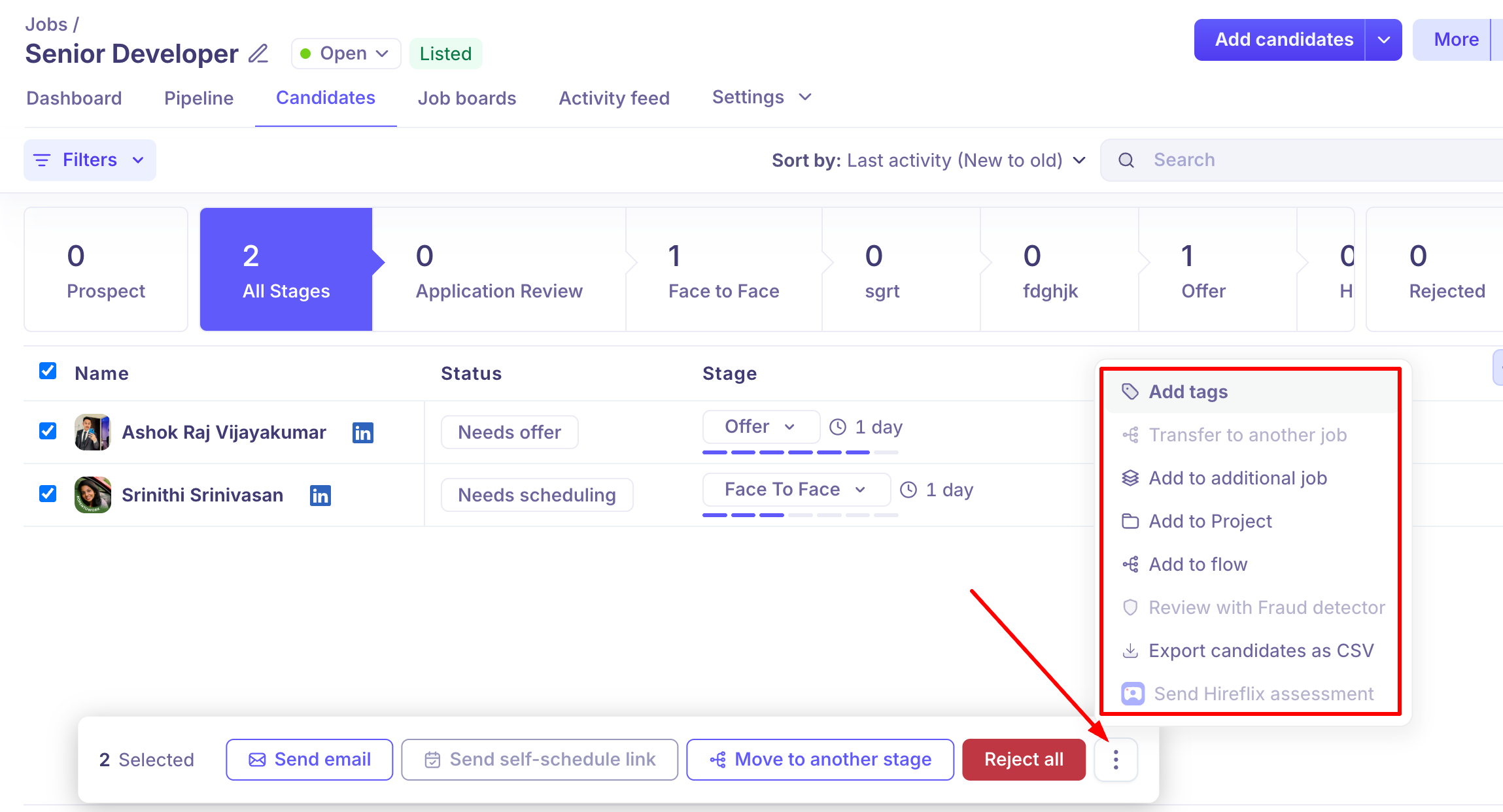
Click the three-dot (⋮) menu at the right end of the bulk actions bar to access additional actions:
Action | Description |
Add tags | Apply one or more tags to all selected candidates |
Transfer to another job | Move selected candidates to a different job entirely |
Add to additional job | Add selected candidates to another job without removing them from the current one |
Add to Project | Add selected candidates to a Kula Project for grouped tracking |
Add to Flow | Enrol selected candidates into a Kula outreach Flow |
Review with Fraud detector | Run selected candidates through the Fraud detector screening (if enabled) |
Export candidates as CSV | Download a CSV file with information on all selected candidates |
Send Hireflix assessment | Send a Hireflix video assessment to all selected candidates (if Hireflix is integrated) |
Some actions may be greyed out if they are not applicable to the current selection or if the relevant integration is not enabled.
Permissions
Super Admins can perform bulk actions on candidates across all jobs.
Recruiters can perform bulk actions on candidates in jobs they are assigned to.
Interviewers do not have access to bulk actions.
If you believe you are missing access to certain bulk actions, contact your Super Admin.
Frequently Asked Questions
1. Can I select candidates across multiple pages at once?
The select-all checkbox selects all candidates visible on the current page. If your candidate list spans multiple pages, you may need to apply a filter to reduce the list, or repeat the bulk action across pages.
2. Will moving candidates in bulk trigger stage automations?
Yes. Each candidate moved via bulk action will individually trigger any automations configured for the target stage, such as automated emails or assessment invitations.
3. Can I undo a bulk rejection?
There is no bulk undo, but rejected candidates can be found in the View rejected view and moved back to an active stage one at a time.
4. Is the bulk export limited to what is on screen?
The export includes all selected candidates, including any data columns visible in your current Candidates list view. Use the column settings (gear icon) to control which fields are exported.
5. Can I send different emails to different candidates in a bulk email?
No — bulk email sends the same message to all selected candidates. For personalised emails, open each candidate profile individually and send directly from there.
Need Help?
If you have questions or need assistance, feel free to reach out at support@kula.ai or use the in-app chat for help.