Candidate Pipeline View (All Jobs)
Last updated: May 28, 2026
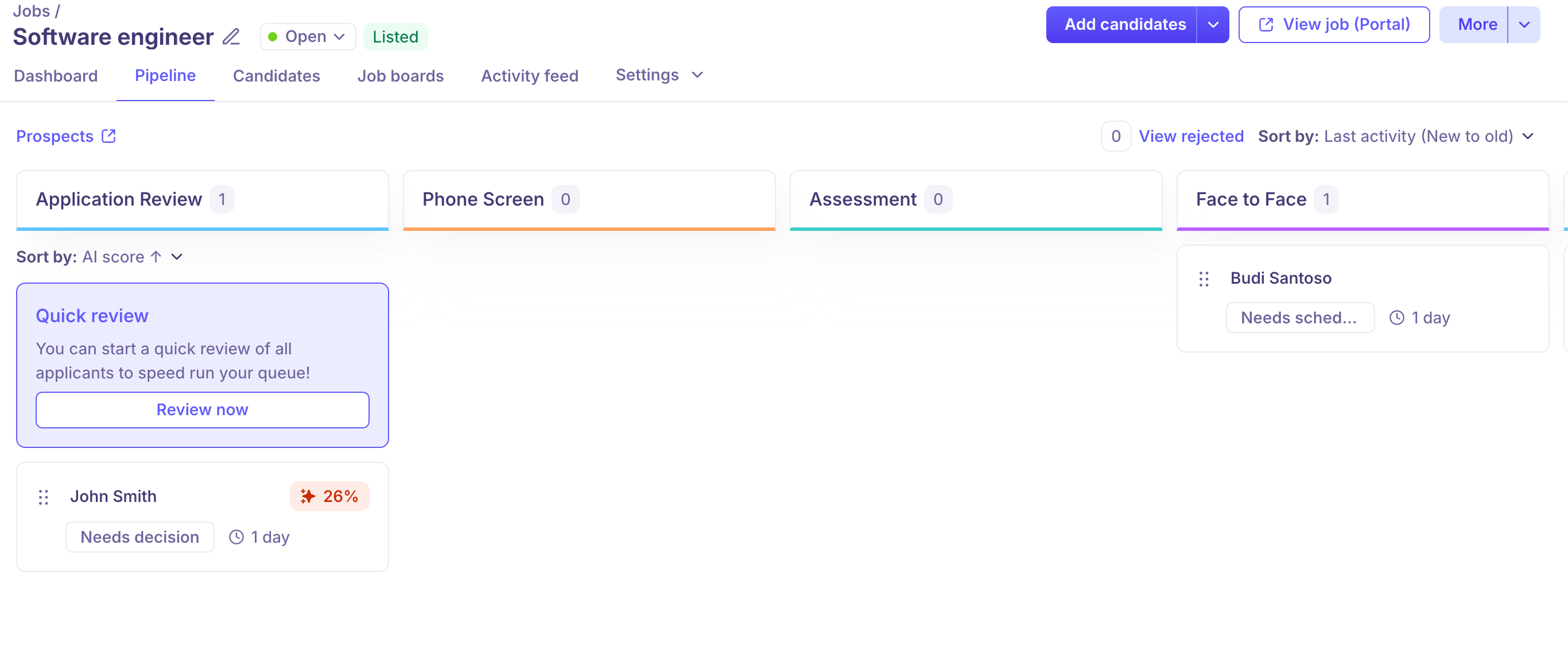
The Pipeline view gives you a visual, stage-by-stage overview of all candidates in a job. It is organized as a Kanban-style board where each column represents a hiring stage — Application Review, Phone Screen, Assessment, Face to face, Offer, and Hired. You can move candidate cards directly across columns by dragging and dropping, or by using the Move to stage option on each card.
To access the Pipeline view, open a job and click Pipeline in the top navigation.
Understanding the Pipeline Board
The Pipeline board displays all active candidates for a job, organised into their current hiring stages. Each column header shows the stage name and the total number of candidates currently in that stage.
Columns are displayed left to right in the order of your hiring workflow.
Only stages with candidates (or empty stages that are part of the workflow) are shown.
Scrolling horizontally reveals additional stages if the screen is too narrow to display all columns.
Stage Display in Pipeline
The Pipeline view now displays stage names more clearly based on your organization's setup:
When all jobs share the same stages — you will see the actual stage names you configured (e.g., "Phone Interview," "Technical Assessment") instead of generic milestone labels.
Prospect Stage support — if your jobs include a Prospect Stage, it will now appear in the Pipeline view. When all jobs use the same Prospect Stage name, you'll see that exact name. If jobs have different Prospect Stage names, or if there's a naming conflict, it will be displayed as "Prospect (Milestone)" for clarity.
Navigating Between Stages
The Pipeline view shows stages in sequence from Application Review through to Hired. If a job has more stages than fit on screen, scroll horizontally to see all columns.
You can also switch to the Candidates tab for a flat list view of all candidates across all stages, which is useful when you need to filter, sort, or take bulk actions.
Candidate Cards — What They Show
Each card in the Pipeline board represents one candidate. Cards display:
Candidate name — click the card to open the full candidate profile.
Status badge — shows the current activity status (e.g. Needs scheduling, Needs action, Needs decision).
Time in stage — shows how long the candidate has been in the current stage (e.g. 1 day, 3 days).
Source icon — a small icon indicating the candidate source (e.g. LinkedIn, Kula Everywhere, Direct).
Scorecard / review icon — indicates whether a scorecard or review is pending.
Moving Candidates by Dragging Cards
You can move a candidate to a different stage directly from the Pipeline board by dragging their card from one column and dropping it into another.
To drag a card:
Hover over the candidate card — a drag handle (six-dot grid icon) appears on the left side of the card.
Click and hold the drag handle.
Drag the card horizontally to the target stage column.
Release to drop the candidate into the new stage.
The candidate's stage is updated immediately and the column counts adjust accordingly.
Note: Moving a candidate to a new stage via drag-and-drop will trigger any automations or notifications configured for that stage in your hiring workflow.
Using Quick Review in Application Review
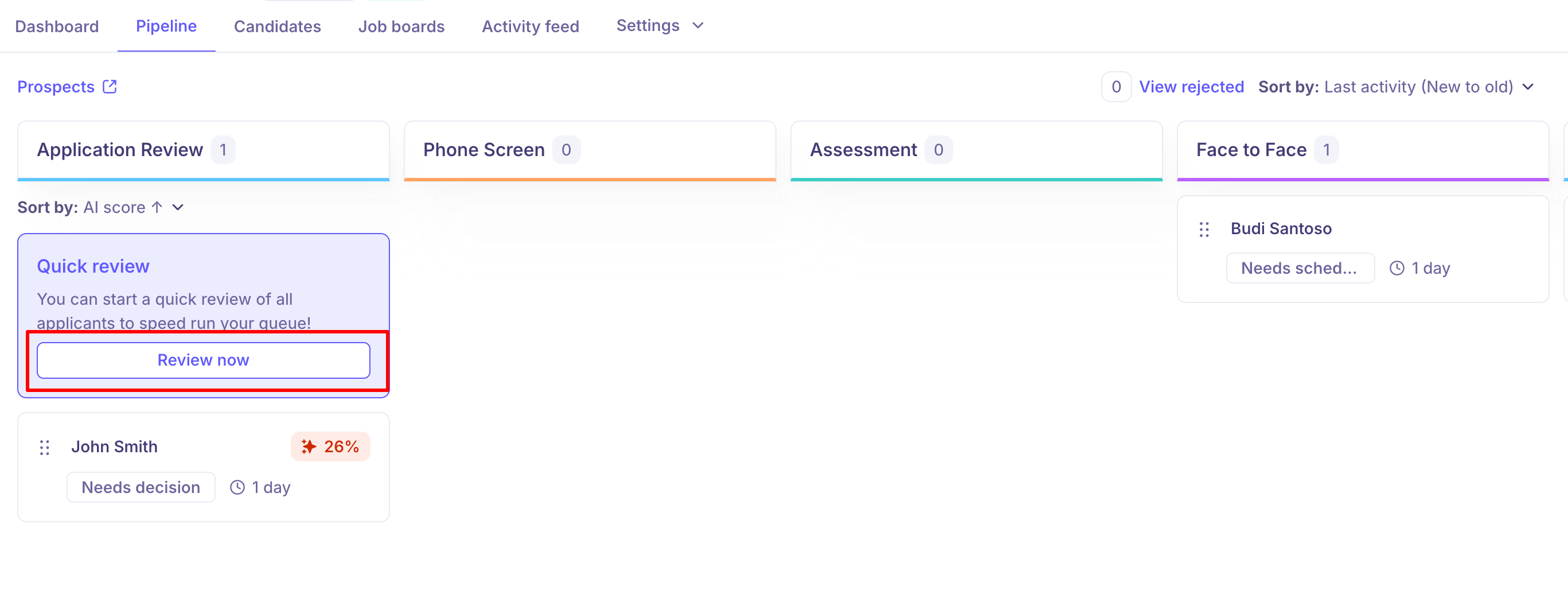
When candidates are in the Application Review stage, a Quick review prompt appears at the top of that column.
Click Review now to enter Quick Review mode, which lets you work through all applicants in that stage one by one without leaving the Pipeline view.
In Quick Review, you can advance a candidate to the next step or reject them with a single click.
Use the Skip viewed candidates toggle to focus only on profiles you have not yet reviewed.
Viewing Rejected Candidates
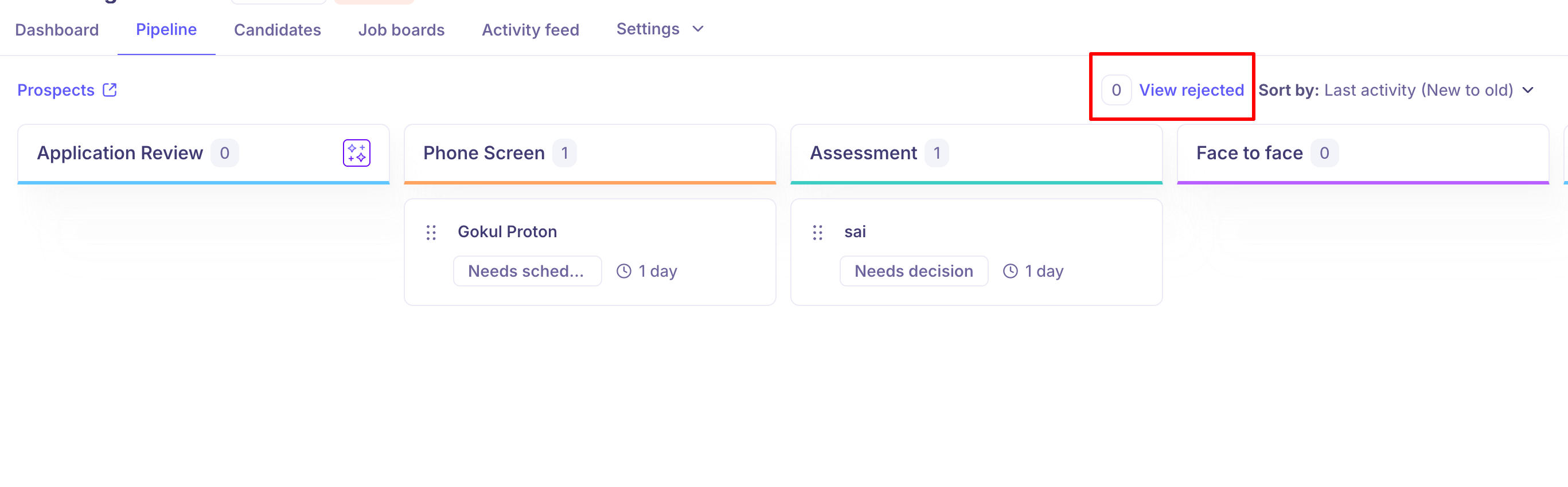
Rejected candidates are hidden from the Pipeline board by default to keep the view clean.
The View rejected button at the top right of the Pipeline board shows the total number of rejected candidates.
Click View rejected to see all candidates who have been rejected for this job.
Sorting the Pipeline
Use the Sort by dropdown at the top right of the Pipeline view to control the order in which candidate cards appear within each column.
Available sort options:
Sort option | Description |
Last activity (New to old) | Shows candidates with the most recent activity first (default) |
Last activity (Old to new) | Shows candidates with the oldest activity first |
Time in stage (Longest to shortest) | Prioritises candidates who have been waiting the longest |
Time in stage (Shortest to longest) | Shows the most recently moved candidates first |
Name (A–Z) | Alphabetical by first name, ascending |
Name (Z–A) | Alphabetical by first name, descending |
Created date (Newest to oldest) | Shows most recently added candidates first |
Created date (Oldest to newest) | Shows oldest candidates first |
Permissions
Super Admins can view and manage the Pipeline for all jobs in the organisation.
Recruiters can view and manage the Pipeline for jobs they are assigned to.
Interviewers can view candidate profiles they are assigned to but cannot move candidates between stages.
If you believe you are missing access, please contact your Super Admin.
Frequently Asked Questions
1. Can I move multiple candidates at once from the Pipeline board?
Drag-and-drop on the Pipeline board moves one candidate at a time. To move multiple candidates simultaneously, switch to the Candidates tab and use the bulk action Move to another stage.
2. Why can I not see a stage column on my Pipeline board?
Stage columns are part of your job's hiring workflow. If a stage is missing, it may not have been added to the workflow for that job. Contact your Super Admin to review the job's workflow settings.
3. What does the drag handle look like?
It appears as a six-dot grid icon on the left side of a candidate card when you hover over it.
4. How do I open a candidate's full profile from the Pipeline?
Click anywhere on the candidate card (other than the drag handle) to open their profile in a side panel or full-page view.
Need Help?
If you have questions or need assistance, feel free to reach out at