Filtering and sorting the pipeline
Last updated: May 28, 2026
Filtering and Sorting the Candidate Pipeline
Filters and sorting options let you focus on the candidates that matter most without scrolling through your entire pipeline. You can apply filters by stage, source, assignee, and more — and sort by activity, date, name, or rating.
To access the candidate pipeline, go to a job and click Candidates in the top navigation.
This article covers:
Filtering candidates
Available filters
Sorting candidates
Available sort options
Switching between board and list view
Frequently asked questions
Filtering Candidates
Filters narrow the pipeline to a specific group of candidates based on criteria you choose.
Filter button at the top of the candidates list.
Select one or more filter criteria from the dropdown.
The pipeline updates immediately to show only matching candidates.
✕ next to it. To clear all filters at once, click Clear all.
Note: You can combine multiple filters at once — for example, Stage = Interview and Assignee = yourself to see only your active interviews.
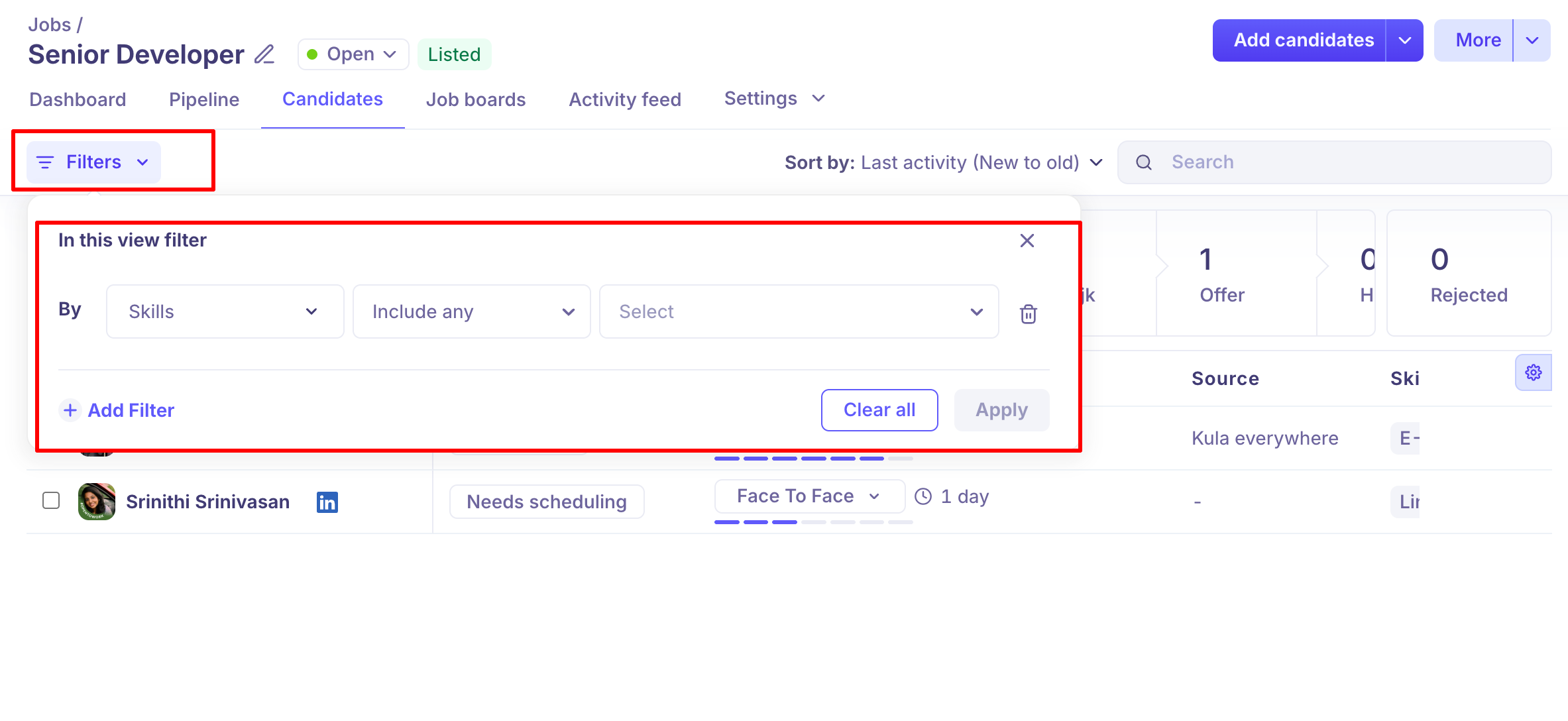
Available Filters
You can filter candidates by any of the following:
Filter | Description |
Stage | Show candidates in a specific pipeline stage (e.g. Screening, Interview, Offer) |
Source | Filter by where the candidate came from — LinkedIn, referral, job board, etc. |
Assignee | See candidates assigned to a specific recruiter or hiring manager |
Tags | Filter by tags that have been applied to candidates |
Date added | Narrow down candidates added within a specific date range |
Rating | Filter by star rating or thumbs up / thumbs down feedback left by reviewers |
Sorting Candidates
Sorting changes the order in which candidates appear within the list. It does not remove any candidates — it only reorders them.
Sort button at the top of the candidates list.
Choose a sort option from the dropdown.
Candidates reorder immediately.
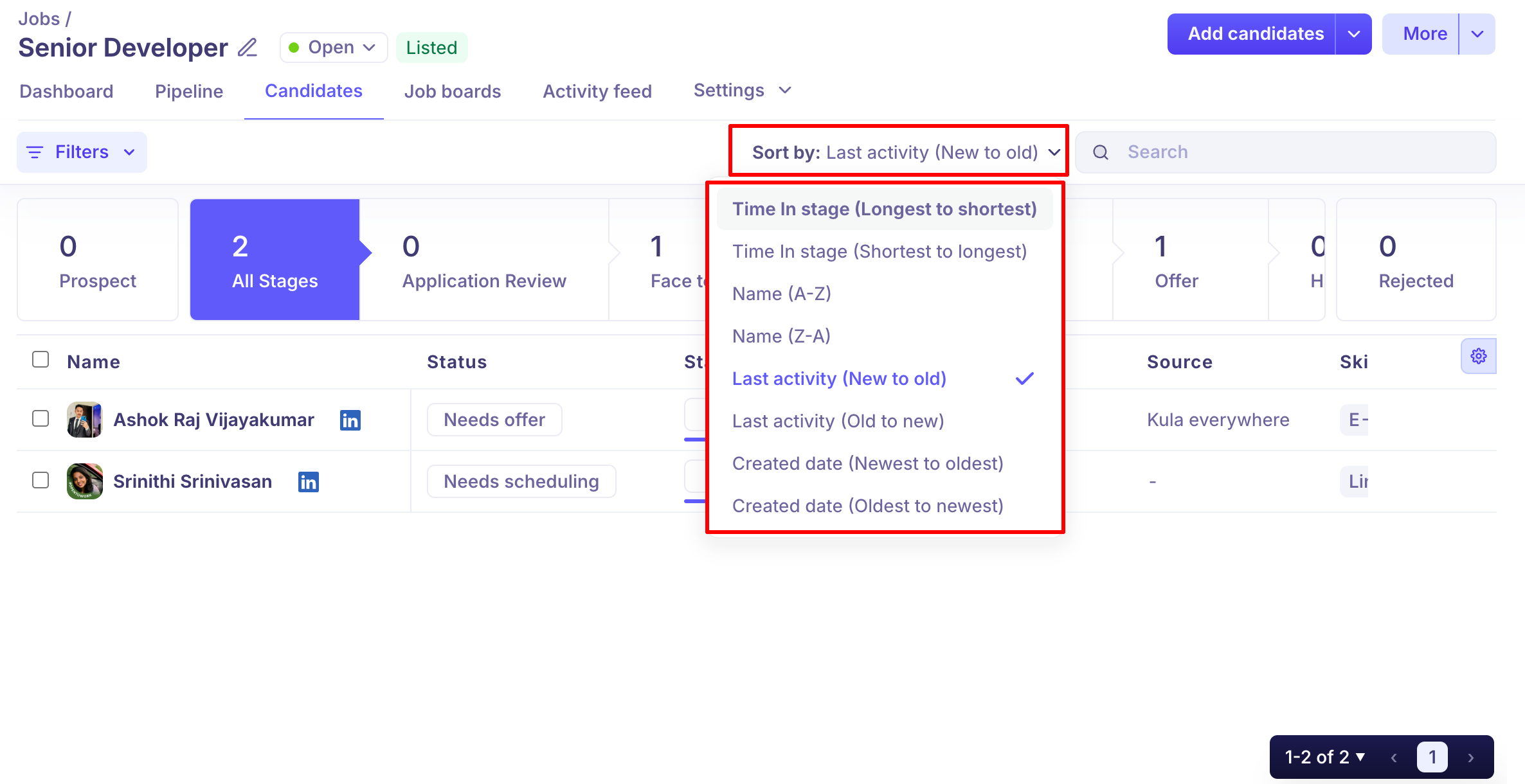
Available Sort Options
Sort option | Description |
Date added | Show newest or oldest candidates first |
Last activity | Surface candidates with the most recent action — email sent, note added, stage change, etc. |
Name | Sort alphabetically A–Z or Z–A |
Rating | Show highest or lowest rated candidates first |
Tip: Use Last activity to quickly spot candidates who have not been touched in a while and may need a follow-up.
Frequently Asked Questions
1. Can I filter and sort at the same time?
Yes. Filters and sorting work together — apply filters first to narrow the list, then sort to order the results.
2. Can I save a filtered view?
Saved views are not currently available. Filters reset when you navigate away from the page.
Need Help?
If you have questions or need assistance, feel free to reach out at support@kula.ai or use the in-app chat for help.