Signing in to Kula
Last updated: September 23, 2026
Kula offers four ways to sign in: email and password, Google, Microsoft, and your company's single sign-on. Which ones you see depends on what your admin has turned on.
Who can do this: Anyone can sign in. Changing sign-in options and setting up SSO needs the Manage org security permission, which only Super Admin has by default
Where to find it: Your Kula address, https://<your-company>.kula.ai
Sign in
Go to your Kula address.
Choose one of the options your admin has turned on: your email and password, Sign in with Google, Sign in with Microsoft, or your company's single sign-on.
Follow the prompts. Once you're authenticated, Kula opens.
If the option you expect isn't there, ask your Super Admin — they choose which methods are on.
Set up sign-in options (Super Admin)
The rest of this article is for Super Admins, or anyone whose role has the Manage org security permission.
Your sign-in options
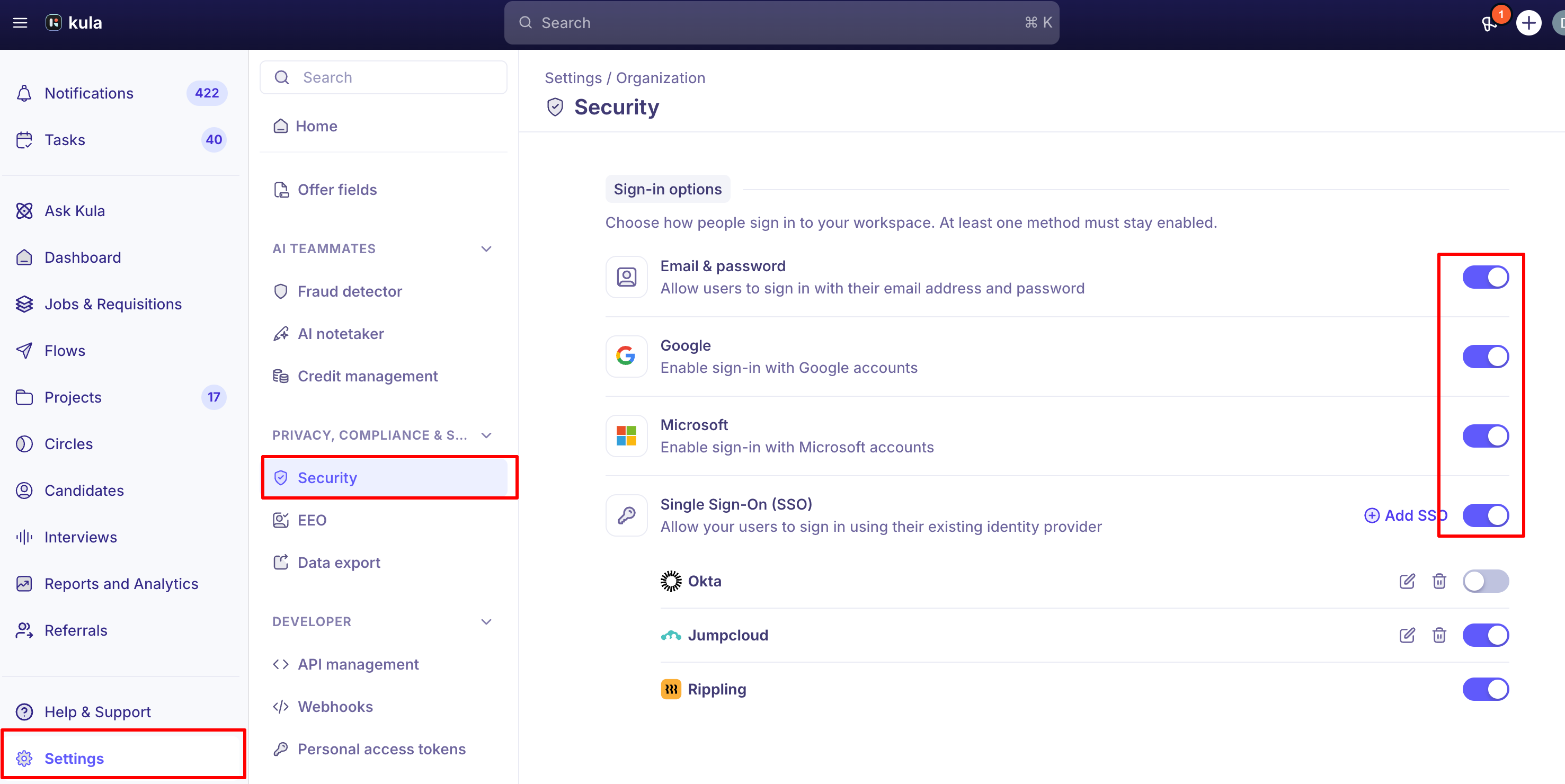
The Sign-in options section displays all available authentication methods for your organization. Each method can be toggled on or off using the toggle switch on the right. Enabled methods will be available on the Kula login screen for all users in your organization.
Sign-in Method | Description | Setup required |
Email & Password | Users sign in with their Kula-registered email address and password | No setup required |
Users sign in using their Google account credentials | No setup required | |
Microsoft | Users sign in using their Microsoft account credentials | No setup required |
Single Sign-On (SSO) | Users sign in via your organization's identity provider (e.g., Okta, JumpCloud, custom SAML) | Configuration required |
Note: Only Super Admins can change these by default. Turning a method on or off needs the Manage org security permission. Changes take effect immediately for all users in the organization.
Email & Password
The Email & Password method allows users to sign in to Kula using the email address and password they registered with. This is the default sign-in method and is enabled by default for all organizations.
How it works
The user navigates to the Kula login page.
They enter their registered email address and password.
On successful authentication, they are signed in to Kula
Note: At least one method always stays on. Kula won't let you turn off the last enabled method, so nobody gets locked out.
The Google sign-in option allows users to authenticate using their Google account. When enabled, a Sign in with Google button appears on the Kula login screen. No additional configuration is required to enable basic Google login.
How it works
The user clicks Sign in with Google on the Kula login page.
They are redirected to Google's OAuth flow and sign in with their Google account.
On successful authentication, they are signed in to Kula.
Microsoft
The Microsoft sign-in option allows users to authenticate using their Microsoft account. When enabled, a Sign in with Microsoft button appears on the Kula login screen. No additional configuration is required to enable basic Microsoft login.
How it works
The user clicks Sign in with Microsoft on the Kula login page.
They are redirected to Microsoft's OAuth flow and sign in with their Microsoft account.
On successful authentication, they are signed in to Kula.
Single Sign-On (SSO)
Single Sign-On (SSO) allows your users to sign in to Kula using your organization's existing identity provider (IdP). This is the recommended approach for larger organizations that want centralized access control and a seamless login experience for their team.
Kula supports SAML 2.0-based SSO. Once configured, users are redirected to your IdP for authentication and returned to Kula on success.
Configured providers appear in a list under Single Sign-On (SSO), each with:
Control | What it does |
|---|---|
Edit | Change the configuration |
Delete | Remove the provider |
Toggle | Switch that provider on or off |
You can have several configurations and switch each independently
Adding an SSO Provider
To add an SSO configuration:
1. Navigate to Settings → Organization → Security.
2. Under Single Sign-On (SSO), click + Add SSO.
3. Select your identity provider or choose Custom SAML to configure manually.
4. Enter the required configuration details provided by your IdP (SSO URL, Entity ID, X.509 Certificate).
5. Click Save and use the Test Connection button to validate the setup.
6. Once validated, enable the toggle to activate SSO for your organization.
After enabling SSO, users will be redirected to your identity provider for login. You can allow both SSO and direct login simultaneously, or enforce SSO exclusively.
Change which methods your team can use
Go to Settings → Privacy, Compliance & Security → Security.
Under Sign-in options, click Add SSO.
Under Select identity provider, choose Okta, Jumpcloud or Custom, and give the configuration a name.
On Set up SSO, enter the details from your identity provider — SSO URL, Entity ID and certificate — or give its metadata URL instead.
Click Next: Setup SCIM. To provision users automatically, copy the SCIM connector base URL and Authorization token into your identity provider. Then click Close.
Turn on the toggle beside the new provider to activate it.
Kula will not let you turn off the last enabled method — that toggle is disabled, with the note "You need at least one login option enabled". You cannot lock your whole team out by mistake.
Before you switch your team to SSO
Tell people before you turn off email and password, so nobody arrives at a login screen they do not recognise.
Test with one account first.
If you use Google Workspace, consider auto-provisioning so your Kula user list stays in step.
Remove SSO configurations you no longer use.
Good to know
At least one method always stays on. The last enabled method's toggle is disabled, with the note "You need at least one login option enabled".
Only Super Admins manage sign-in by default. Other roles need the Manage org security permission.
SCIM keeps job titles in step. If you set up SCIM, a user's job title in your identity provider is synced to their Kula user.
Google Workspace auto-provisioning doesn't reactivate users. Someone deactivated in Kula stays deactivated.
FAQ
I don't see Sign in with Google on the login page.
Google sign-in is turned off for your organization. Ask a Super Admin to turn it on under Sign-in options.Can we require everyone to use SSO?
Yes. Once SSO is set up and switched on, turn off the other methods underSign-in options. Why can't I turn off a sign-in method?
It's the last one enabled. Turn another method on first.
Need help?
If you have questions or need assistance, reach out to us at support@kula.ai or use the in-app chat